Jotform makes it easy to accept online payments with Stripe integration. Whether you’re selling products, collecting donations, or offering subscriptions, you can connect your form to Stripe and start receiving secure payments in just a few clicks. With Stripe, your customers can pay using credit cards, debit cards, or digital wallets like Apple Pay and Google Pay—all without leaving your form.
Jotform now brings the power of Stripe to your forms. Jotform’s Stripe integration lets you create a professional-looking credit card form in minutes. You can use the integration to accept payments for your products or services or set it up to collect donations for your charity. You can also configure Stripe to process recurring billings.
Adding and Setting Up the Payment Field
Whether you’re creating a new form or updating an existing one, adding and setting up the Payment Integration payment field is simple—here’s what to do:
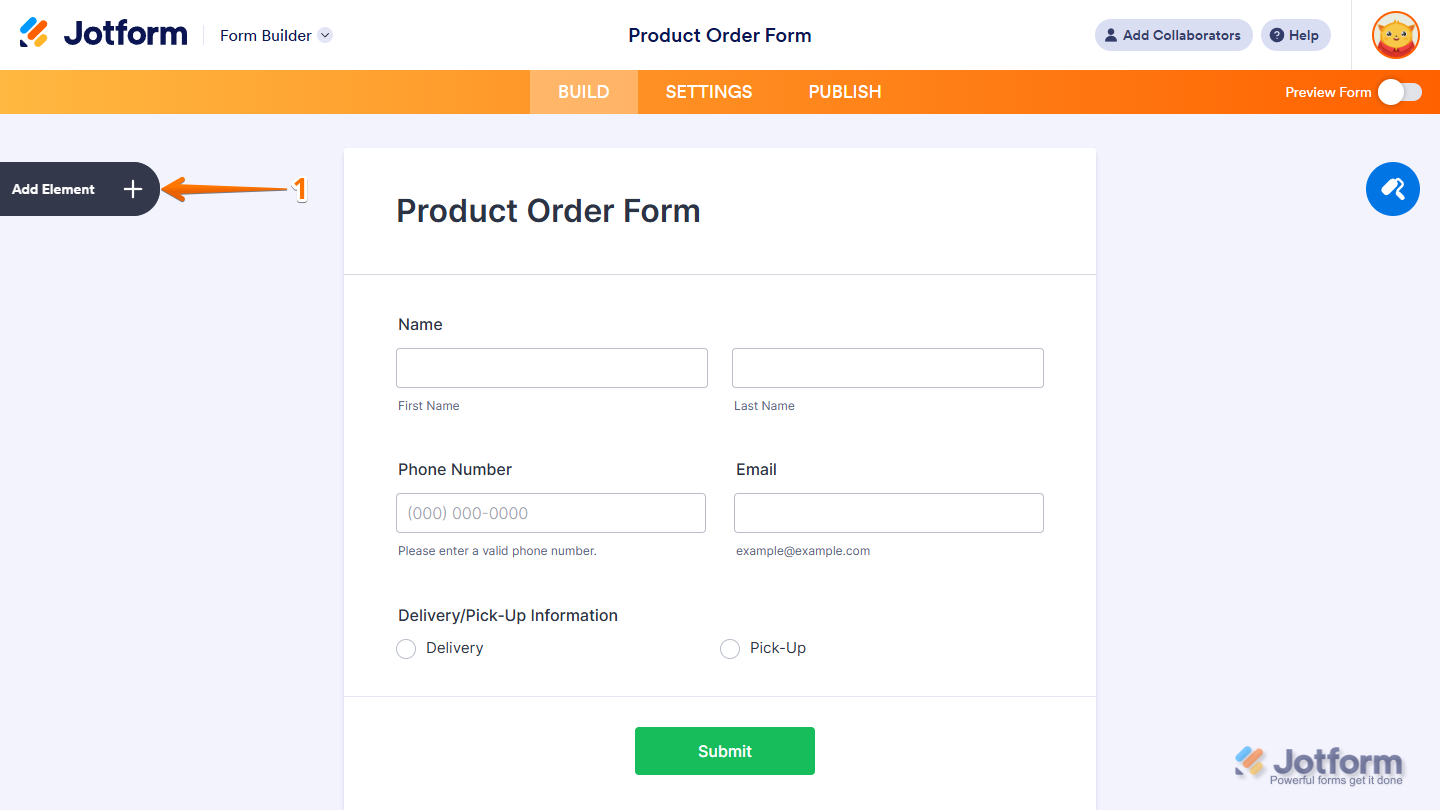
- In Form Builder, click on Add Element on the left side of the page.
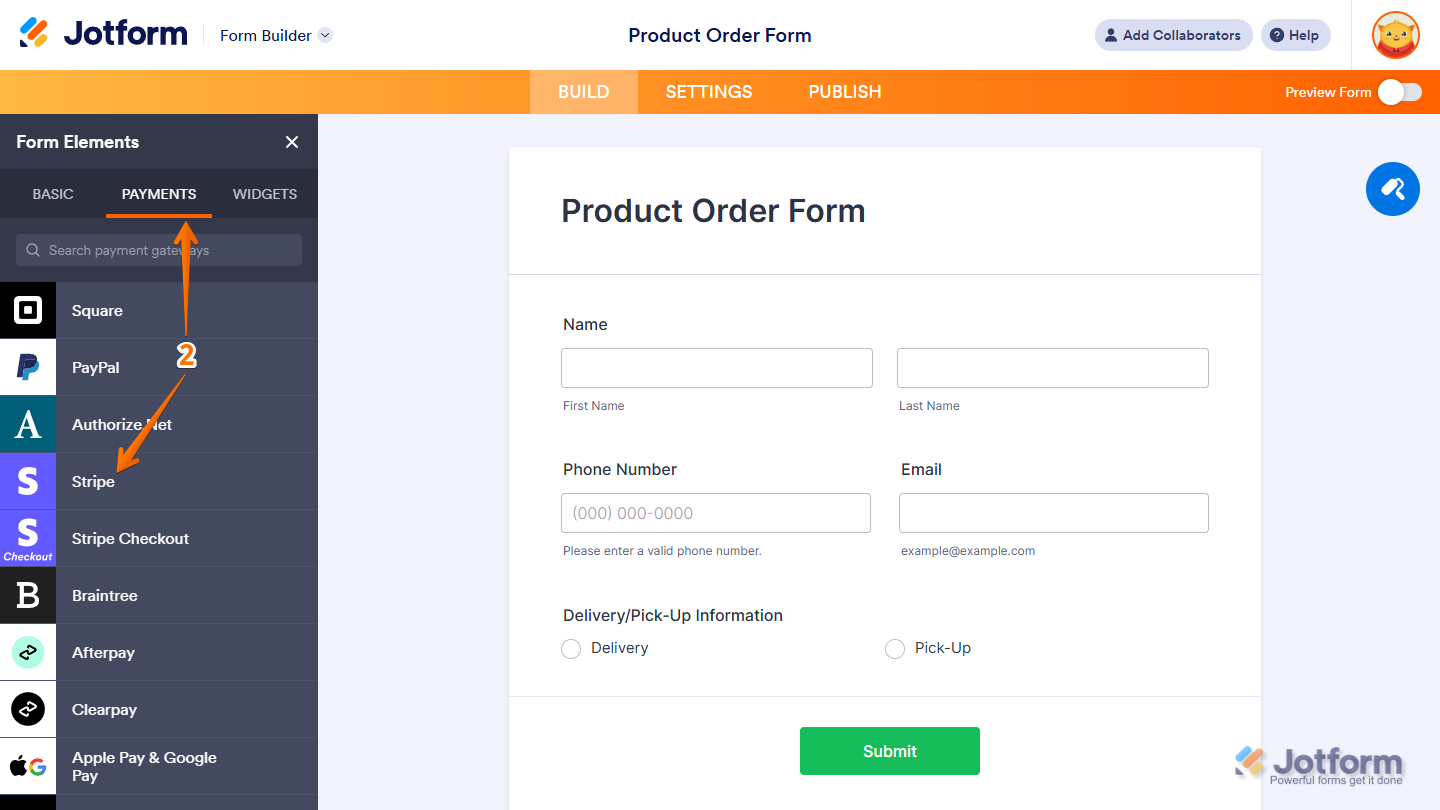
- Now, in the Form Elements menu, under the Payments tab, click on Stripe to add it to your form. Or, just drag and drop it to where you want it to be on your form.
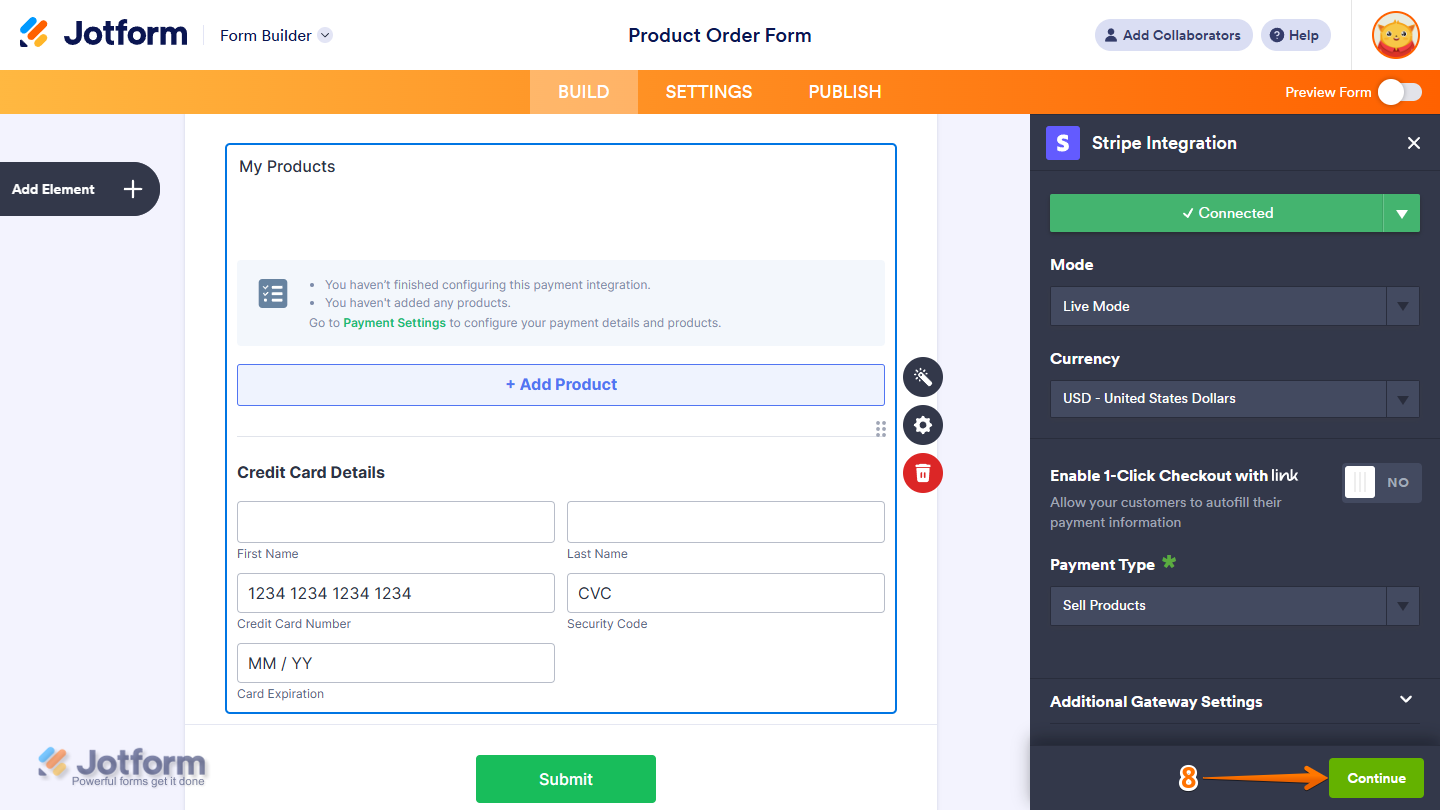
- Next, in the Stripe Integration menu that opens on the right side of the page, in the Mode Dropdown menu, select the mode you want to set the integration to:
- After selecting a mode, click on Connect and log in to your Stripe account in the pop-up window that comes up.

- Then, in the Currency Dropdown menu, select the currency you want to use. This guide on Stripe Supported Currency has more details about that.
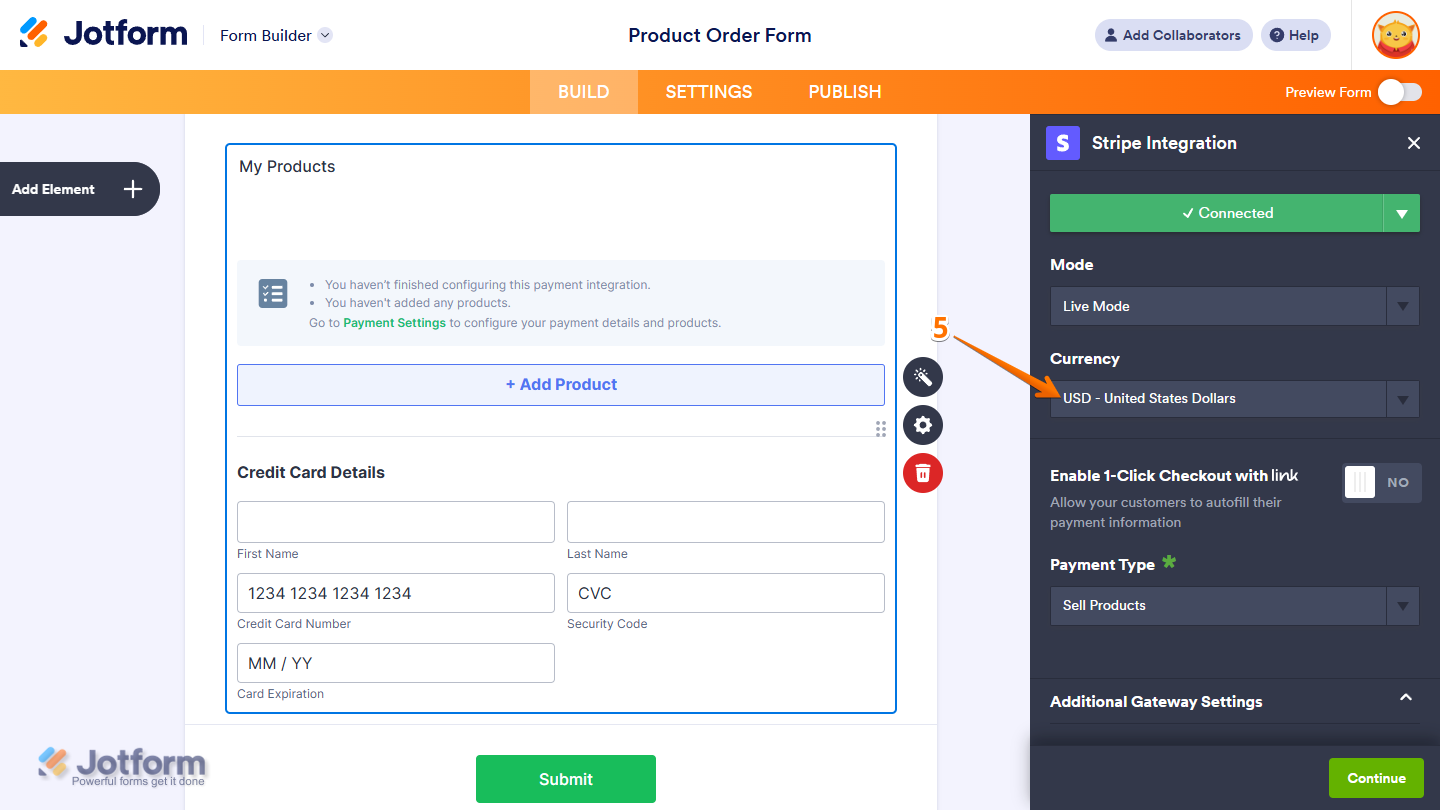
- Next, optionally toggle on the Enable 1-Click Checkout with Link to allow your customers to autofill their payment information. Link lets you save and autofill your payment information on your next purchases through Link-enabled sites. You’ll find more info in our guide on Making Payment with Link.
- After that, in the Payment Type Dropdown menu, select what you’d like the payment to be processed for:
- Sell Products — This is selected by default. Use this to sell physical or digital goods at a fixed price, allowing customers to make a one-time purchase.
- Sell Subscriptions — Use this to charge customers on a recurring basis for services, memberships, or other ongoing access.
- User-Defined Amount — This lets customers enter the amount they want to pay. It’s useful for tipping, custom amount pricing, or flexible payments.
- Collect Donations — Select this to accept voluntary contributions, commonly used for fundraising, nonprofit support, or charitable causes.
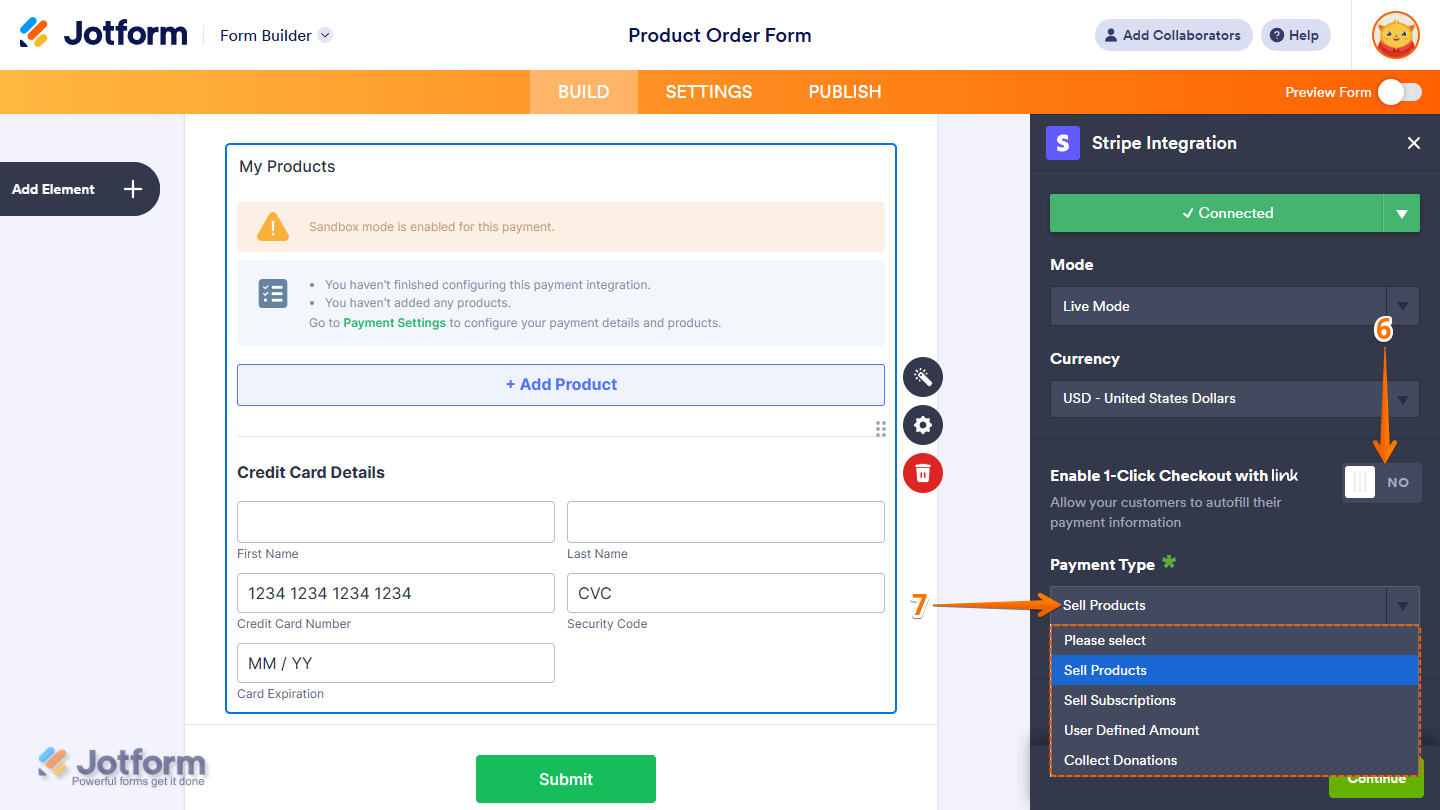
- Once everything’s set, if you select Sell Products or Sell Subscriptions, click on Continue to start adding your products or subscriptions. If you go with User Defined Amount or Collect Donations, just click on Save at the bottom.
When setting up your products and subscriptions, you might also want to check out these guides:
- Setting Up Your First Order Form
- How to Set Up a Recurring Payment
- How to Add Options to Payment Form Products
- How to Add a Coupon Code to Payment Forms
- How to Apply Sales Tax to Products on Your Payment Form
- How to Add Shipping Costs to Payment Forms
- How to Generate an Invoice for Your Payment Form
- How to Enable and Manage Product Stocks in Payment Fields
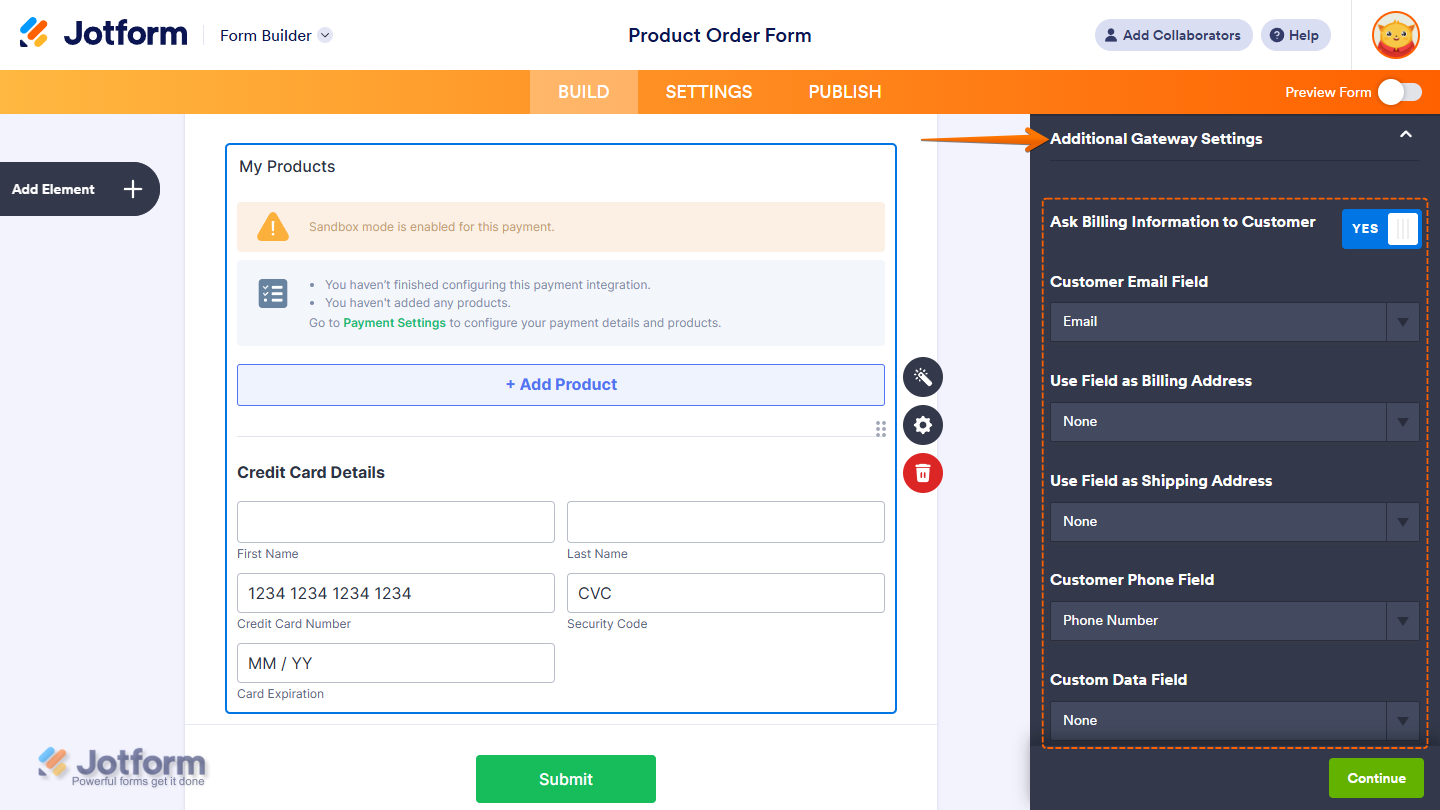
When you expand the Additional Gateway Settings section of the Stripe Integration window, you’ll see this list of options you can modify based on the payment type you chose:
- Ask Billing Information to Customer — Along with the transaction details, you can toggle this on to send selected billing information to Stripe Integration by matching them to supported form fields.
- Customer Email Field — Pick an Email field to include your customer’s email address in the billing details.
- User Field as Billing Address —Select and Address field to send the billing address of your customer to Stripe as billing information.
- Use Field as Shipping Address — Select an Address field to send the Shipping address of your customer to Stripe as Shipping information.
- Customer Phone Field — Select a Phone field to pass along your customer’s phone number to Stripe.
- Custom Data Field — Select a Short Text field or Unique ID widget to send any custom data you want included in the billing info.
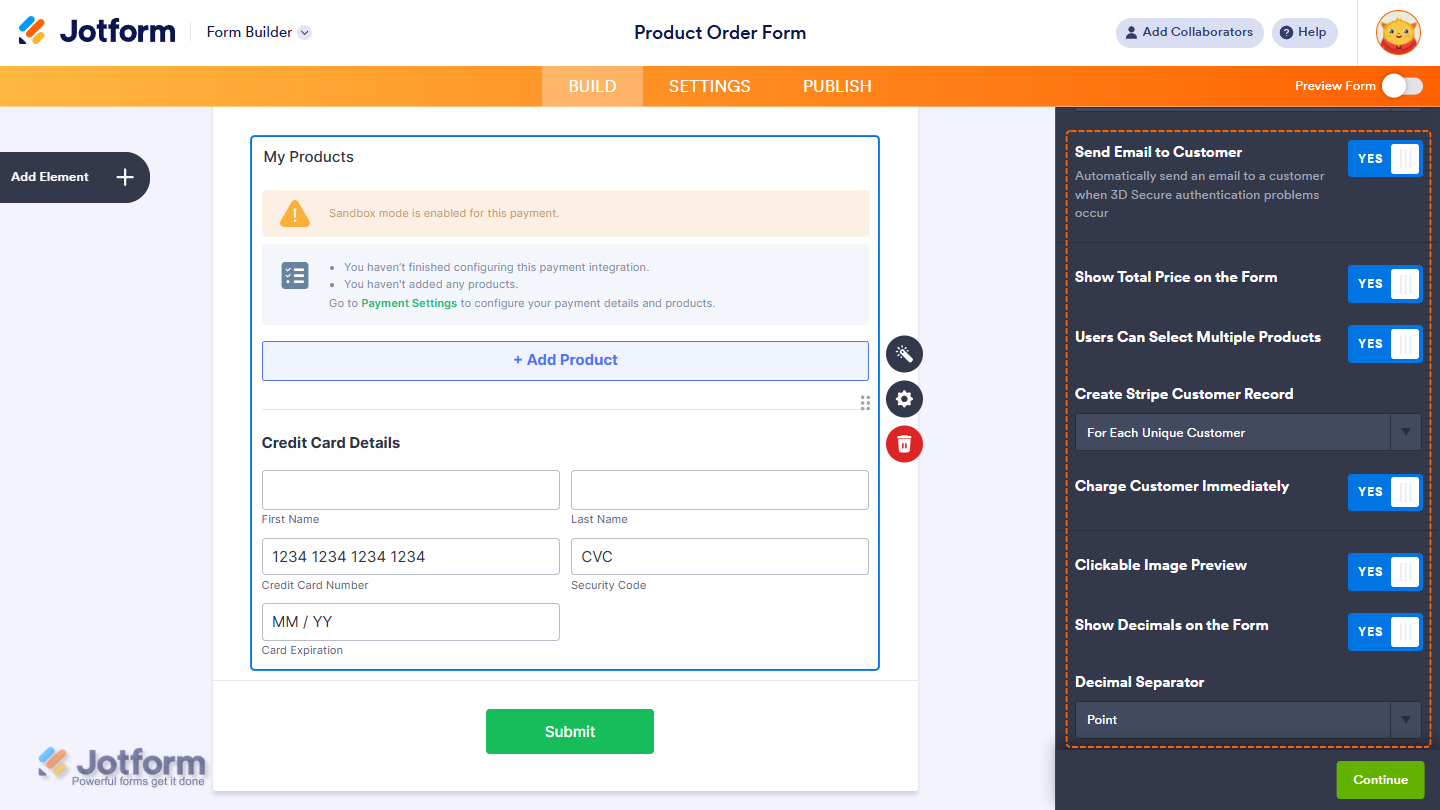
- Send Email to Customer — Toggle this on if you want Stripe to send a receipt to your customer after payment..
- Show Total Price on the Form — This is only available with the Sell Products payment type and is enabled by default. You can toggle this off if you want to hide the total price of selected products on your form.
- Users Can Select Multiple Products — This is only available with the Sell Products payment type and is enabled by default. You can toggle this off if you want customers to select only one (1) product per submission.
- Create Stripe Customer Record — Creates a customer record in Stripe for the submission.
- Charge Customer Immediately — Charges the customer right away after submission.
- Clickable Image Preview — This is only available with the Sell Products and Sell Subscriptions payment types and is enabled by default. You can toggle this off to prevent customers from enlarging product or subscription images.
- Show Decimals on the Form — This is only available with the Sell Products and Sell Subscriptions payment types and is enabled by default. You can toggle this off to hide decimals on both the item prices and total amount.
- Decimal Separator — When decimals are shown on your payment field, you can select between a period, which is used in English-speaking countries, or a comma, which is used in many European countries.
Note
When you turn off Charge Customer Immediately to use the Charge Later feature, be sure to keep Create Stripe Customer enabled. This creates a customer ID along with the approved payment method ID, which is required to capture payments later with the Charge Customer Now button in Tables.
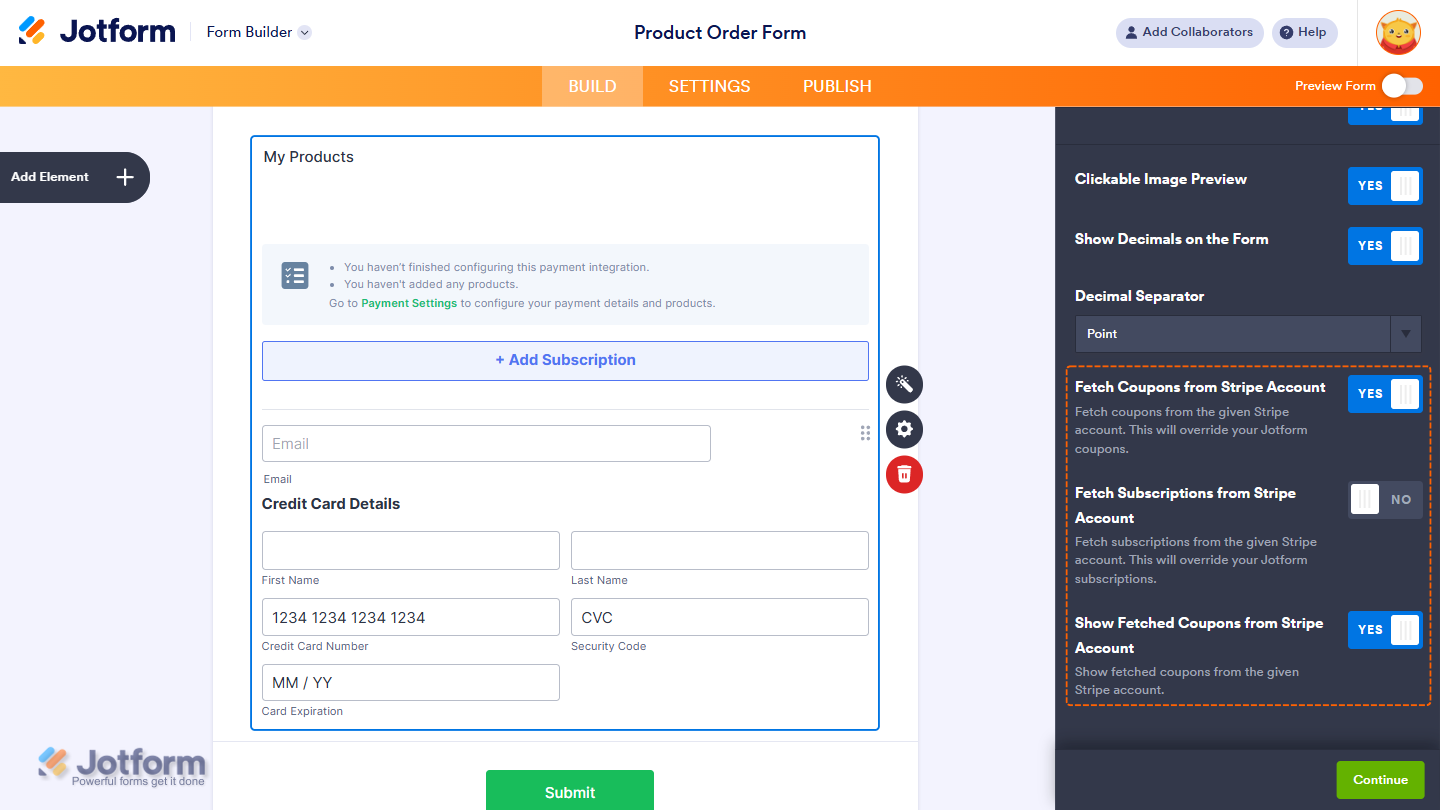
When you select Sell Subscription from the Payment Type the following options will come up:
- Fetch Coupons from Stripe Account — When enabled, this option retrieves and displays all coupons from your connected Stripe account. It overrides any coupons you created directly in Jotform. Take a peek at our guide on How to Fetch Coupon Codes From Stripe to learn more.
- Fetch Subscriptions from Stripe Account — Toggle this on to pull your subscription items directly from your Stripe account.
- Show Fetched Coupons from Stripe Account — When Fetch Coupons from Stripe Account is enabled, this will show up to decide whether to display the coupons when you enable the option to fetch them from Stripe.
Setting Up a Stripe Reusable Payment Connection
Reusable Payment Connections is a feature that lets you set up Payment Processor Integrations, like Stripe, once with the same payment gateway credentials and configuration, and use them across different assets in your account, such as Forms and Apps.
Whether you are creating a new form or updating an existing one, you can add a payment field to your form and set up a Stripe Reusable Payment Connection in a few easy steps. Here’s how to do it:
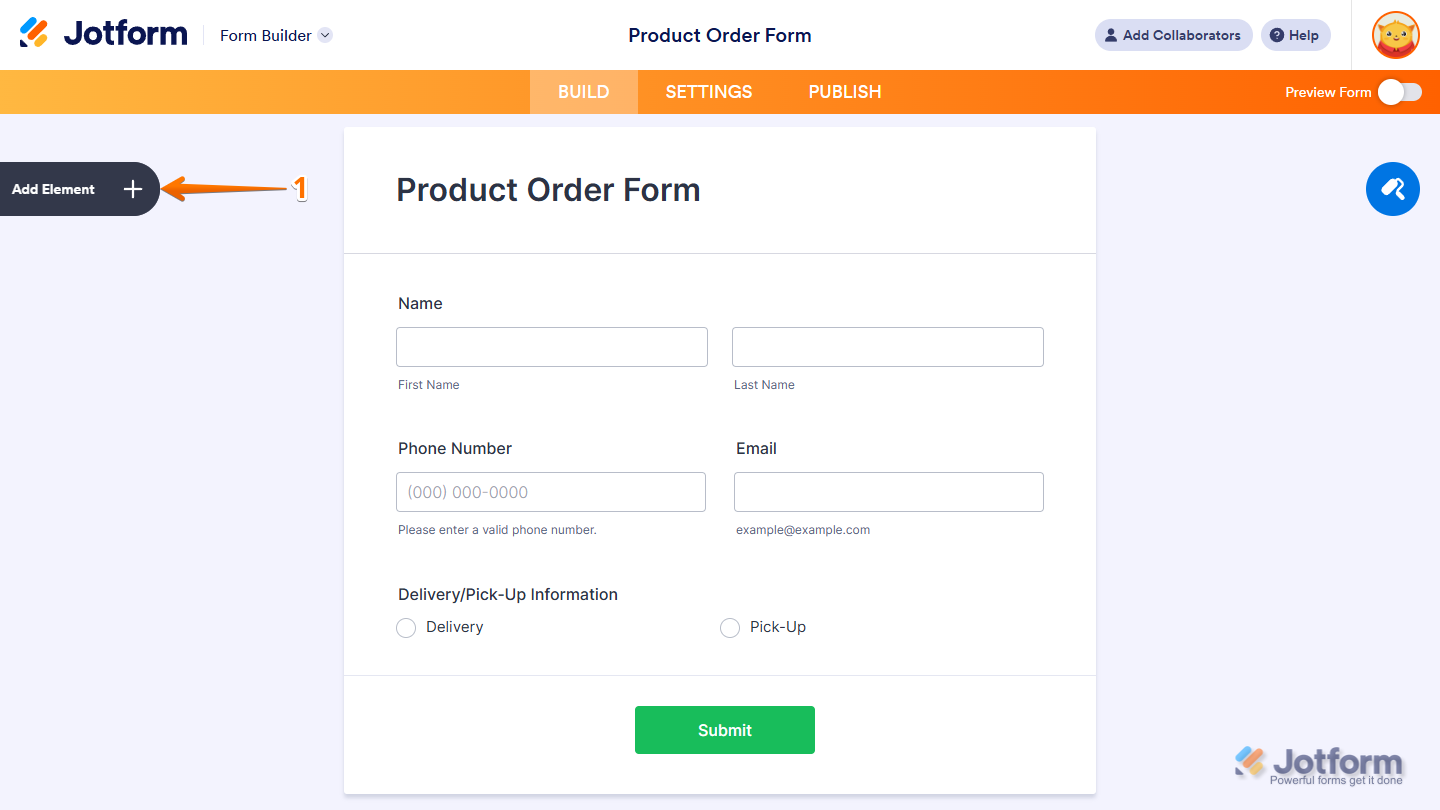
- In Form Builder, click on Add Element on the left side of the page.
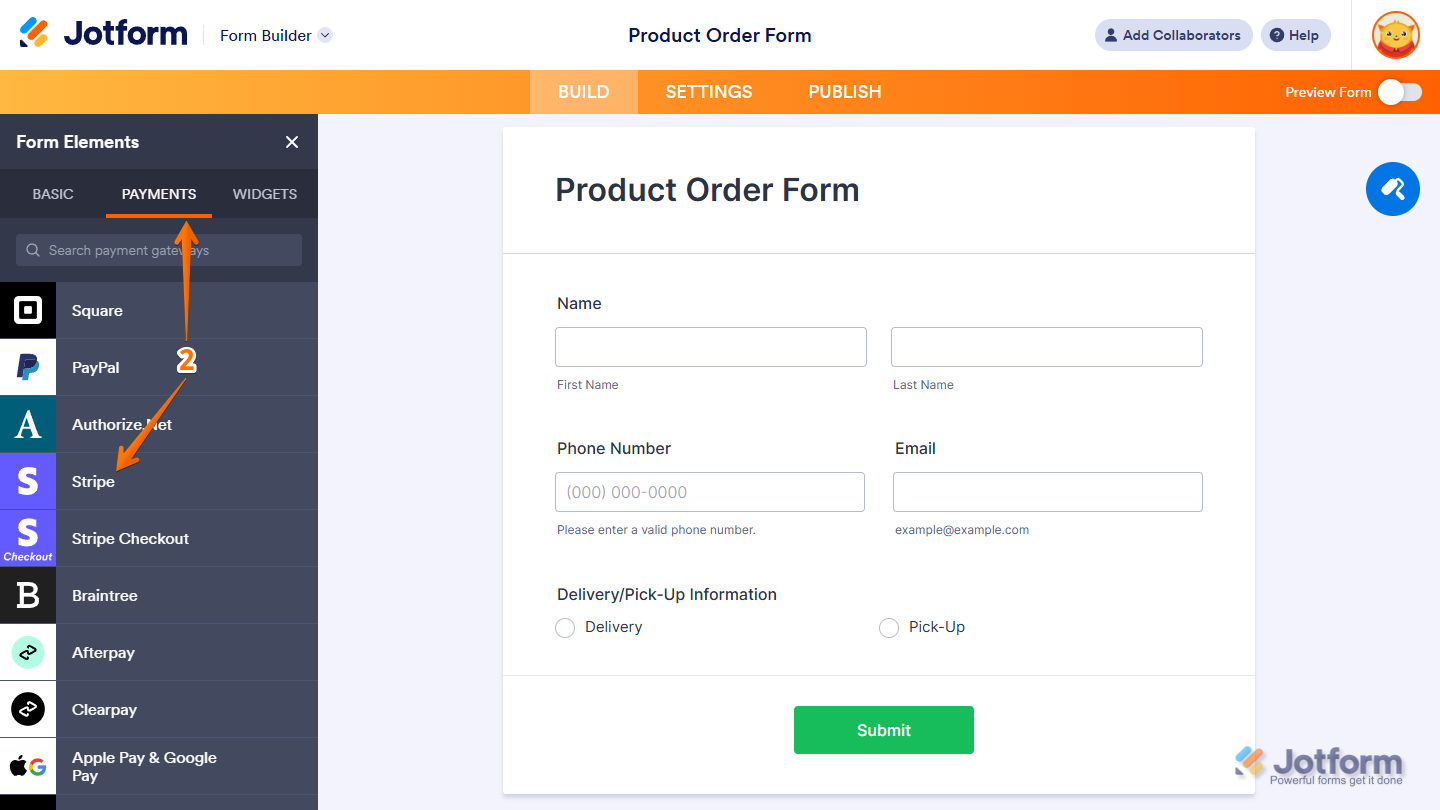
- Now, in the Form Elements menu, under the Payments tab, click on Stripe to add it to your form. Or, just drag and drop it to where you want it to be on your form.
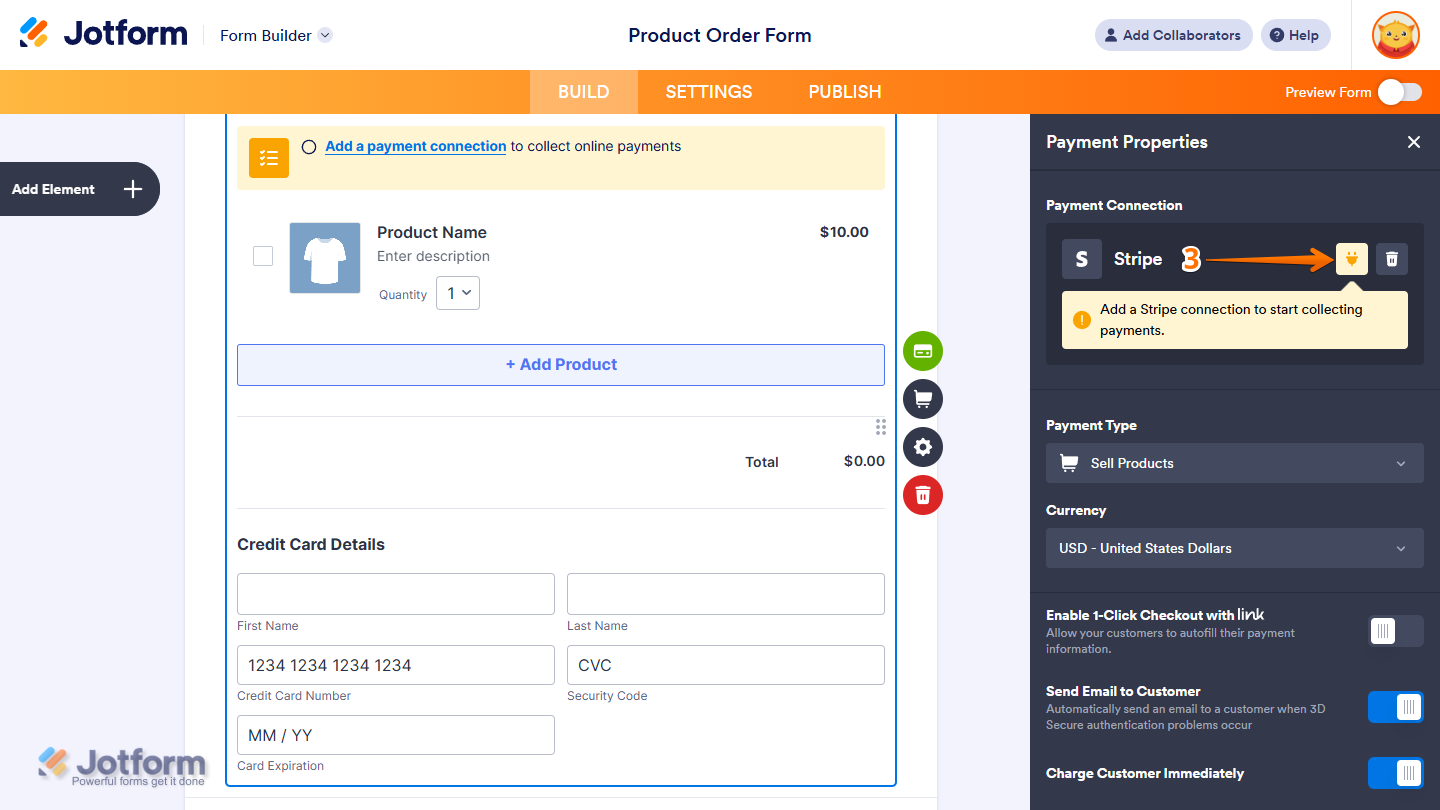
- Then, in the Payment Properties menu that opens on the right side of the page, click on the Plug icon to use a reusable Stripe payment connection.
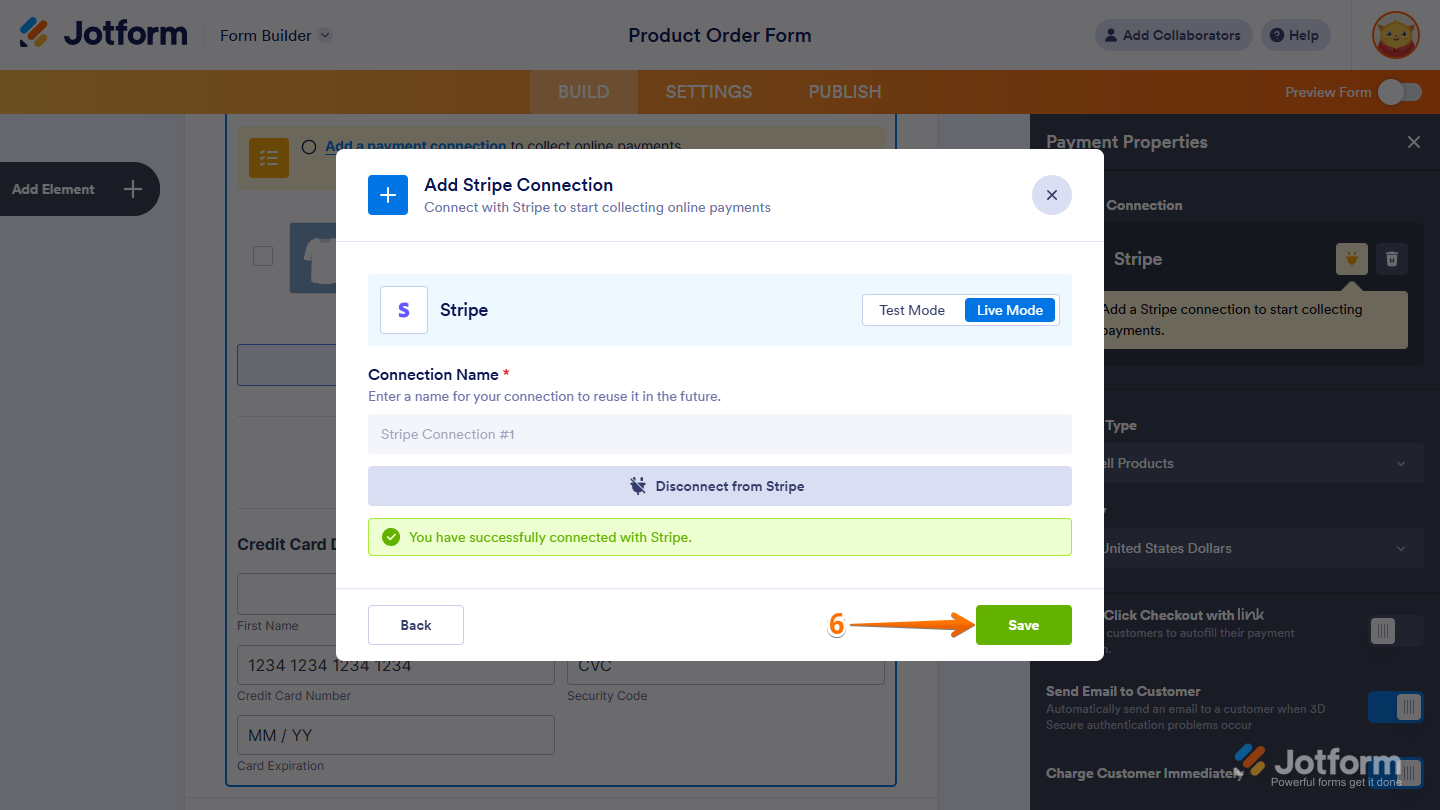
- Now, in the Add Stripe Connection window, click on Test Mode or Live Mode at the top to select which environment you’re adding a payment connection for.
- Next, enter a name in the Connection Name field, and then click on Connect with Stripe and log in to your Stripe Account.

- Once it is connected successfully, click on Save at the bottom to add the reusable payment connection to your account.
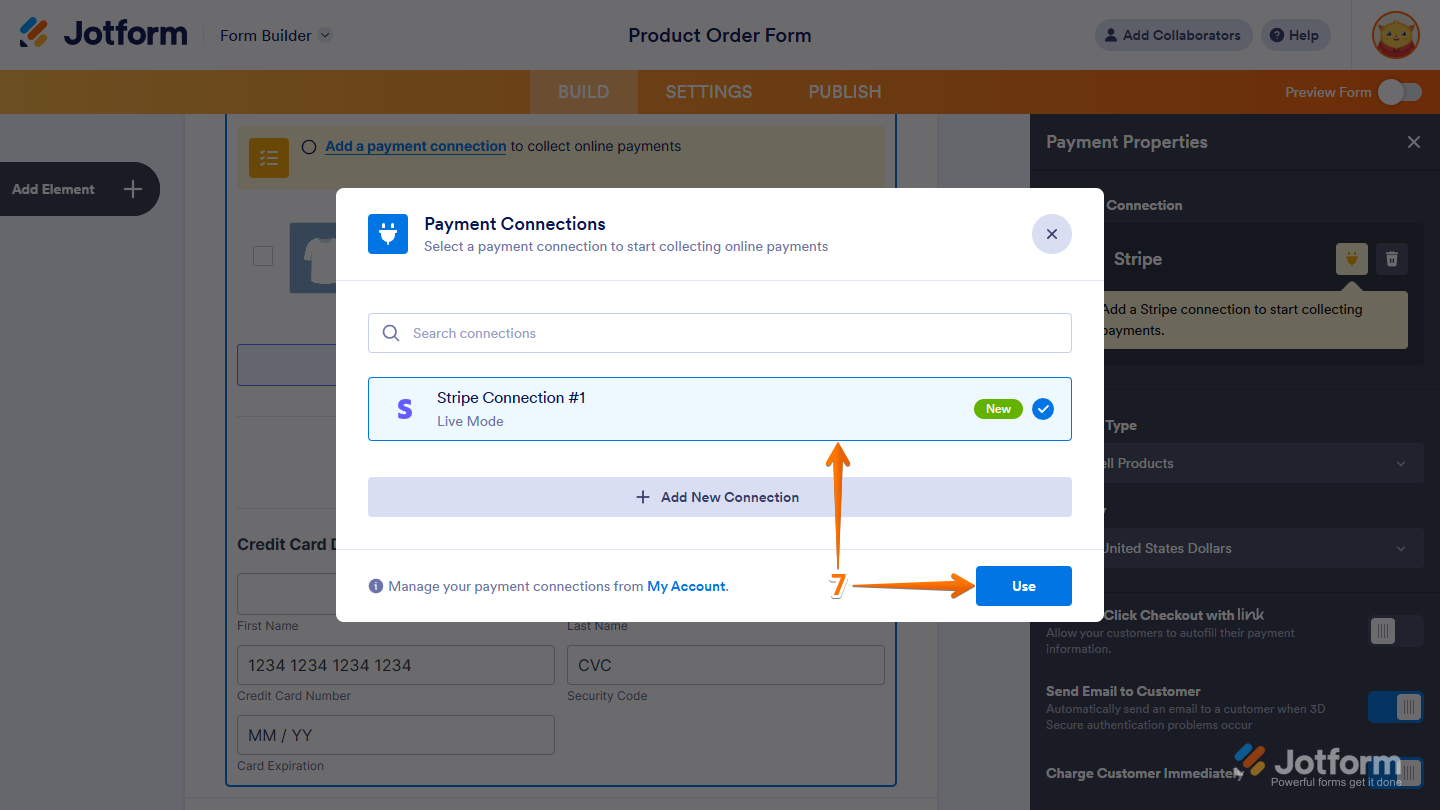
- Then, in the Payment Connections window, click on the Stripe payment connection you’ve just added to select it, and then click on Use at the bottom.
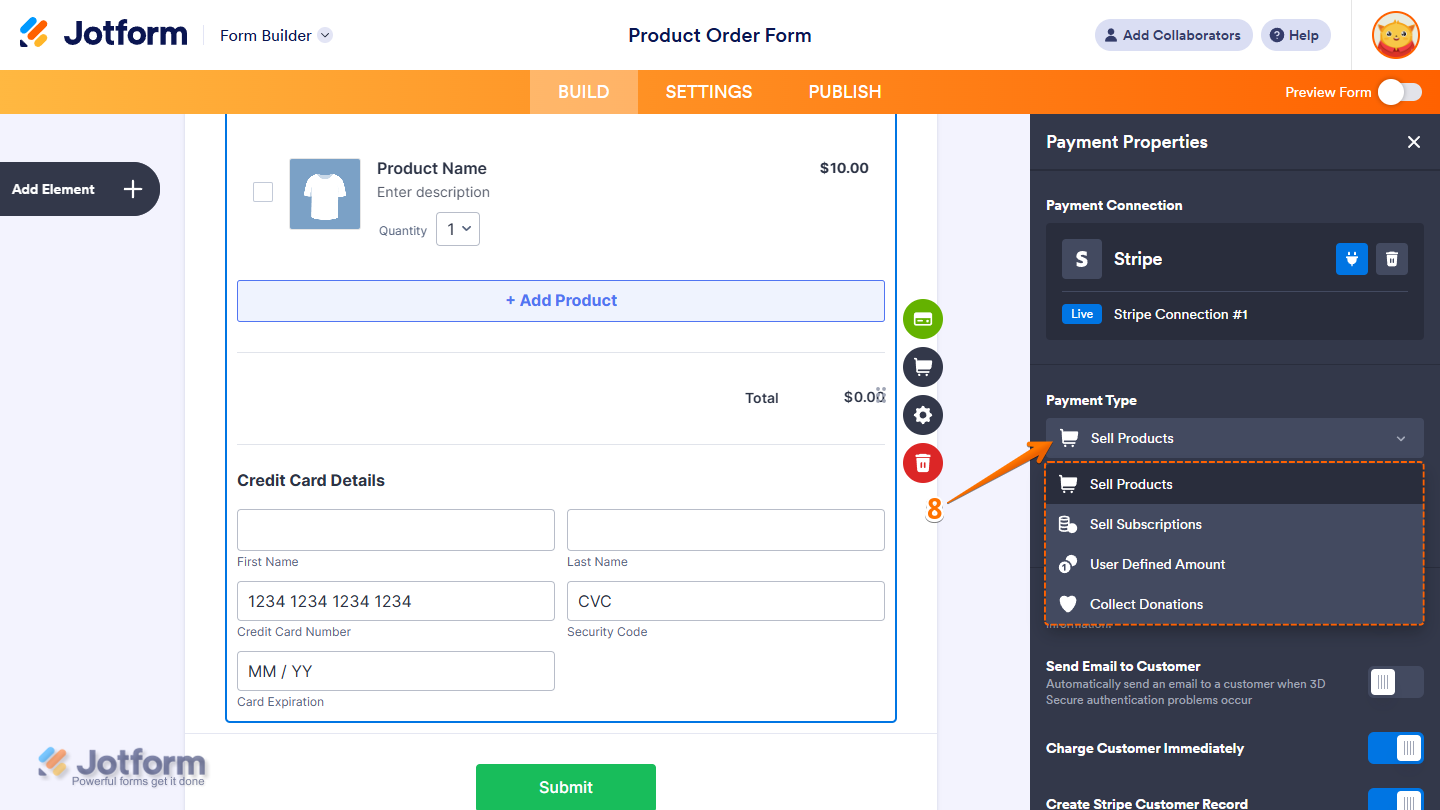
- In the Payment Properties window on the right side of the page, click on the Payment Type Dropdown menu and select the option you’d like the payment to be processed for:
- Sell Products — This is selected by default. Use this to sell physical or digital goods at a fixed price, allowing customers to make a one-time purchase.
- Sell Subscriptions — Use this to charge customers on a recurring basis for services, memberships, or other ongoing access.
- User-Defined Amount — This lets customers enter the amount they want to pay. It’s useful for tipping, custom amount pricing, or flexible payments.
- Collect Donations — Select this to accept voluntary contributions, commonly used for fundraising, nonprofit support, or charitable causes.
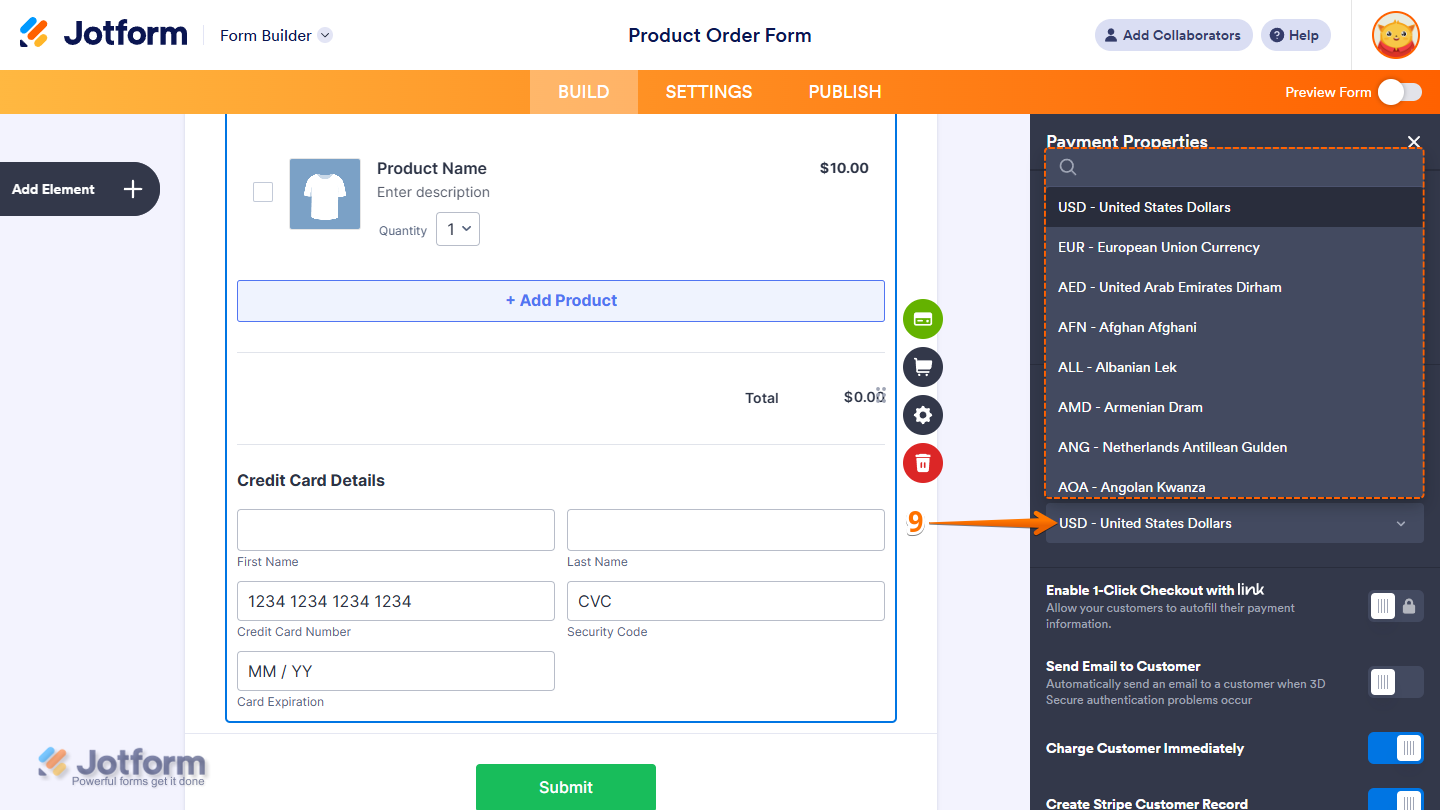
- Then, in the Currency Dropdown menu, select the currency you want to use. This guide on Stripe Supported Currency has more details about that.
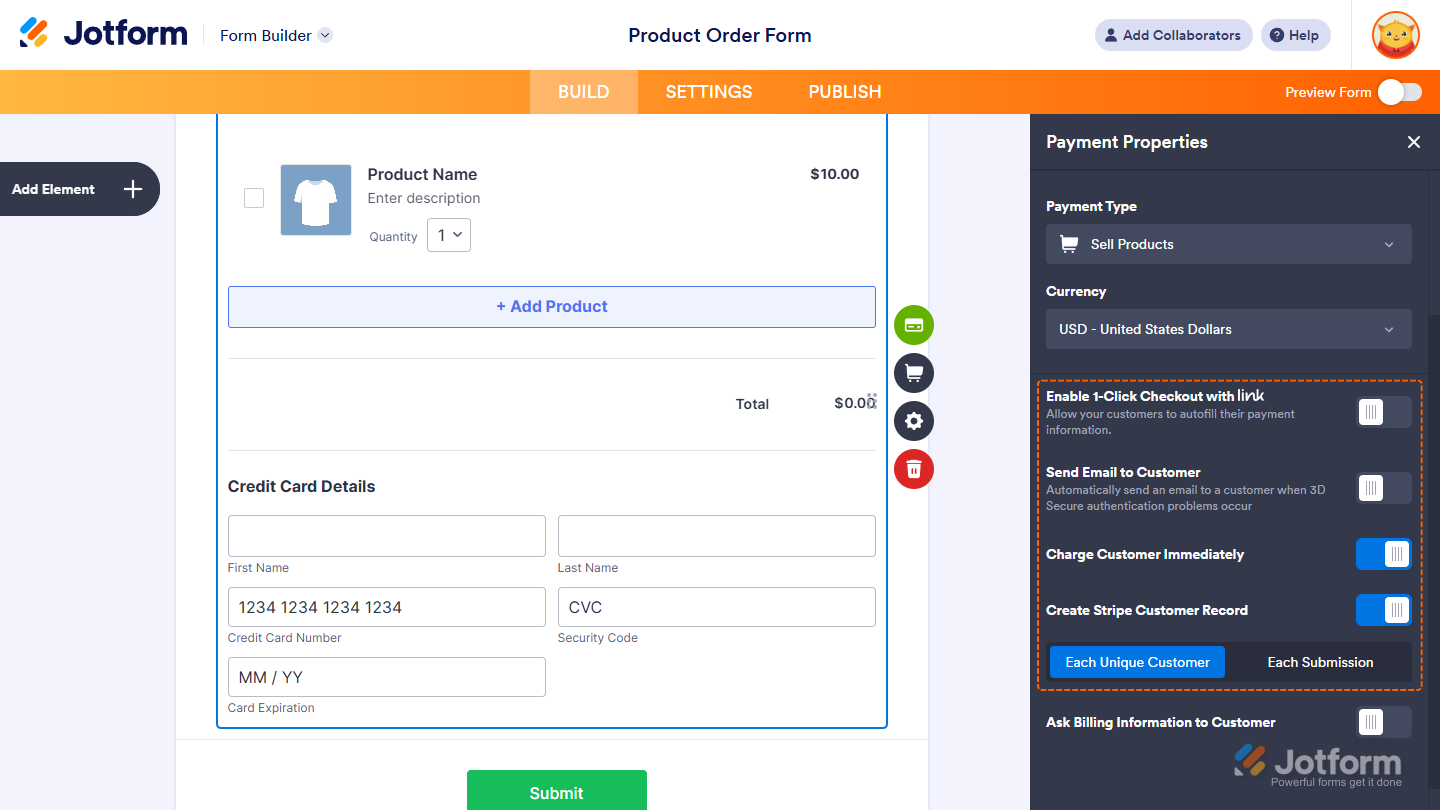
Here are other gateway settings you can configure as needed:
- Enable 1-Click Checkout with Link — Link lets you save and autofill your payment information on your next purchases through Link-enabled sites. You’ll find more info in our guide on Making Payment with Link.
- Send to Email Customer — Automatically email the customer when 3D Secure authentication problems happen in the form.
- Charge Customer Immediately — Stripe supports Payment Authorization. Toggle this off if you want to charge customers at a later date. You’ll find more info in our guide on How to Enable Payment Authorization.
- Create Stripe Customer Record — Create a Stripe customer for the submission so payment methods and customer data are saved in Stripe. You can select from the two options:
- Each Unique Customer — Create one Stripe customer per unique customer (identified by email or customer ID). Prevents duplicate customer records.
- Each Submission — Create a new Stripe customer for every submission, even if the same person submits multiple times.
- Ask Billing Information to Customer — Along with the transaction details, you can toggle this on to send selected billing information to Stripe Integration by matching them to supported form fields.
- Customer Email Field — Pick an Email field to include your customer’s email address in the billing details.
- User Field as Billing Address —Select and Address field to send the billing address of your customer to Stripe as billing information.
- Use Field as Shipping Address — Select an Address field to send the Shipping address of your customer to Stripe as Shipping information.
- Customer Phone Field — Select a Phone field to pass along your customer’s phone number to Stripe.
- Custom Data Field — Select a Short Text field or Unique ID widget to send any custom data you want included in the billing info.

Note
When you turn off Charge Customer Immediately to use the Charge Later feature, be sure to keep Create Stripe Customer enabled. This creates a customer ID along with the approved payment method ID, which is required to capture payments later with the Charge Customer Now button in Tables.
When you select Sell Subscription from the Payment Type the following options will come up:
- Fetch Coupons from Stripe Account — When enabled, this option retrieves and displays all coupons from your connected Stripe account. It overrides any coupons you created directly in Jotform. Take a peek at our guide on How to Fetch Coupon Codes From Stripe to learn more.
- Fetch Subscriptions from Stripe Account — Toggle this on to pull your subscription items directly from your Stripe account.
- Show Fetched Coupons from Stripe Account — When Fetch Coupons from Stripe Account is enabled, this will show up to decide whether to display the coupons when you enable the option to fetch them from Stripe.

Making Payment With Link
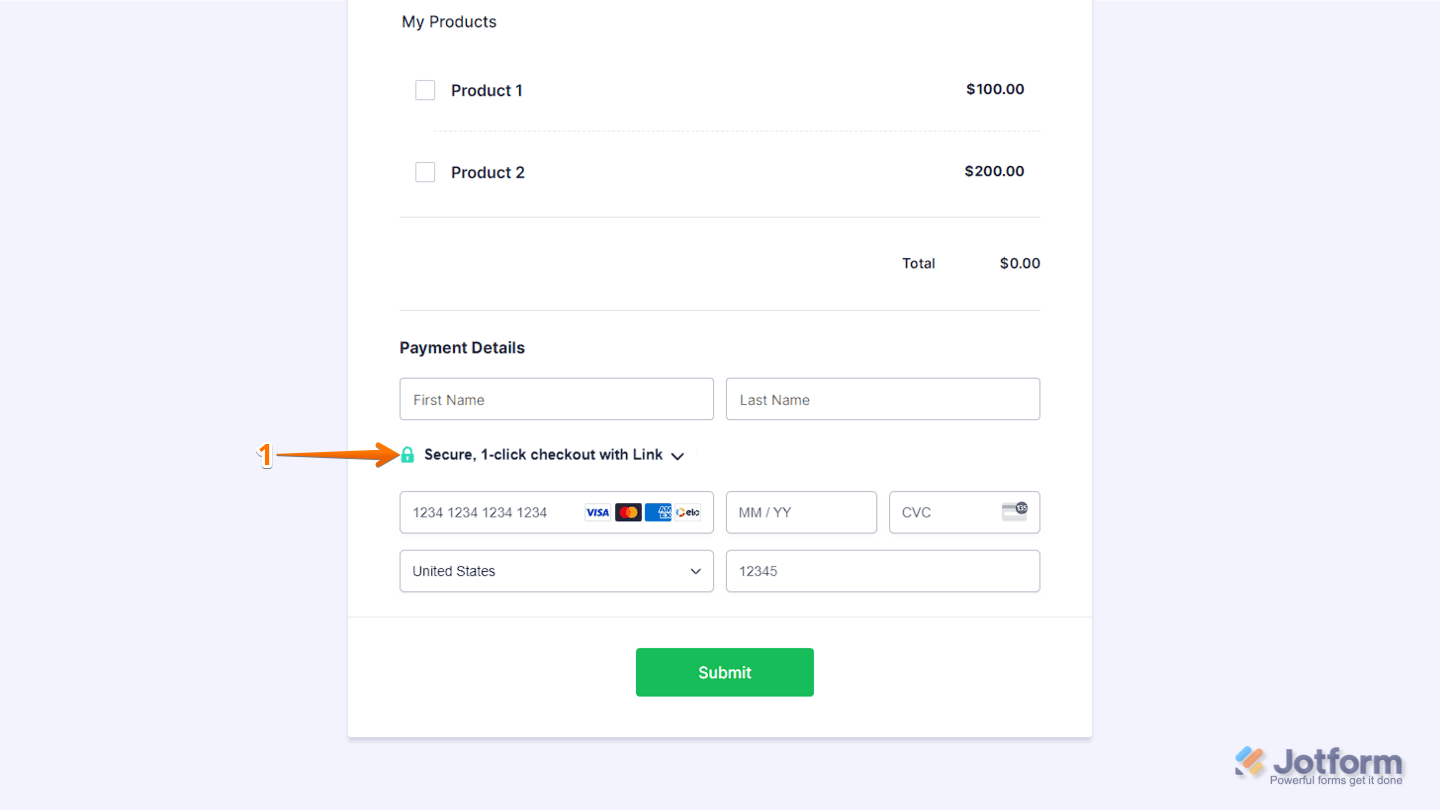
Link works like MasterPass. It lets you save your credit card details and use them across other Link-enabled websites without re-entering your card information. To pay, simply enter your registered Link email address, verify it via SMS or email, and complete the purchase using your saved payment details. This is how it’s done:
- Click on Secure, 1-click Checkout with Link.
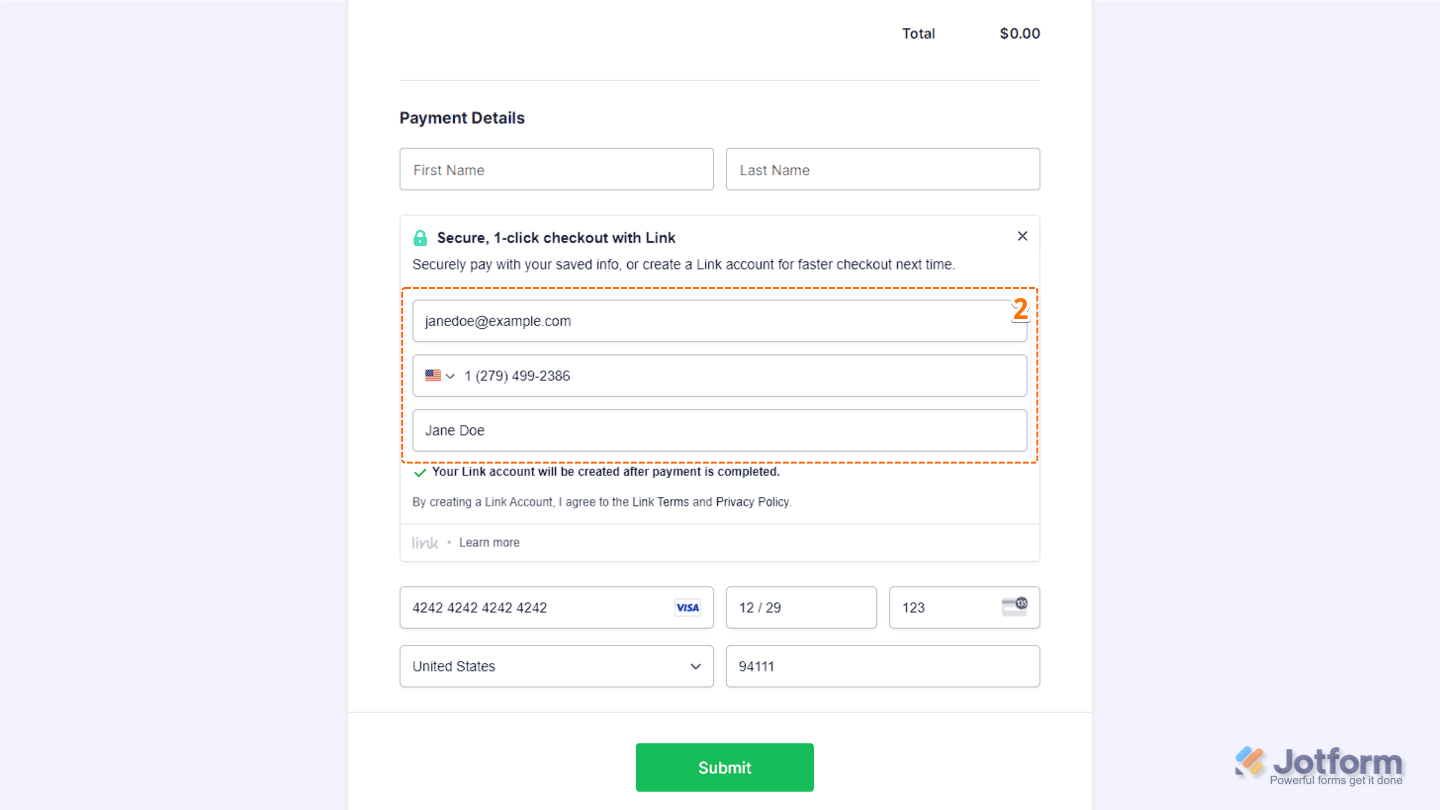
- Link will automatically check whether your email address is already registered or if you need to create a new account. If you’re not yet registered, you’ll be asked to provide additional details such as your phone number, full name, and card information. You’ll need to submit the form to complete your payment and set up your Link account.
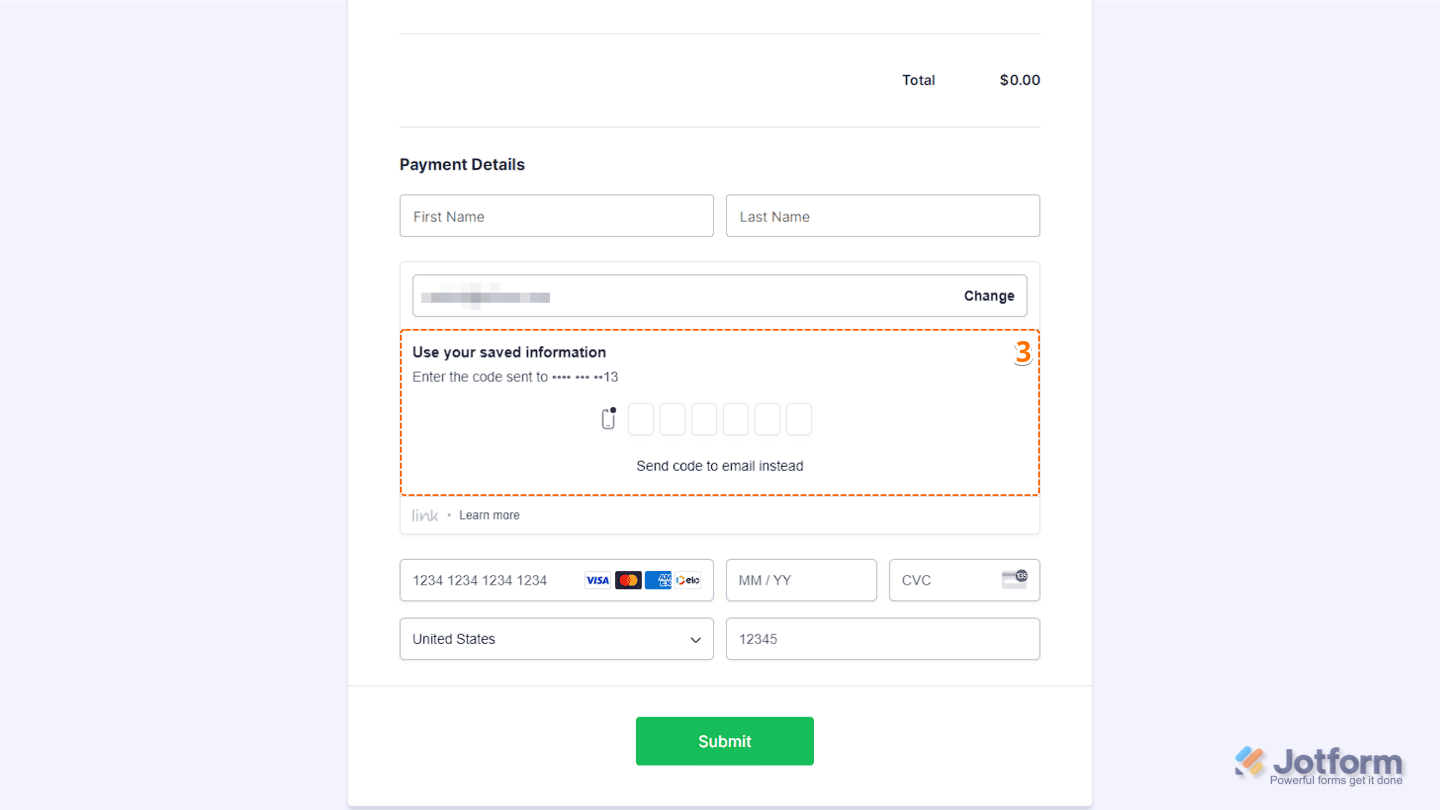
- If you’re already registered with Link, you’ll be asked to verify your account via phone (default) or email.
- After verifying your Link account, your default payment method will appear. Now, click on Submit to complete your payment, and you’re done.
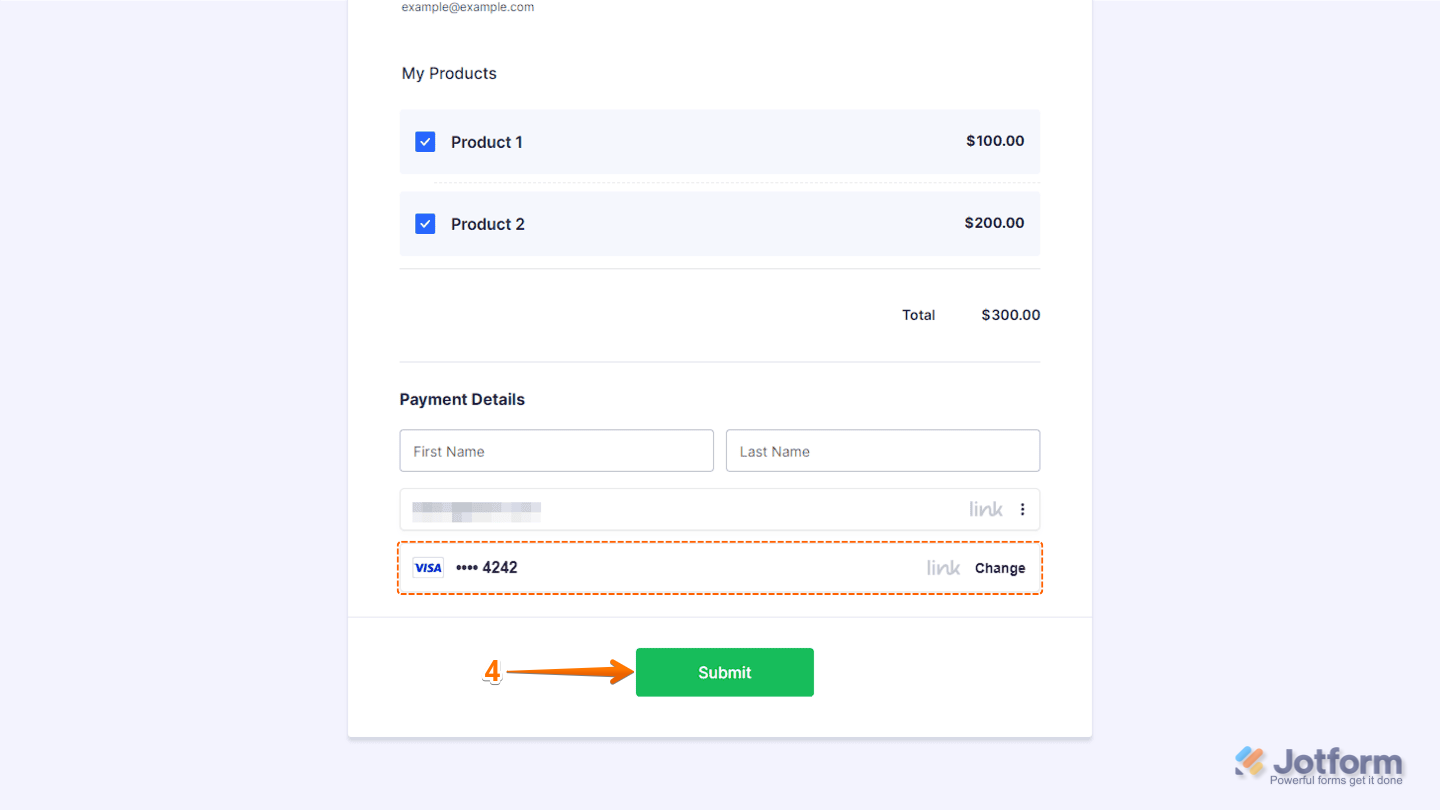
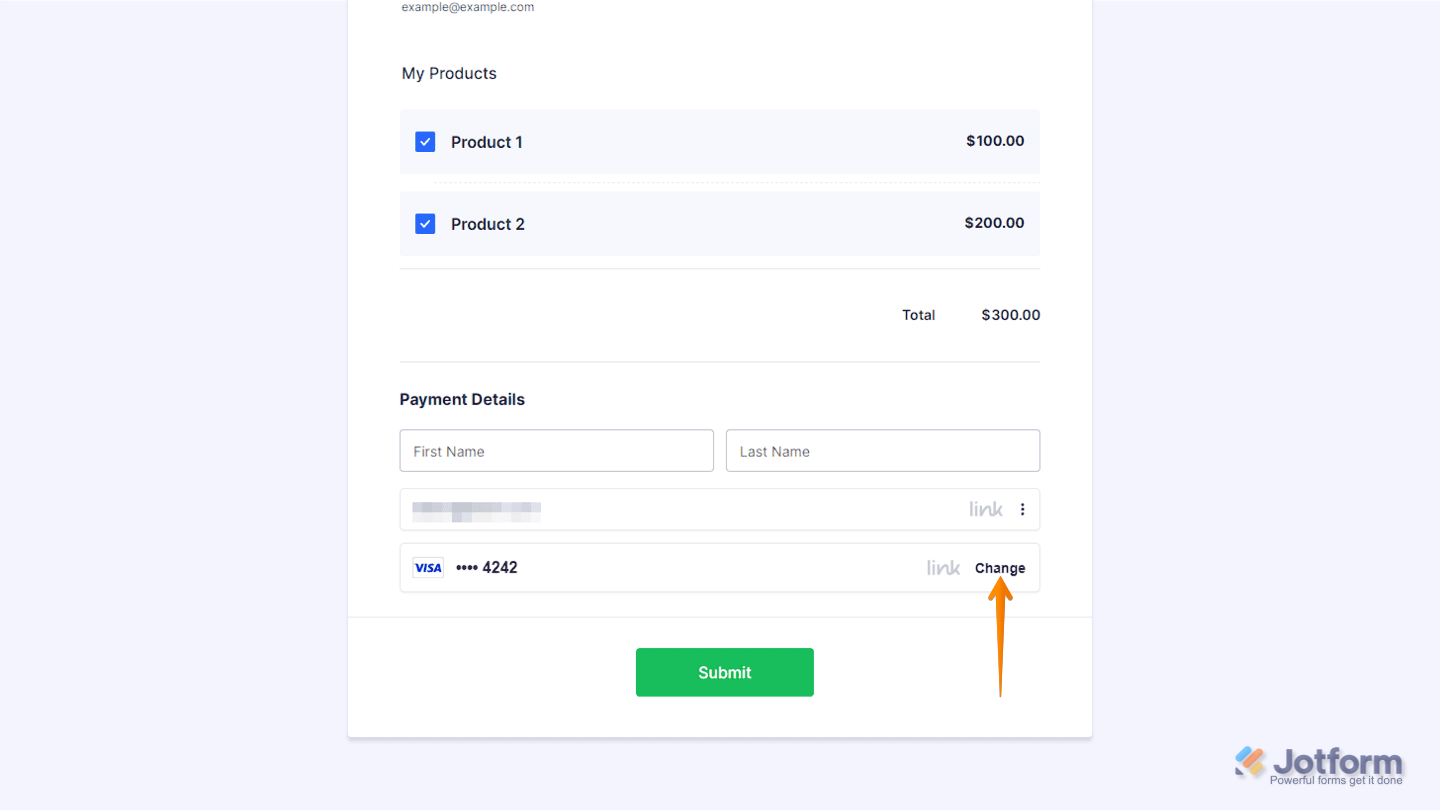
Clicking on Change on the right side of your default payment method lets you switch to another saved card or add a new payment method to your Link account.
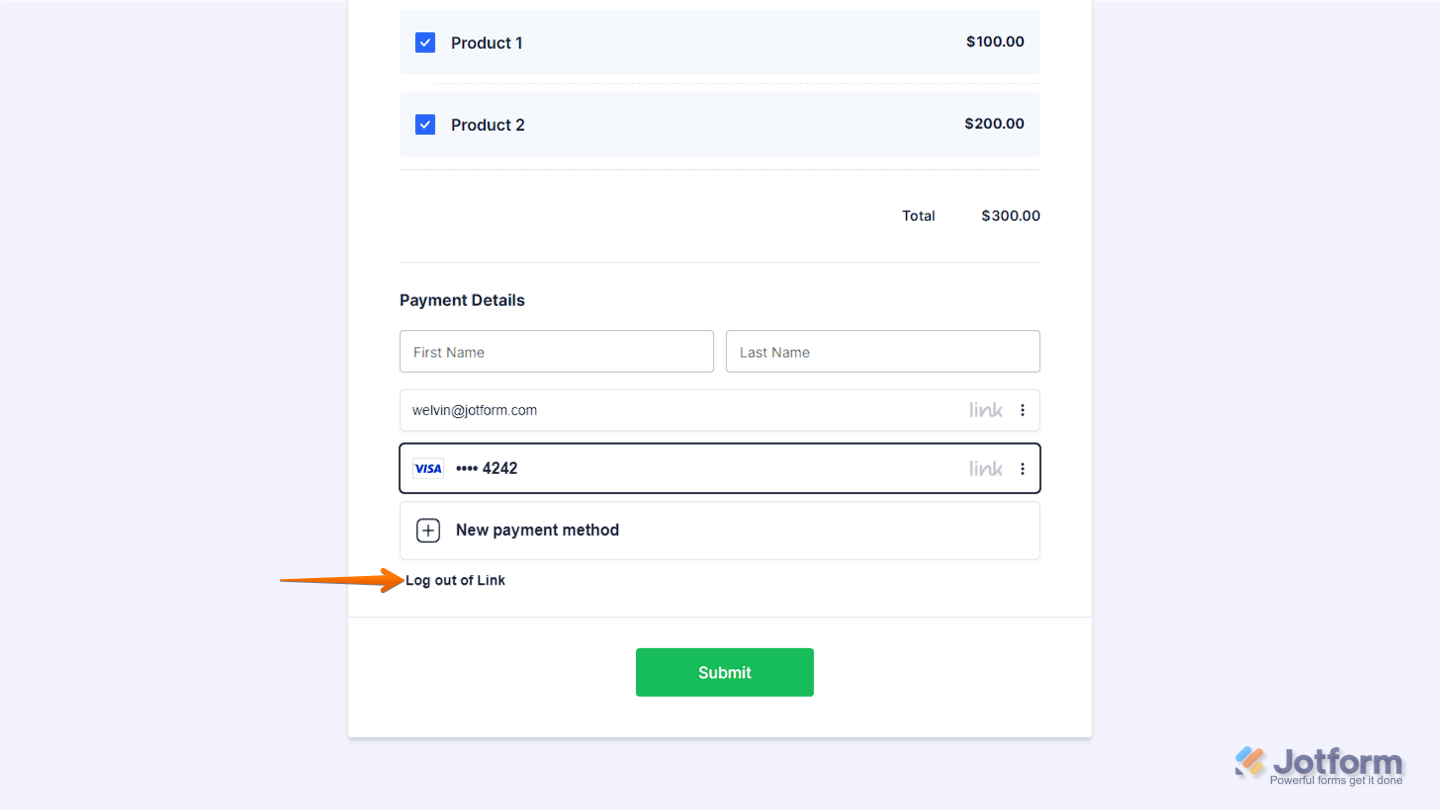
Once you click on Change, you’ll also have the option to log out.

Send Comment:
4 Comments:
More than a year ago
How do I set up sliding scale using stripe? I use their sliding scale item now, and I like that there is a default that the visitors can edit within limits.
More than a year ago
Sometimes these Stripe payments don't go through. The form is then saved in "Pending Payment". The issue is, nobody is notified, so we have client's that sign up, their payment doesn't go through, and then they just leave. Nobody knows to follow up with them because there is no email sent and the form is not submitted. I know how to view the pending payments, but that doesn't help me if I don't know that there is a form waiting for me there.
How can I automatically be notified if a payment fails and the form goes in hiding in the "pending payments" section?
More than a year ago
Stripe is not connection. It's asking me to create a new Stripe account.
More than a year ago
I am trying to create a jotform integrated with Stripe that would allow up to put in the different amount of copays and deductibles owed for medical visit fees