
Add Column
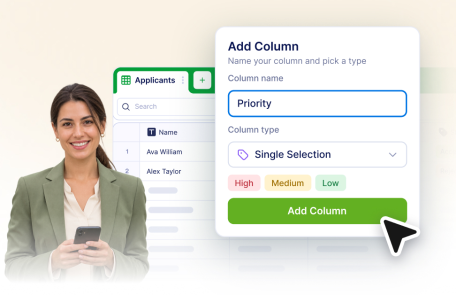
Expand your tables by adding new columns for text, numbers, dates, connections, formulas, and more.
Column Management
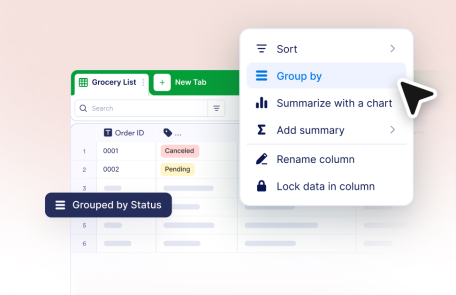
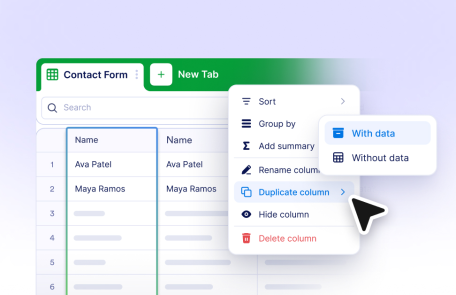
Organize, edit, and analyze table data with tools for sorting, grouping, summarizing, and customizing columns and entries.
Customize your table layout by reordering columns with drag-and-drop controls and adjusting their widths. Keep your data organized, readable, and arranged to fit your workflow.

Make your tables easier to navigate by moving columns and adjusting their sizes. Prioritize important fields, improve readability, and create a cleaner workspace that works for you.
Arrange columns in your preferred order and resize them to fit your content. Use simple drag-and-drop controls to keep your table organized and easy to navigate.
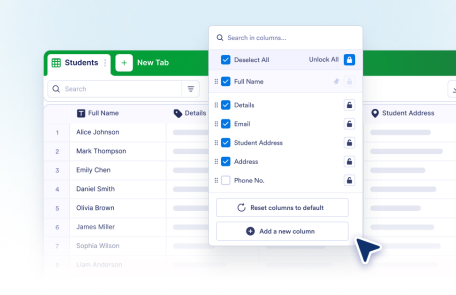
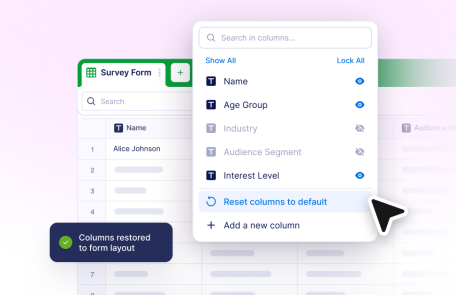
Move columns directly in the table or use the Columns menu to rearrange fields. Quickly organize your data and keep important information exactly where you need it.
Drag column edges to adjust their widths or use the Smart Fit button to display full column titles. Keep your table layout clean and make your data easier to read.
You can drag and drop columns directly in the table to change their order. Alternatively, open the Columns menu to rearrange fields from a complete list of available columns.
Simply click and drag the edge of a column to increase or decrease its width. This helps you adjust the space available for different types of content.
Yes. When a column title is cut off, a Smart Fit button appears. Click it to automatically adjust the column width so the full title is visible without taking up unnecessary space.