

Top flowchart generators
Creating flowcharts used to require time, patience, and visual design skills, but not anymore. AI flowchart generators let you create a professional flowchart in a couple of minutes, and the only skill you need is knowing how to build a prompt.
I tested nine tools to find the best AI flowchart generator. As someone with limited time and no flowchart design experience, I wanted to see how well these tools perform. I also wanted to see what options they have for users with more design skills than I have. Here’s what I found.
| Tool | Best for | Trial info | Pricing |
|---|---|---|---|
 Jotform AI Flowchart Generator |
Workflow visualization |
Free plan available, with all features included |
|
 Lucidchart |
Enterprise workflow documentation |
Free plan available; seven-day free trial of paid plans available |
|
 Creately AI Flowchart Generator |
Business process mapping |
Free plan with limited features available |
|
 DiagramGPT by Eraser |
Engineering teams |
Free plan with limited features available |
|
 Mermaid |
Software developers and engineers |
Free plan with limited features available |
|
 EdrawMax AI Diagram Generator |
Flowchart template library |
Seven-day free trial available |
|
 Whimsical |
Speed |
Free plan with limited features available |
|
 Miro |
Team collaboration |
Free plan and seven-day free trial of paid plans available |
|
 Visily |
Non-designers |
Free plan available with limited features |
|


Best for business operations & project management
1. Jotform AI Flowchart Generator
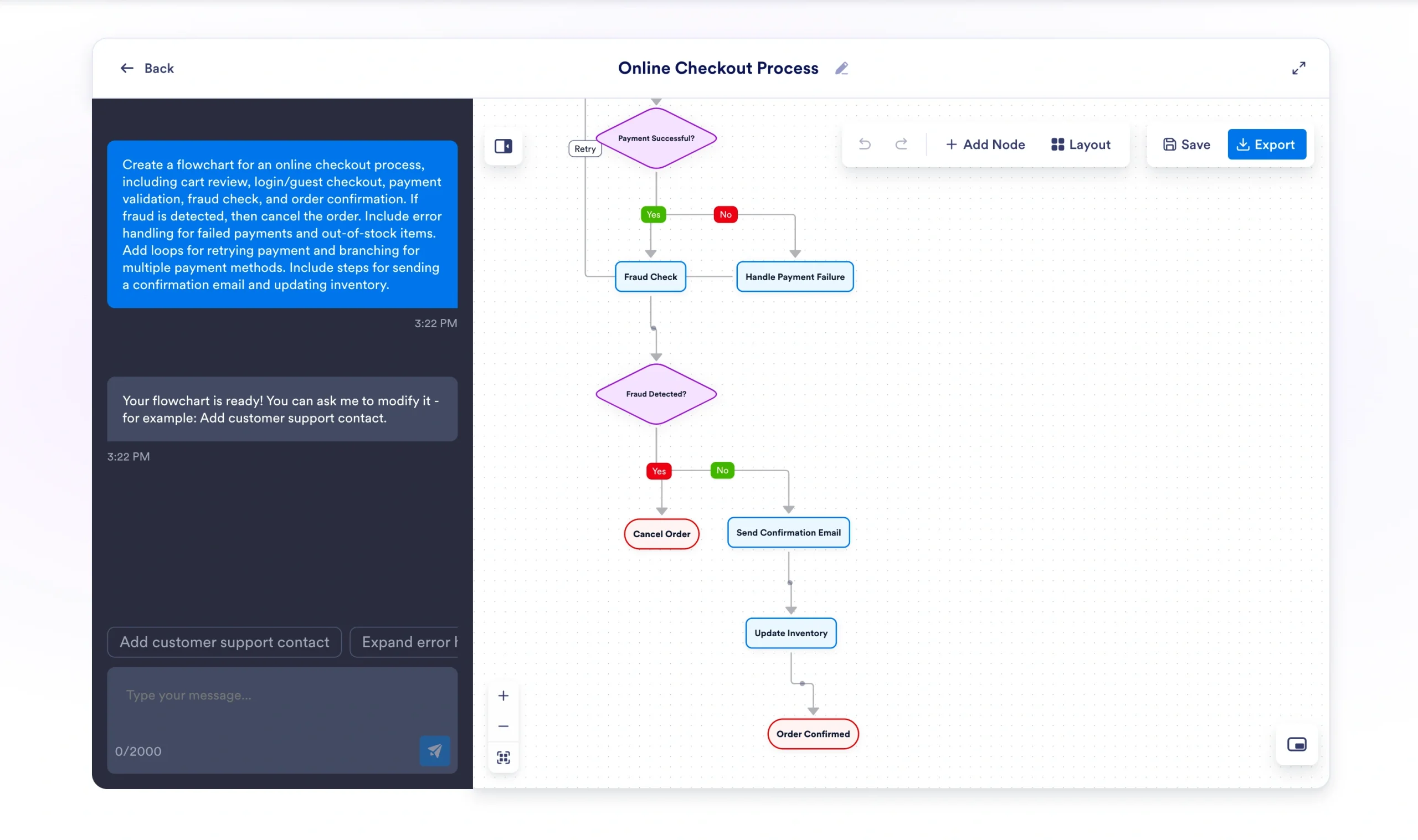
Prompt: Create a flowchart for an online checkout process, including cart review, login/guest checkout, payment validation, fraud check, and order confirmation. If fraud is detected, then cancel the order. Include error handling for failed payments and out-of-stock items. Add loops for retrying payment and branching for multiple payment methods. Include steps for sending a confirmation email and updating inventory.
Ideal for: Workflow visualization
Jotform’s AI Flowchart Generator is a free, web-based platform that lets you build and iterate on complex flowcharts using AI prompts and manual design.
With an intuitive interface and no features locked behind paywalls or AI credit limitations, this is one of the best AI flowchart generators for people who want to create presentation-ready flowcharts on a smaller budget with little training.
I found the tool incredibly easy to use, even as someone with minimal experience creating flowcharts and no experience in design. The logic and design were strong after my initial prompt, and I needed only a few clicks with the drag-and-drop manual tools to get my chart presentation-ready.
Unlike other platforms on this list, Jotform offers a free AI Workflow Generator that’s perfect for visualizing and fleshing out the workflows I created.
Overall, Jotform AI Flowchart Generator is great for businesses that want to map out their workflows without incurring a subscription fee or spending hours learning to use a complex design tool.
- Pros
- Strong prompt adherence with correctly displayed logic, including paths, dependencies, and loops
- Simple prompt-based and manual editing tools, with no design expertise or expert-level prompting required
- Great for mapping out operational processes and workflows
- Cons
- Limited manual editing options compared with other platforms
- Lacks collaboration features
- Pricing
- Starter: Free
- Bronze: $34 per month
- Silver: $39 per month
- Gold: $99 per month
- Enterprise: Custom
Build faster with Jotform AIDescribe what you need, and let Jotform AI build it for you instantly.
Get Started Now
2. Lucidchart
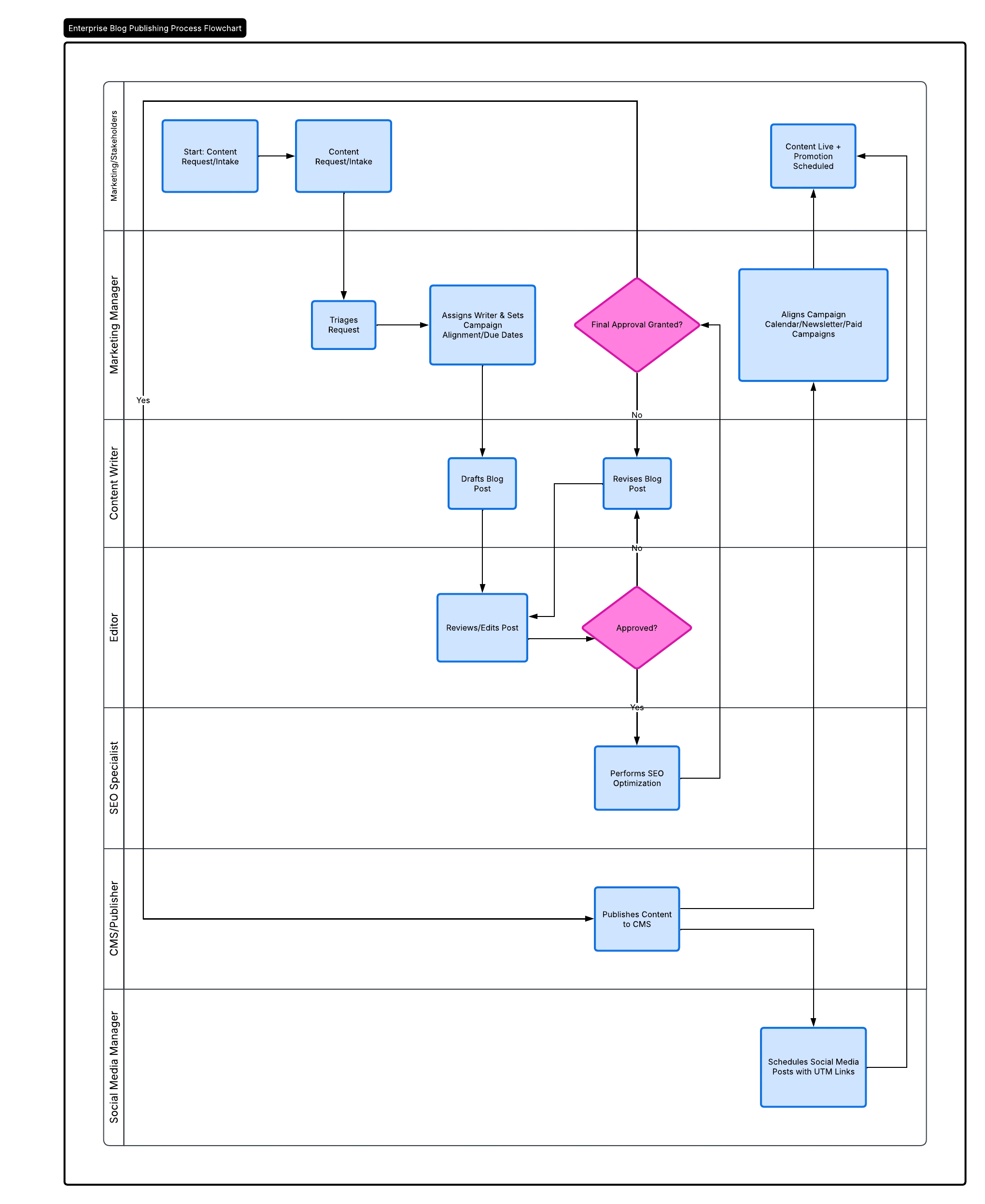
Prompt: Create a flowchart for publishing blog content. Include drafting, editing, approval, SEO optimization, and publishing. Add loops for revisions and dependencies between roles. Include parallel social media scheduling.
Ideal for: Enterprise workflow documentation
Perhaps the most familiar entry on the list, Lucidchart is an AI diagram generator optimized to help you build almost any type of chart, flowcharts included.
I found Lucidchart’s prompt adherence second to none. In fact, it enhanced the output beyond what I had asked for. Its drag-and-drop editing lets you modify any aspect of the chart, with exhaustive options for visual customization. Lucidchart also includes a search bar to find specific editing tools. These features are huge pluses for someone with limited experience.
Lucidchart offers more collaboration features than most other text-to-flowchart AI tools. In addition to link-based sharing and commenting, it lets you assign tasks, record and integrate explanation videos, and build presentations, all in the same view you use to build your chart.
It also offers hundreds of integrations to enhance your flowcharts, including cloud data storage platforms, whiteboarding and documentation apps, and industry-specific solutions.
The beauty of this tool is its versatility. If you have hyper-specific design preferences and integration requirements, it offers a ton of options. If not, you can get a presentation-ready output with just one prompt and some simple manual edits.
- Pros
- Comprehensive design suite suitable for experienced professionals and beginners alike
- Extensive collaboration features and integrations
- Strong prompt adherence with automatic enhancement
- Cons
- Many features locked behind paid plans
- Only manual editing of charts, with no prompt-based AI editing
- Pricing
- Free
- Individual: $9 per month
- Team: $10 per month
- Enterprise: Custom
3. Creately AI Flowchart Generator
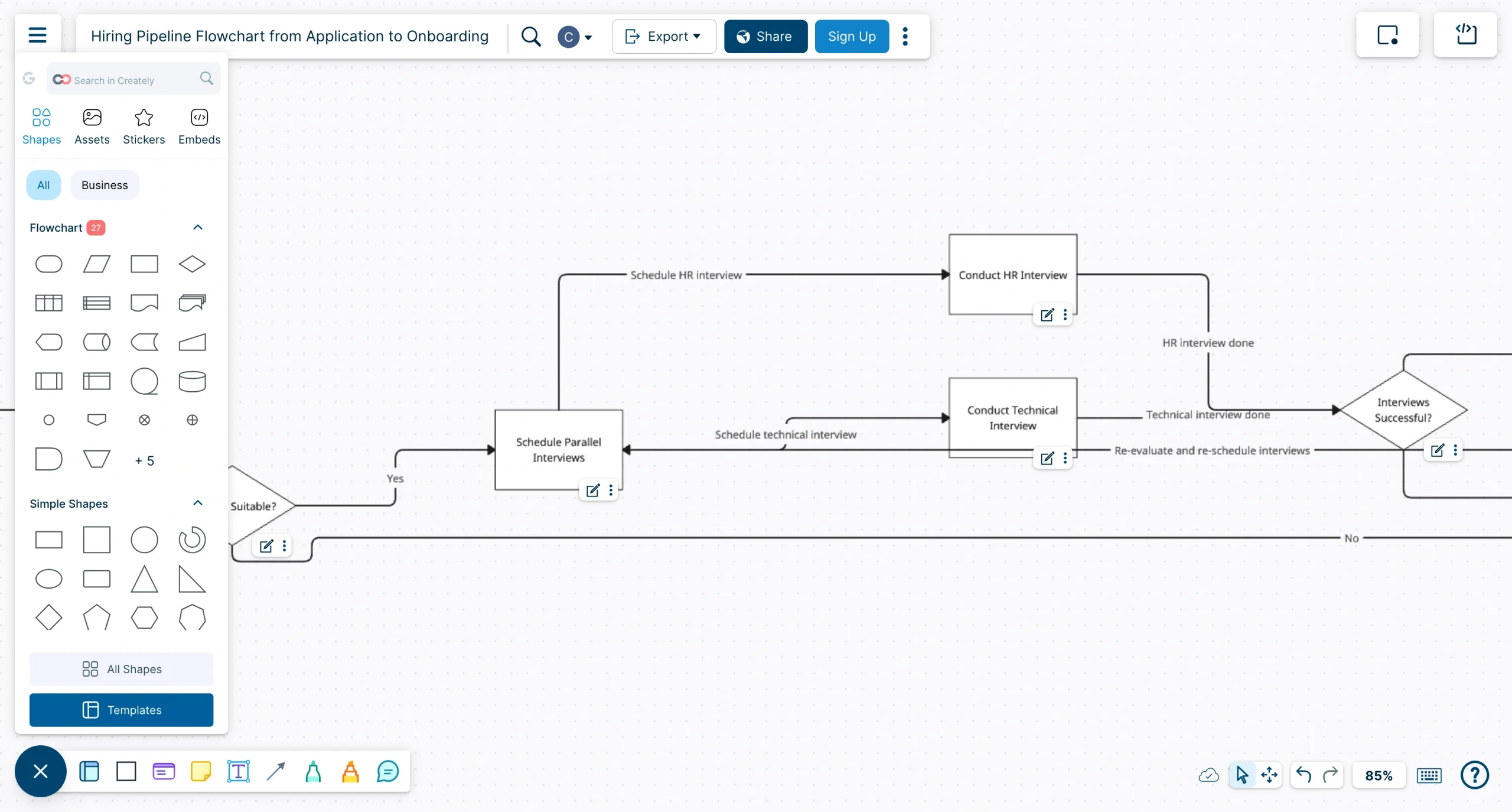
Prompt: Create a hiring pipeline flowchart from application to onboarding. Include resume screening, interviews, offer stage, and rejection paths. Add loops for candidate re-evaluation and dependencies between interview stages. Include parallel interview scheduling.
Ideal for: Business process mapping
Creately’s AI Flowchart Generator is another convenient tool that can be accessed free online. It has one of the largest prompt windows on the list, with room for up to 12,000 characters.
The tool is useful for business process mapping and for visualizing workflow examples. I prompted it to create an employee hiring and onboarding workflow with some fairly complex logic.
It displayed branches, dependencies, and cycles accurately. However, the design was nothing to write home about, so I had to drag shapes around to make it feel more organized.
Also, connectors and text overlap, which can make things a bit confusing at first glance. To fix that, you’ll need a paid plan, which lets you modify your charts in depth and gives you access to collaboration tools, data integrations, and larger canvases.
Creately’s free plan is one of the most generous on this list, so if you aren’t too bothered about design and don’t want to pay, it might be for you. However, the paid plans offer many more features and might be right if you want to design charts more intricately.
- Pros
- Unlimited canvases and collaborators on the free plan
- Advanced collaboration, data integration, and customization tools
- Large prompt window (maximum of 12,000 characters)
- Cons
- Most editing options, even basic ones, locked behind paid plans
- Limited imports and folders on the free plan
- Pricing
- Free
- Personal: $5 per month
- Team: $5 per user, per month
- Business: $89 per month
Pro Tip
While flowchart generators excel at mapping processes and workflows, visualizing quantitative data effectively often requires utilizing specialized AI chart makers.
Best for technical & engineering teams
4. DiagramGPT by Eraser
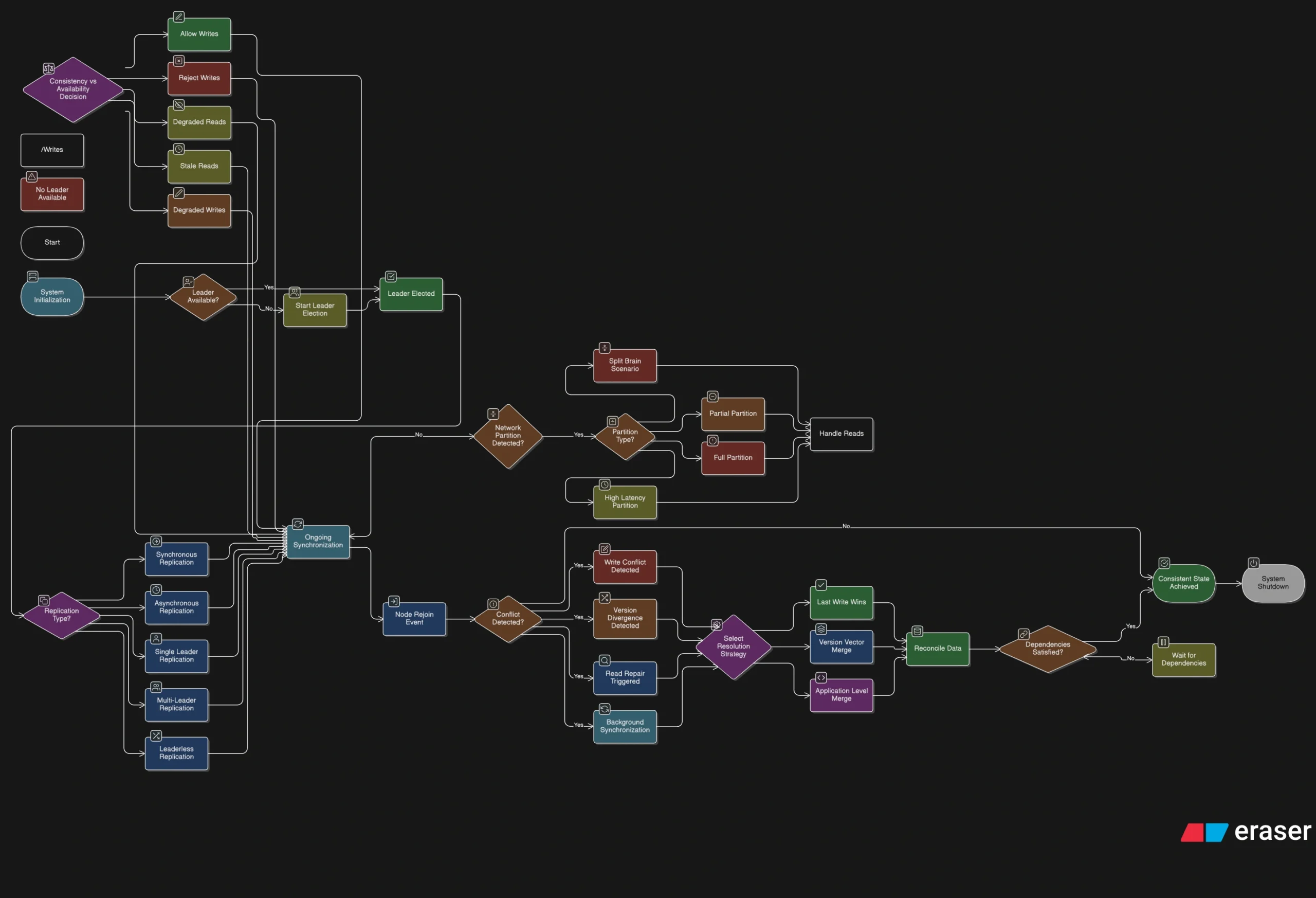
Prompt: Create a flowchart for maintaining consistency in a distributed database. Include replication, consensus (e.g., leader election), and conflict resolution. Add branching for network partitions. Include dependencies between nodes and synchronization steps.
Ideal for: Engineering teams
DiagramGPT, an AI flowchart maker designed by Eraser, is built for engineers, developers, and other technical teams. You can choose from several presets and build prompts using code or natural language.
I chose to prompt it with natural language, but I tried to make this one complex to see how it would handle technical specifics. When it asked me four highly technical follow-up questions after the initial prompt, I figured I’d get a strong output. I wasn’t disappointed.
DiagramGPT demonstrated a deep understanding of complex language and proper logic flows. Among the best AI flowchart generators, this one is likely the go-to for professionals in highly technical fields.
Its editing features are no slouch either. I can customize colors and shapes, choose from many flowchart symbols (including icons and logos from specific cloud providers and tech tools), and move elements around with ease.
You can share files via link or QR code, but the only collaboration feature available is comments. You also can’t export or embed your files, which you can do with every other tool mentioned here.
- Pros
- Detailed, layered prompting with a strong understanding of technical language and workflows
- Great initial outputs with easy-to-use editing tools
- Free plan that includes editing and design features
- Cons
- Limited collaboration and file export capability
- Only five AI diagrams and seven-day version history with free plan
- Pricing
- Free
- Starter: $15 per member, per month
- Business: $45 per member, per month
- Enterprise: Custom
5. Mermaid
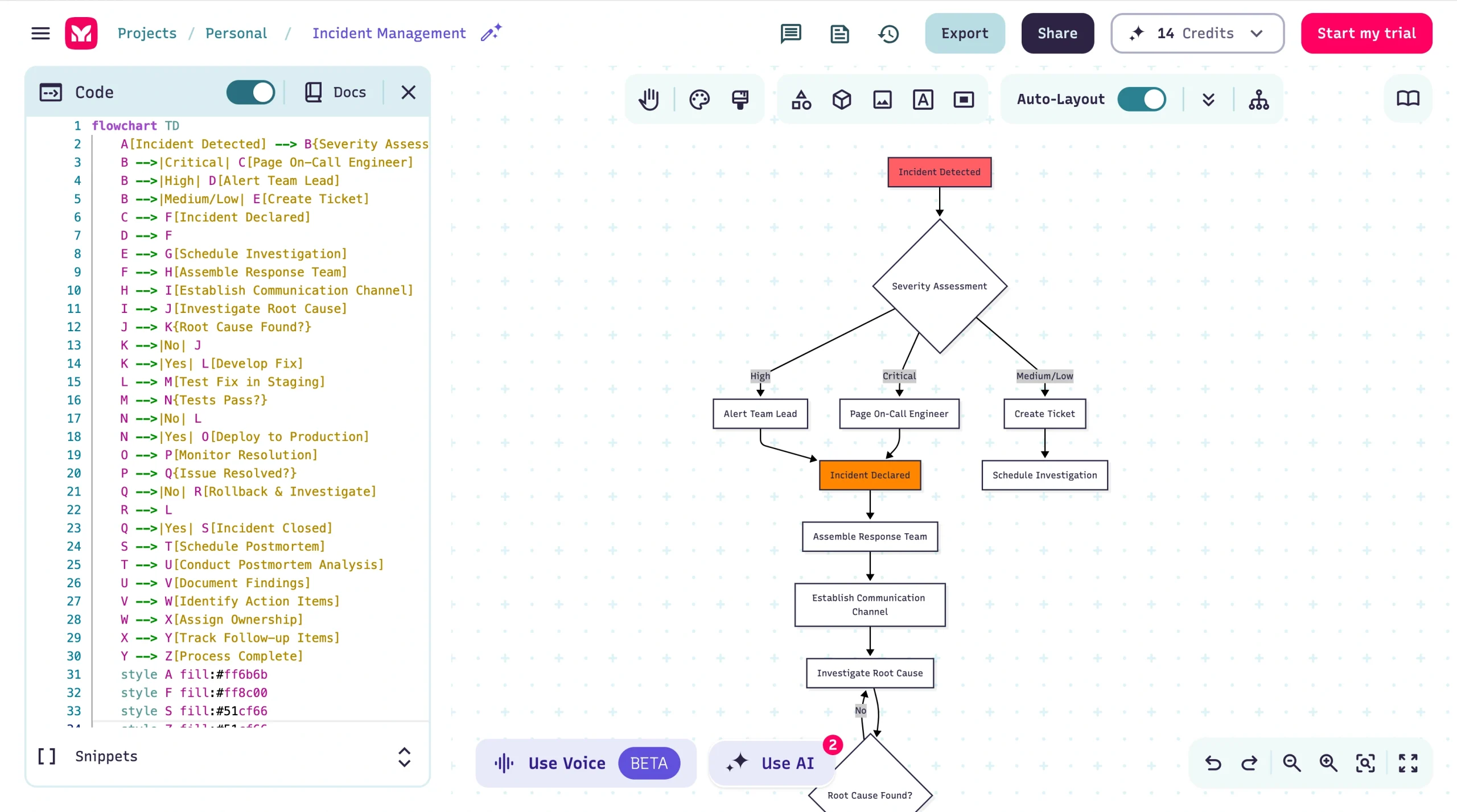
Prompt: Create a flowchart for the incident response process in a software development team, detailing steps from detection to resolution and postmortem analysis.
Ideal for: Software developers and engineers
Mermaid is another AI-powered diagram generator designed for people in technical roles such as software developers, engineers, and data architects.
Its online AI flowchart creator offered several preset prompts, so I chose one to create an incident response workflow for a software development team. While I wouldn’t call the initial output presentation-ready, the logic was displayed well.
I got exactly what I asked for with minimal added detail or design, which could be a positive or a negative depending on your preference.
If you’re inclined to manual editing, you can do it using the basic drag-and-drop tools or markdown-style code. However, this platform truly shines in workflow automation. As with Jotform, you don’t have to edit designs manually because you can do it all through AI prompting, and the edits are just as smooth as the initial generation.
Perhaps the biggest plus for technical users is that Mermaid plugs into tools you likely already use, including VS Code, Claude Code, and Jira. That way, you can create, edit, and integrate your flowcharts without ever leaving the tools you’re familiar with.
- Pros
- Code- and prompt-based editing
- Plug-ins with popular development apps and tools
- Version history included in free plan
- Cons
- Limited to three diagrams on the free plan
- Rudimentary manual editing tools
- Pricing
- Basic: Free
- Plus: $10 per user, per month
- Premium: $20 per user, per month
- Enterprise: Custom
6. EdrawMax Free AI Diagram Generator
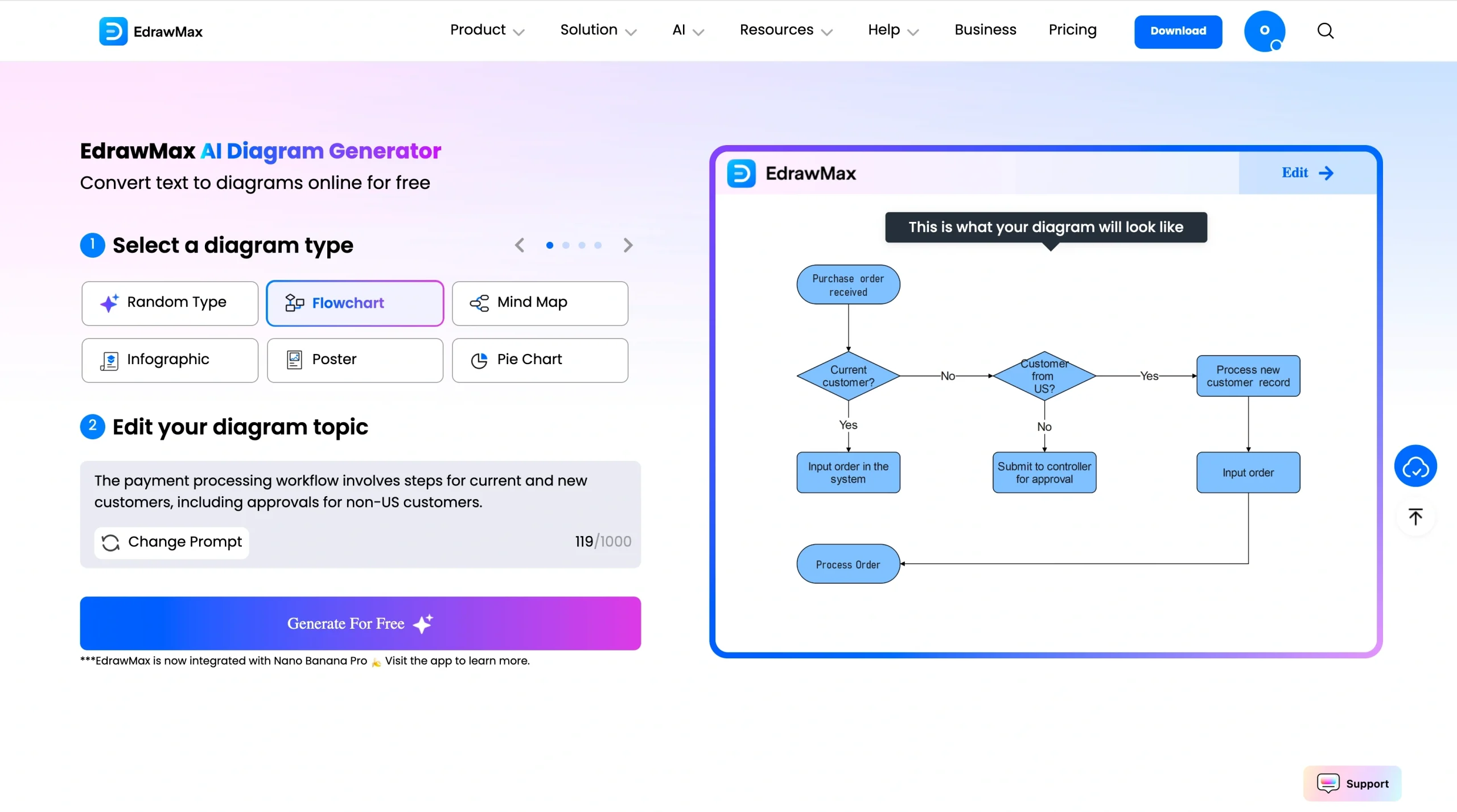
Prompt: Design a flowchart for a user login process in a web application. Start with a clear “Start” node and end with an “End” node. Include a step for entering their username and password. Add a process step to validate credentials against the database. Add a decision node that checks if the credentials are correct. If the credentials are correct, grant access and redirect the user to the dashboard. If the credentials are incorrect, display an error message. Then add a step that allows the user to try logging in again. Include a second decision node that checks if the number of failed attempts exceeds a limit (e.g., three attempts). If the limit is exceeded, include a step that locks the account and displays a lockout message. If the limit is not exceeded, loop back to the login input step. Add a password reset process.
Ideal for: Flowchart template library
With EdrawMax’s Free AI Diagram Generator, your success depends on your skill with prompting, because you get almost exactly what you put in.
Most automated flowchart software solutions can generate a detailed, presentation-ready flowchart from a 200- to 500-character prompt, but this one required a lot of specificity to produce something simple. You have only 1,000 characters to work with, so conciseness is key.
EdrawMax is reliable for simple charts, but if you’re inexperienced in design or AI prompting and want to create something more comprehensive, you might find greater value in other AI flowchart generators. With that said, EdrawMax has a lot to offer those who know their way around a design suite and are willing to rely less on AI to create their flowcharts.
EdrawMax’s template library is massive. I found hundreds of useful flowchart templates for technical use cases, including IT, engineering, and user interface (UI) and user experience design. With extensive editing tools, experienced designers have everything they need to produce a world-class flowchart.
Unfortunately, EdrawMax’s free tools are restrictive, so you’ll likely need to sign up for a paid plan.
- Pros
- Massive template library
- Designer-friendly editing suite
- Reliable for simple flowcharts
- Cons
- Complex user interface
- Requires prompting or design skill
- Pricing
- Semiannual subscription: $69 for six months
- Annual subscription: $99 per year
- Perpetual plan: One-time $198
- Perpetual bundle plan: One-time $215
- Teams: $595 per year plus $9.92 per user, per month (billed annually)
- Business: Custom
Best for collaboration & creative presentations
7. Whimsical
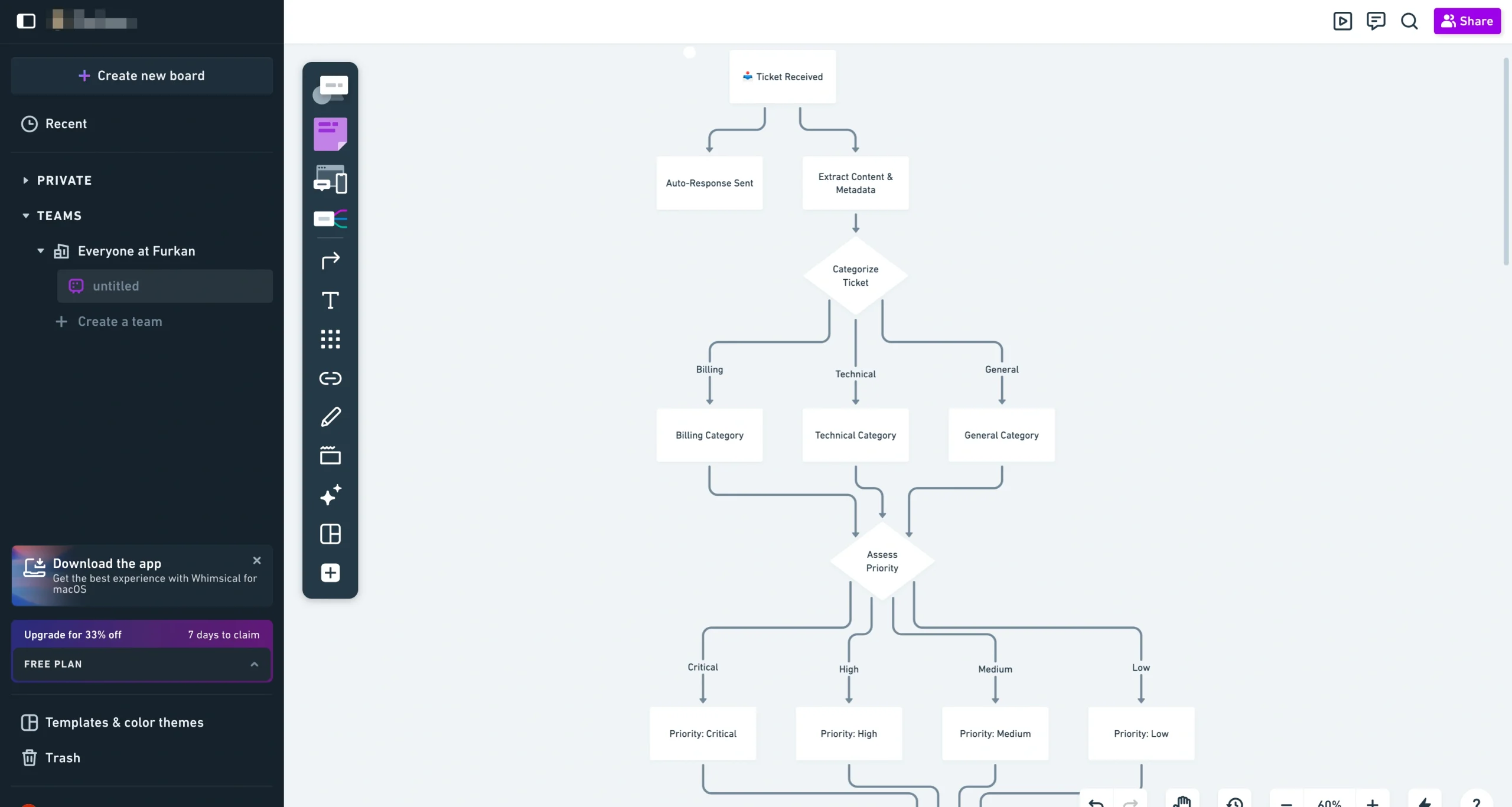
Prompt: Design a flowchart for handling incoming support tickets. Include categorization (billing, technical, general), priority levels, and escalation paths. Add loops for unresolved tickets and dependencies between tiers of support. Show parallel handling for automated responses and agent assignment.
Ideal for: Speed
Whimsical has one of the best AI flowchart generators for those who want a flowchart quickly. Its strong prompt adherence means you can give it a fairly basic prompt and it’ll likely give you what you’re looking for.
Logic, pathing, and dependencies were displayed perfectly. It even added details such as specific Service-Level Agreement hours and layered escalation paths. While the base output lacked a lively design, the platform’s simple tools made it easy to manually modify my flowchart until it was presentation-ready.
In addition to the basic diagram shapes and visual customization options, you can choose from a massive library of industry-specific icons and platform logos to spruce things up. You can also embed images, videos, and other external files with no restrictions.
Teams can collaborate with tools such as in-app presentation, comments, and sticky notes. With a paid plan, you can implement timers and voting polls. High-quality exports also require a paid plan.
Where Whimsical falls short is its lack of integrations. This may reduce the appeal for enterprise users, especially when competitors offer plenty of them.
- Pros
- Great initial outputs, with logic displayed perfectly and detail added proactively
- Comprehensive editing and design suite built for presentation readiness
- Easy media embedding tools
- Cons
- Key collaboration and export features locked behind paid plans
- Lacks the integrations featured on equivalent platforms
- Pricing
- Free
- Pro: $10 per month, per editor
- Business: $15 per month, per editor
- Enterprise: $20 per month, per editor
8. Miro
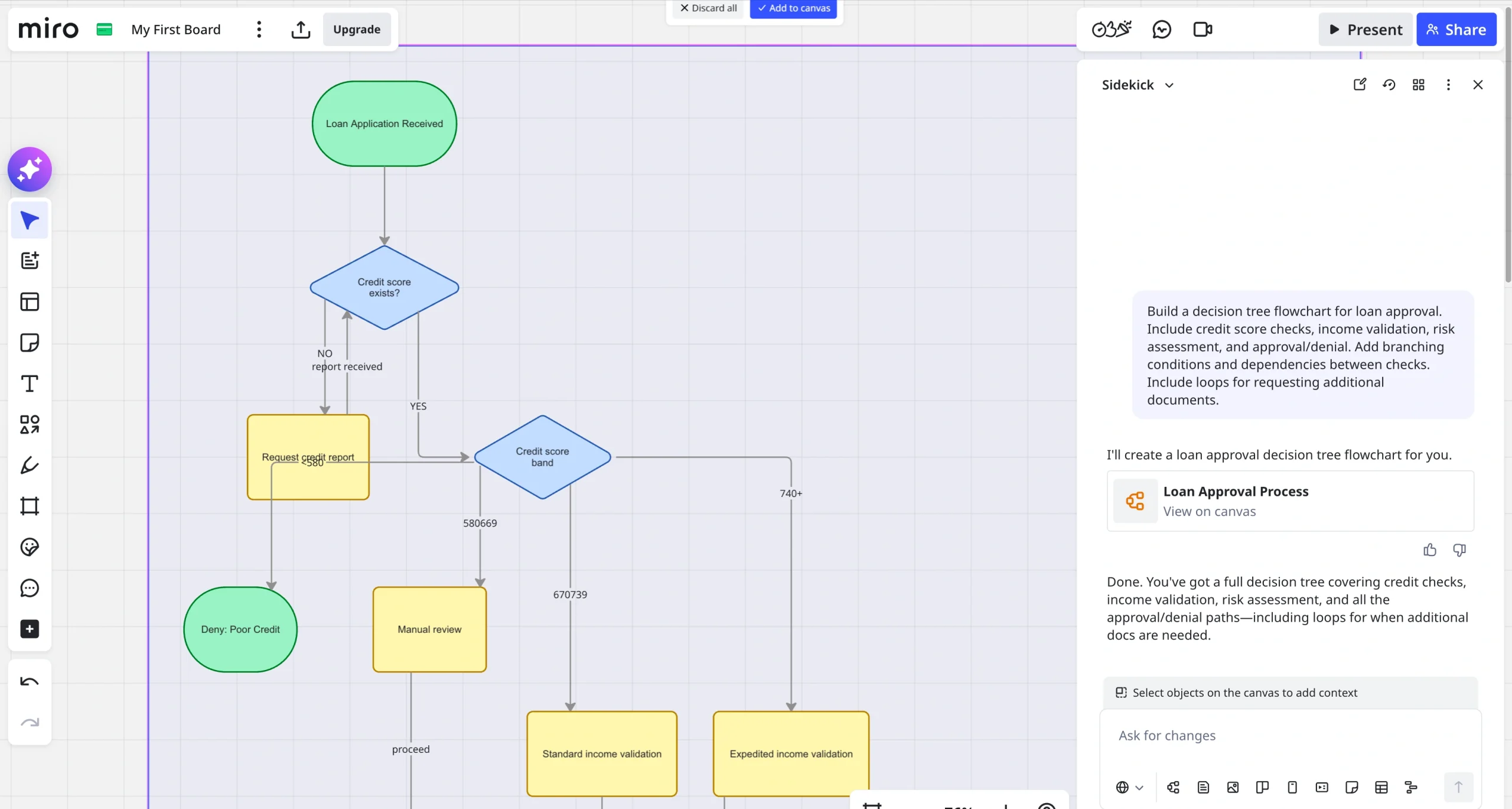
Prompt: Build a decision tree flowchart for loan approval. Include credit score checks, income validation, risk assessment, and approval/denial. Add branching conditions and dependencies between checks. Include loops for requesting additional documents.
Ideal for: Team collaboration
Miro is an AI-powered visual collaboration platform. I asked Miro AI to create a loan approval flowchart, and it did so with flying colors. The output was presentation-ready, with accurate logic, an automatically generated theme, and correct shapes.
If you want to modify your flowchart manually, you can. Miro’s editing suite is as comprehensive as Lucidchart’s, including media embeds, diagram templates, interactive elements, and hundreds of integrations. You can also use Miro AI to edit parts of your flowchart or create documents and slides using your flowchart as context.
Where Miro shines above the other platforms is its collaboration tools. It has comments, votes, timers, sticky notes, meeting agendas, task lists, simultaneous editing, and clip recording. You can even start a video call directly within Miro, making it easy to work on a flowchart with virtual or hybrid teammates.
The downside is that many of these collaboration and editing features are locked behind paid plans, so you’ll probably need to subscribe to get the most from Miro.
- Pros
- Presentation-ready charts from the first prompt
- Integrated video calling for virtual and hybrid collaboration
- Massive integration marketplace
- Cons
- AI, editing, and collaborating features only in paid plans
- Limited Miro AI credits, even with paid plans
- Pricing
- Free
- Starter: $8 per month, per member
- Business: $20 per month, per member
- Enterprise: Custom
9. Visily
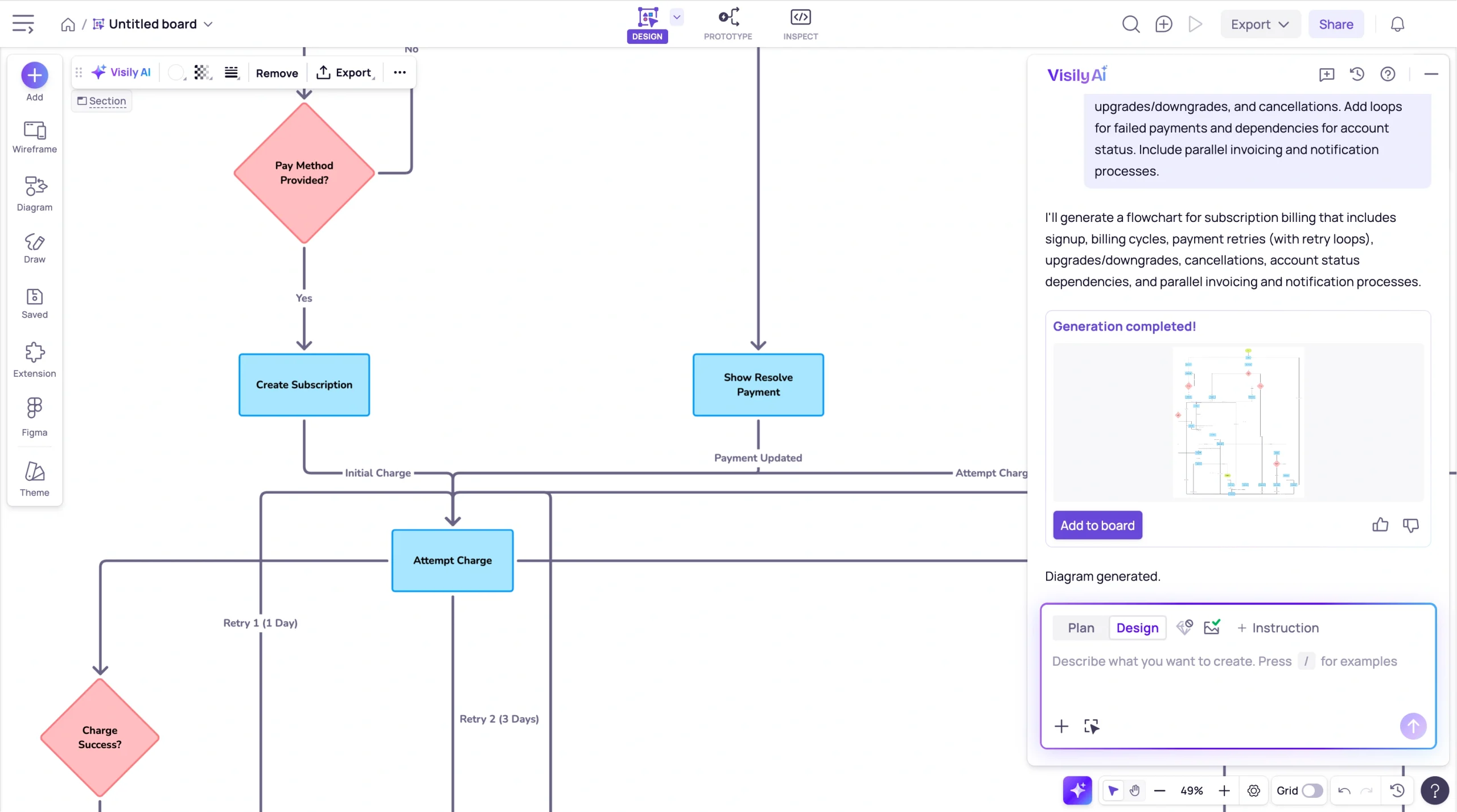
Prompt: Design a flowchart for subscription billing. Include signup, billing cycles, payment retries, upgrades/downgrades, and cancellations. Add loops for failed payments and dependencies for account status. Include parallel invoicing and notification processes.
Ideal for: Non-designers
Visily is a design tool built to help non-designers communicate ideas with presentation-ready visuals. I could immediately see it was one of the best AI flowchart generators for my use case.
I prompted Visily AI to create a subscription billing process flowchart, and the first output was something I would present with confidence. The logic was flawless, the shapes were correct and color-coded, and the text was clear.
I really appreciated this platform’s editing suite. While you’re missing out on some of the most in-depth features of Lucidchart and Miro, you still get a lot of very useful design tools packaged in what I thought was the most digestible UI.
All of the expected visual editing tools (shapes, fonts, templates, icons, and colors) are present, and you also get access to a sizable library of templates and “smart components” including tables, charts, and avatars.
The in-app collaboration features are rudimentary, but with a paid plan, you can export files to Figma and collaborate there.
A couple of downsides were limited integrations and a restriction on AI usage by credits (albeit less restrictive than others with similar limitations).
- Pros
- User-friendly UI
- Comprehensive, easy-to-use editing features
- Presentation-ready charts from the first prompt
- Cons
- AI credits limited, even with paid plans
- Lacks integrations for other apps
- Pricing
- Starter: Free
- Pro: $11 per editor, per month
- Business: $29 per editor, per month
Which AI flowchart generator should you choose?
AI flowchart generators are useful for building presentation-ready flowcharts if you’re low on time and design expertise.
The best AI flowchart generator depends largely on your needs. In my search, I found tools for nearly any use case, from business operations and technical applications to collaboration and design.
Of all the options, Jotform AI Flowchart Generator is my favorite. You can use it to generate and edit flowcharts through AI prompting, making a presentation-ready design in minutes. If you don’t want to use prompts to edit your chart, it offers manual design tools for refinement. Exporting is quick, easy, and unrestricted.
The best part? It’s completely free, with no usage limitations. You can access everything on the free plan with no limits on features or the number of prompts. Paid plans let you access Jotform’s broader array of products and capabilities.
Try Jotform AI Flowchart Generator today to start creating professional-grade flowcharts with AI, completely free.
This article is for project managers, software architects, operations leads, and business analysts who need to quickly visualize complex processes, document system architectures, or automate business workflows without manual drawing.


































































































Send Comment: