
Adding Google reviews to your Shopify store is possible — and surprisingly easy — but there’s no native Google integration built directly into Shopify. That means you’ll need to use a third-party app, free website widgets, or an embed solution to pull reviews onto your site.
Displaying authentic Google reviews can significantly improve credibility, boost conversions, and increase sales performance for small business owners, direct-to-consumer (DTC) brands, and marketers selling on Shopify.
And although it may sound a bit daunting, learning how to add Google reviews to Shopify yourself is definitely worthwhile. I promise it’s easy to do, even if you’re not techy.
In this article, I share four methods anyone can use. Of course, each method has its benefits and drawbacks, so I go over those in detail too.
I’ve tested all four options myself, and I provide step-by-step instructions so you can confidently choose the best way to add Google reviews to your Shopify store based on your own needs, budget, and technical comfort level.
Option 1: Use a Shopify app (easy no-code method)
If you’re looking for a quick and simple solution to display Google reviews on Shopify, using a Shopify Google reviews app is the easiest way to go.
You simply install the app from the Shopify App Store, connect your Google Business Profile, and place the widget on your store.
Most of the apps are easy to use, but many require a paid plan to unlock full customization or automatic syncing features. It’s worth comparing the freemium version against a paid plan to see if an app actually does what you need it to do within your budget.
Here’s what a Google reviews app looks like on a demo Shopify store:
- Visit the Shopify App Store and search for “Google reviews.” Choose an app that fits your needs. Google Reviews by Reputon is well reviewed, but you’ll need to pay for it after the free trial ends, so keep that in mind. Once you’ve selected an app, click Install.
- After the app is installed, you’ll need to follow the steps within that specific app. App workflows will vary, but you’ll definitely need to connect your Google Business Profile to the app. This is usually done by entering your business name or by copying and pasting your Google Maps URL.
- Use Shopify’s theme editor to add the widget to your store. You might want to add it in multiple places, such as the reviews section on your homepage, as well as on product pages or in footers.
Why this works:
- Requires no coding
- Syncs reviews automatically
- Allows you to customize design (usually on paid plans)
Option 2: Use a Google reviews widget for Shopify (recommended free method)
Jotform’s Google Reviews widget is by far one of the easiest and most cost-effective ways to embed Google reviews on Shopify. Instead of relying on a paid Shopify app, you can use this free website widget instead.
The widget works almost like an app, but it’s free forever and highly customizable.
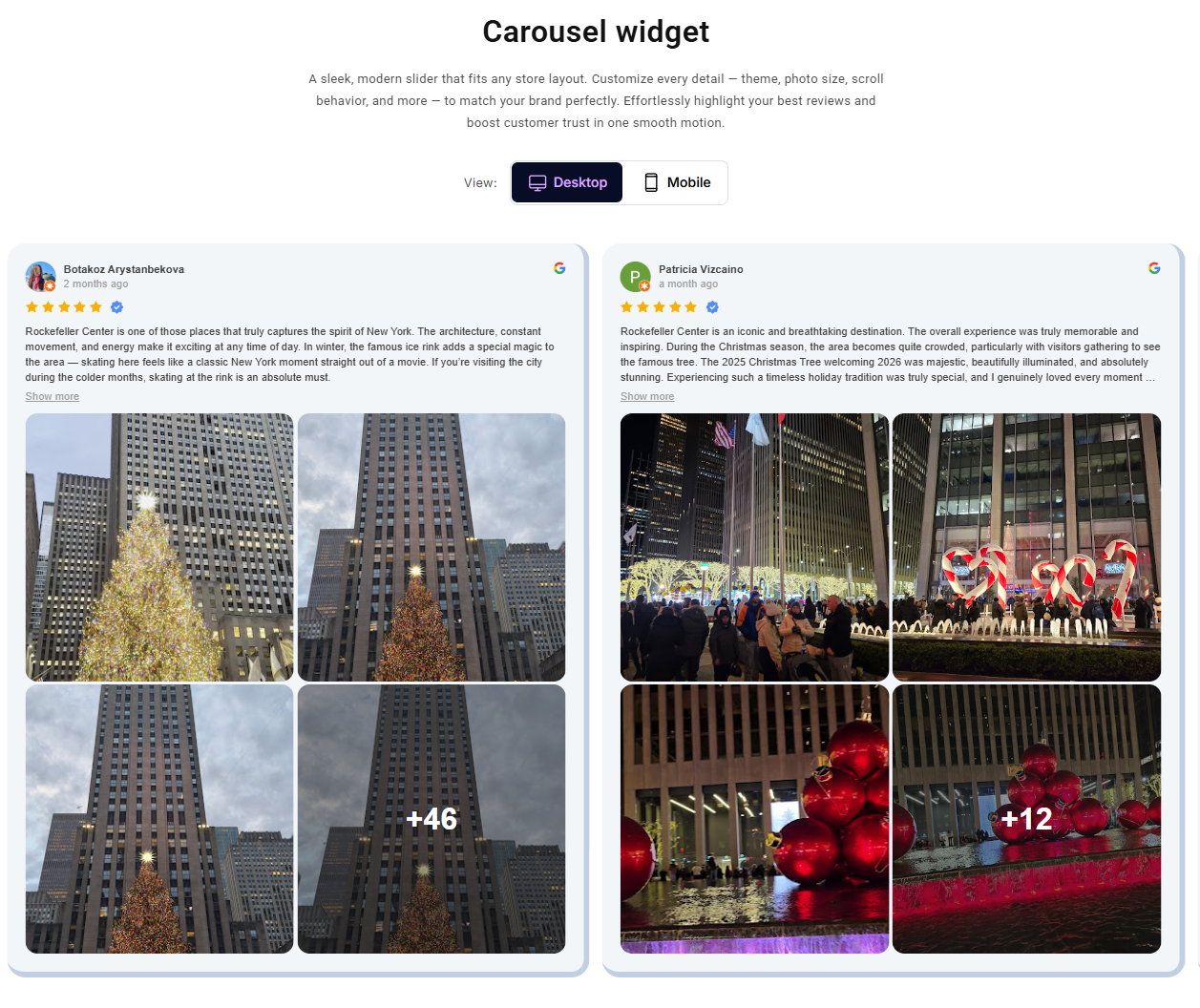
Here’s what a customized widget looks like using the carousel style:
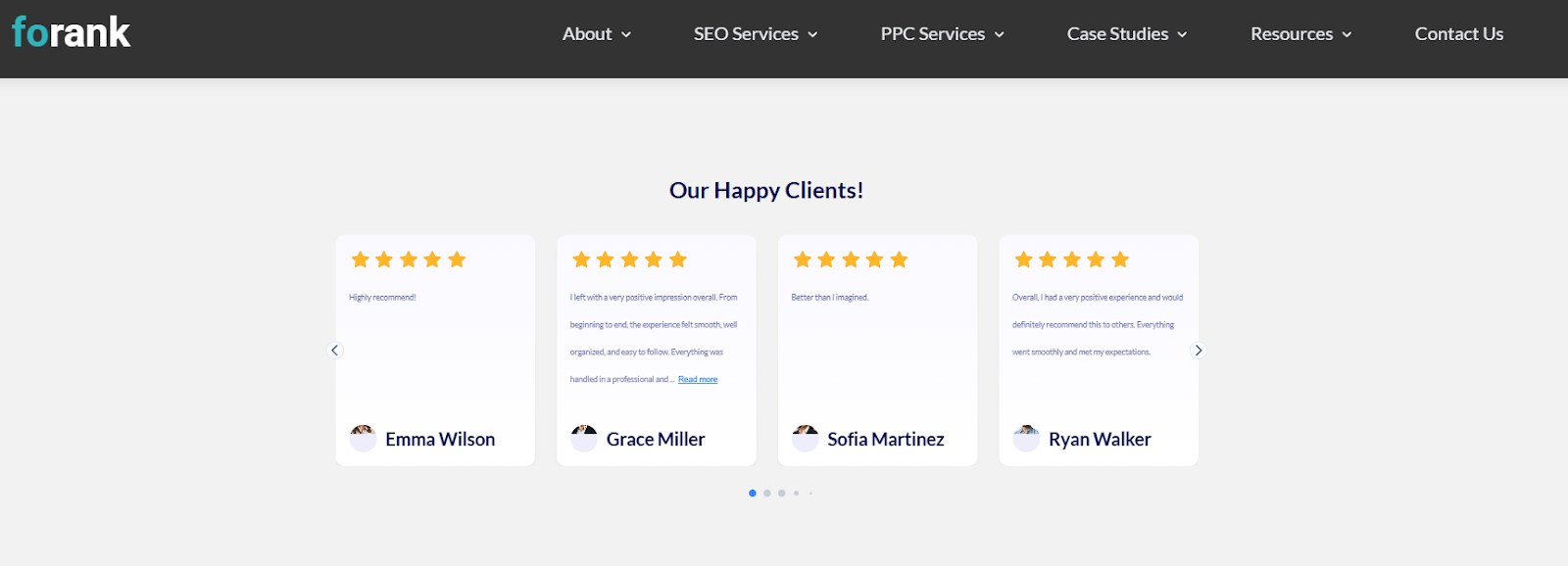
There are six styles in all: carousel, slider, badge, grid, list, and masonry. You can try any of them for free.
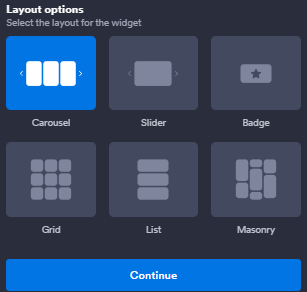
Here’s a step-by-step guide for adding this widget to your Shopify site.
Step 1: Visit the Jotform website
Log in to Jotform (or create a new account), select My Widgets, and then click Create new widget.
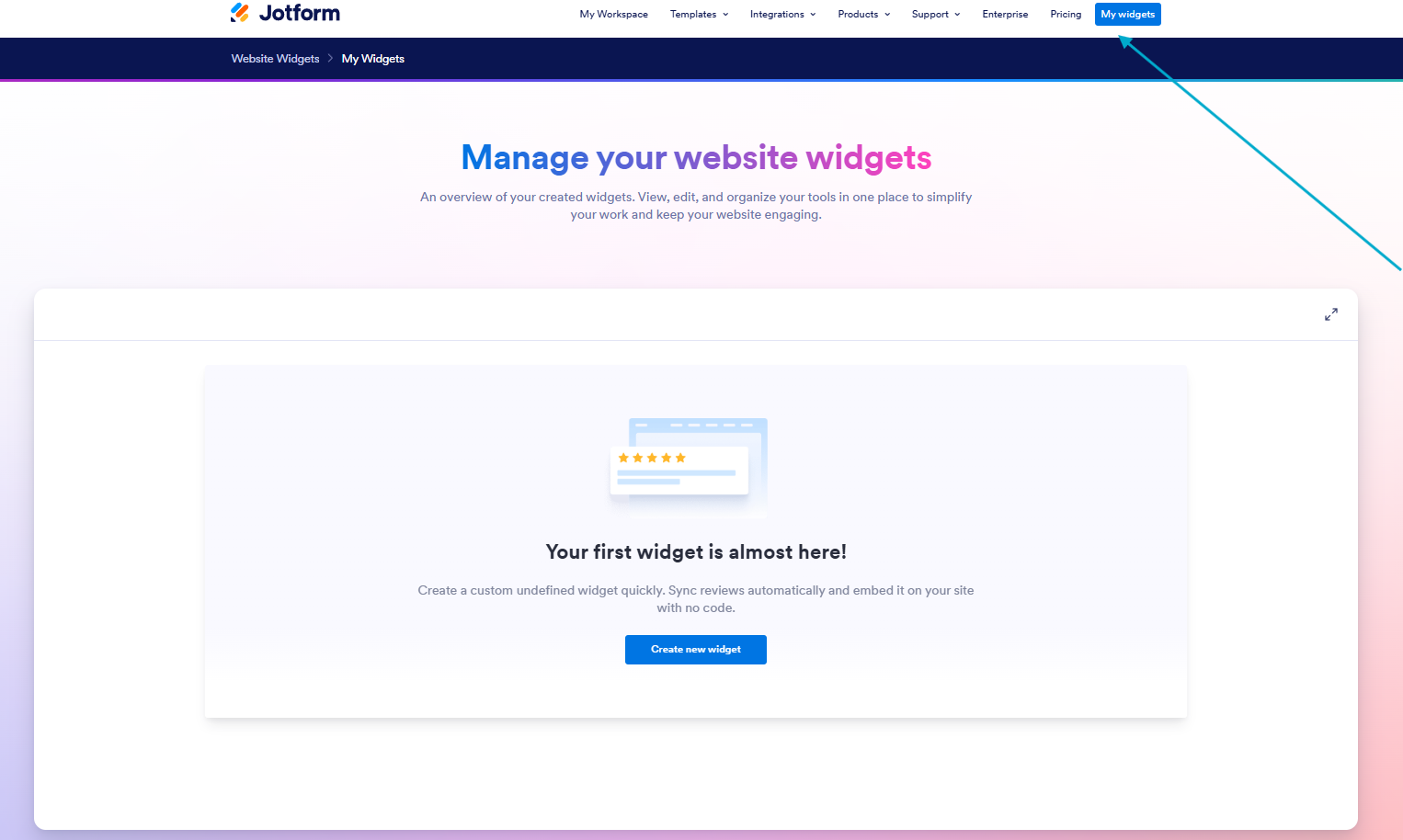
Step 2: Customize your widget
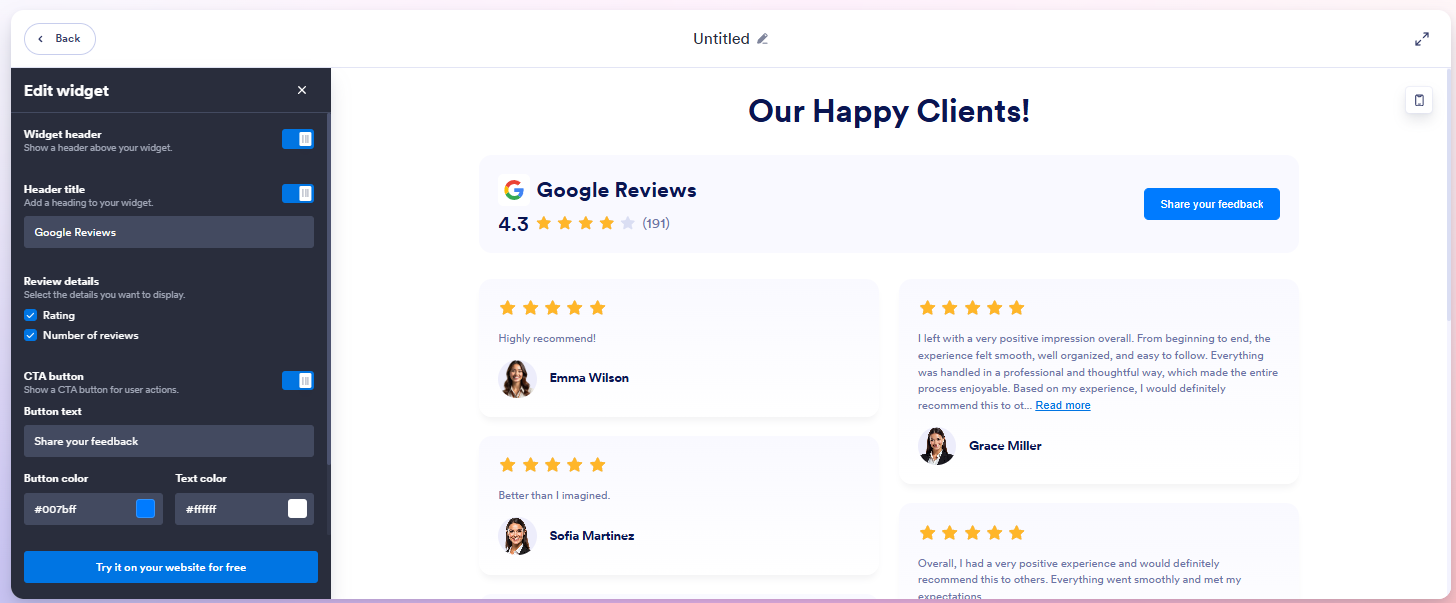
From the widget interface on Jotform, you can fully customize all aspects of your widget:
- Widget width
- Style of widget
- Widget header (on or off)
- Header size
- Headings
- Review details (whether to include names or ratings)
- CTA button
- Content
- Button and text colors to match your brand
Once you’re done making adjustments, click Try it on your website for free.
Step 3: Put the embed code on your Shopify site
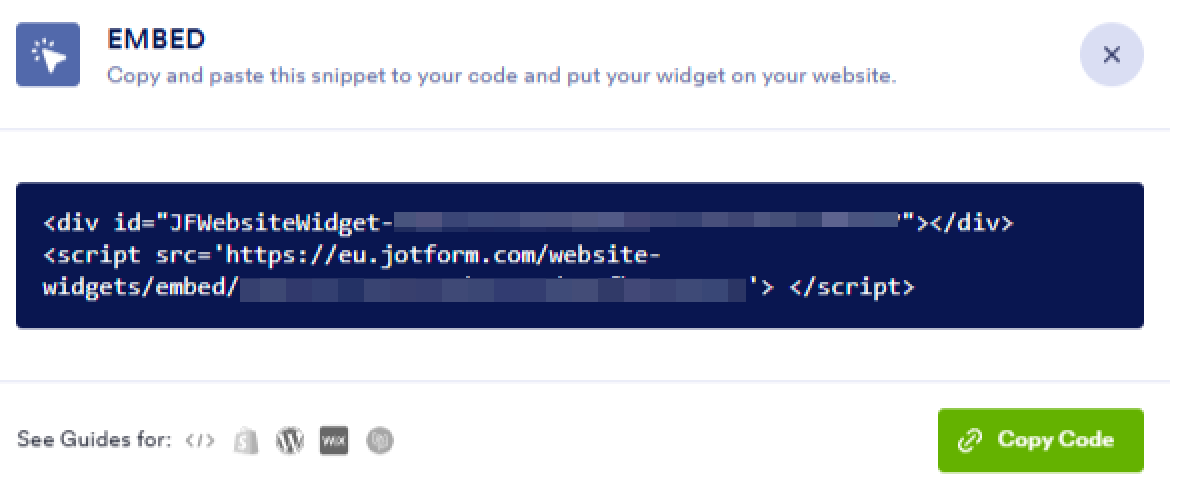
Click on Copy Code and use the Embed Code in your Shopify site.
Pro Tip
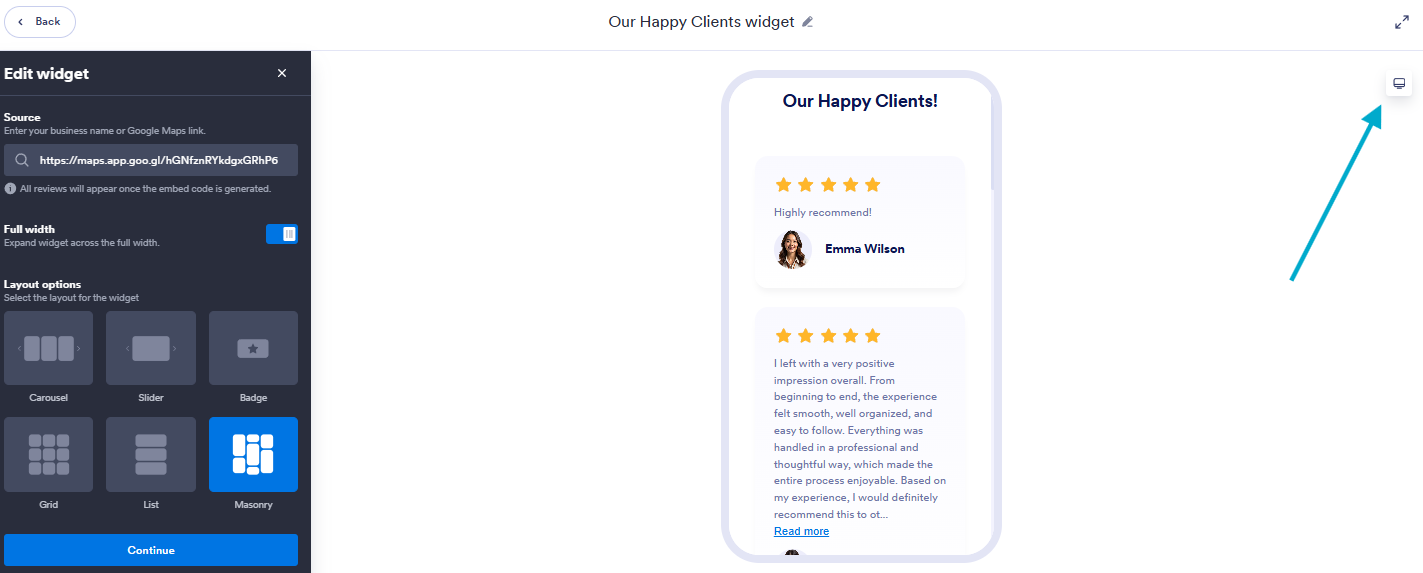
Jotform’s widget editor includes a built-in device preview that shows you exactly how your widget will appear on desktop and mobile before going live. Simply toggle the top-right corner to adjust the view and fine-tune the design for every screen size.
Why this works:
- Costs nothing — completely free
- Automatically updates when new reviews are posted
- Works with any theme and page builder
Option 3: Add Google reviews to your Shopify store manually
For full control over which testimonials appear on your website, you can opt to copy and paste reviews manually. This approach lets you handpick your strongest reviews for social proof — but it isn’t dynamic, so it involves ongoing maintenance.
Another downside? Since the reviews aren’t pulled directly from Google, they won’t automatically include branded elements like logos or star ratings. They may come across as less trustworthy, unless you have developer support or the creative skills to design a review module yourself.
It’s unusual to see e-commerce websites add reviews in this way, as they’re not tied to products and don’t carry the same credibility as reviews pulled directly from Google.
However, manually adding a review does have its place. Here’s an example from the Manuka Doctor site:

In this example, the company wanted to include a very specific review from a doctor who supports their products. Because of the doctor’s credentials, the review is considered highly credible, making it a desirable use case for manually adding reviews.
Adding reviews manually is very simple to do. Here’s how:
- Log in to your Google Business Profile and navigate to your reviews.
- Choose your best reviews and copy the text.
- Paste each review into a separate Shopify text box. Consider using the boxes to create a well-designed testimonial section, homepage blocks, or a boost to various product descriptions.
Why this works:
- Gives you full control over which reviews appear
- Requires no third-party tools
- Lets you match your branding perfectly (some developer support may be required)
Option 4: Embed Google Maps into your Shopify store
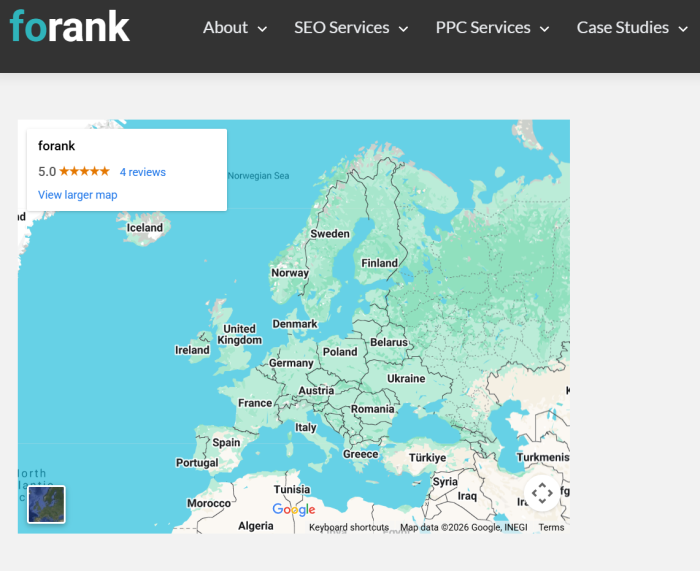
Another lightweight method for adding Google reviews to Shopify is embedding Google Maps to display your star rating. While this won’t show Google My Business reviews on Shopify, it will provide credibility signals such as your location, review stars, and number of reviews.
Here’s what the Google map embed looks like:
And here are the steps for embedding Google Maps into your Shopify store:
- Open your business listing in Google Maps.
- Click Share, then Embed a Map.
- Copy the HTML iframecode.
- Add to Shopify by pasting the embed code into a Custom HTML section in your Shopify theme.
Why this works:
- Displays star ratings instantly
- Adds location credibility
- Is quick and simple to implement
Embed smart widgets and turn your Shopify store into a conversion machine
Try adding Jotform’s Google Reviews widget to your Shopify store and see how you like it.
I promise it’s easy!
And once you see how easy it is, you can try other free Jotform website widgets too, like the AI chatbot widget to automate customer support and answer presale questions or the form-building widget to capture forms and add pop-ups to your site.
If you’re already selling on Shopify, adding dynamic reviews plus conversion-focused widgets is one of the fastest ways to increase trust, reduce friction, and drive more revenue.
This article is for small business owners, e-commerce store owners, DTC brands, local businesses selling online, and marketers using Shopify who want to increase trust, improve conversions, and strengthen brand credibility by displaying Google reviews on their store.





































Send Comment: