
Key takeaways
- Dropbox file requests make it easy to collect files from anyone, even if they don’t have a Dropbox account.
- To request a file, fill out the title, description, and destination folder fields. You can also set up a password or deadline if you have a paid Dropbox plan.
- There are notable limitations on storage and upload size caps, which vary based on your Dropbox plan.
- If you need a full file intake form rather than a simple upload link, using Jotform with Dropbox is the best solution. You can create a branded form experience and send uploaded files to your Dropbox folder automatically.
If you’re looking to collect files such as photos, proposals, and forms from multiple users via Dropbox, one solution is to use the file request feature. It’s simple to set up and lets users who don’t have a Dropbox account upload files.
Here is a step-by-step breakdown of how to create a file request in Dropbox and how to share and manage file requests. We’ll also share some limitations of Dropbox and show you why Jotform combined with Dropbox is the best choice if you need more advanced features.
How to create a file request in Dropbox
The Dropbox file request feature is ideal for straightforward file collection. If you haven’t used Dropbox before, you’ll need to set up an account. Dropbox offers three paid plans and a free plan. The file request feature is available in all plans.
Follow these instructions to create a Dropbox file request:
- Log into Dropbox.
- Click File Requests from the left-side menu.
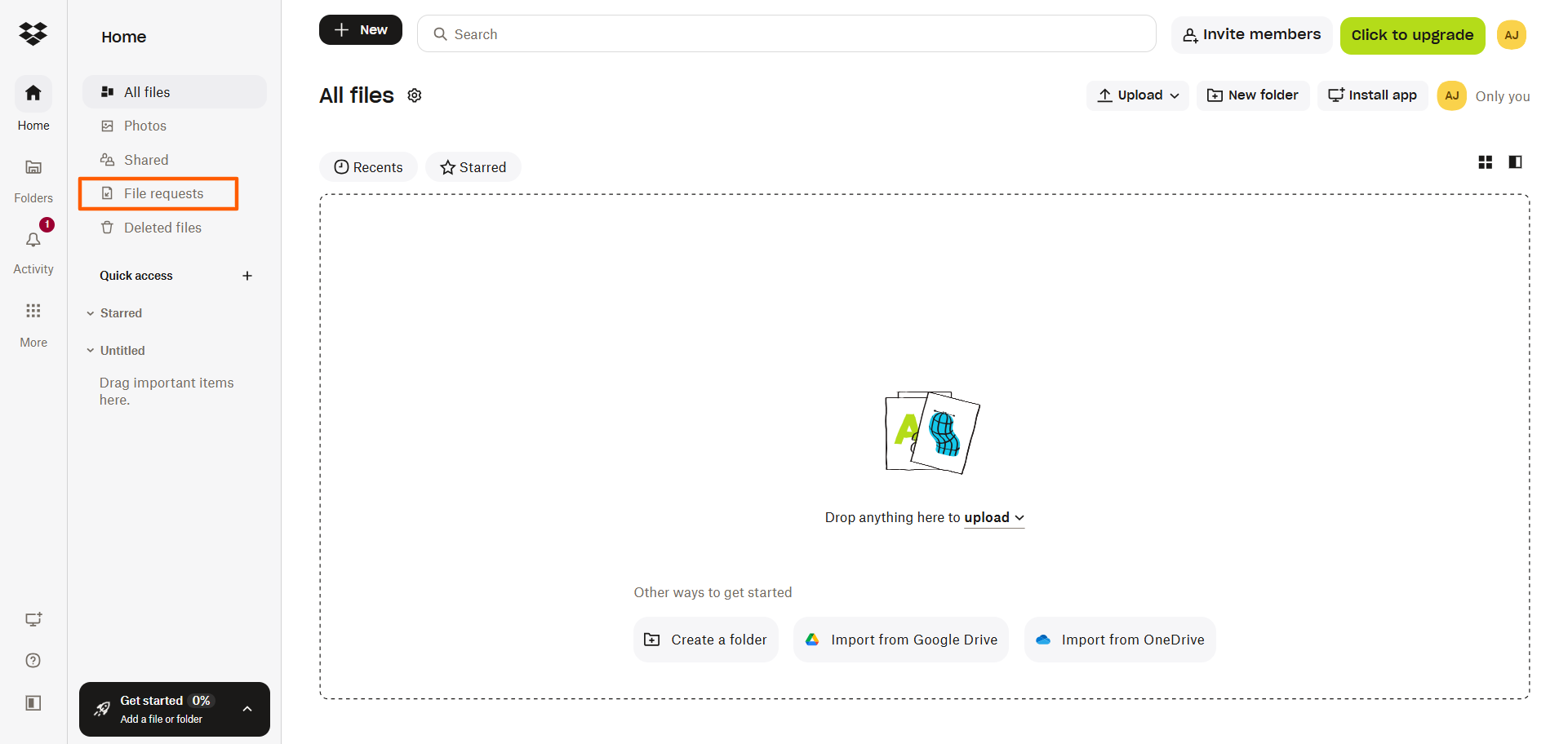
- Click Request File.
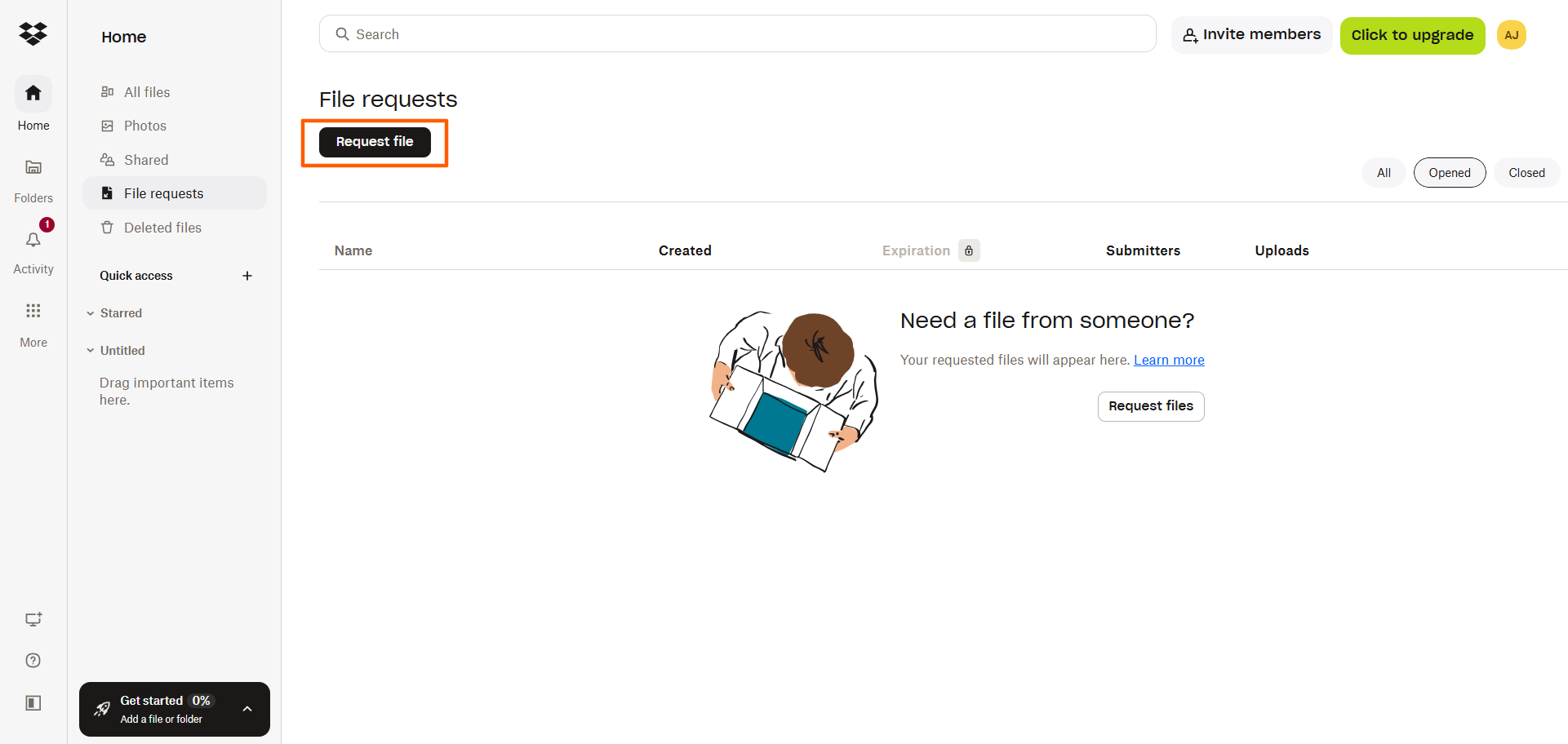
- Fill out the title, description, and folder fields. You can also set naming conventions for incoming files.
If you have a paid plan, you can also fill out a deadline date and time, specify what to do with late uploads, and set a password to upload files.
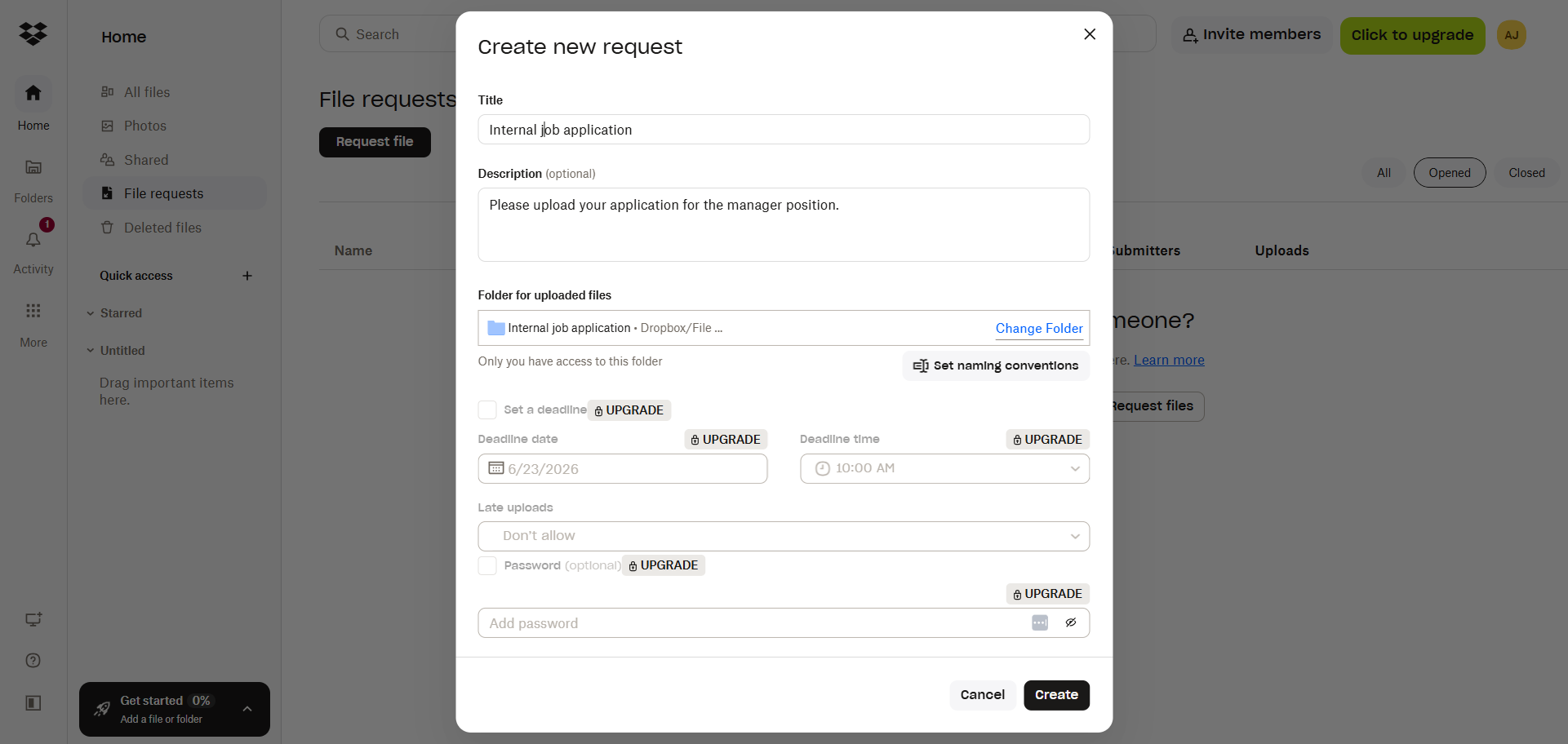
- Click Create.
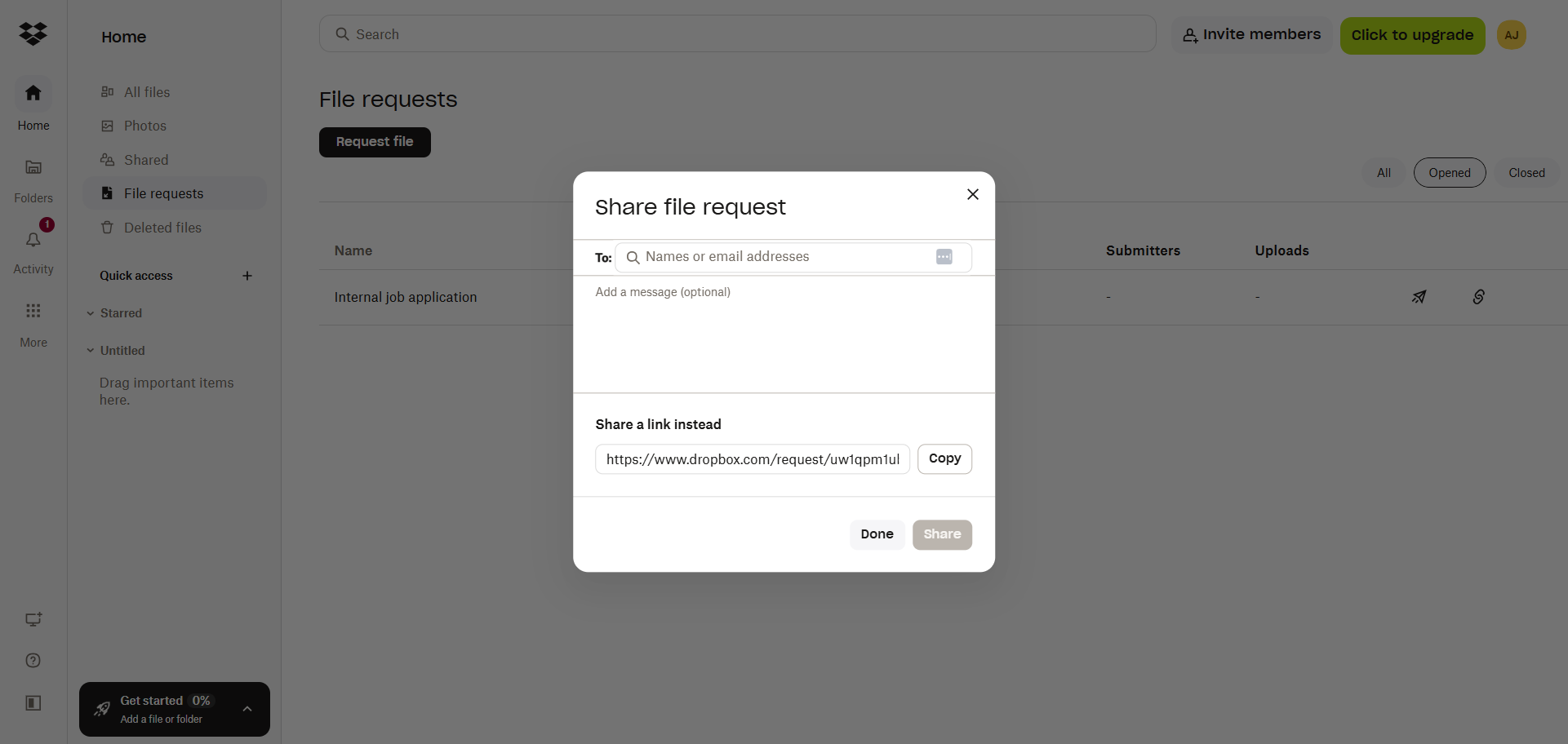
- Dropbox will open a Share File Request dialog box. Type in names or email addresses in the To field to send the file request to users. You can also copy the file request link and paste it elsewhere, such as on a website or on social media. Click Share to send an email or Done when you’re finished.
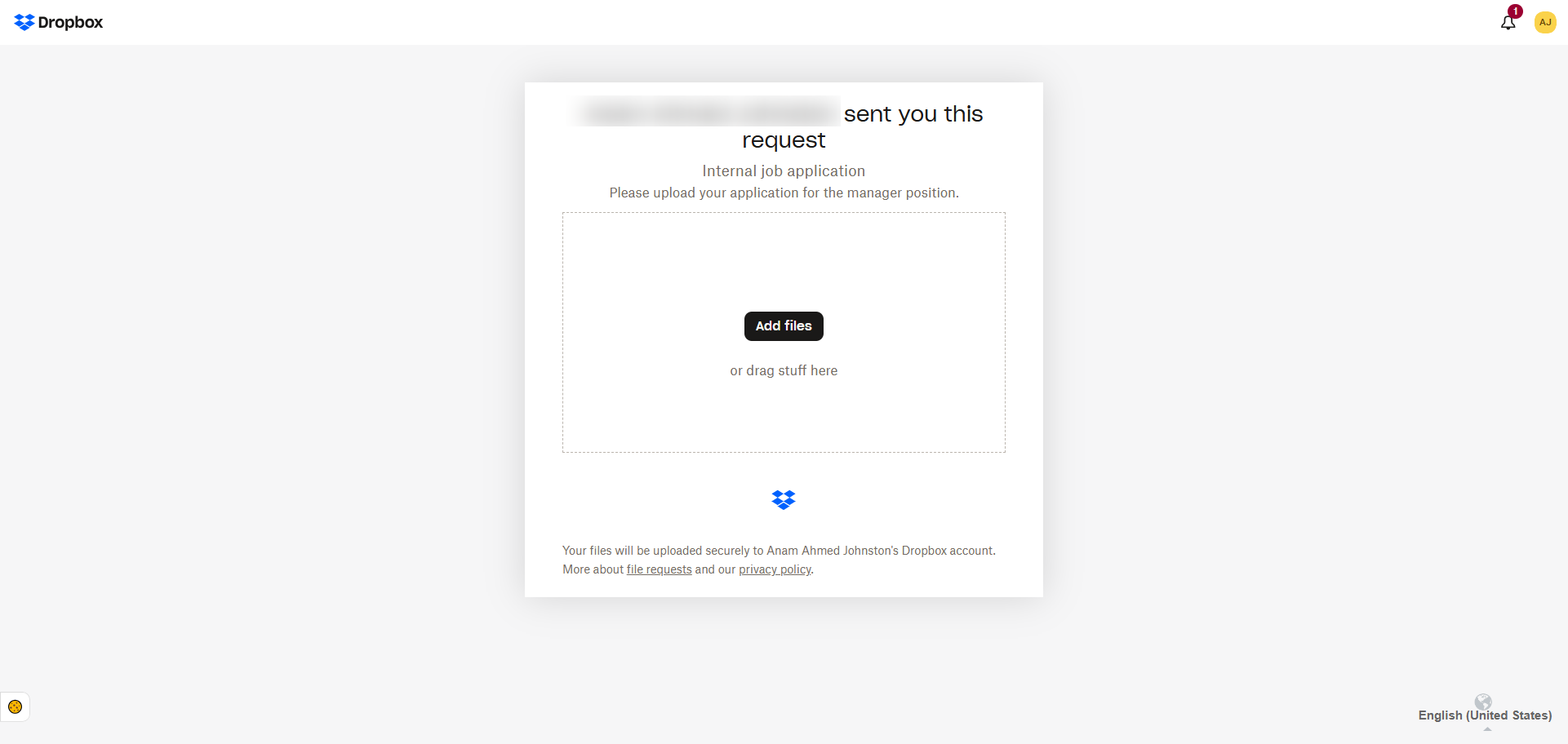
When users click on the file upload link, they will see the basic upload field. The files they upload will automatically go into the folder you have specified. Users don’t need to have a Dropbox account to upload a file.
Pro Tip
Some users may not know how to upload to a Dropbox file request if they have not used Dropbox or a similar tool before. If you think it may be helpful, you can provide instructions in the Description field, such as “Click ‘Add files’ below to upload your document.”
How to share and manage a Dropbox file request
Setting up the Dropbox upload request is easy, but the process doesn’t end there. You also have to manage the request to ensure you receive the files you need.
Share the request by email or link
You have the option to send the Dropbox file request link via email. This option works well when you’re requesting files from a limited number of people, such as friends or colleagues, and you know their email addresses.
You also can copy the Dropbox file request link and paste it elsewhere, such as in Slack, in a client portal, on a website, or within a social media post. This method is best when you don’t have all the email addresses of people you’d like to respond or if you need to make the file request link available to a large group of people.
Edit the request after sending it
Even after you have sent the Dropbox upload request, you can edit it from the file request page. Click on the file request you want to edit and click the pencil icon near the field you want to edit. You can revise the title, description, destination folder, deadline, and password as needed. Keep in mind that making too many edits after you’ve already sent the file request may confuse users.
Close, reopen, or delete the request
Dropbox gives you several options for managing the file request from the main file request page. Click on the file request and find the action you want to complete.
If you want to stop receiving uploads, click Close Request. You can also click Reopen Request if you want to resume receiving files. Use the Delete option if you no longer need the file request.
A quick reminder: Dropbox file requests have limits
While the Dropbox file request feature is easy to use, it’s not ideal for all use cases. It has limitations, so Dropbox alone may not meet your needs. Keep these possible obstacles in mind:
- Basic features: Dropbox provides only a bare-bones upload form, which makes it difficult to create a branded file upload experience or professional intake form. You also can’t provide more context to your users about your file request.
- Storage usage: All uploaded files that come through the file request count toward your Dropbox storage limit. This can be problematic if you’re requesting large files.
- Dropbox file request size limit: Your Dropbox plan limits the size of files you can request. Higher-tier plans can request larger file sizes than free or lower-tier plans.
- Dropbox file request deadline: The free plan doesn’t have the ability to set deadlines; that feature is limited to paid plans.
- Time zones: Deadline times are tied to your time zone, not your users’ time zones.
- Passwords: You can add a password only with a paid plan, and you will need to share the password with users separately.
- Private destination folder: Uploaded files are private by default. You need to share the folders or files with others who need access.
- Wrong uploads: If a user uploads an incorrect file, they can submit the correct file using the same upload link. However, both files will appear in your Dropbox folder, which can cause confusion.
Dropbox has several benefits for file storage and sharing, but it’s missing a few distinct features. You can expand its capability by using Dropbox in conjunction with another tool: Jotform.
Need a more complete upload workflow? Use Jotform with Dropbox
If your main goal is basic file collection, then Dropbox file requests will be adequate. However, if you want to improve the file request experience for users but continue to use Dropbox for storage, Jotform can help.
Jotform is a leading form builder that makes it easy to collect files and submissions in one place via branded forms. It works seamlessly with Dropbox, so you can store files you collect in your Dropbox folders.
Here’s how you can create Dropbox forms with Jotform:
- Create custom branded file upload forms: Jotform’s drag-and-drop builder makes it easy to build a file request form without any coding. You don’t have to build forms from scratch; Jotform has several file upload form templates and Dropbox forms, including a Send Us Your File form. You can select a template and edit it based on your file request needs, and you can add your own branding to create a seamless experience for your users.
- Integrate Jotform with Dropbox: The native Jotform Dropbox integration makes it easy to connect the two tools. Once the integration is set up, every file you collect through the file upload form will go into your Dropbox folder.
- Share the file upload form with users anywhere: You can share the file upload form via email, website, text, or social media, or you can provide a link.
- Collect all file uploads in Dropbox: When users upload files via the form, every file will automatically be stored in your Dropbox folder. Users can even upload files from their mobile device.
Dropbox file requests are ideal for simple needs, but when you want a more robust experience, such as a branded file upload form or the ability to upload from mobile devices, using Jotform with Dropbox is the way to go. You can collect files in one secure place while improving the process for both you and your users.
Explore Jotform today and see how easy it is to create a file intake form and connect it to Dropbox.
FAQs about Dropbox file requests
If you want to be notified when users add a file to Dropbox through your file request link, you can set up notifications by going to the folder you’d like to be notified about and clicking the Settings icon. Dropbox provides a tutorial on this process.
Dropbox file requests will expire only if you set up a deadline for the request. If you have not set a deadline, the file request will not expire and users can continue to upload files indefinitely.
You can request a file from someone in Dropbox by using the File Requests feature. However, Dropbox does not provide a robust file upload form; it provides only a simple file upload link that goes to a basic upload page. For a professional file intake form, use Jotform with Dropbox.
No, users do not need to have a Dropbox account to upload files. Anyone can upload a file unless the requester has set up a password to limit access.
The size limit for a file requested in Dropbox depends on your Dropbox plan tier. File size limits range from 2GB to 250GB. Each file uploaded to your Dropbox folder also counts toward your total storage limit.
Yes, you can set a deadline and password on a Dropbox file request. However, this feature is not available in the free plan. You’d need to upgrade to a paid plan.
Yes, you can both edit and close a Dropbox file request after you have sent it to users. To edit, go to the main file request page, click on the file request you want to edit, and click on the pencil icon near each field you want to edit. To close, go to the main file request page, click on the file request you want to edit, and click Close Request.












Send Comment: