Jotform’s Payment Elements sends its data in a format where labels are present. This isn’t useful if you’re going to create a custom email with the individual payment information. The trick to strip the payment labels would be adding a payment suffix to the payment element tag.
Field tags can be found in your form’s Email Alerts. Here’s how you can do the trick:
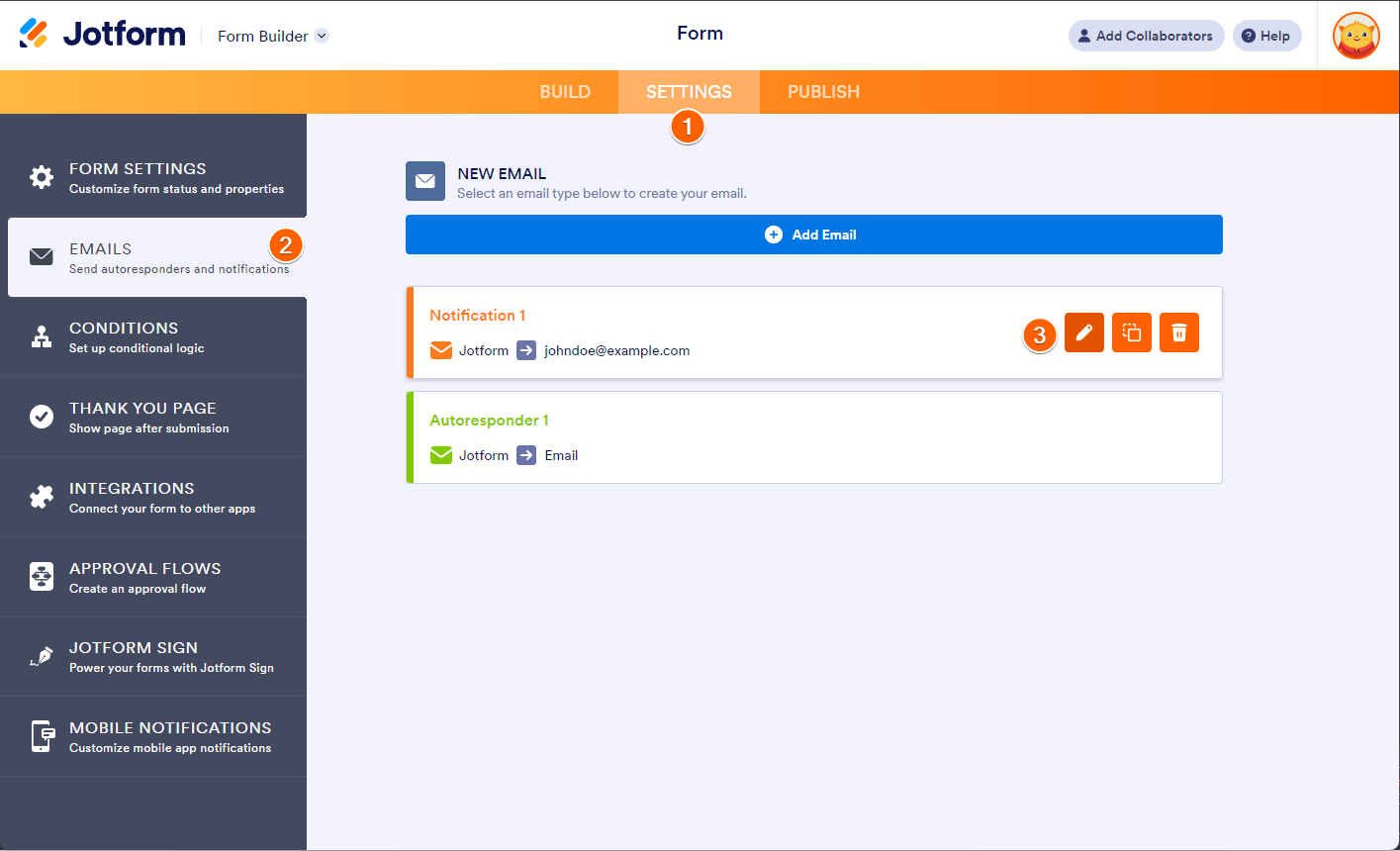
- In the Form Builder, go to the Settings tab.
- Select Emails on the left panel.
- Hover your mouse over the Notification Email, and click the Pencil icon to edit.
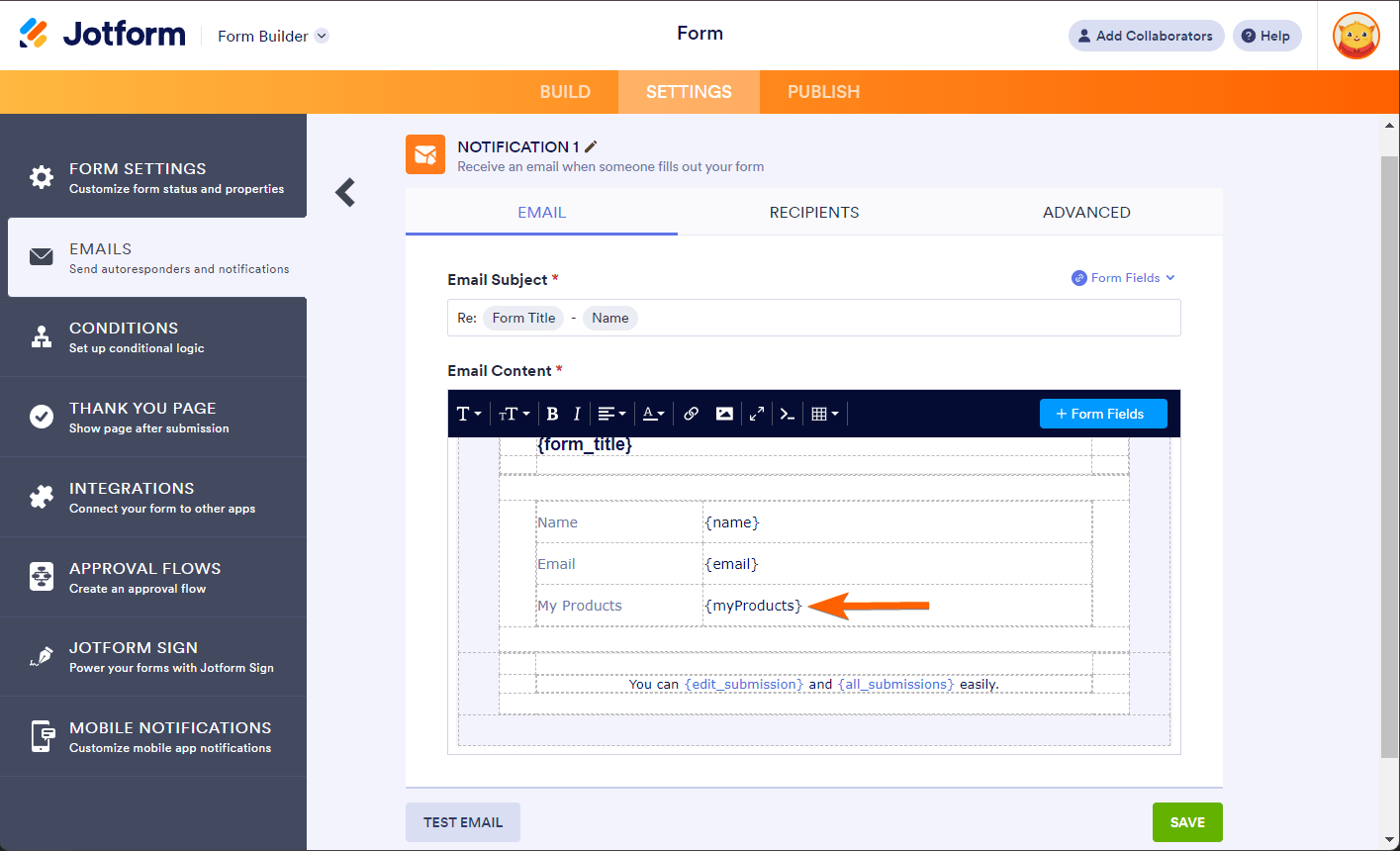
- Look for the field tag of the payment element. In the below example, you’ll see {myProducts}.
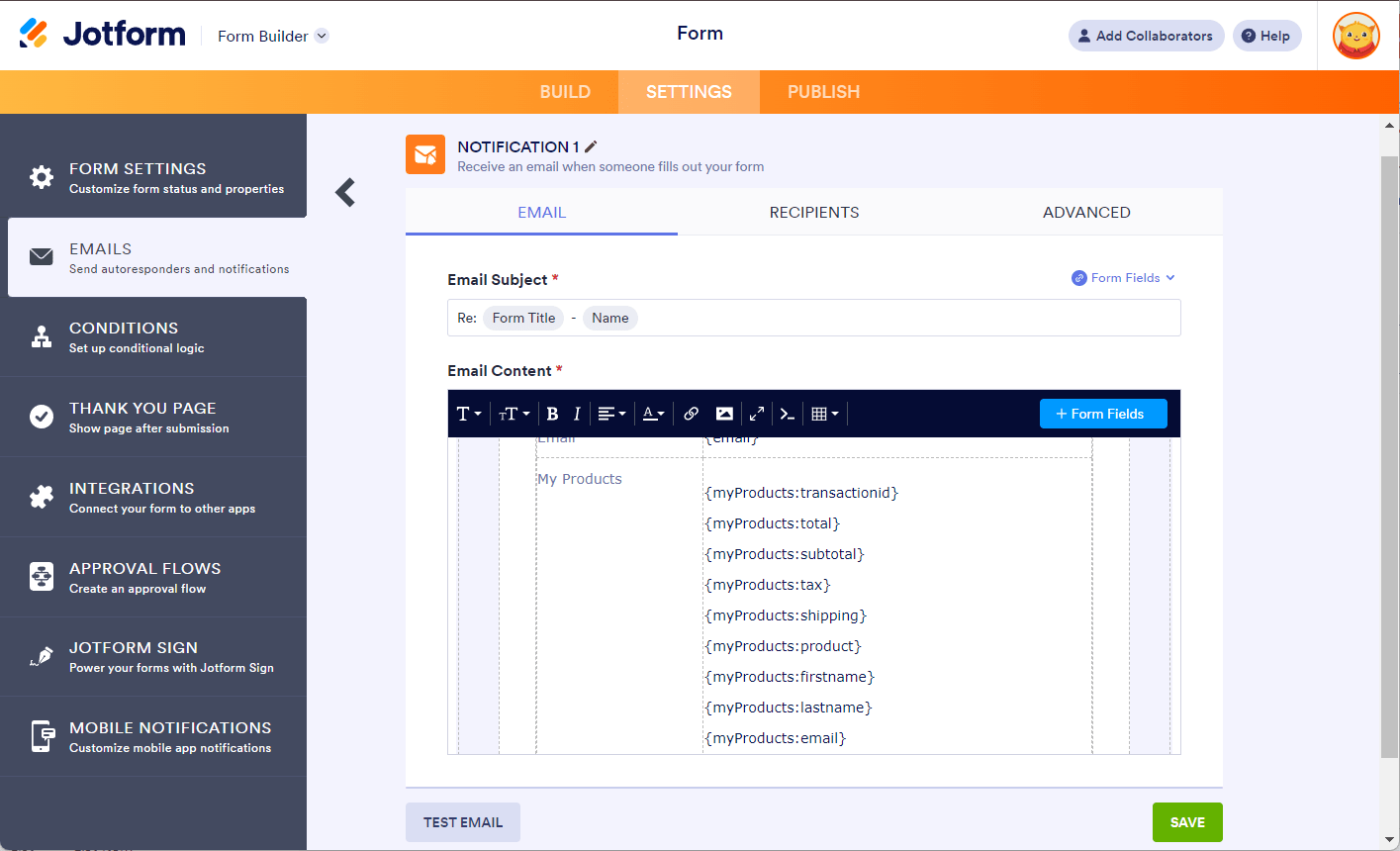
- Start adding the field tag with the required suffixes. The payment suffixes available are:
- transactionid
- total
- subtotal
- tax
- shipping
- product
- firstname
- lastname
- addr
- city
- state
- zip
- country
- customerid (Stripe)
As mentioned above, if your payment element’s unique name or tag is {myProducts}, simply insert the suffix separated by a colon. So, if you’re going to display only the product total, it becomes {myProducts:total}. Likewise, if you want to display only the PayPal transaction ID, the tag will be {myProducts:transactionid}.
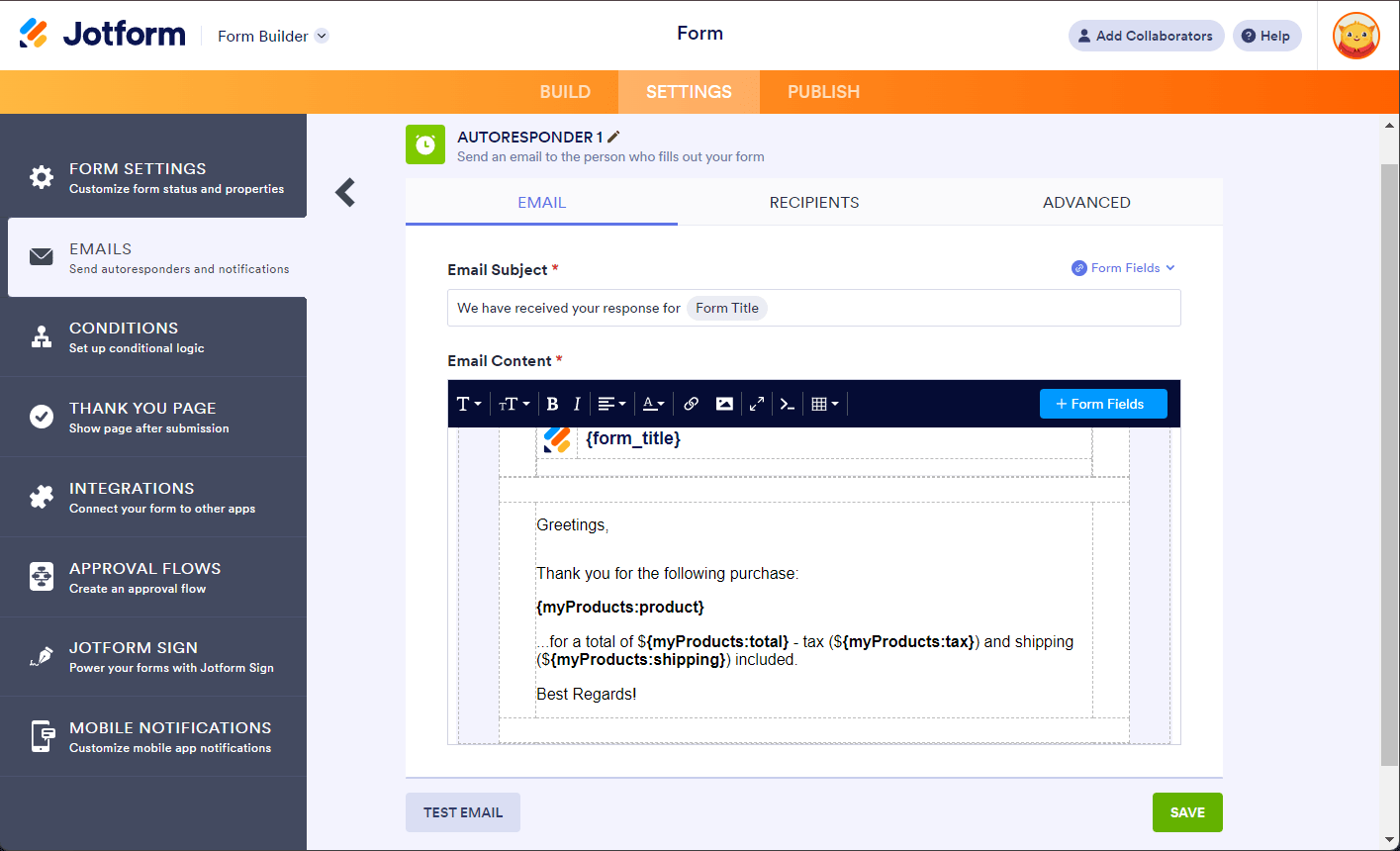
You can also construct a custom email with the tags, for example:
Here’s a demo form to see it in action: https://www.jotform.com/220113682157954.



Send Comment:
2 Comments:
June 5, 2023
when I use this syntax in a paragraph section I get only the total amount of the order, it is not listing all the single products.
Is there any way how to show the selected products in a paragraph, I want to show this at on the last page of the form to the customers, so that they can confirm again what they selected.
November 23, 2021
Niot particularly well explained. Perhaps SEVERAL examples?