Jotform makes it easy to make sure respondents provide the information you need before submitting your form. Since new fields are optional by default, you can set important fields as required so respondents must answer them before they can submit the form.
Whether you’re collecting names, email addresses, contact details, or other important information, required fields help you make sure you get the answers you need from every submission.
Requiring or Unrequiring Fields Through the Element Properties
You can make a field required or optional through its Element Properties. Here’s how:
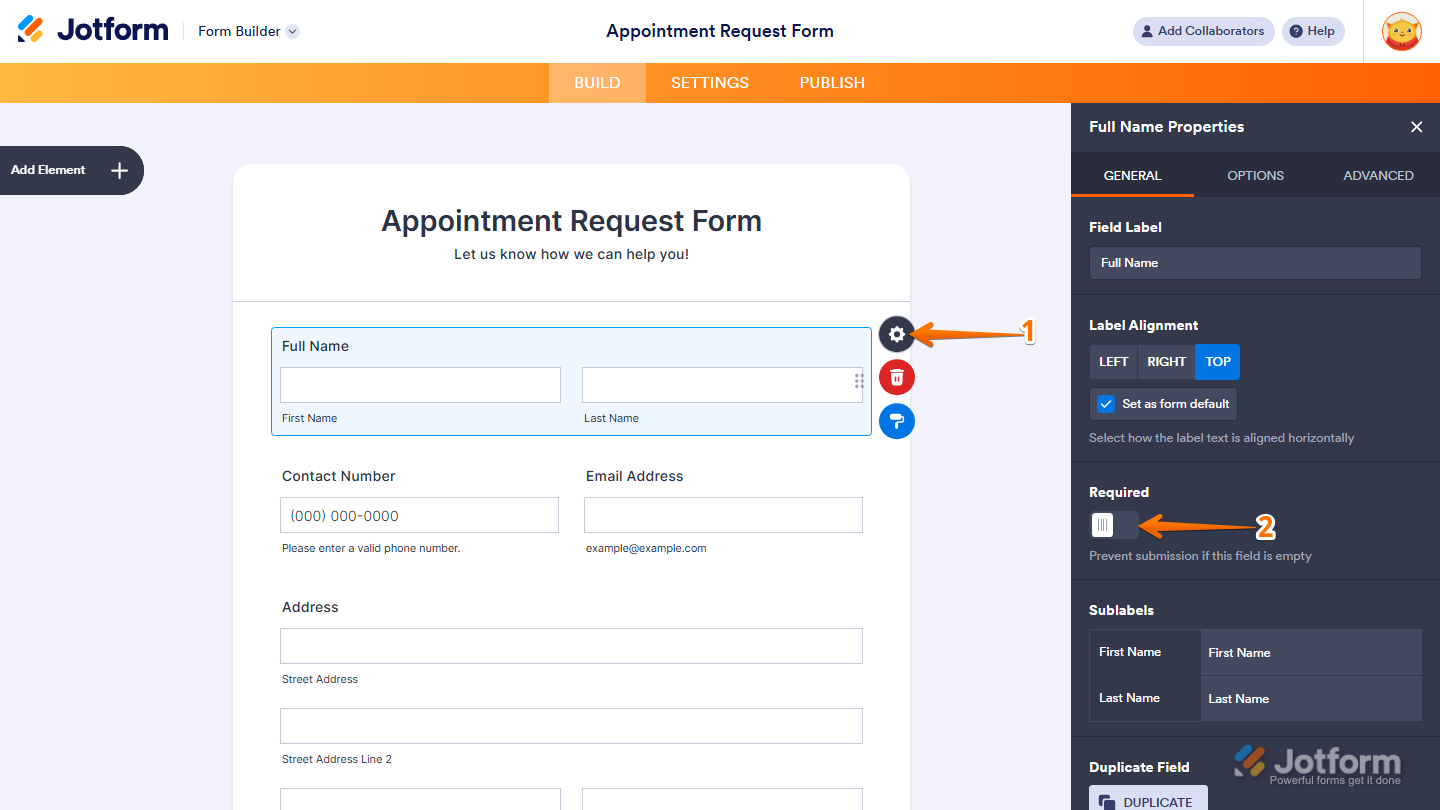
- In Form Builder, select the element you want to make required, and then click on the Gear icon on the right side of it.
- Then, in the Element Properties menu that opens, under the General tab, toggle on Required to make the field mandatory, or toggle off Required to make it optional and you’re done.
Requiring or Unrequiring Fields from the Context Menu
You can also quickly require or unrequire a field directly from its context menu. This is how it’s done:
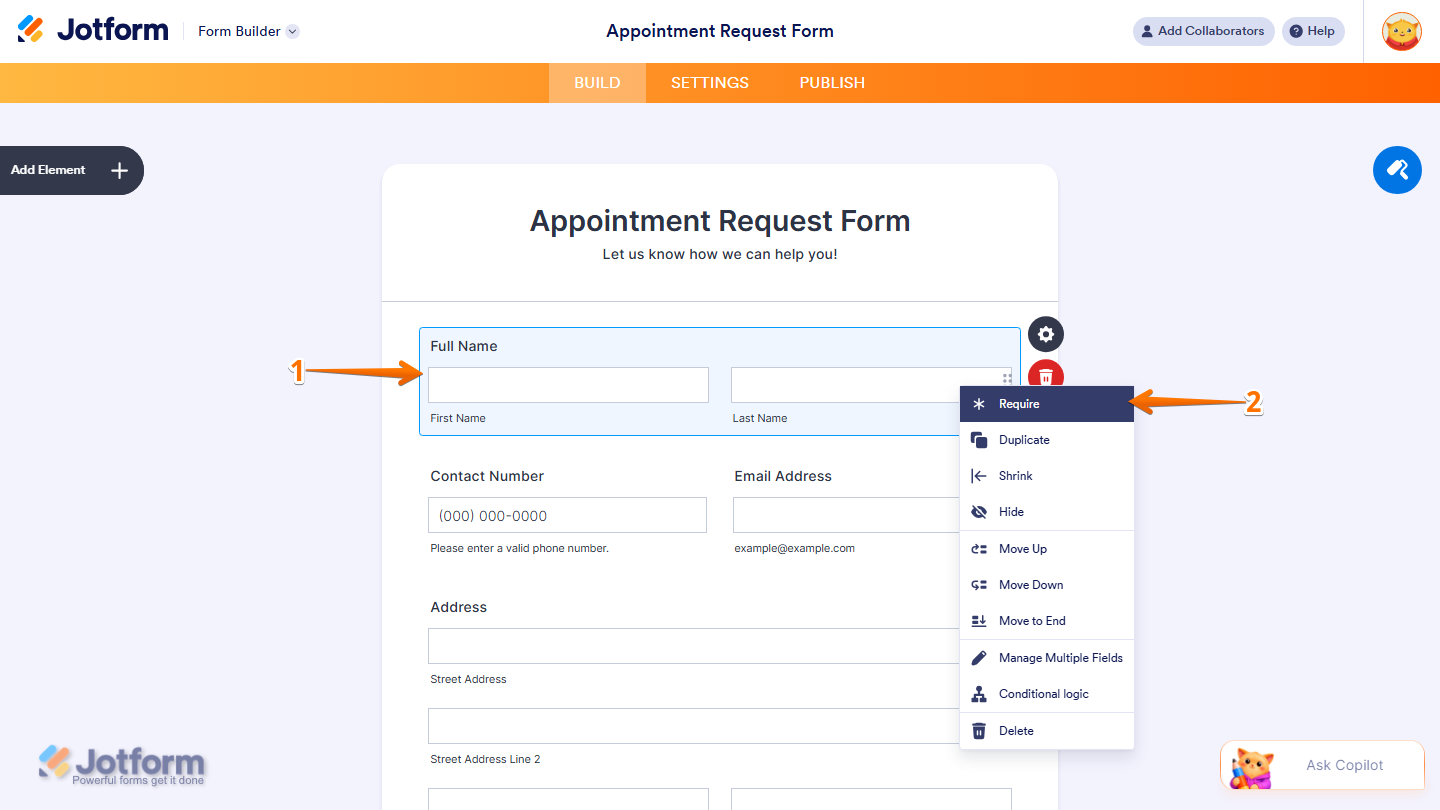
- In Form Builder, select the element you want to make required, and then right-click on it.
- Then, in the context menu that opens, click on Require to make the field mandatory.
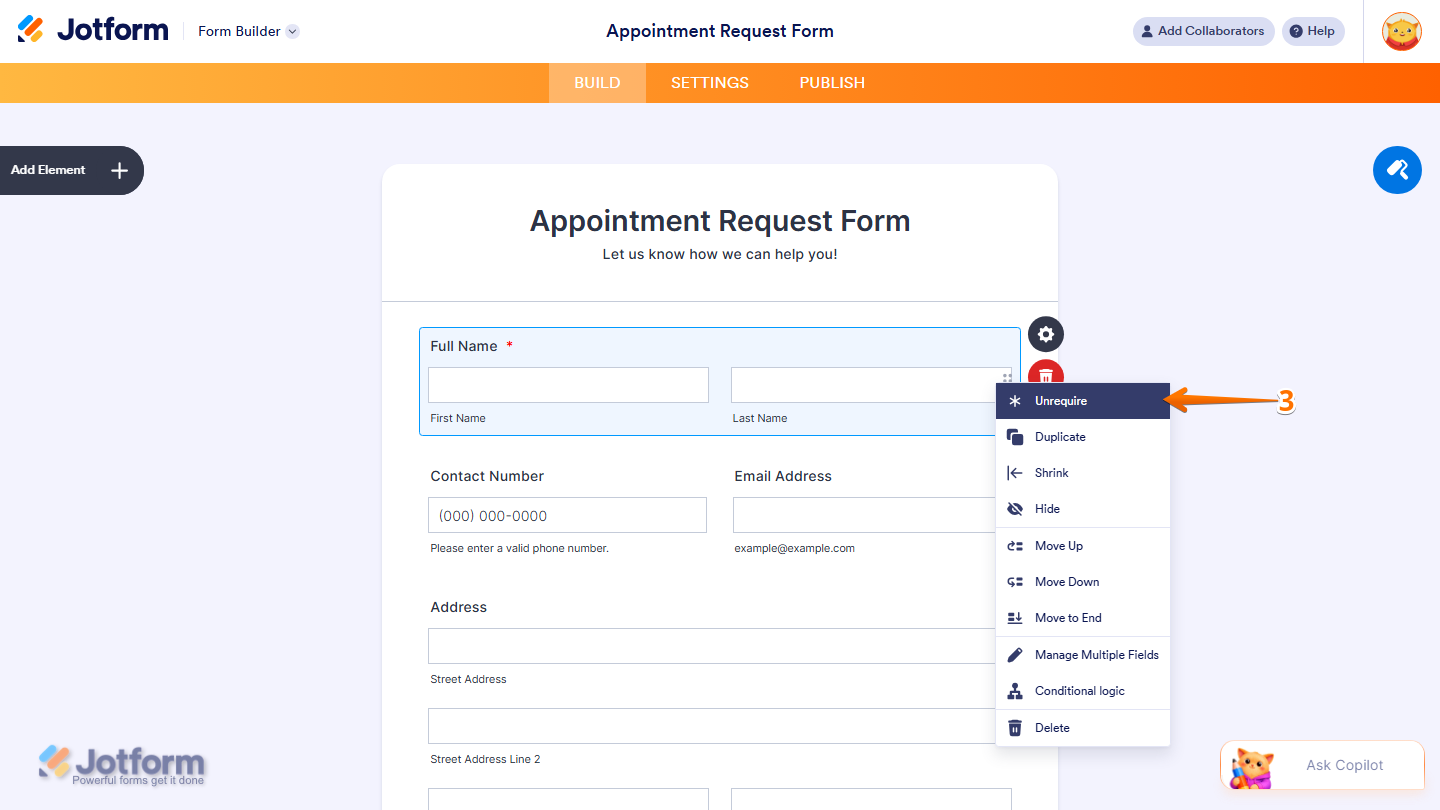
- If the field is already required, click on Unrequire to make it optional, and you’re good to go.
Requiring or Unrequiring Multiple Fields at Once
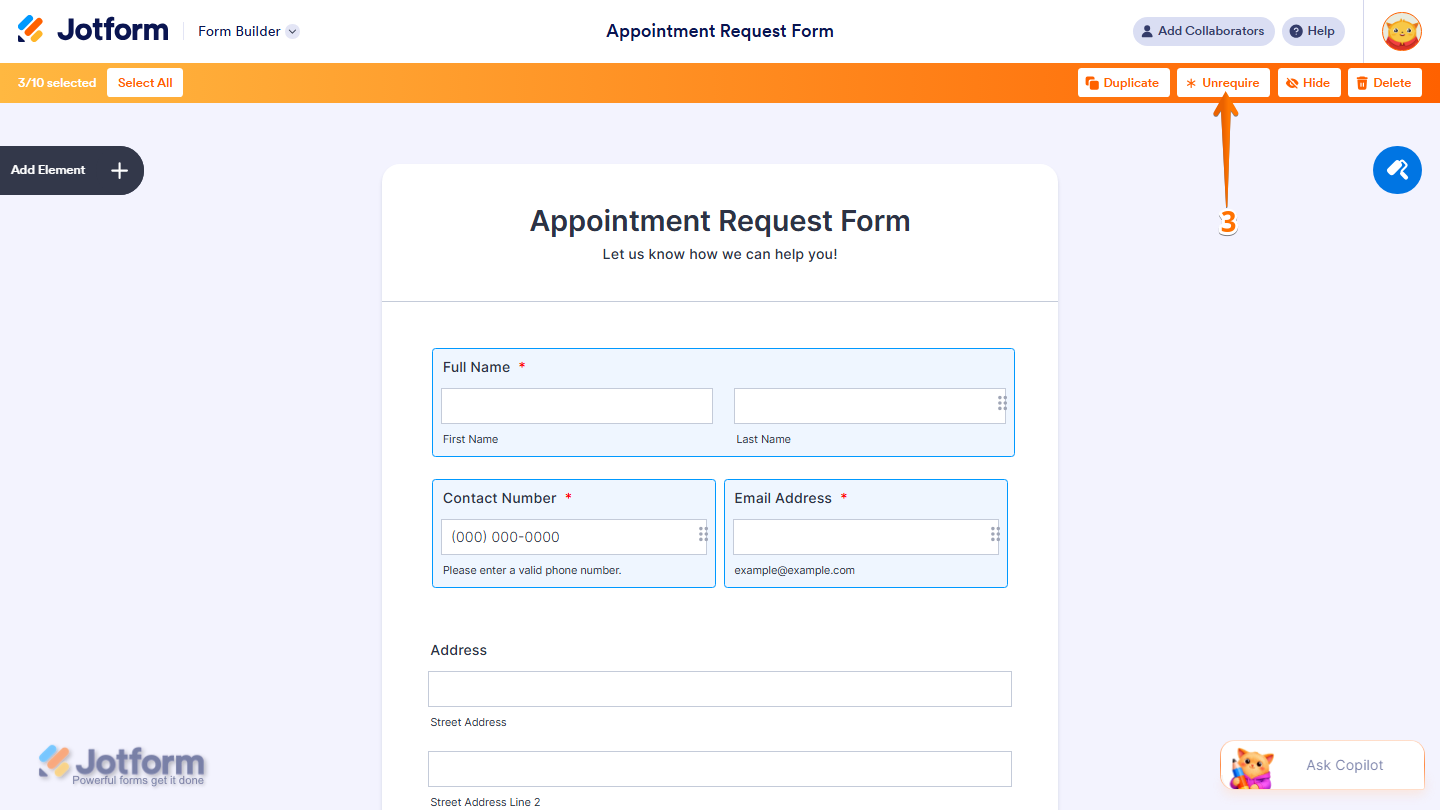
You can require or unrequire multiple fields at the same time by selecting them together. Here’s a quick how-to:
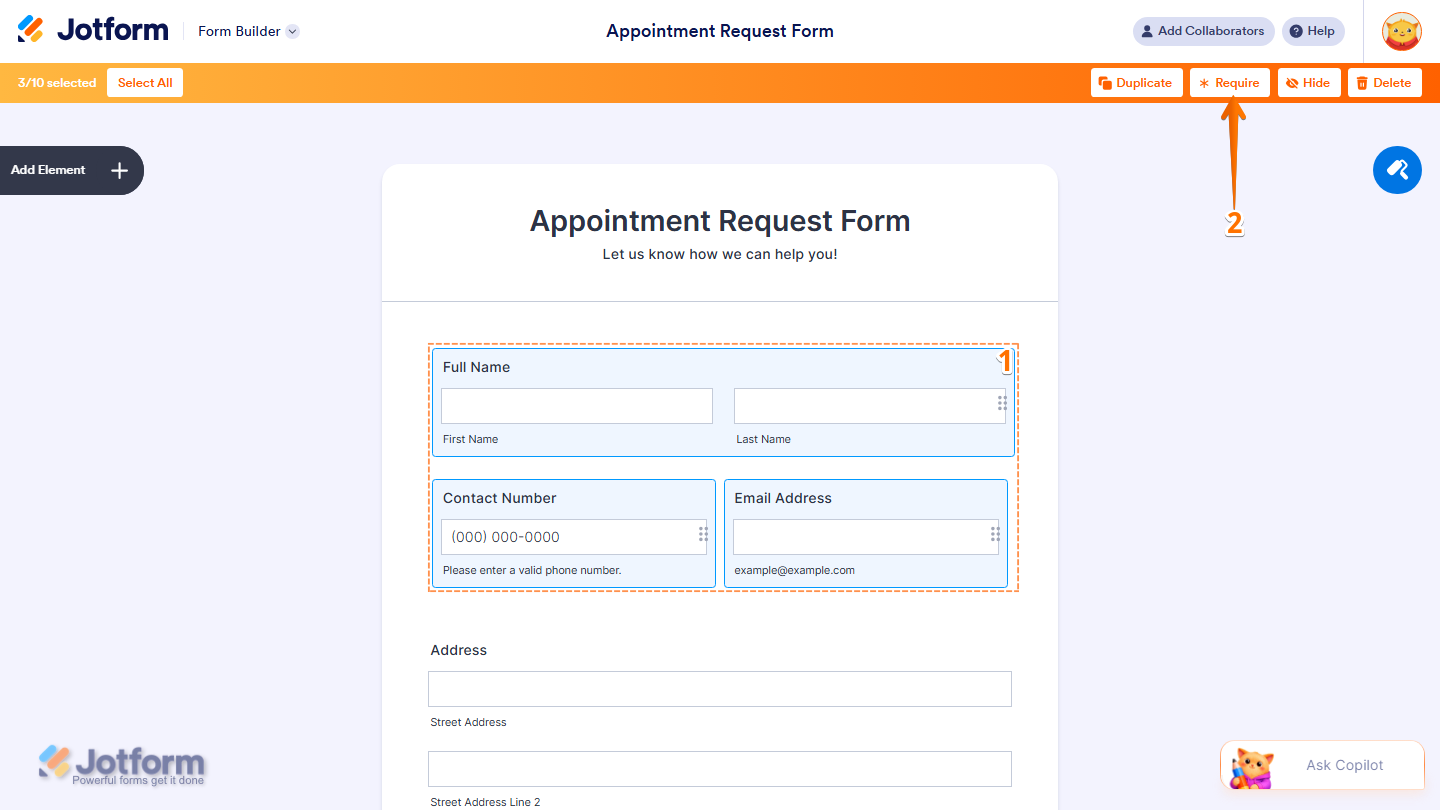
- In Form Builder, select the Elements you want to make required by holding Ctrl on Windows or Command on Mac while clicking on each Element.
- Then, in the menu that appears at the top of Form Builder, click on Require to make the selected fields mandatory.
- If the fields are already required, click on Unrequire to make them optional and you’re all set.
That’s it! You can now quickly require or unrequire one or multiple fields based on your needs. Looking for more info? Our guide on How to Manage Multiple Fields has what you need.

Send Comment:
3 Comments:
December 22, 2023
I'm trying to prefill a form that I need to send out and it requires a signature, but whenever I click off of it, all of the information stays except the signature, what am I doing wrong? Please help. Thank you!
September 10, 2023
i am using a jotform when i change the name="" attribute to a name associated with a column in my database the required its not working
April 26, 2022
I have been in the form to change the autoresponder email 3-5 times. I don't know what I'm supposed to do. When I think I have done it correctly, it doesn't change. Help!