Jotform’s Phone Call Button widget makes it easy for users to get in touch with you directly from your form. Respondents can simply tap the button to call a phone number from their device, making it useful for sales inquiries, appointments, customer support, and other situations where a quick call is helpful. You can also customize the button text, add an extension, and set availability hours to fit your needs.
Adding and Setting Up the Phone Call Button Widget
With just a few simple steps, you can add the Phone Call Button widget to your form and give users a convenient way to call you directly from their device. Here’s how to set it up:
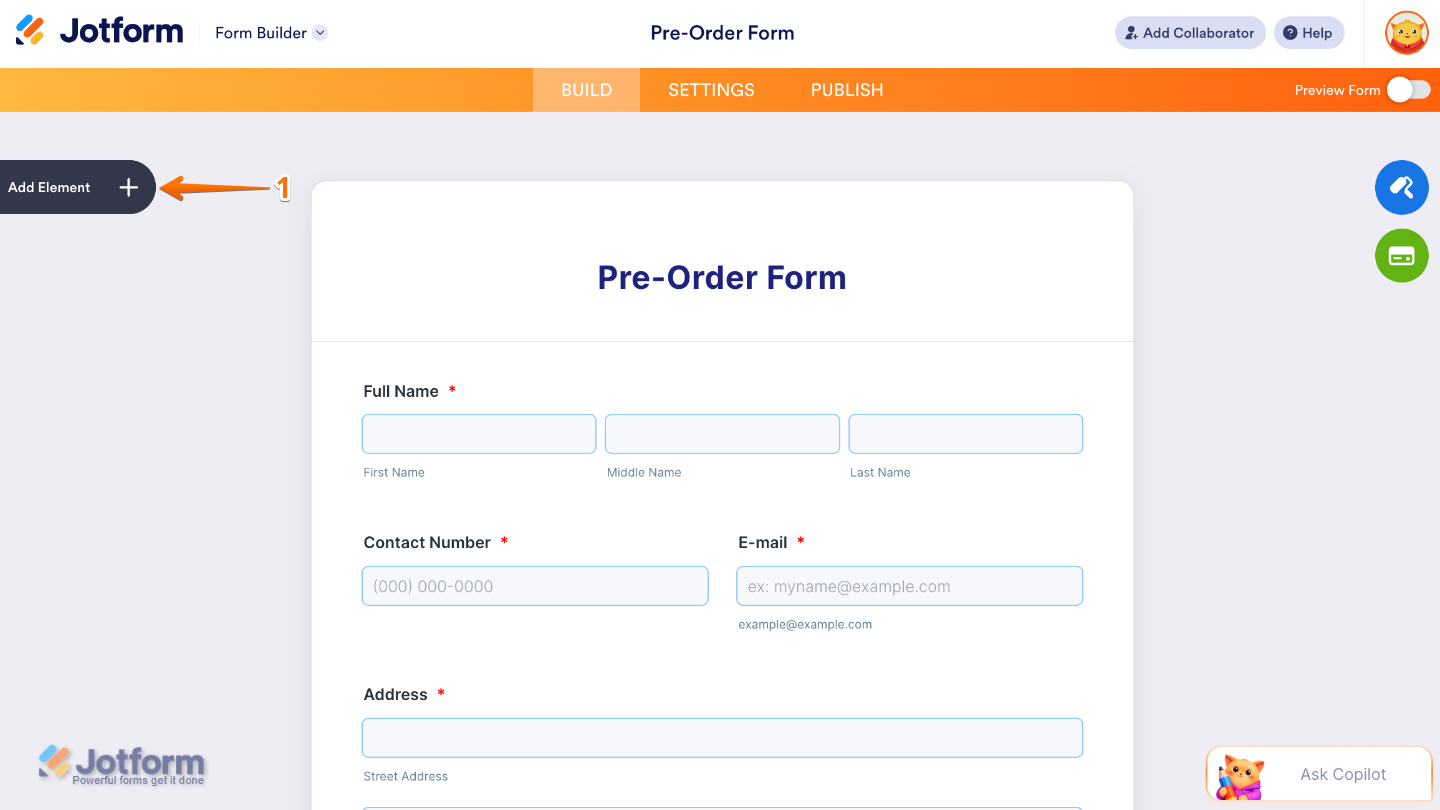
- In Form Builder, click on Add Element on the left side of the page.
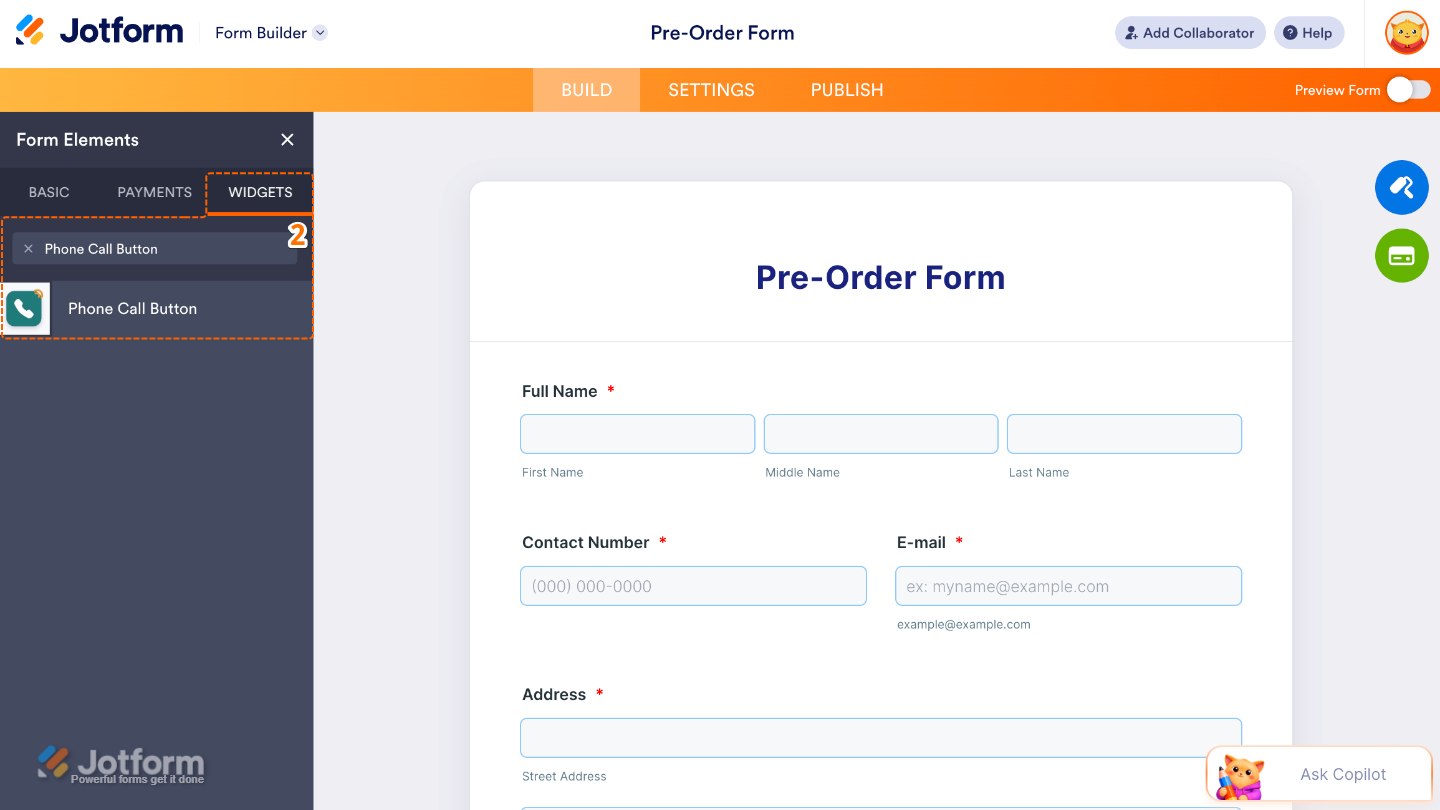
- Now, in the Form Elements menu, under the Widgets tab, search for Phone Call Button and then click on it. Or, just drag and drop it to where you want it to be on your form.
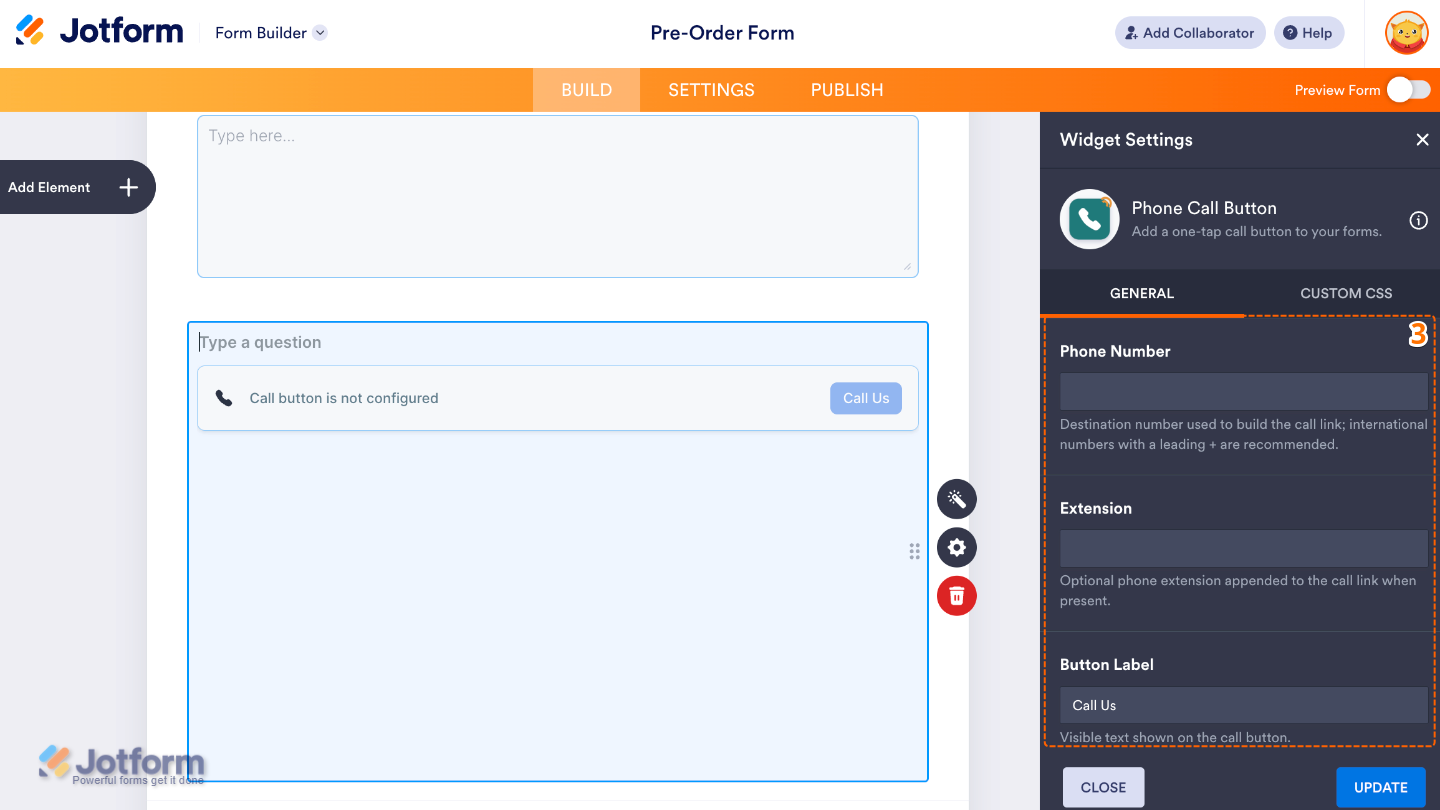
- Next, in the Widget Settings window that opens on the right side of the page, set up these things:
- Phone Number — Enter the phone number you want users to call.
- Extension — Add an extension if users need to reach a specific person or department.
- Button Label — Enter the text you want to display on the Call button.
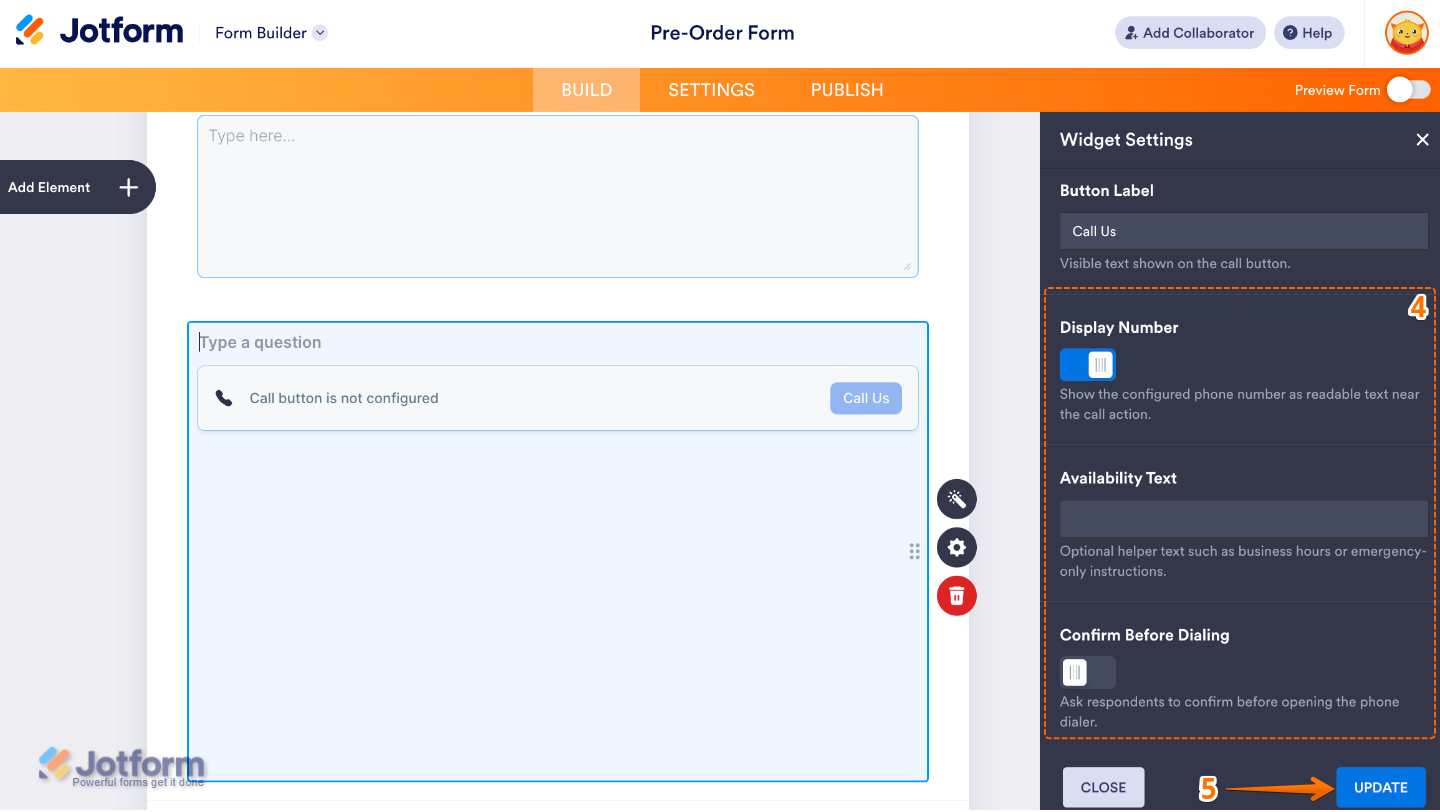
- Then, scroll down and continue to set up these options:
- Display Number — Choose whether to show the phone number on the form.
- Availability Text — Add a message to let users know when you’re available to take calls.
- Confirm Before Dialing — Ask users to confirm before dialing the number.
- Once you’re done, click on Update.
That’s it! You’ve successfully added and set up the Phone Call Button widget on your form. Here’s a Demo Form so you can see it in use.
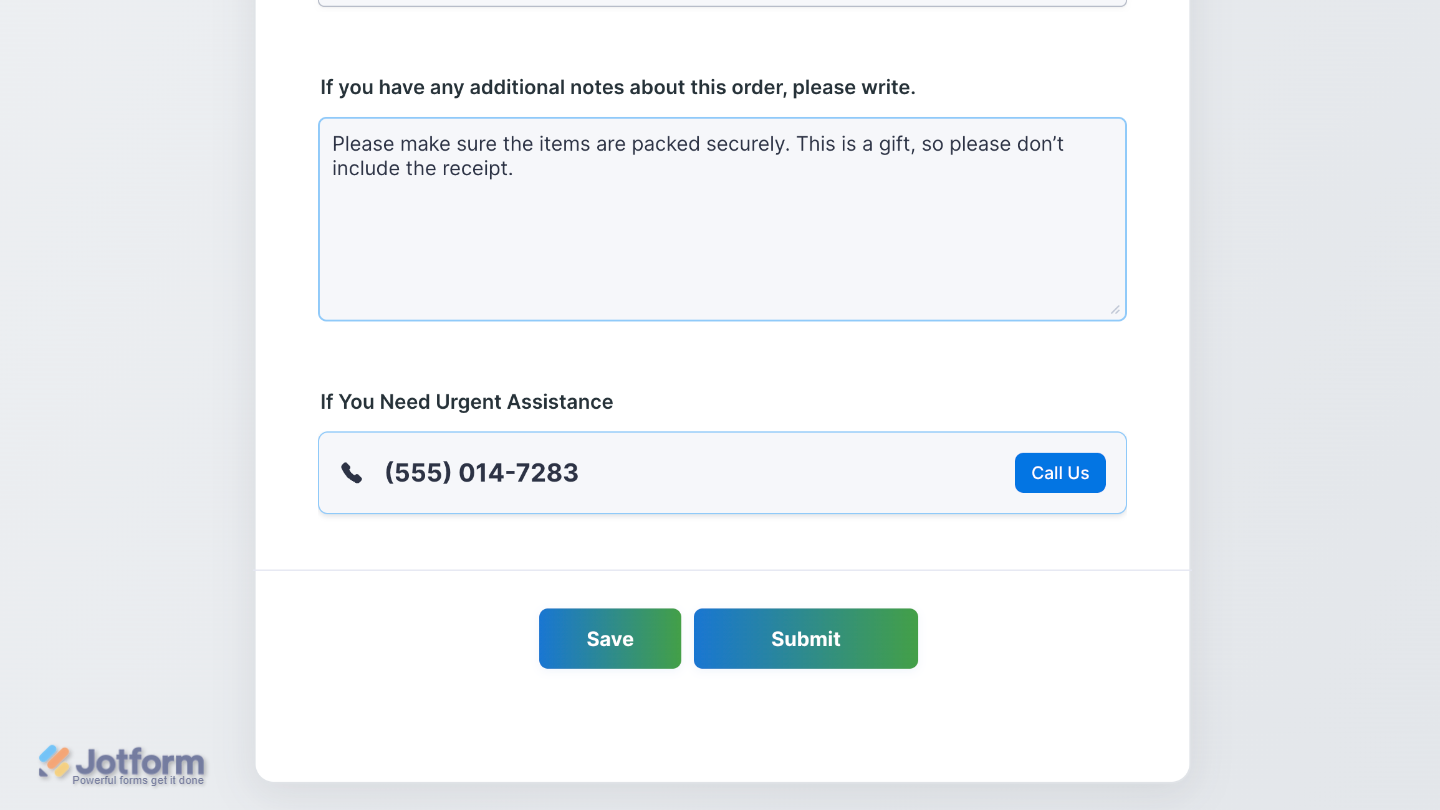
You can also configure the widget properties, like alignment, labels, size, visibility, and more, to control how it looks and behaves on your form. To learn how it’s done, see our guide on How to Access and Configure the Question Properties of a Widget.
Note
For advanced styling of the Phone Call Button widget, you can add your own custom CSS code under the Custom CSS tab in the Widget Settings. Our guide on How to Inject CSS Codes to Widgets walks you through everything.

Send Comment: