Jotform’s Checkbox in Dropdown Widget lets you add checkboxes inside a compact dropdown menu so you can collect extra details without cluttering your form. It helps you keep your layout clean while still gathering all the supporting information you need. This creates a smoother and more organized experience for your users.
Here are a few ways to use it:
- Collect supporting information on job application forms.
- Collect special requests for hotel reservations.
- Add additional requirements to inspection reports.
- Gather shipping details with a packaging checklist.
Whether you’re creating a new form or updating an existing one, you can add and set up the Checkbox Dropdown in a few easy steps. Here’s how to do it:
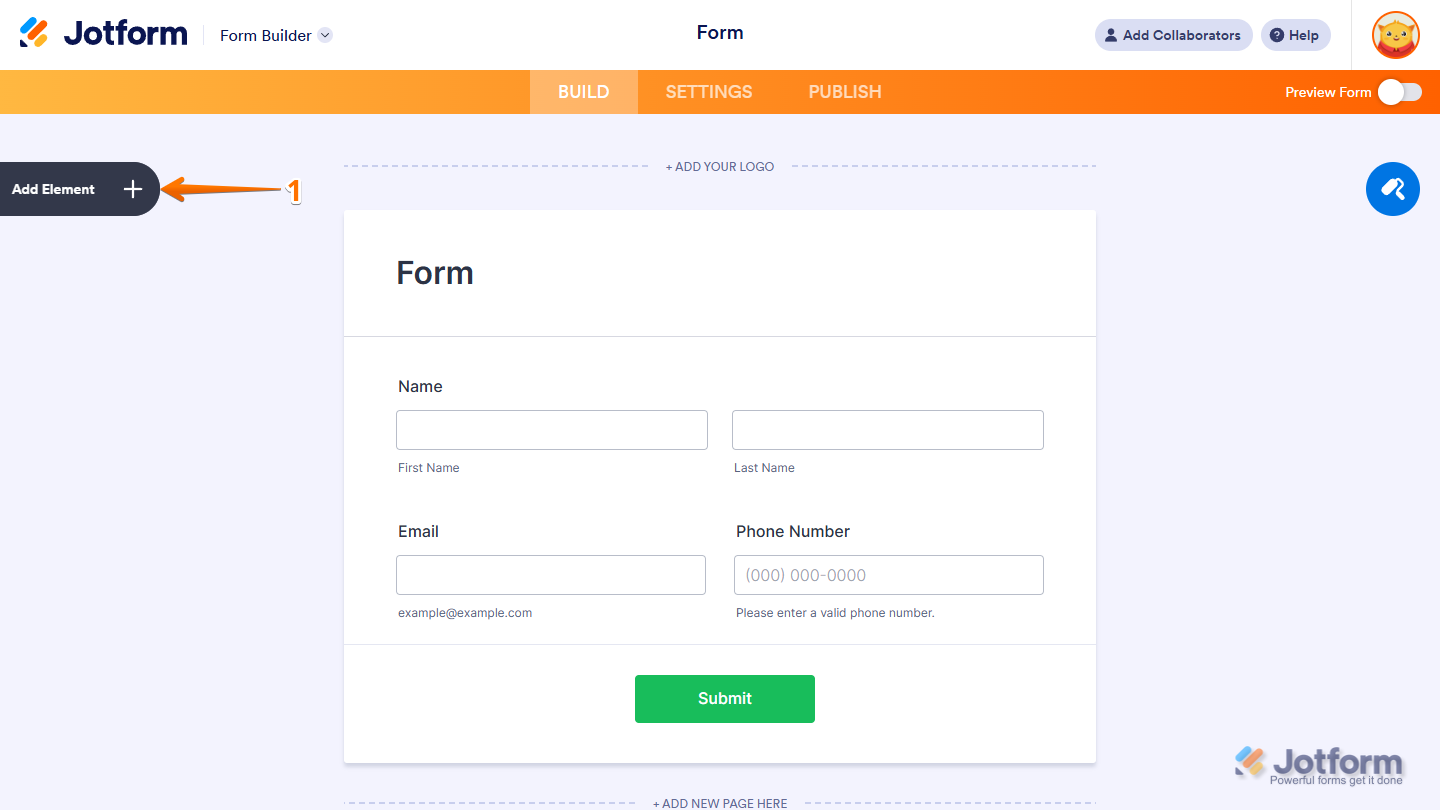
- In Form Builder, click on Add Element on the left side of the page.
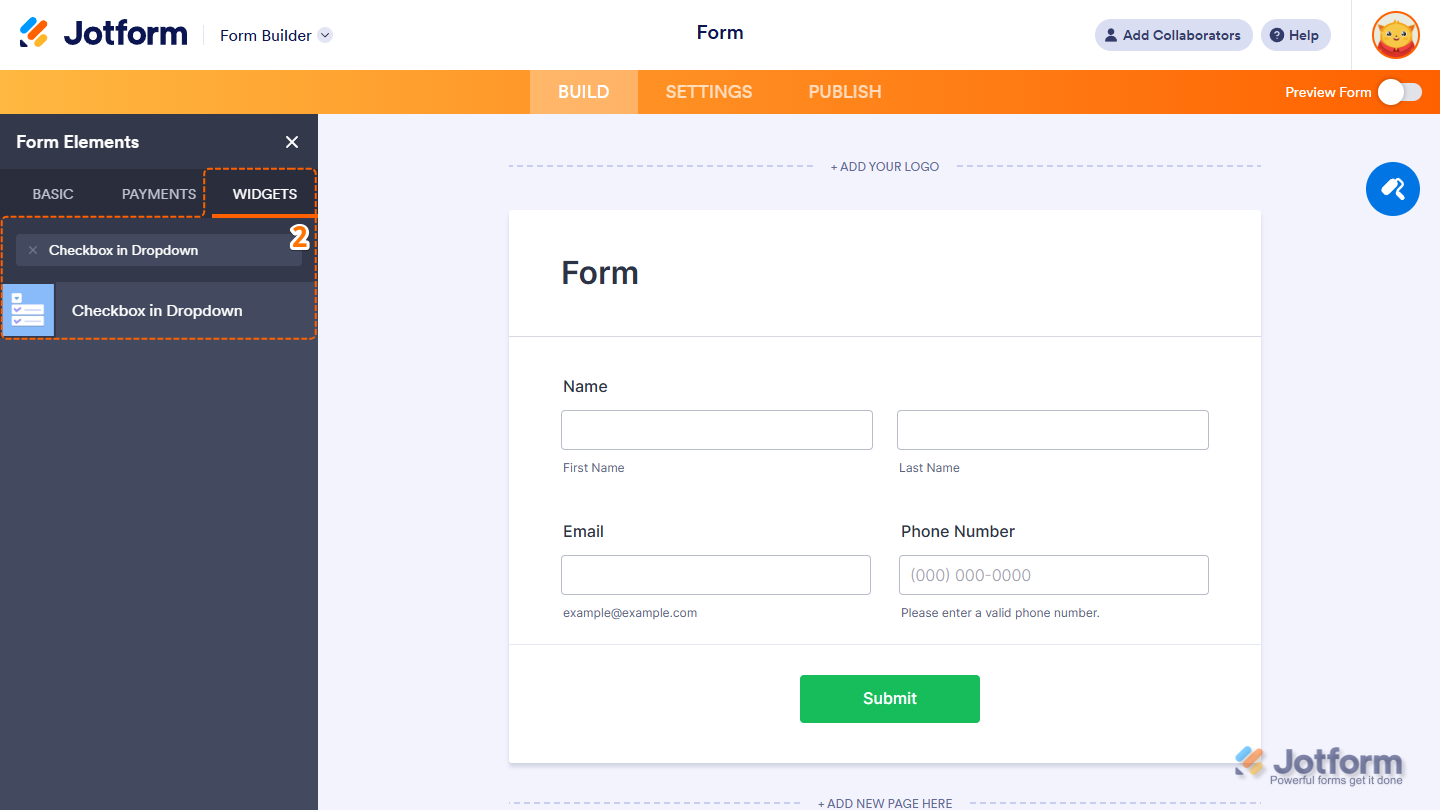
- Now, in the Form Elements menu, under the Widgets tab, search for Checkbox in Dropdown and click to add it to your form. Or, just drag and then drop it to where you want it to be on your form.
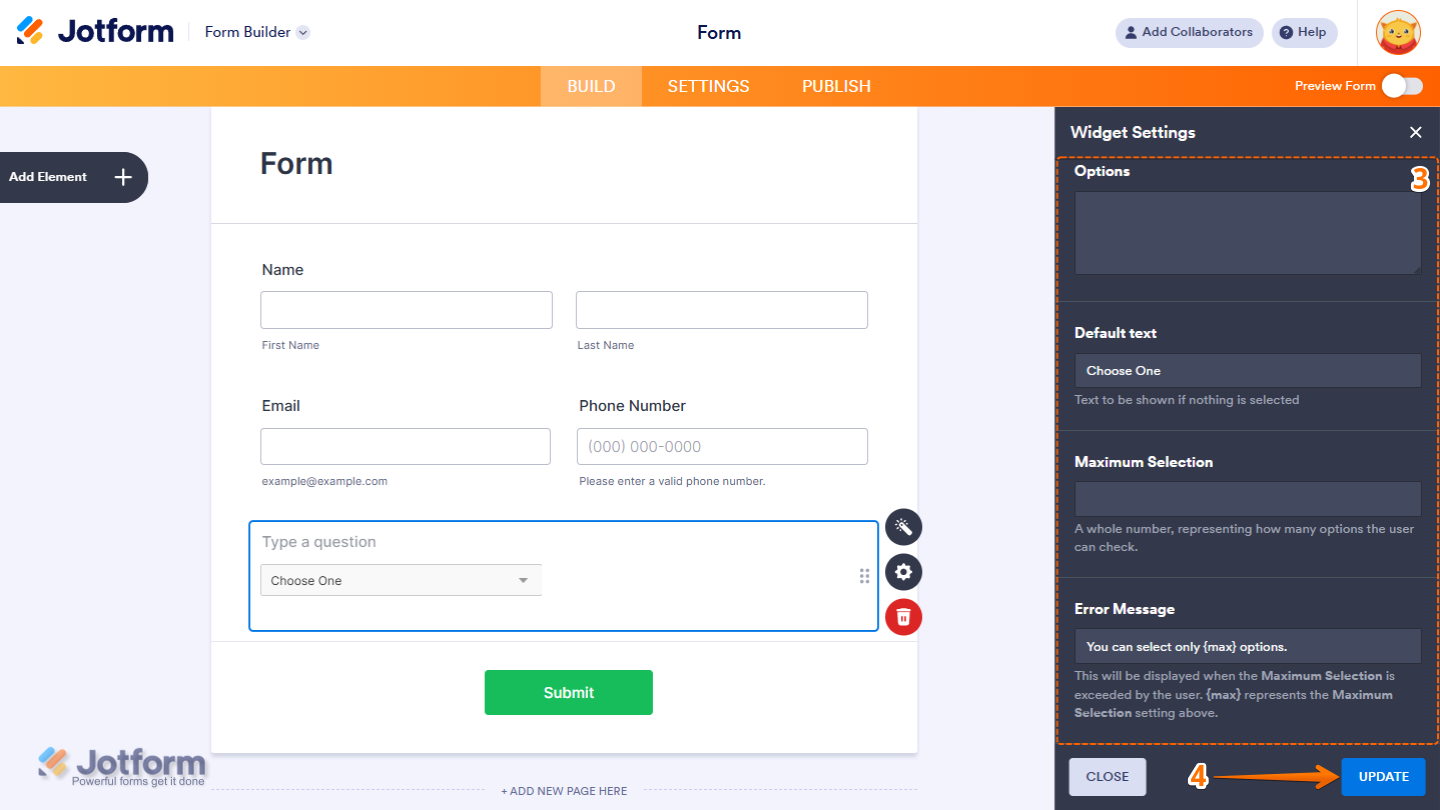
- Next, in the Widget Settings window that opens on the right side of the page, under the General tab, set up these things:
- Options — Enter your Options in the Options Input box, each on a new line.
- Default Text — Set a placeholder that appears before the user makes a selection.
- Maximum Selection — Limit the number of options a user can select.
- Error Message — Customize the message shown if the user exceeds the allowed number of selections.
- Once everything’s set, click on Update.
That’s it. You’ve successfully added and set up the Checkbox in Dropdown widget on your form. Want to see how it works? Check out this live demo form.
Note
- For advanced styling of the Numeric Slider widget, you can add your own custom CSS code under the Custom CSS tab in the Widget Settings. Our guide on How to Inject CSS Codes to Widgets walks you through everything.
- You can also configure the widget properties, like alignment, labels, size, visibility, and more, to control how it looks and behaves in your form. Check out our guide on How to Access and Configure the Question Properties of a Widget to learn more.

Send Comment: