Jotform helps you quickly calculate driving distance between two locations with the Driving Distance widget, which lets you set a starting city and allows users to enter a destination to automatically display the distance. This makes it easier to handle travel, delivery, or service-related calculations without manual work.
Here are a few ways to use it:
- Calculate driving distance between two cities.
- Plan trips or travel routes.
- Estimate fares for taxi or delivery services.
- Collect location-based data more efficiently.
Whether you’re starting fresh or updating a form, adding and setting up the Driving Distance widget takes only a few steps. Here’s a quick how-to:
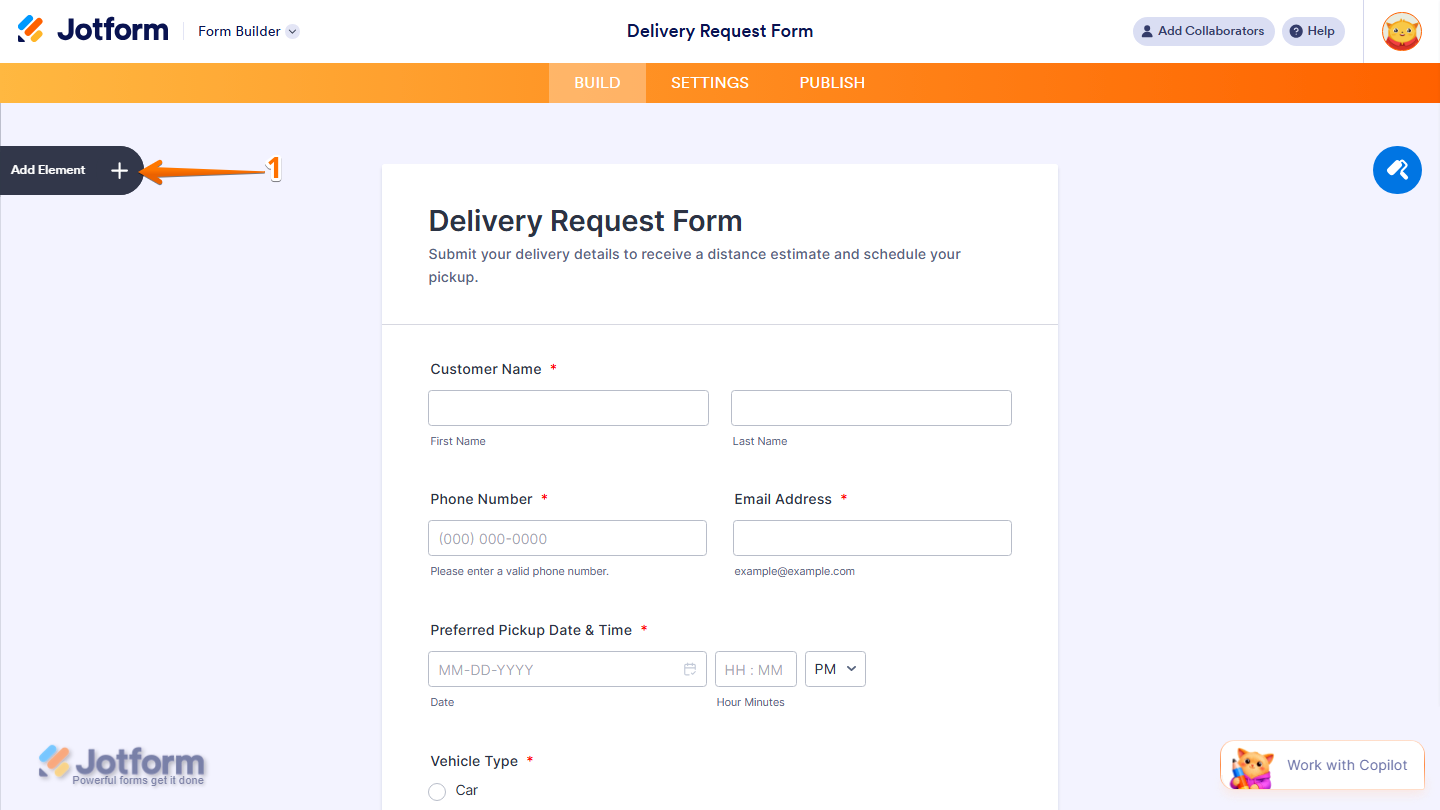
- In Form Builder, click on Add Element on the left side of the page.
- Now, in the Form Elements menu, under the Widgets tab, search for Driving Distance and click on it. Or, just drag and drop it to where you want it to be on your form.

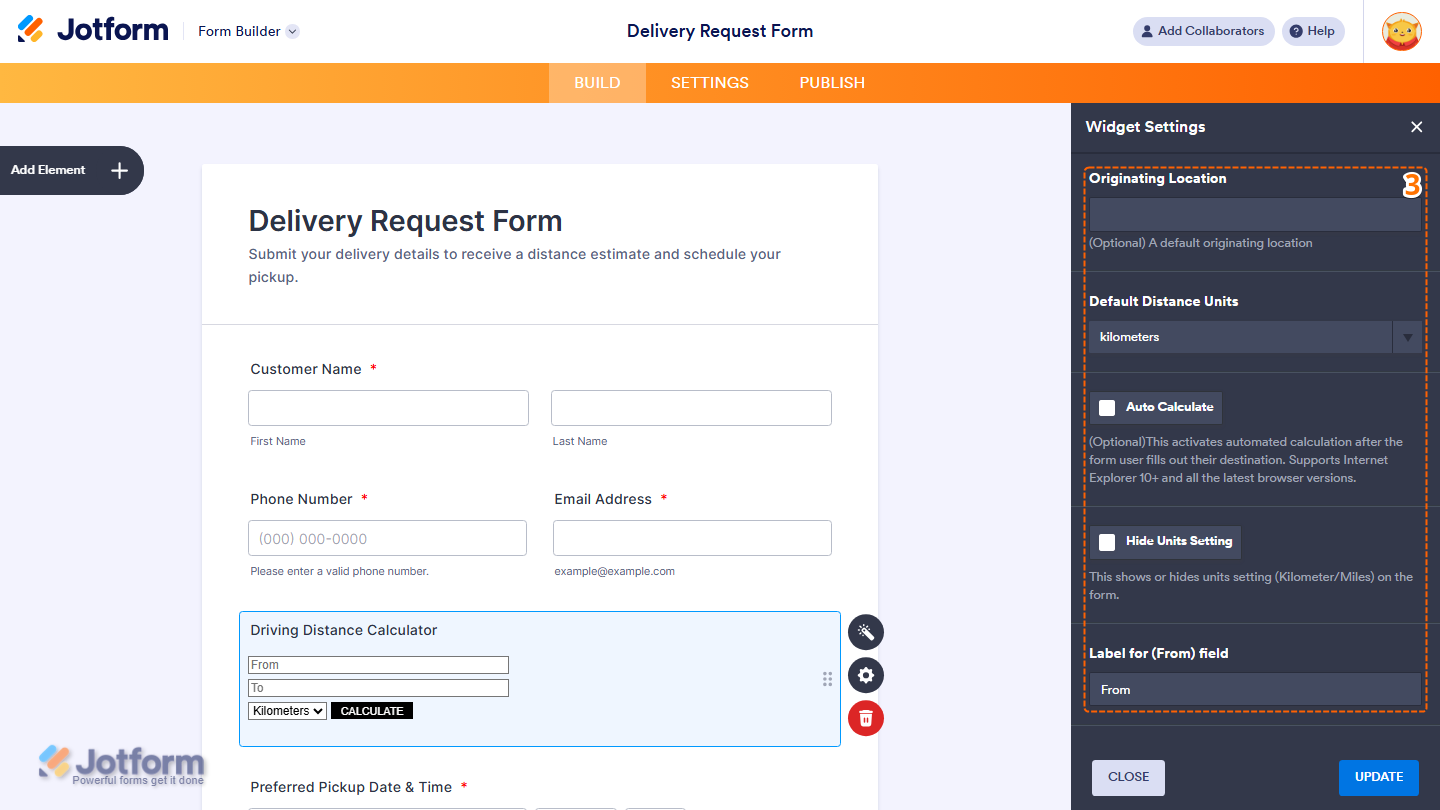
- Next, in the Widget Settings menu that opens on the right side of the page, under the General tab, you’ll see this list of settings you can configure:
- Originating Location — Set the starting point for distance calculations.
- Default Distance Units — Choose whether to display distances in kilometers or miles.
- Auto Calculate (Optional) — Automatically calculate the distance once the destination is entered.
- Hide Units Settings — Show or hide the unit selection (kilometers or miles) on the form.
- Label for (From) field — Customize the label for the starting location field.
- Then, scroll down to the bottom and continue to set up these settings:
- Label for (To) field — Customize the label for the destination field.
- Label for (Distance) — Set the label for the calculated distance.
- Label for (Duration) — Set the label for the estimated travel time.
- Places API Key — Enter your Google Maps API key for location autocomplete. Make sure it is enabled for the Places API and Maps JavaScript API.
- Distance Matrix Key — Enter your Google Maps API key for distance calculation. Make sure it is enabled for the Distance Matrix API and Routes API.
- Once everything’s set, click on Update.

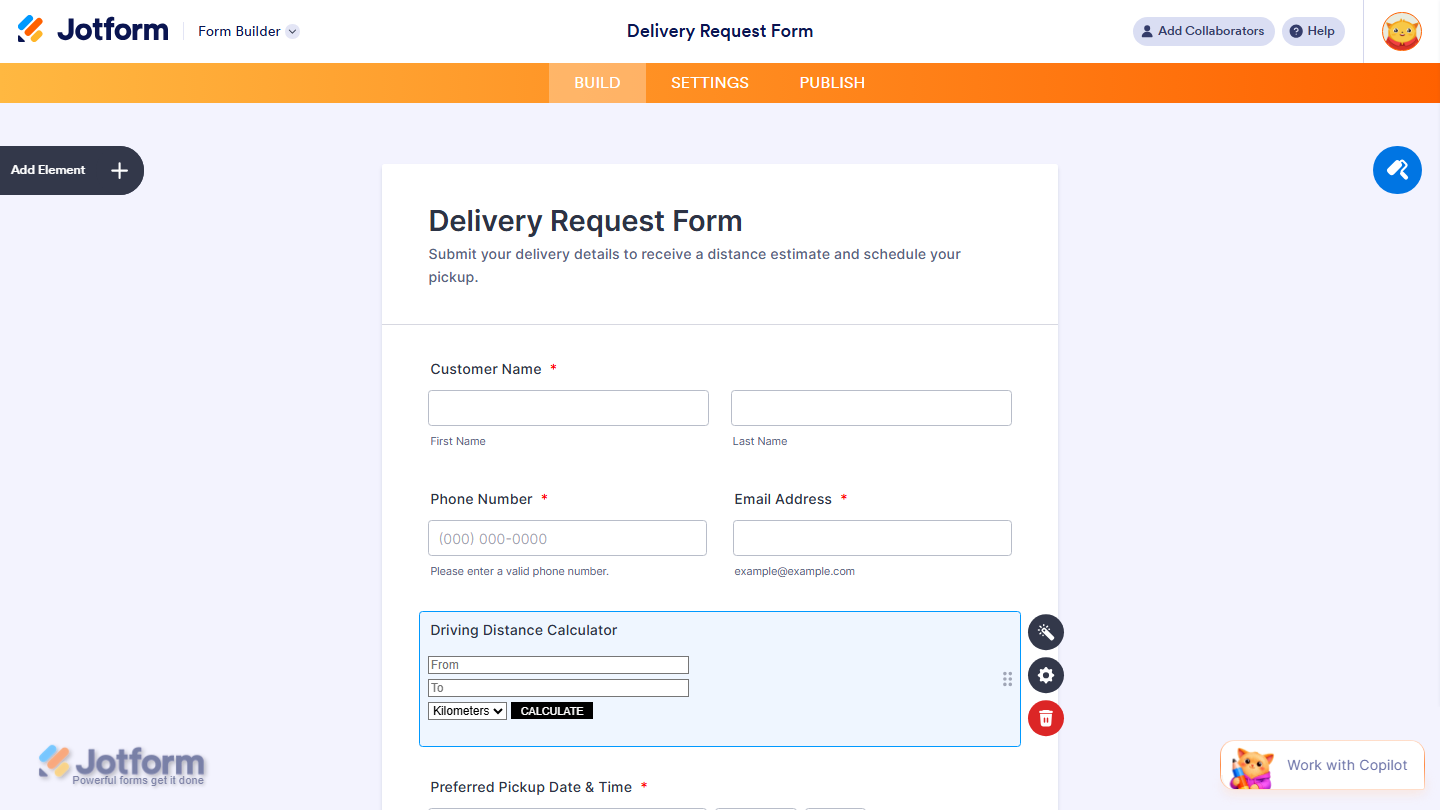
That’s it. Now you’ve added and set up the GeoComplete widget on your form.
Note
- For advanced styling of the GeoComplete widget, you can add your own custom CSS code under the Custom CSS tab in the Widget Settings. Our guide on How to Inject CSS Codes to Widgets walks you through everything.
- You can also configure the widget properties, like alignment, labels, size, visibility, and more, to control how it looks and behaves in your form. Check out our guide on How to Access and Configure the Question Properties of a Widget to learn more.

Send Comment: