With Jotform’s GeoComplete widget, you can easily add an autocomplete address field to your form so users can quickly find and select their address as they type. Powered by Google Maps API and integrated into Jotform, it suggests matching addresses in a dropdown, helping you collect more accurate and standardized location data.
Here are a few ways to use it:
- Add an autocomplete address field to your form.
- Help users quickly find their address while typing.
- Collect more accurate and standardized address data.
- Reduce errors in location-based submissions.
Note
The Geocomplete widget requires a Google Maps API Key to work. Take a look at our guide on How to Get Google Maps API Key for Jotform Mapping Widgets for more details.
Whether you’re starting fresh or updating a form, adding and setting up the GeoComplete widget takes only a few steps. Here’s a quick how-to:
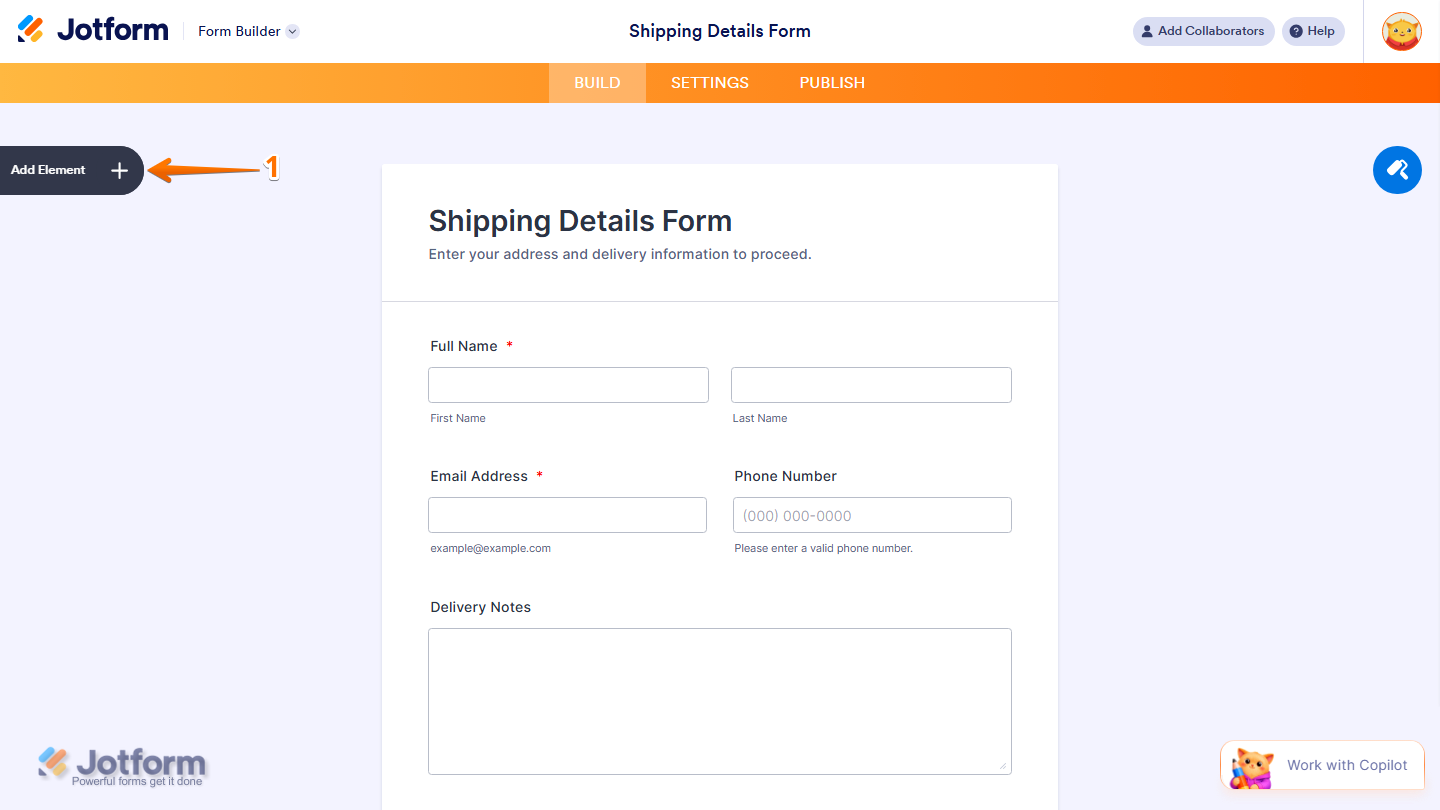
- In Form Builder, click on Add Element on the left side of the page.
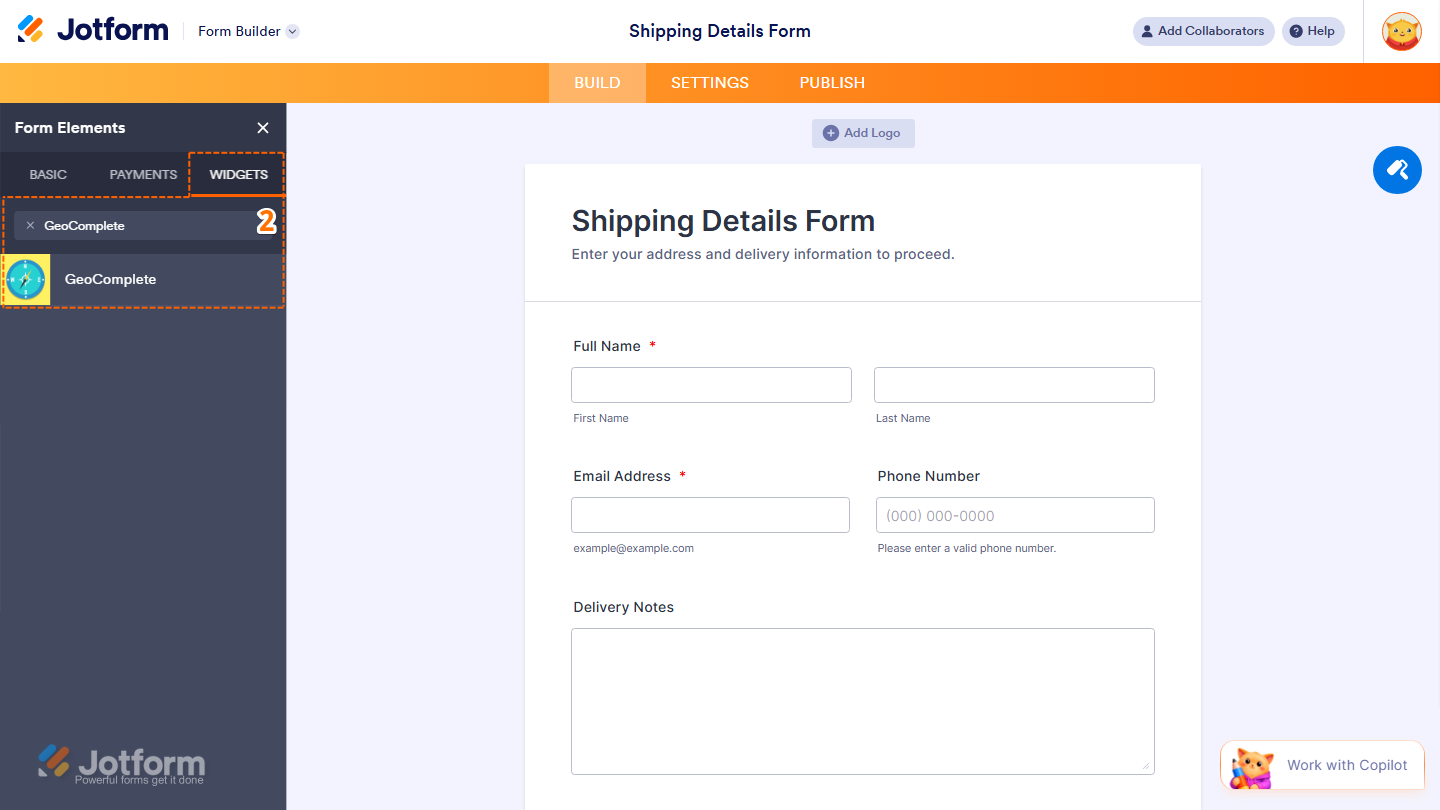
- Now, in the Form Elements menu, under the Widgets tab, search for GeoComplete and click on it. Or, just drag and drop it to where you want it to be on your form.
- Next, in the Widget Settings menu that opens on the right side of the page, under the General tab, you’ll see this list of settings you can configure:
- Input Placeholder — Set the placeholder text shown inside the input field.
- Allow Search in US, UK or around Worldwide — Limit the search to the US, UK, or Worldwide.
- Google Maps API Key — Enter your Google Maps API Key to enable location search functionality.
- Once everything’s set, click on Update.

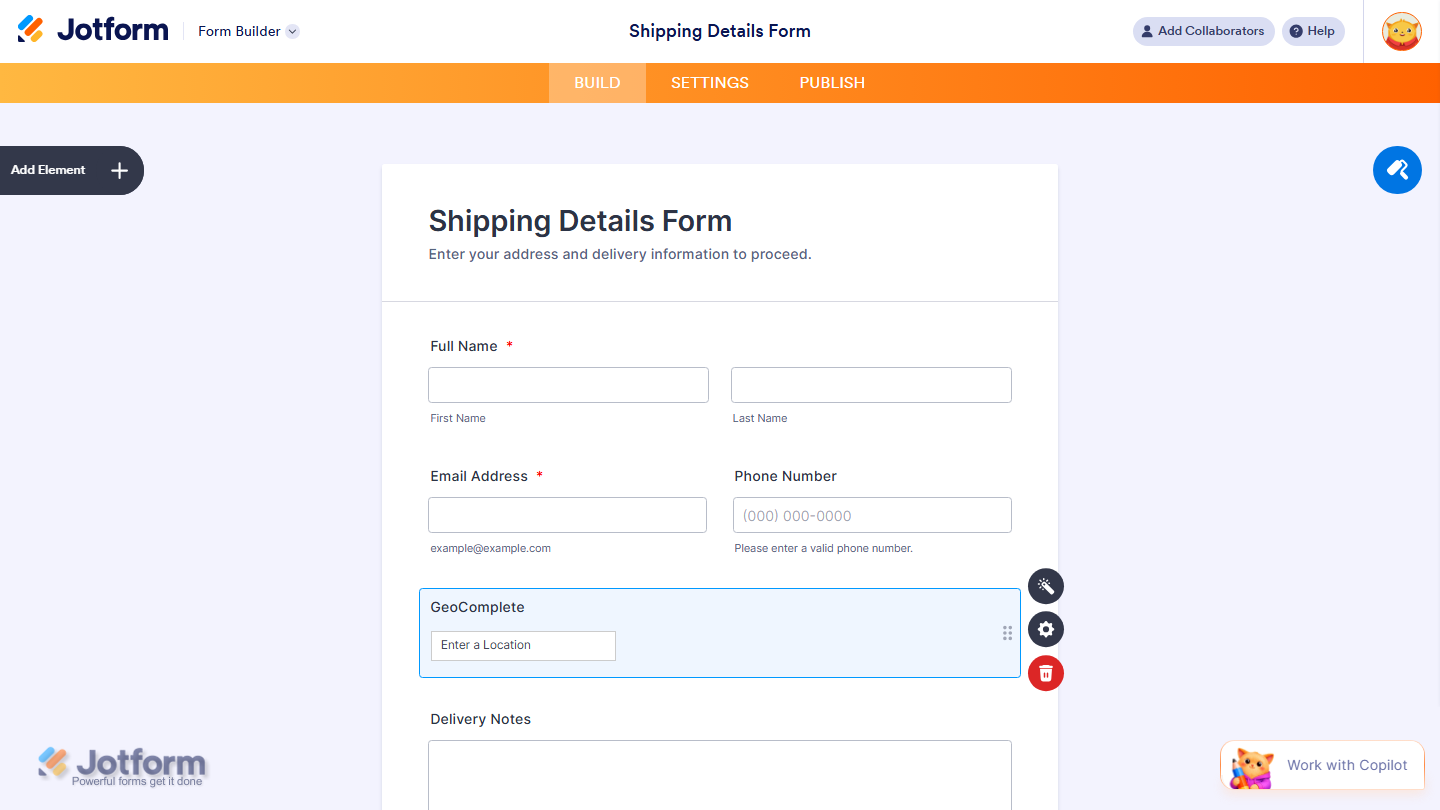
That’s it. Now you’ve added and set up the GeoComplete widget on your form.
Note
- For advanced styling of the GeoComplete widget, you can add your own custom CSS code under the Custom CSS tab in the Widget Settings. Our guide on How to Inject CSS Codes to Widgets walks you through everything.
- You can also configure the widget properties, like alignment, labels, size, visibility, and more, to control how it looks and behaves in your form. Check out our guide on How to Access and Configure the Question Properties of a Widget to learn more.

Send Comment: