Jotform’s Address Map Locator widget is ideal for forms that require users to pinpoint their exact location using an interactive map. Whether you’re collecting delivery addresses, event locations, or service areas, this widget enhances accuracy by letting users drag a marker or search for an address directly on the map. It captures not only the street address but also the coordinates, making it useful for logistics, mapping services, and any application that requires geolocation. With options to customize the default location and output format, it offers both flexibility and precision in gathering location data.
Here are a few ways to use it:
- Let users pinpoint their address on a map for accurate location capture.
- Help customers visually verify delivery or service locations.
- Allow users to search and select a location instead of typing full addresses.
- Collect precise map-based locations for bookings or service requests.
- Improve address accuracy by combining map selection with manual input.
Notes
- The Address Map Locator widget requires a Google Maps API Key to work. Take a look at our guide on How to Get Google Maps API Key for Jotform Mapping Widgets for more details.
- The widget will partially work without the API key, but it will only display the Latitude and Longitude boxes.
Whether you’re creating a new form or updating an existing one, adding and setting up the Address Map Locator widget only takes a second—get started like this:
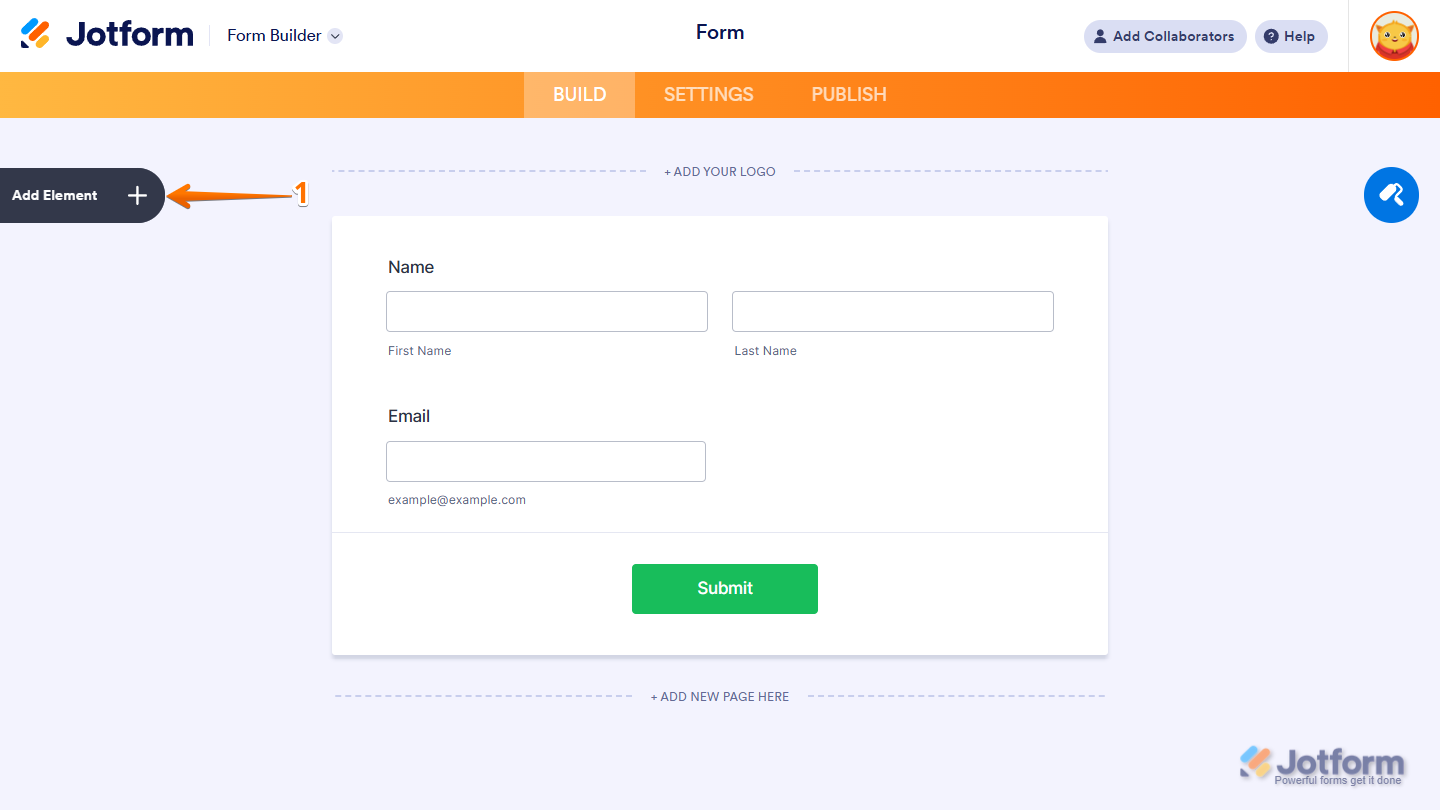
- In Form Builder, click on Add Element on the left side of the page.
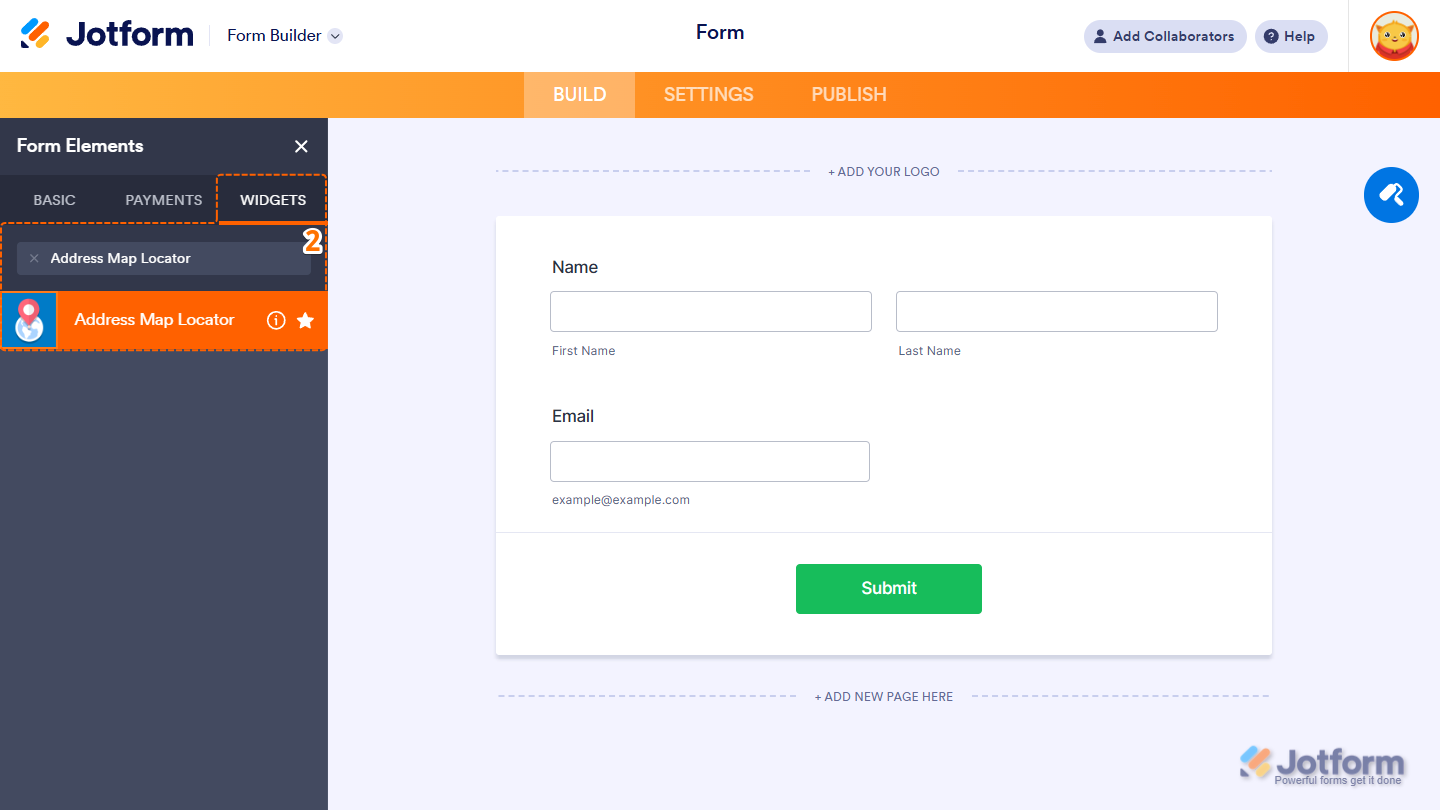
- Now, in the Form Elements menu, under the Widgets tab, search for Address Map Locator and click on it. Or just drag and drop it to where you want it on your form.
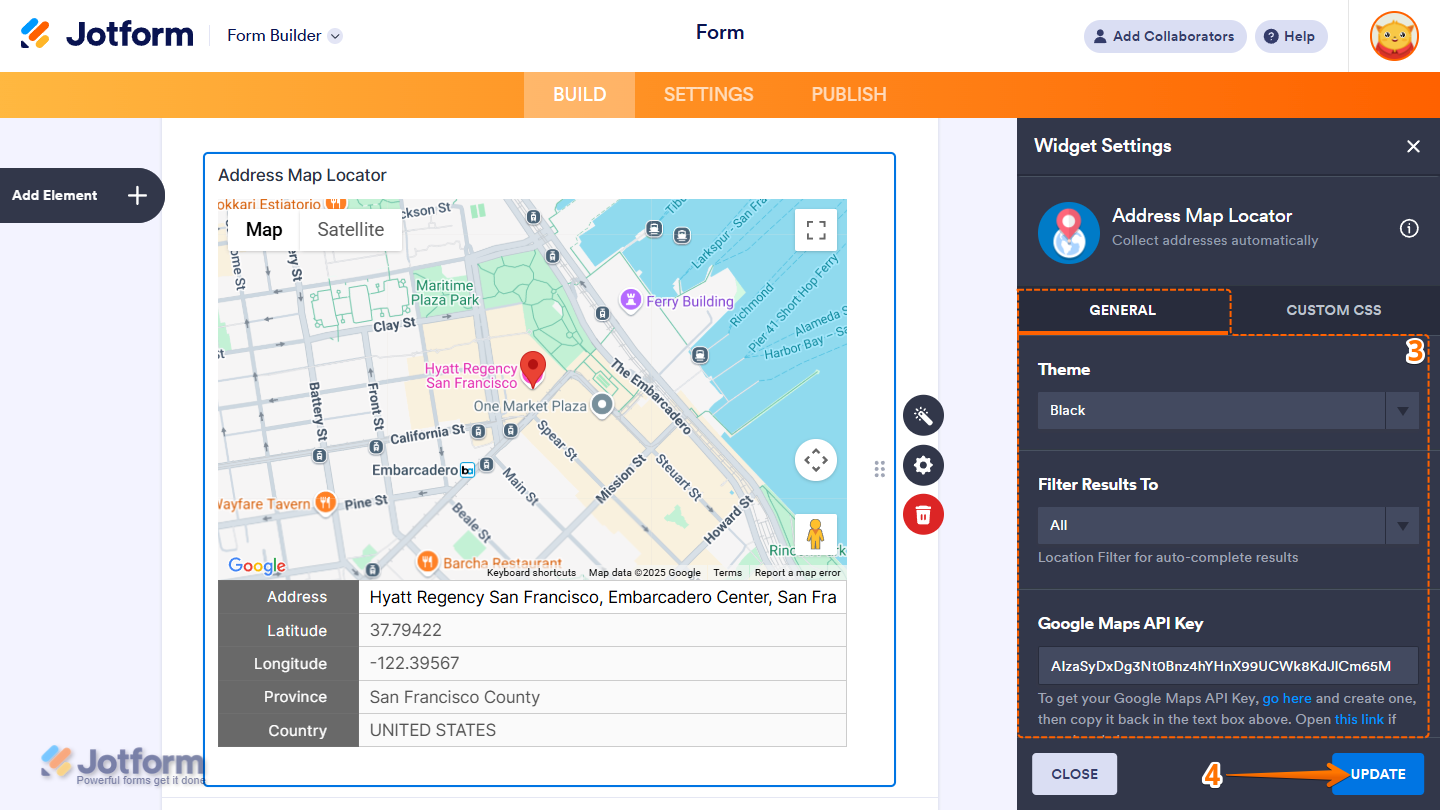
- Next, in the Address Map Locator Widget Settings menu that opens on the right side of the page, under the General tab, set up the following options:
- Theme — Select from a variety of visual styles to change the appearance of the address boxes and match your form’s overall design.
- Filter Results To — Set whether to have an auto-complete result for All Countries or just the USA in the Address input of the widget.
- Google Maps API Key — Required for the widget to work correctly. Without it, the map will not load or appear on the form.
- Once everything’s set, click on Update.
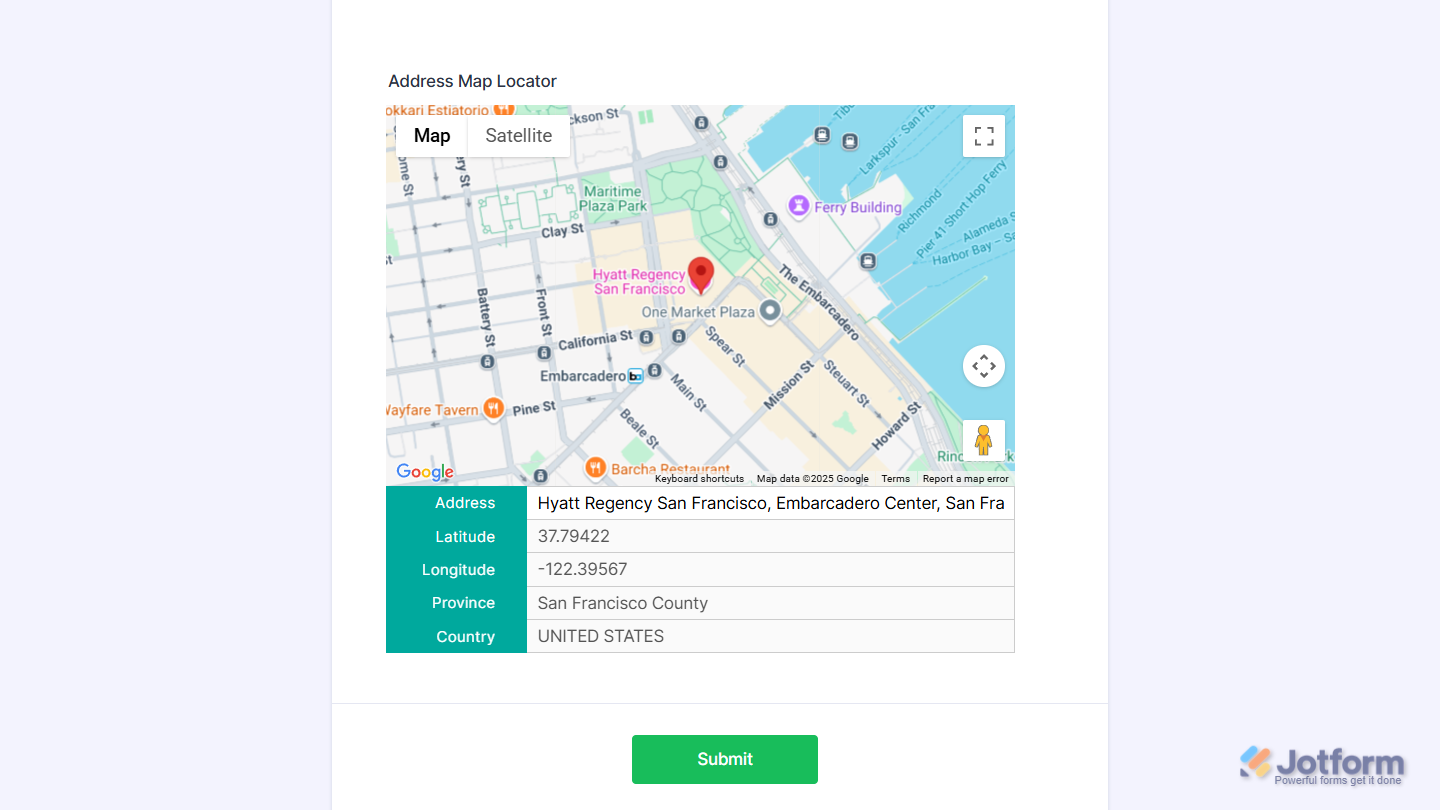
That’s it! You’ve now successfully added and set up the Address Map Locator widget to your form. Here’s what the widget would look like in your form:
Pro Tip
- For advanced styling of the widget, you can add your own custom CSS code under the Custom CSS tab in the Widget Settings. Our guide on How to Inject CSS Codes to Widgets walks you through everything.
- You can also configure widget properties, such as alignment, labels, size, visibility, and more, to control how it looks and behaves on your form. Check out our guide on How to Access and Configure the Question Properties of a Widget to learn more.

Send Comment: