Jotform makes it easy to present options in a mobile-friendly format with the Android List widget, which displays a scrollable list of choices that users can swipe through to find and select what they need. This gives your form an Android-inspired look while making option selection smoother.
Here are a few ways to use it:
- Add a scrollable list of options to your form.
- Let users swipe through choices easily.
- Create an Android-inspired form design.
- Improve the overall selection experience for users.
Whether you’re creating a new form or updating an existing one, you can add and set up the Android List widget in a few easy steps. Here’s how to do it:
- In Form Builder, click on Add Element on the left side of the page.

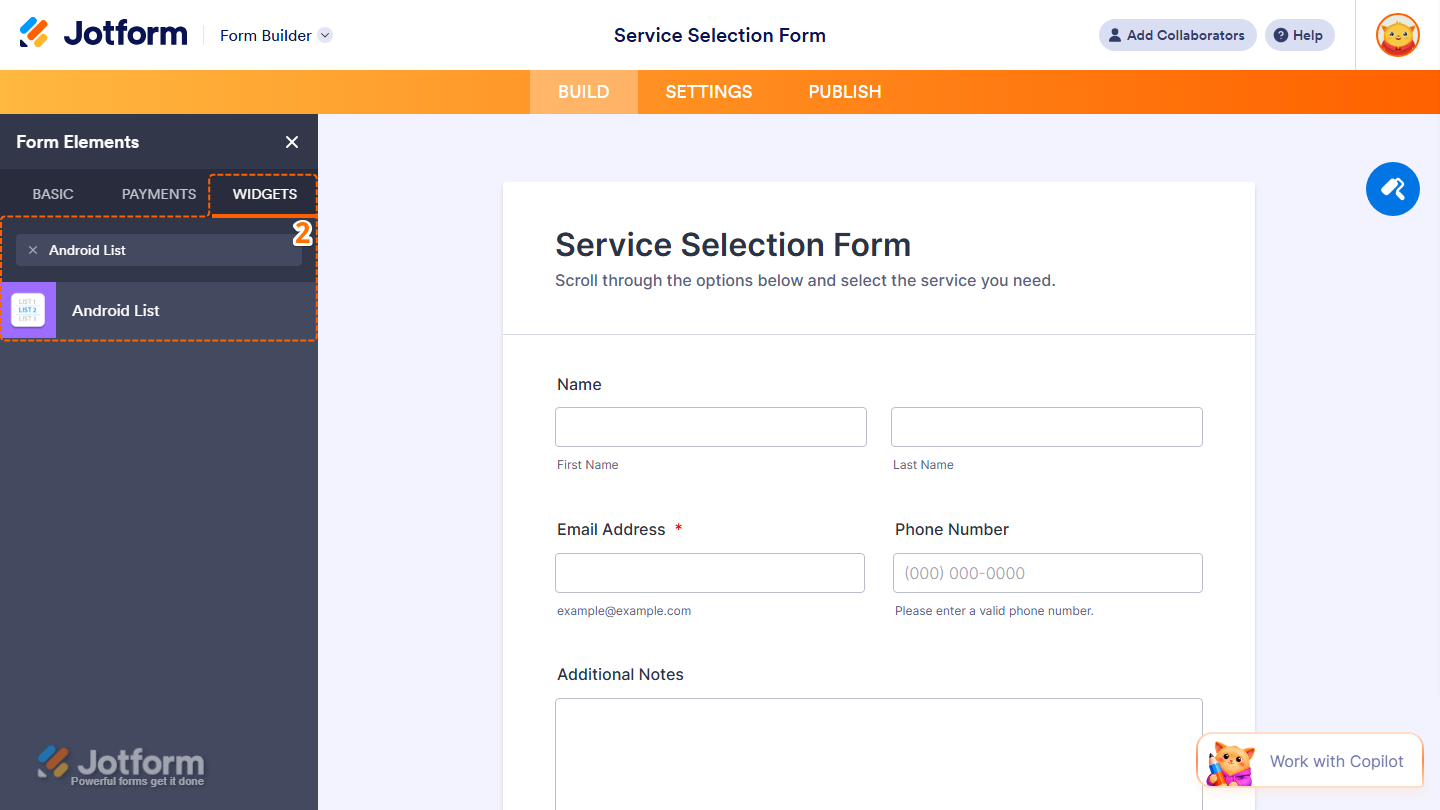
- Now, in the Form Elements menu, under the Widgets tab, search for Android List and click on it. Or, just drag and drop it to where you want it to be on your form.
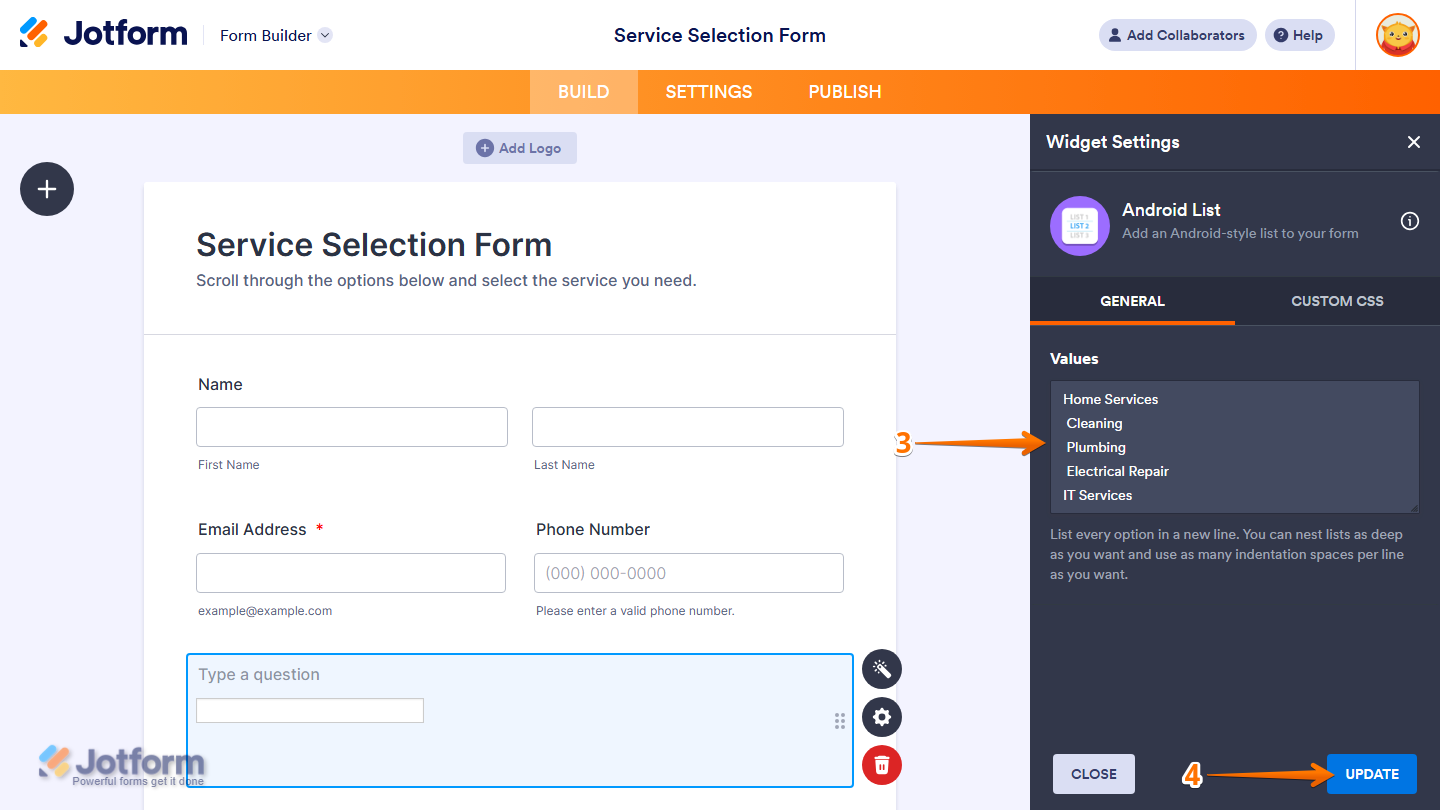
- Next, in the Widget Settings menu that opens on the right side of the page, under the General tab, enter your Values in the Values Input box, each on a new line. You can nest lists as deep as you want and use as many indentation spaces per line as needed.
- Once everything’s set, click on Update.
That’s it. You’ve successfully added and set up the Android List widget on your form.

Want to see how it works? Check out this live demo form.
Note
- For advanced styling of the Numerals widget, you can add your own custom CSS code under the Custom CSS tab in the Widget Settings. Our guide on How to Inject CSS Codes to Widgets walks you through everything.
- You can also configure the widget properties, like alignment, labels, size, visibility, and more, to control how it looks and behaves in your form. Check out our guide on How to Access and Configure the Question Properties of a Widget to learn more.

Send Comment: