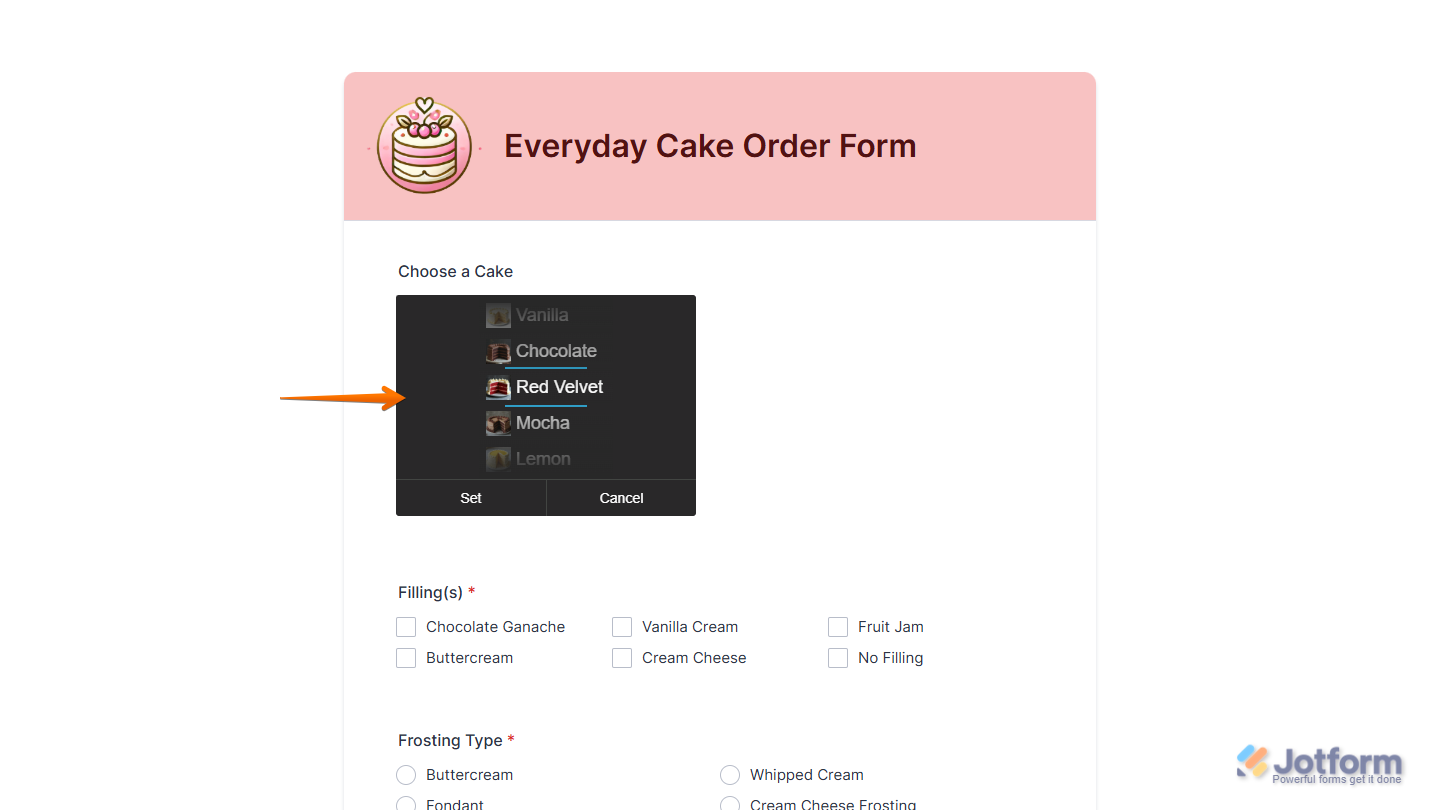
With Jotform, you can easily enhance your form’s look and feel using the free Android Text & Image widget. This tool lets you create an Android-style dropdown that supports both text and images, giving you a clean, modern way to present choices without any coding.
Whether you want to clarify options visually, highlight important selections, or simply make your form more engaging, the widget helps you deliver a smoother and more intuitive experience for your users. It’s a simple way to keep your forms clear, informative, and visually appealing.
Here are a few ways to use it:
- Create visually guided choices by pairing text labels with images.
- Display product, category, or item selections in a more intuitive, image-supported dropdown.
- Offer clearer options for users who rely on visual cues.
- Make long lists easier to scan by adding icons or images to each choice.
- Give your form a modern, Android-style dropdown that feels familiar and easy to navigate.
Whether you’re creating a new form or updating an existing one, you can add and set up the Android Text & Image widget in a few easy steps. Here’s how to do it:
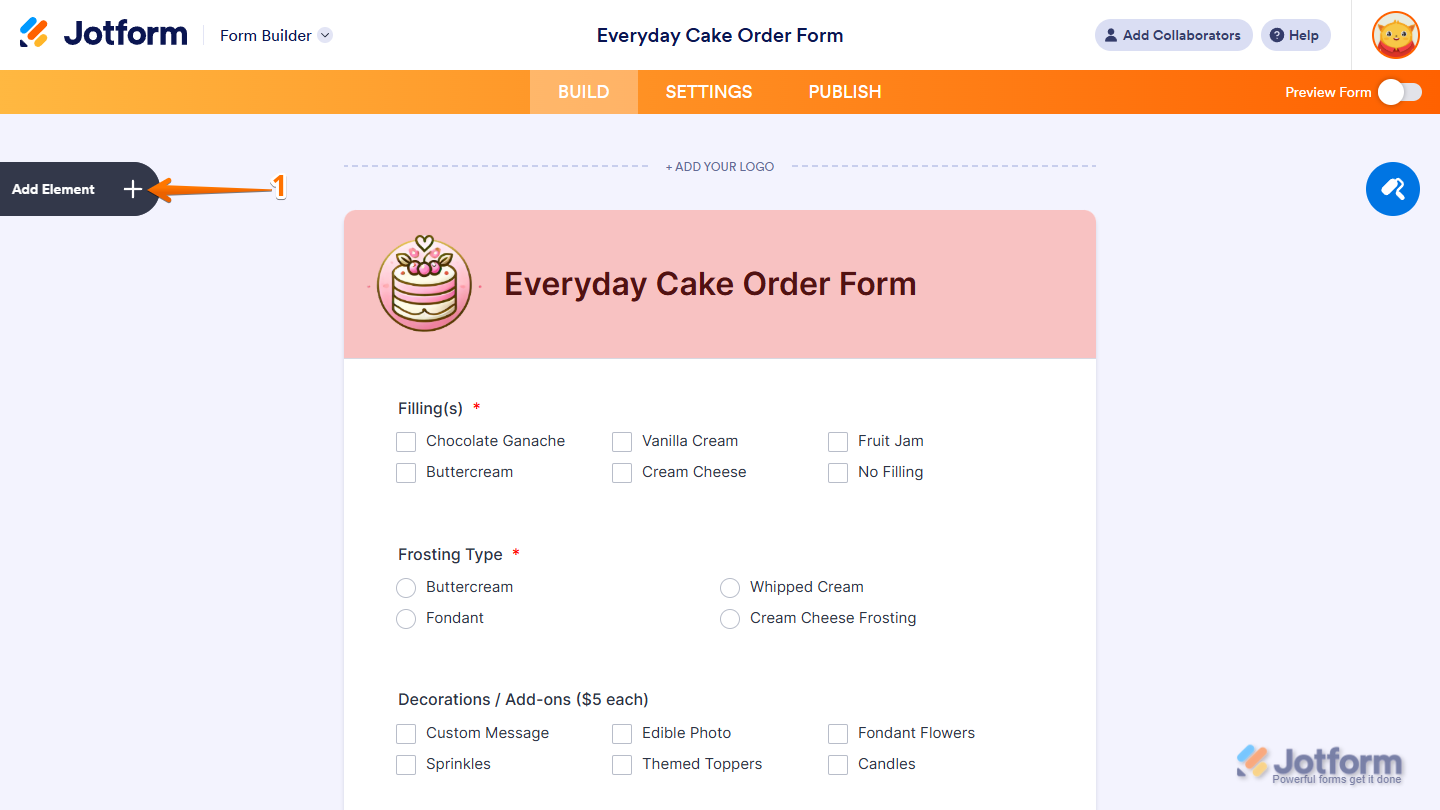
- In Form Builder, click on Add Element on the left side of the page.
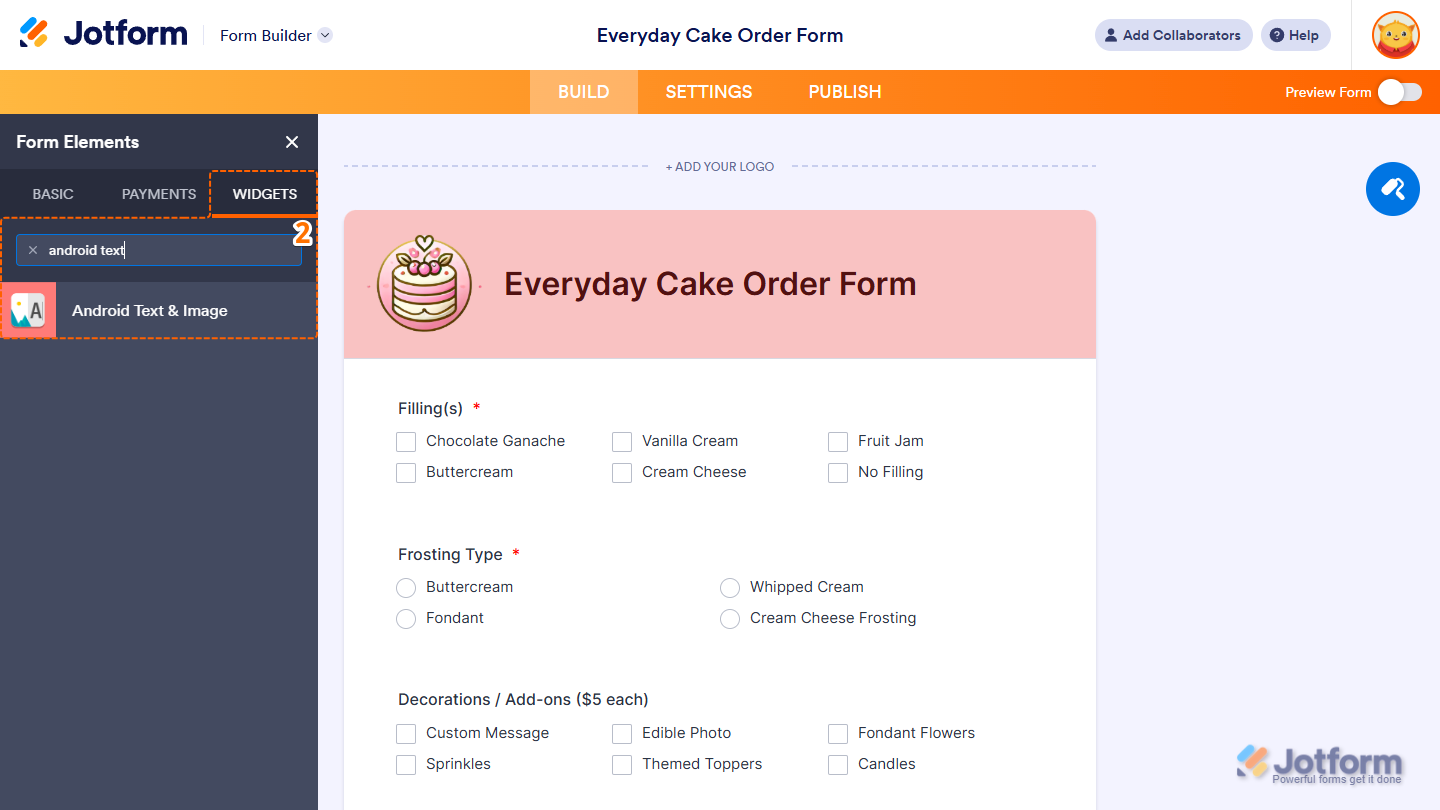
- Now, in the Form Elements menu, under the Widgets tab, search for Android Text & Image and click on it. Or, just drag and drop it to where you want it to be on your form.
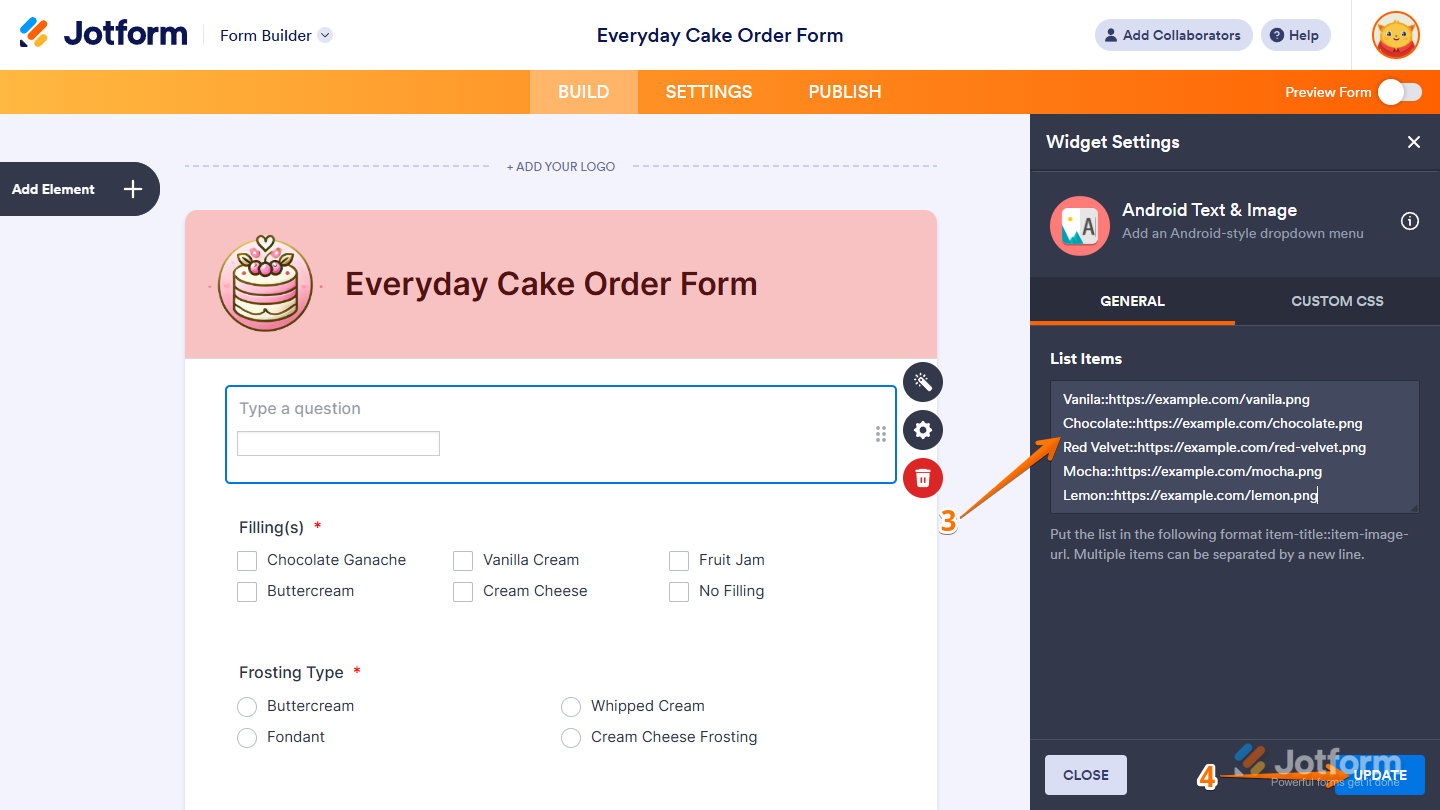
- Next, in the Widget Settings window that opens on the right side of the page, under the General tab, in the List Items Input box, enter your item titles and image URLs using the format
item-title::item-image-url, with each item on a new line. - Once everything’s set, click on Update.
That’s it. Now you’ve added and set up the Android Text & Image widget on your form. You can explore how it looks with this demo form.
Notes
- For advanced styling of the Android Text & Image widget, you can add your own custom CSS code under the Custom CSS tab in the Widget Settings. Our guide on How to Inject CSS Codes to Widgets walks you through everything.
- You can also configure the widget properties, like alignment, labels, size, visibility, and more, to control how it looks and behaves on your form. Check out our guide on How to Access and Configure the Question Properties of a Widget to learn more.

Send Comment: