With Jotform, you can easily spotlight key details on your form using the Big Header (Comics) widget. Inspired by bold, classic comic-book styling, this header instantly grabs attention and gives your form a lively, expressive feel. It’s perfect for highlighting important sections, setting the tone, or simply adding a fun visual touch that makes your content more memorable.
Whether you’re creating an order form, registration flow, or any form that needs a standout section, this widget helps your message pop and keeps your users focused on what matters most.
Here are a few ways to use it:
- Capture attention at the top of your form with a bold, comic-style header.
- Highlight important sections in long or detailed forms.
- Guide users through multi-step registration, application, or onboarding flows.
- Make surveys and feedback forms feel more fun and engaging.
- Add clarity and structure to order, booking, or request forms.
- Create visual breaks that help users understand where one section ends and another begins.
- Bring personality and energy to forms that need a more playful, memorable look.
Whether you’re starting fresh or updating a form, adding and setting up the Big Header (Comics) widget takes only a few steps. Here’s a quick how-to:
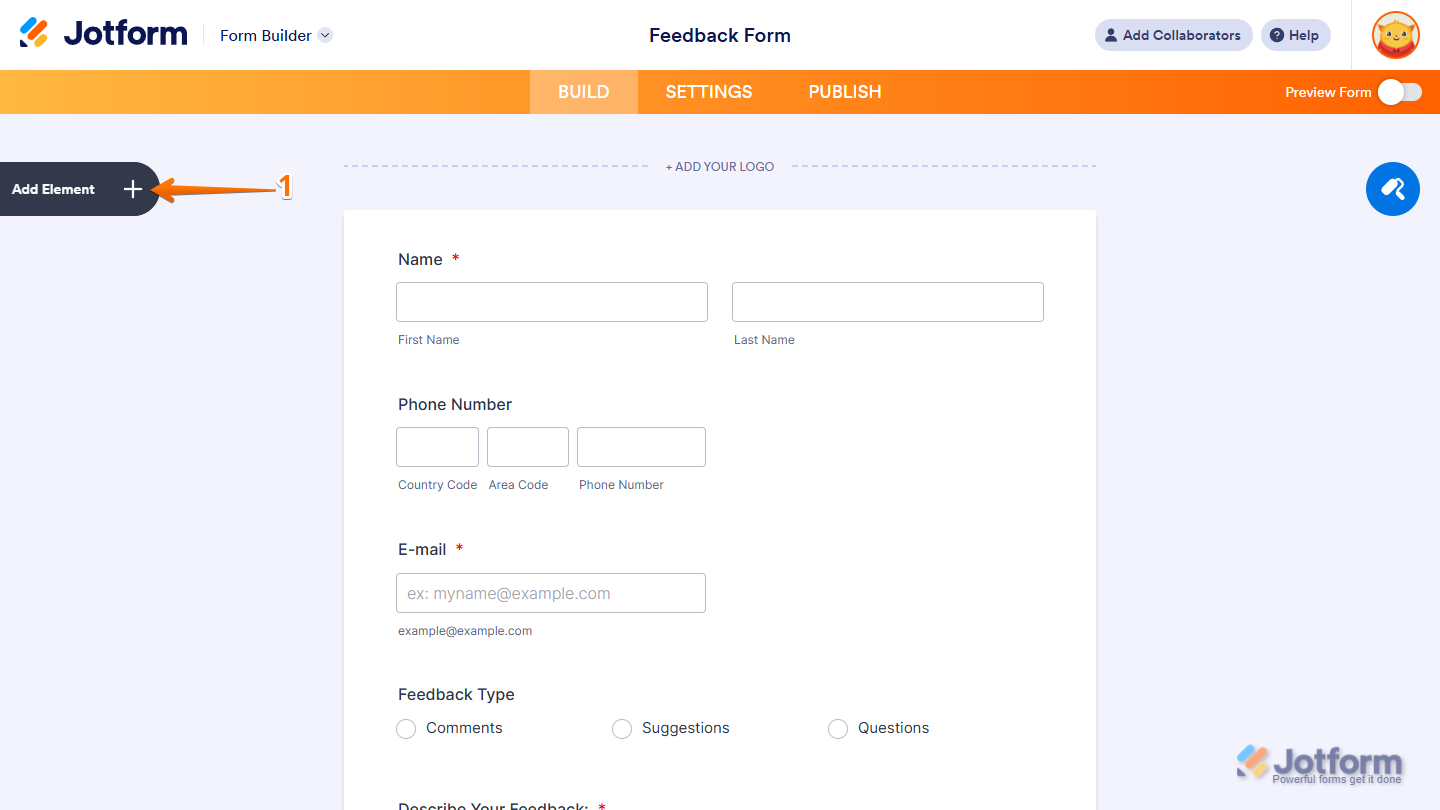
- In Form Builder, click on Add Element on the left side of the page.
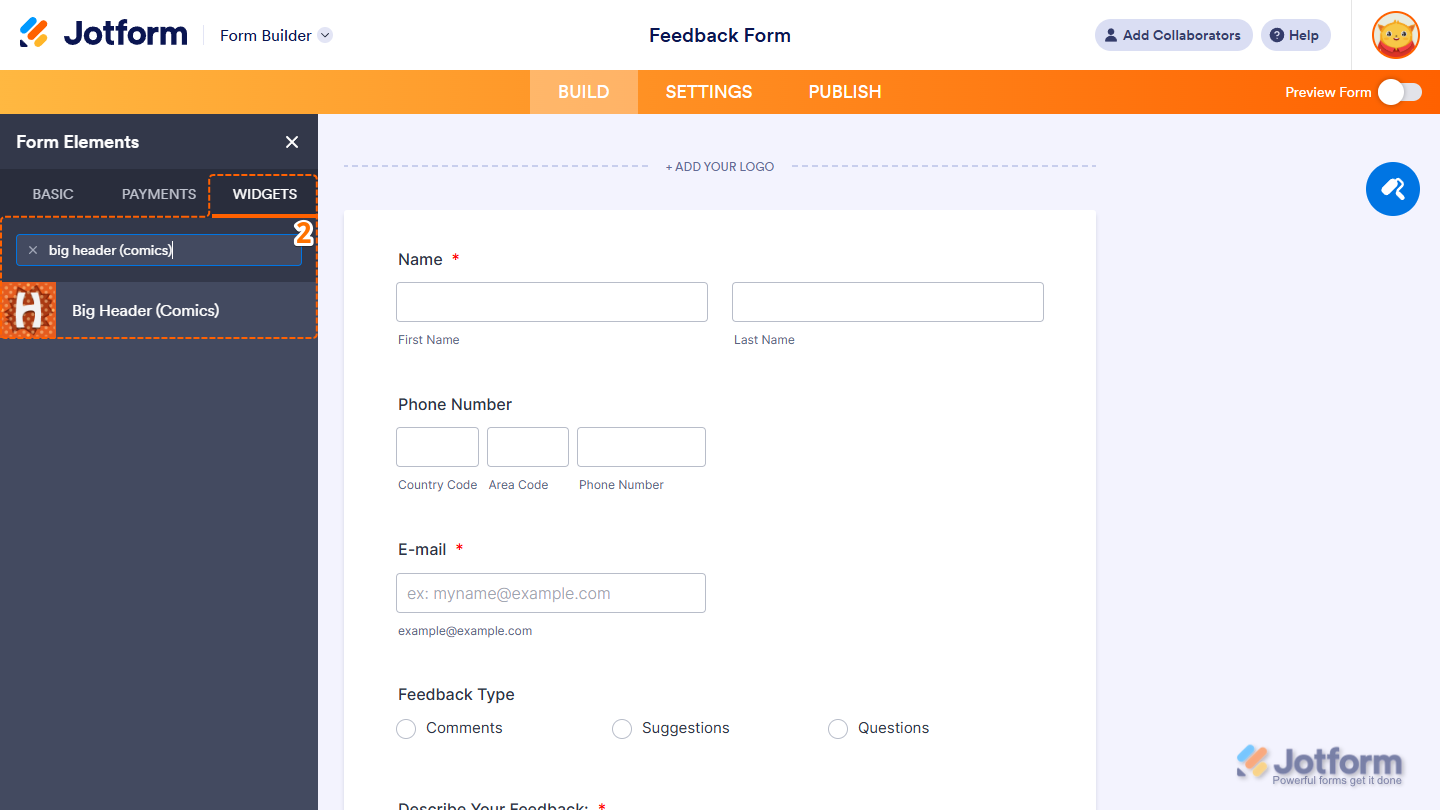
- Now, in the Form Elements menu, under the Widgets tab, search for Big Header (Comics) and click on it. Or, just drag and drop it to where you want it to be on your form.
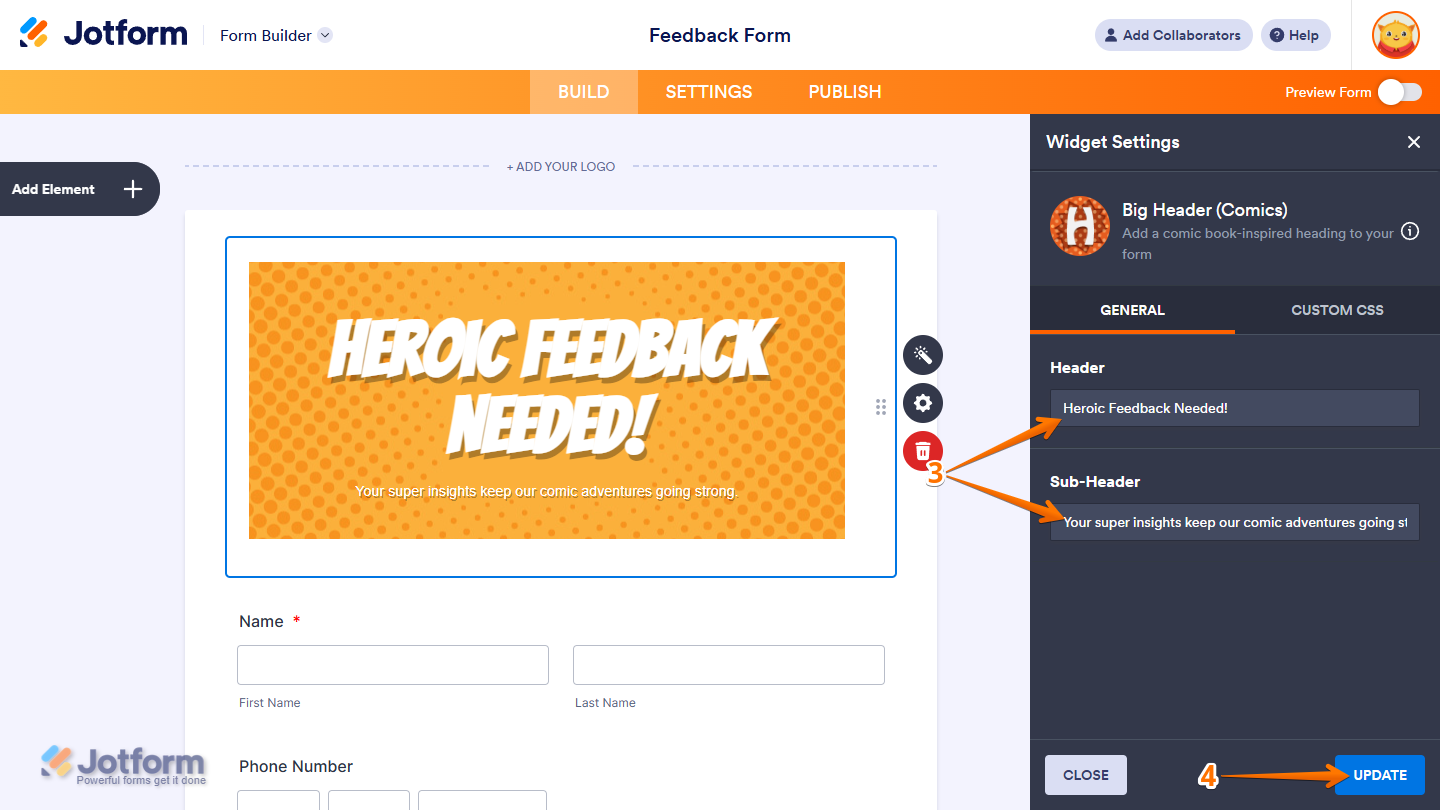
- Next, in the Widget Settings menu that opens on the right side of the page, under the General tab, you’ll see this list of settings you can configure:
- Header — Enter a main title in the input box to create a bold, attention-grabbing headline for your form section.
- Sub-Header — Enter a supporting text in the input box to provide extra context or a brief description that appears just below your header.
- Once everything’s set, click on Update.
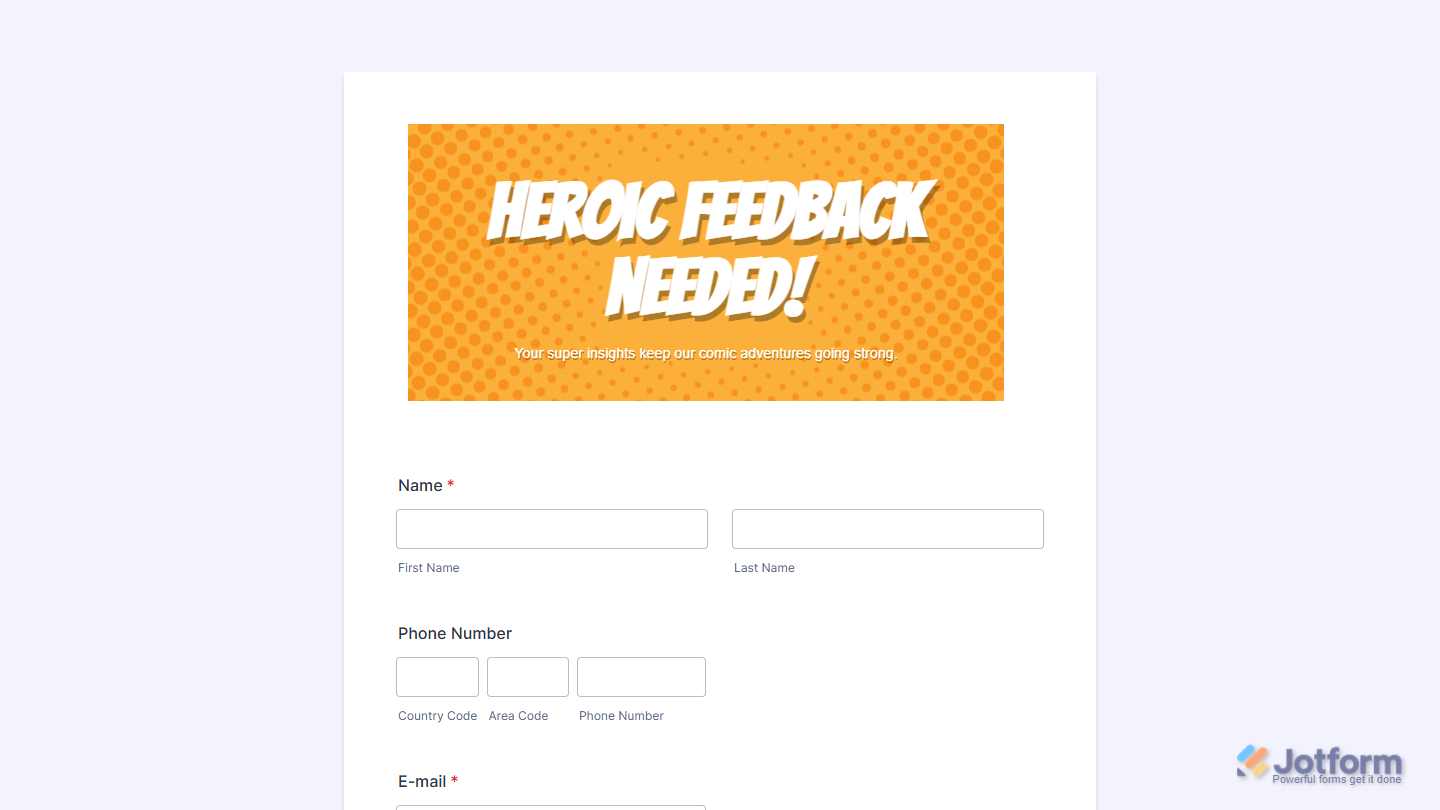
That’s it. You’ve successfully added and set up the Big Header (Comics) widget on your form. You can explore how it looks with this demo form.
Notes
- For advanced styling of the Big Header (Comics) widget, you can add your own custom CSS code under the Custom CSS tab in the Widget Settings. Our guide on How to Inject CSS Codes to Widgets walks you through everything.
- You can also configure the widget properties, like alignment, labels, size, visibility, and more, to control how it looks and behaves on your form. Check out our guide on How to Access and Configure the Question Properties of a Widget to learn more.

Send Comment: