With Jotform’s BMI Calculator widget, you can let respondernts calculate their BMI directly within your form. This helps ensure accurate and consistent results without relying on manual calculations. You can also customize its appearance to match your form’s design and branding.
Here are a few ways to use it:
- Collect sign-ups for health or recovery programs.
- Support medical intake or onboarding forms.
- Gather RSVPs for fitness events or challenges.
- Collect consistent BMI data for health-related forms.
Whether you’re creating a new form or updating an existing one, you can add and set up the BMI Calculator widget in a few easy steps. Here’s how to do it:
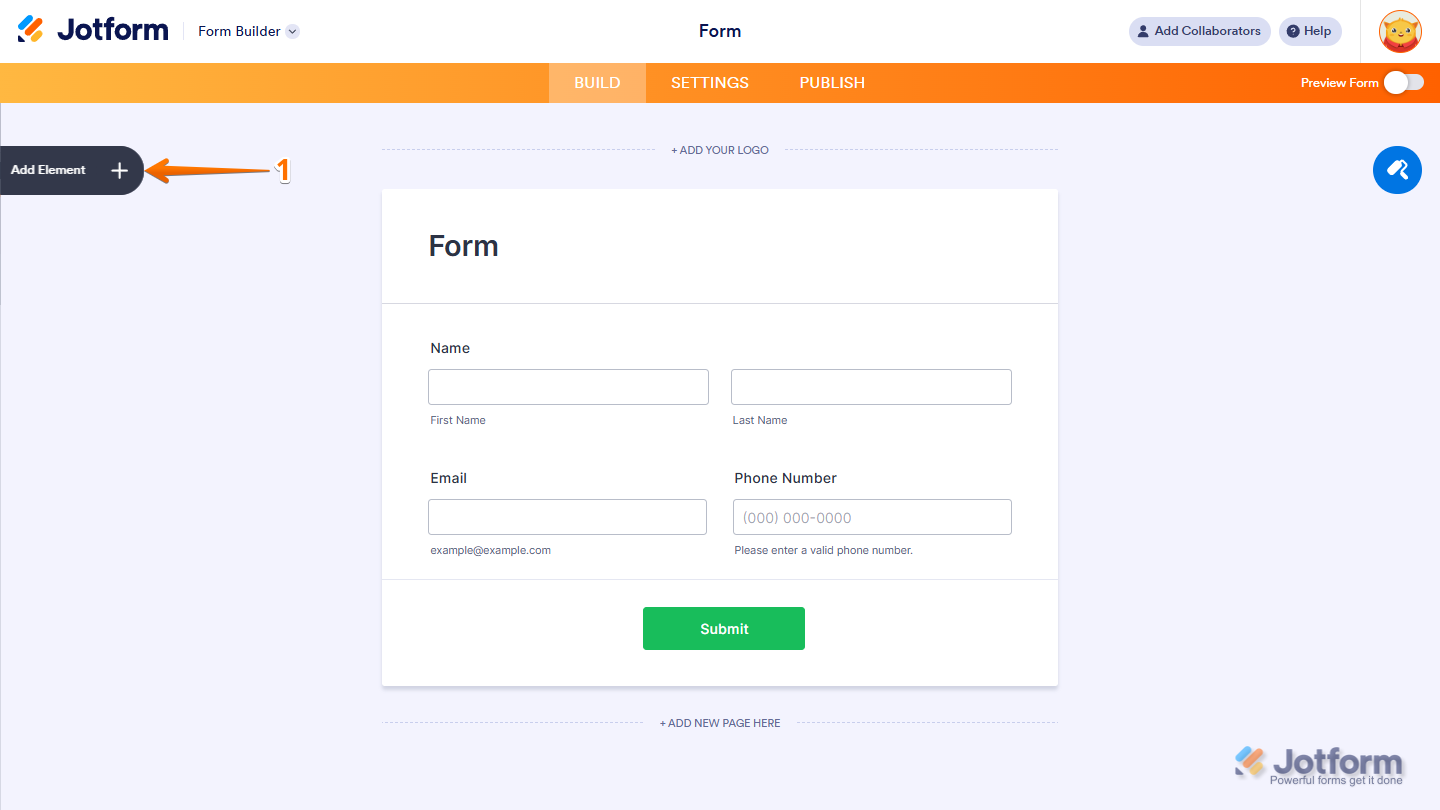
- In Form Builder, click on Add Element on the left side of the page.
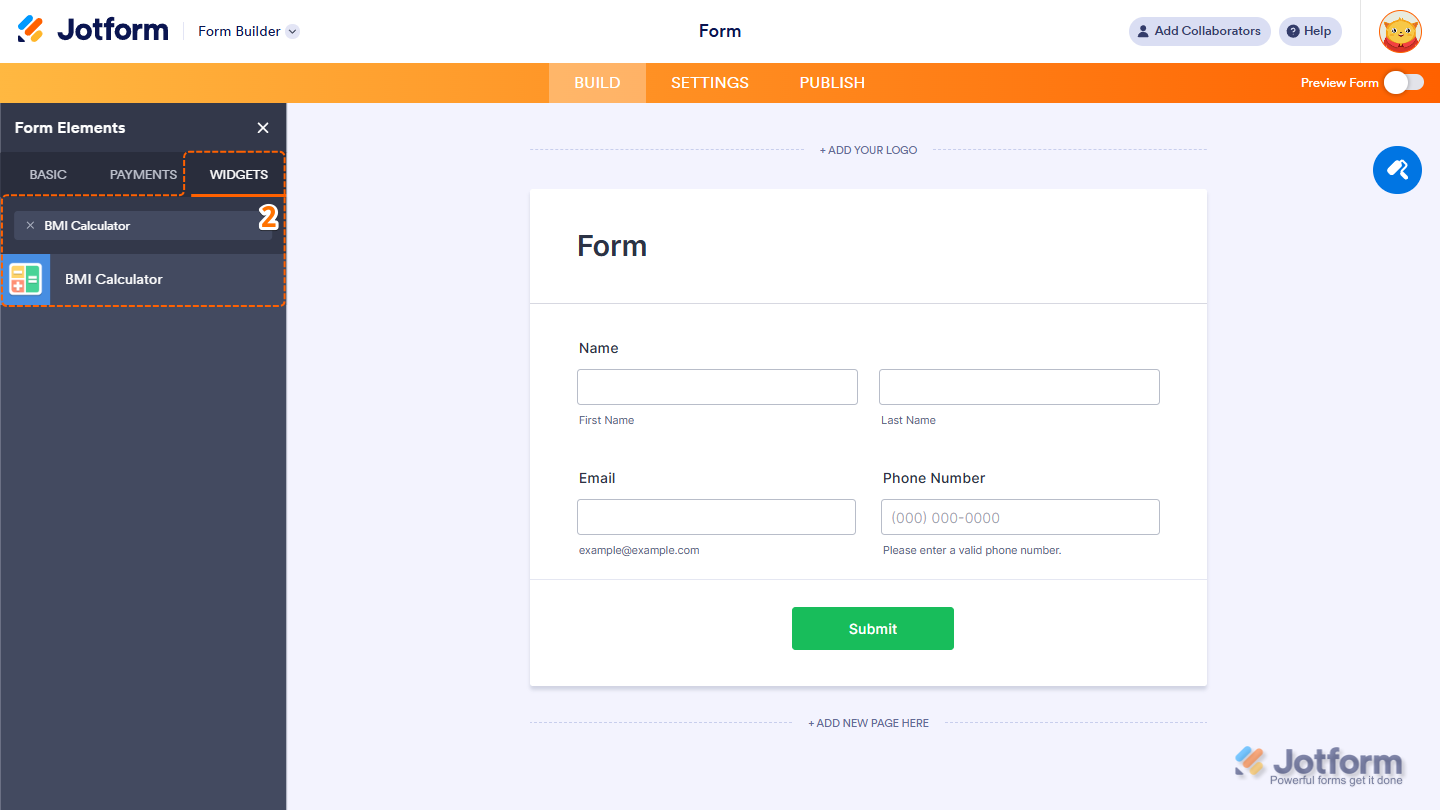
- Now, in the Form Elements menu, under the Widgets tab, search for BMI Calculator and click on it. Or, just drag and drop it to where you want it to be on your form.
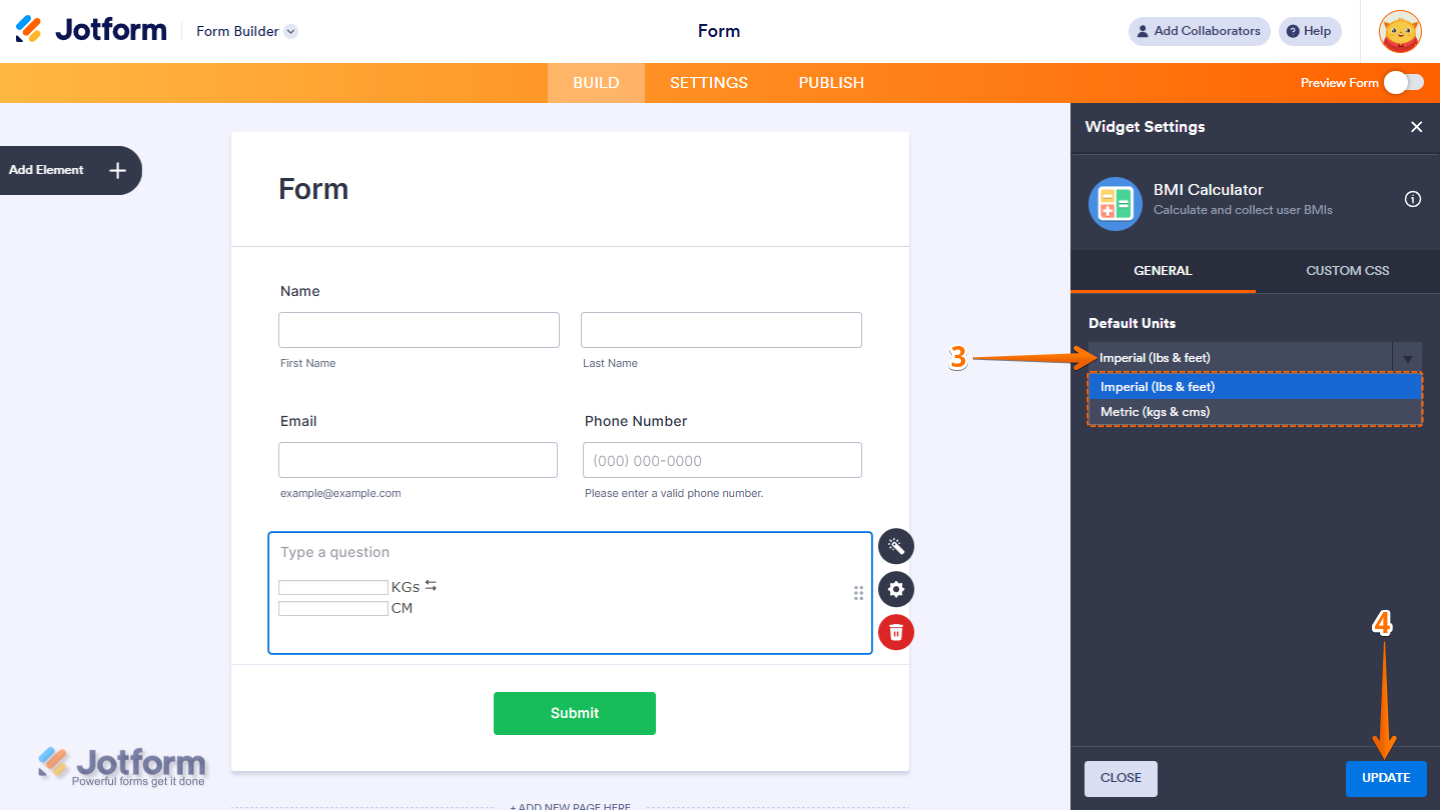
- Next, in the Widget Settings menu that opens on the right side of the page, under the General tab, click on Default Units Dropdown menu and choose one of the following:
- Metric (kgs & cms) — Select this if you want the BMI Calculator to use kilograms and centimeters.
- Imperial (lbs & feet) — Select this if you want the BMI Calculator to use pounds and feet.
- Once you’re done, click on Update.
That’s it. Now you’ve added and set up the BMI Calculator widget on your form. You can explore how it looks with this demo form.
Note
- For advanced styling of the BMI Calculator widget, you can add your own custom CSS code under the Custom CSS tab in the Widget Settings. Our guide on How to Inject CSS Codes to Widgets walks you through everything.
- You can also configure the widget properties, like alignment, labels, size, visibility, and more, to control how it looks and behaves in your form. Check out our guide on How to Access and Configure the Question Properties of a Widget to learn more.

Send Comment: