With Jotform, you can easily add a polished, ready-to-use dropdown of all Brazilian states to any form. The Brazil States widget removes the need to create or maintain your own list, giving you an instant and reliable way to collect location details from your users. It helps keep your forms organized, consistent, and clear—especially when you need accurate region data without extra work on your end.
Whether you’re building order forms, applications, registrations, or anything that requires users to indicate their state, this widget keeps things simple and smooth. It’s a small addition that makes your form feel more complete and professional, while saving you time in the process.
Here are a few ways to use it:
- Let users select their state in Brazil quickly and accurately.
- Keep address fields consistent with a standardized list.
- Make registration, application, and onboarding forms easier for Brazilian audiences.
- Collect cleaner location data for orders, requests, or service inquiries.
- Reduce typing errors by replacing manual entry with a reliable dropdown.
- Improve completion in surveys or feedback forms by simplifying location input.
- Support booking or appointment forms that rely on state-based availability.
- Streamline any workflow that needs clear, accurate regional information.
Whether you’re creating a new form or updating an existing one, you can add and set up the Brazil States widget in a few easy steps. Here’s how to do it:
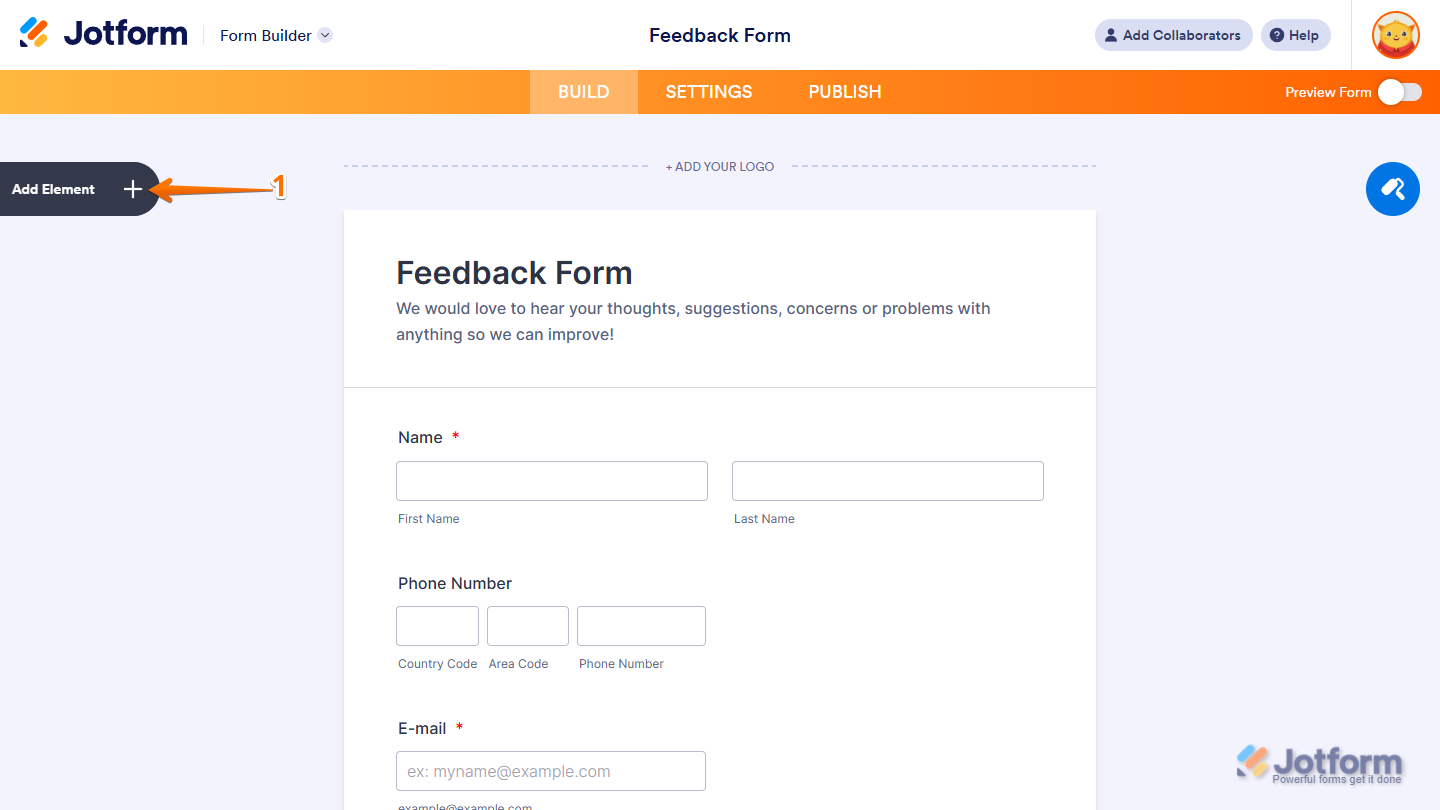
- In Form Builder, click on Add Element on the left side of the page.
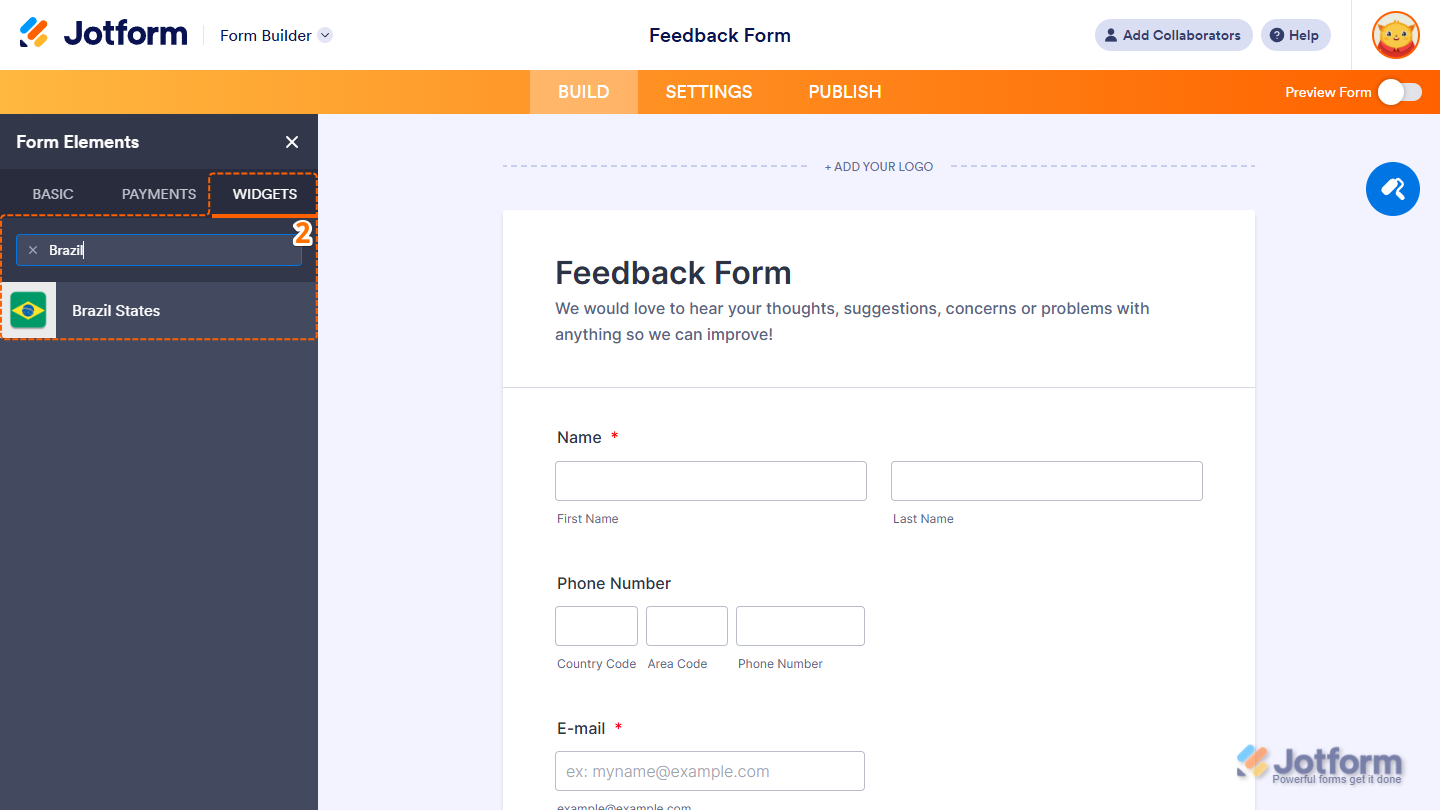
- Now, in the Form Elements menu, under the Widgets tab, search for Brazil States and click on it. Or, just drag and drop it to where you want it to be on your form.
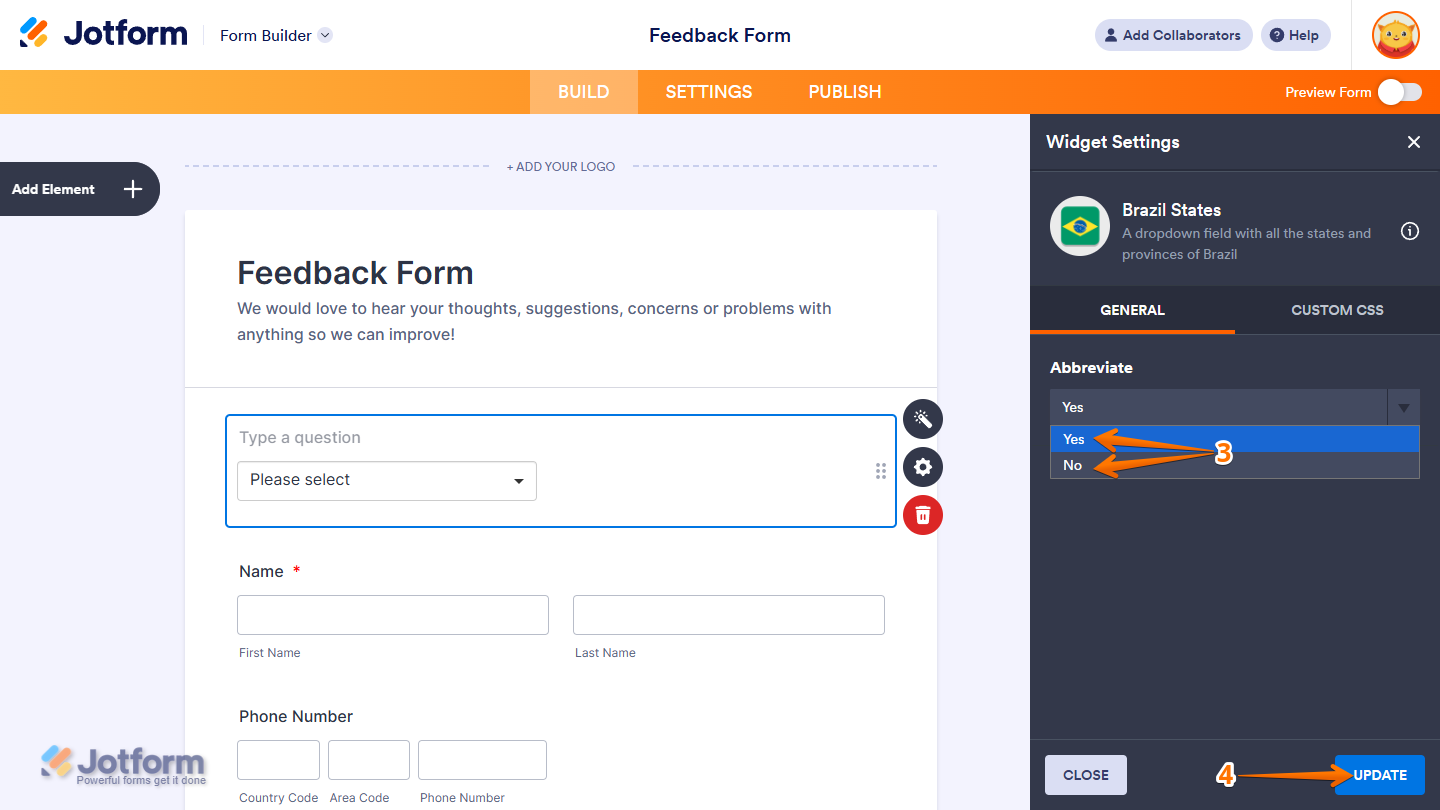
- Next, in the Widget Settings menu that opens on the right side of the page, under the General tab, select No in the Abbreviate Dropdown menu if you want the form to submit the state’s full name. Or, keep it set to Yes to submit the abbreviated version of the selected state.
- Once you’re done, click on Update.
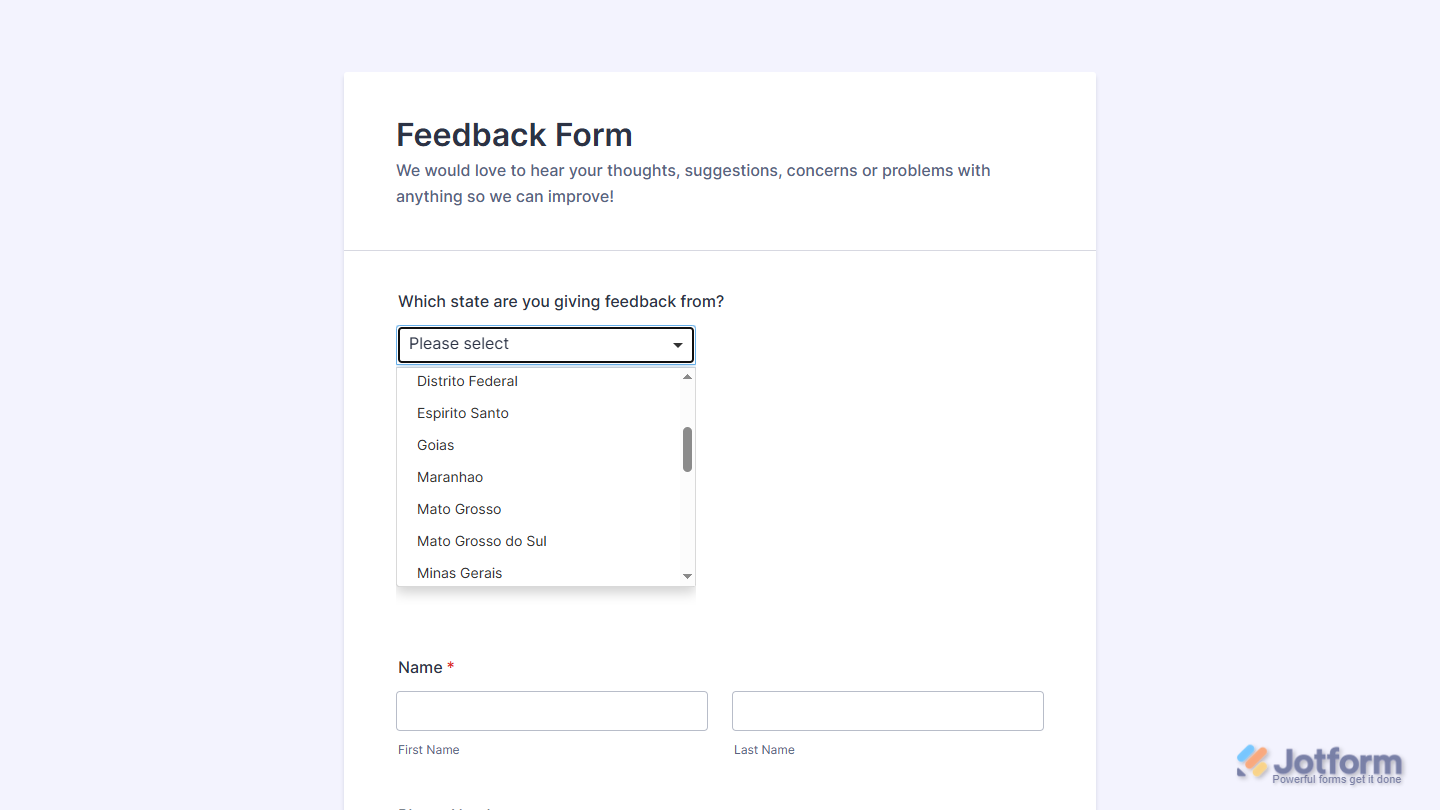
That’s it. Now you’ve added and set up the Brazil States widget on your form. Wondering how it looks in action? Check out this demo form.
Notes
- For advanced styling of the Brazil States widget, you can add your own custom CSS code under the Custom CSS tab in the Widget Settings. Our guide on How to Inject CSS Codes to Widgets walks you through everything.
- You can also configure the widget properties, like alignment, labels, size, visibility, and more, to control how it looks and behaves on your form. Check out our guide on How to Access and Configure the Question Properties of a Widget to learn more.

Send Comment: