Jotform makes it easy to standardize location inputs with the Cities of Italy widget, which provides a ready-made dropdown list of Italian cities that users can select from. This removes the need to manually create or maintain city lists while helping ensure submissions contain valid and consistent location data.
Here are a few ways to use it:
- Standardize city selection in Italian registration or contact forms.
- Restrict entries to valid Italian city names.
- Simplify address or location forms for users in Italy.
- Ensure consistent location data across submissions.
Whether you’re starting fresh or updating a form, adding and setting up the Cities of Italy widget takes only a few steps. Here’s a quick how-to:
- In Form Builder, click on Add Element on the left side of the page.

- Now, in the Form Elements menu, under the Widgets tab, search for Cities of Italy and click on it. Or, just drag and drop it to where you want it to be on your form.
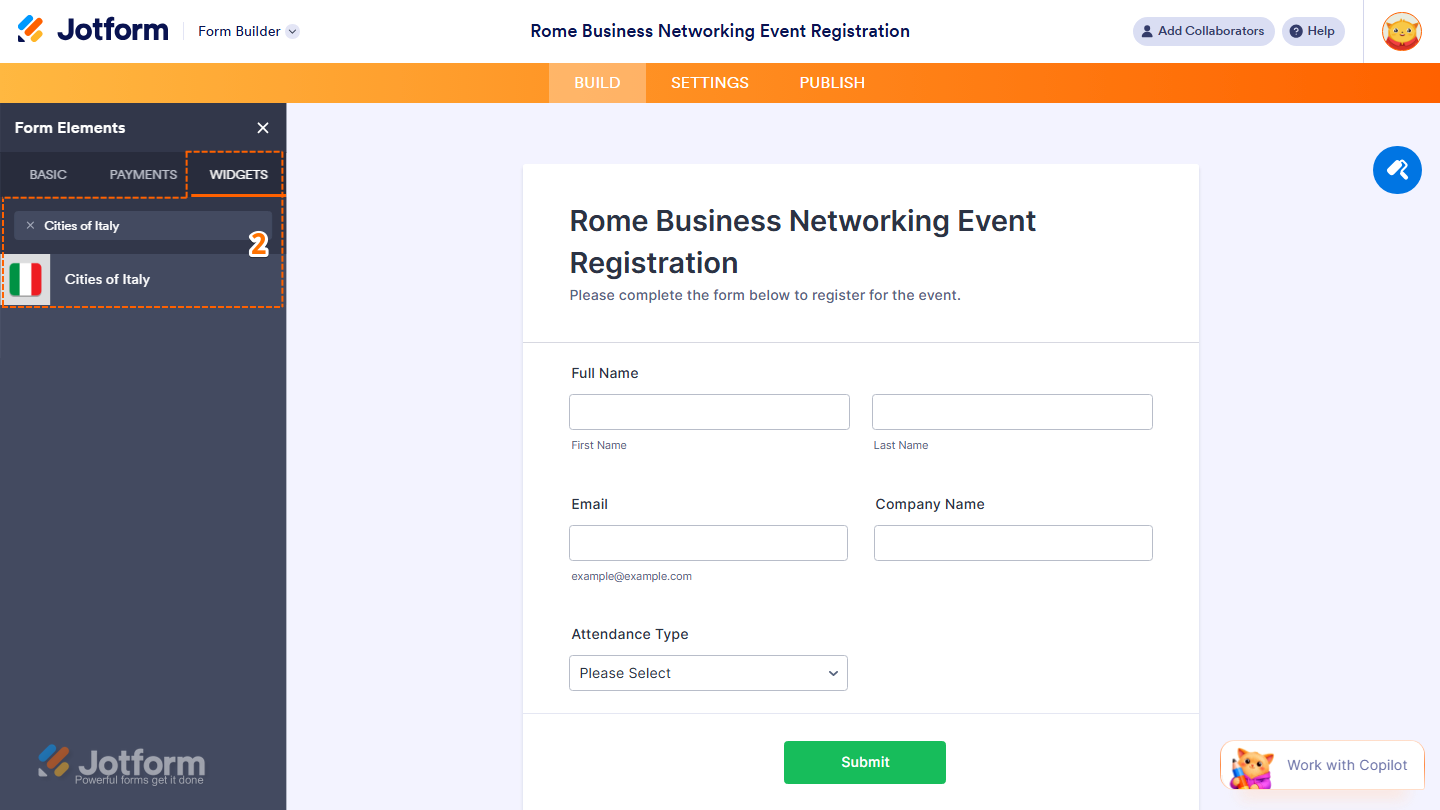
- Next, in the Widget Settings window that opens on the right side of the page, under the General tab, set up the Abbreviation Dropdown menu to Yes or No.
- Once you’re done, click on Update.

That’s it. You’ve successfully added and set up the Cities of Italy widget on your form.

Wondering how it looks in action? Check out this demo form.
Note
- To style the fields and labels in the Cities of Italy widget, you can inject custom CSS into the Custom CSS tab in the Widget Settings. Need help getting started? Our guide on How to Inject CSS Codes to Widgets shows you how to do it.
- You can also configure the widget properties, like alignment, labels, size, visibility, and more, to control how it looks and behaves in your form. Check out our guide on How to Access and Configure the Question Properties of a Widget to learn more.

Send Comment: