With Jotform, you can easily keep your forms clean, organized, and user-friendly by letting people select exactly where they’re from. The Cities of Turkey widget comes with a complete, up-to-date list of all Turkish cities built right in, so you don’t have to create options manually or worry about outdated entries. Just add the widget to your form, and your users get a smooth, accurate way to choose their city while you collect consistent, reliable data every time.
It’s a simple way to make your forms feel more polished and trustworthy—especially for audiences in Turkey or businesses that need precise location details. The widget handles the city list for you so that you can focus on the rest of your form without the extra work.
Here are a few ways to use it:
- Standardize city selection on registration, sign-up, or onboarding forms.
- Collect accurate location details for surveys, questionnaires, or feedback forms.
- Streamline address sections on order, booking, or service request forms.
- Support applications that require verified Turkish city data, such as permits, enrollments, or membership forms.
- Reduce typos and inconsistent entries by replacing free-text city fields with a ready-made, reliable list.
Whether you’re creating a new form or updating an existing one, you can add and set up the Cities of Turkey widget in a few easy steps. Here’s how to do it:
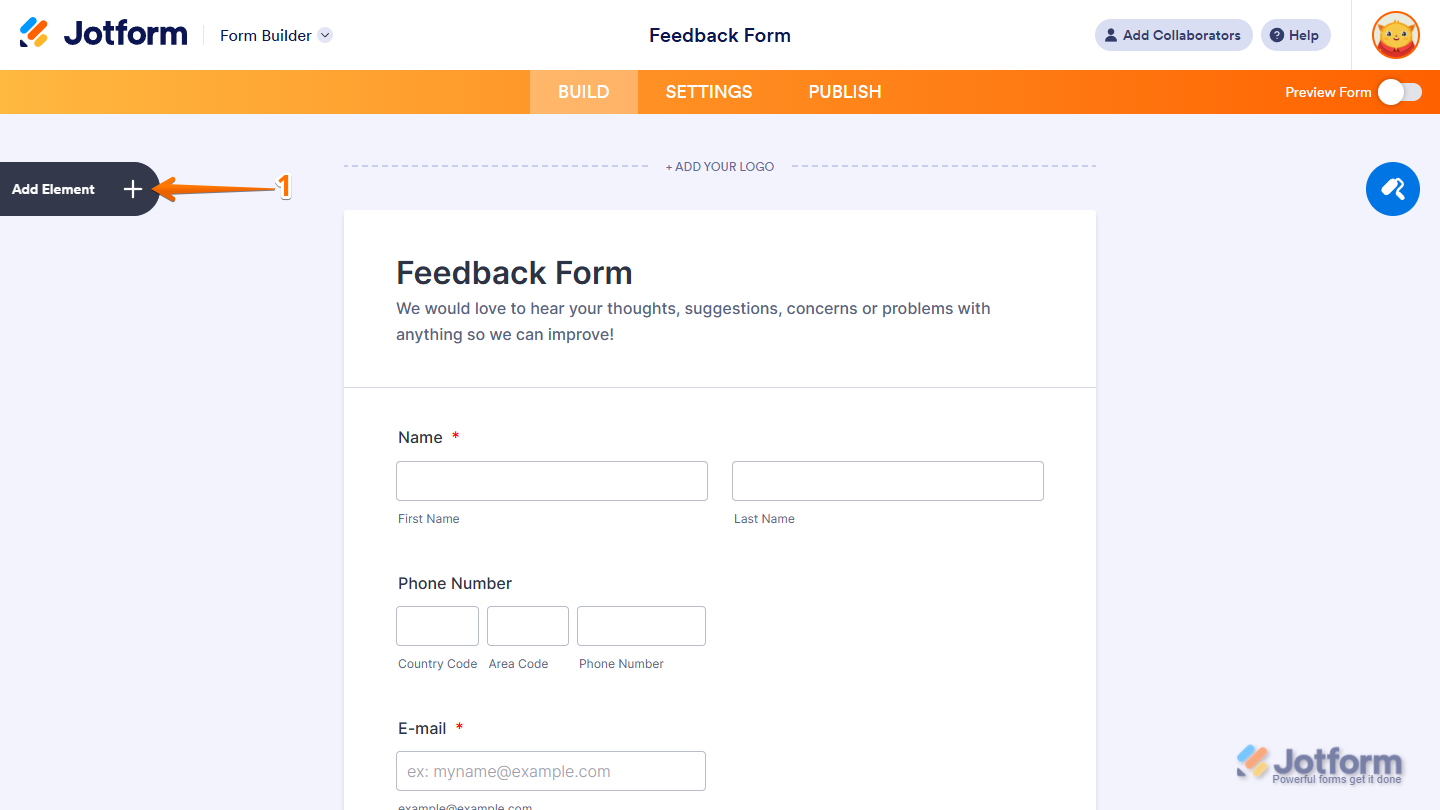
- In Form Builder, click on Add Element on the left side of the page.
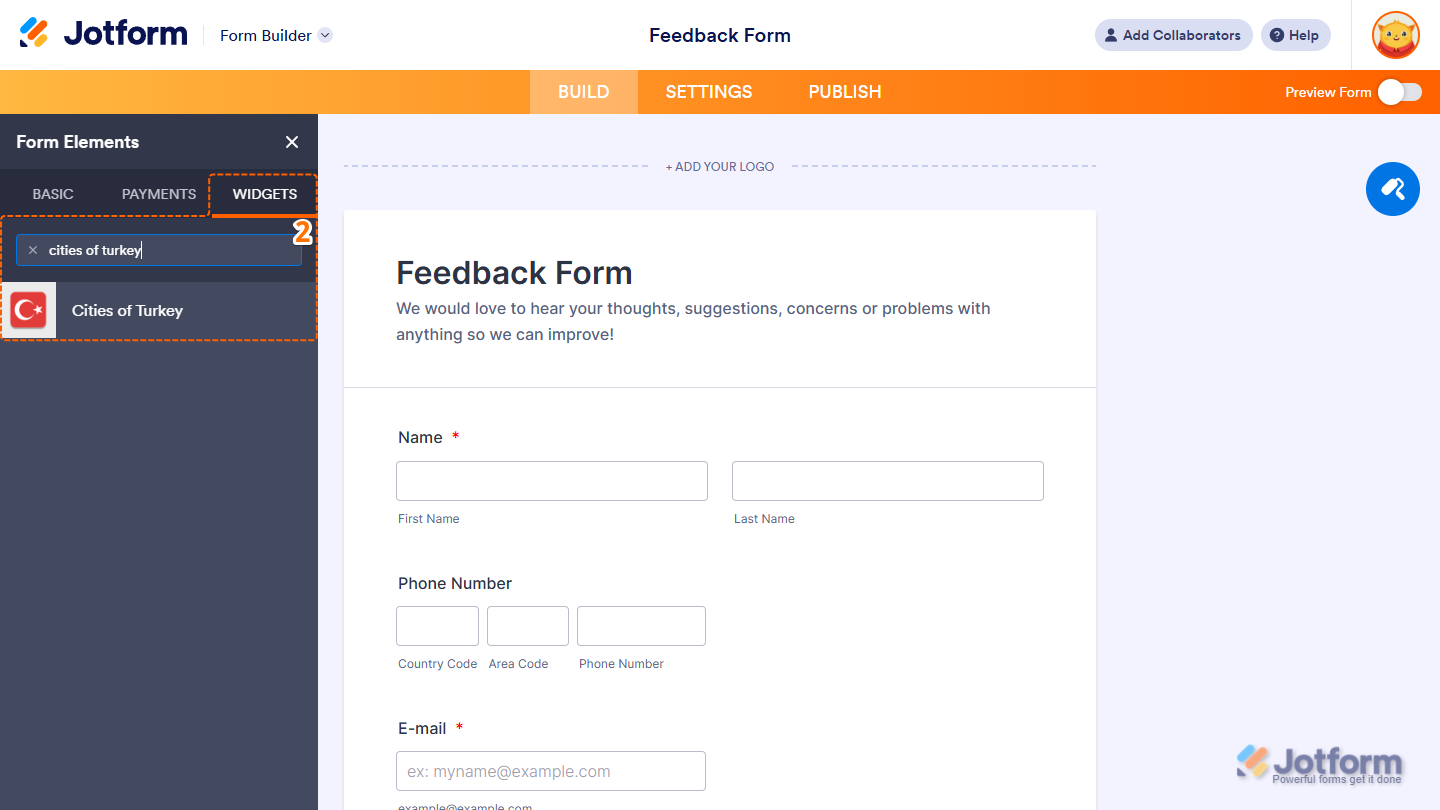
- Now, in the Form Elements menu, under the Widgets tab, search for Cities of Turkey and click on it. Or, just drag and drop it to where you want it to be on your form.
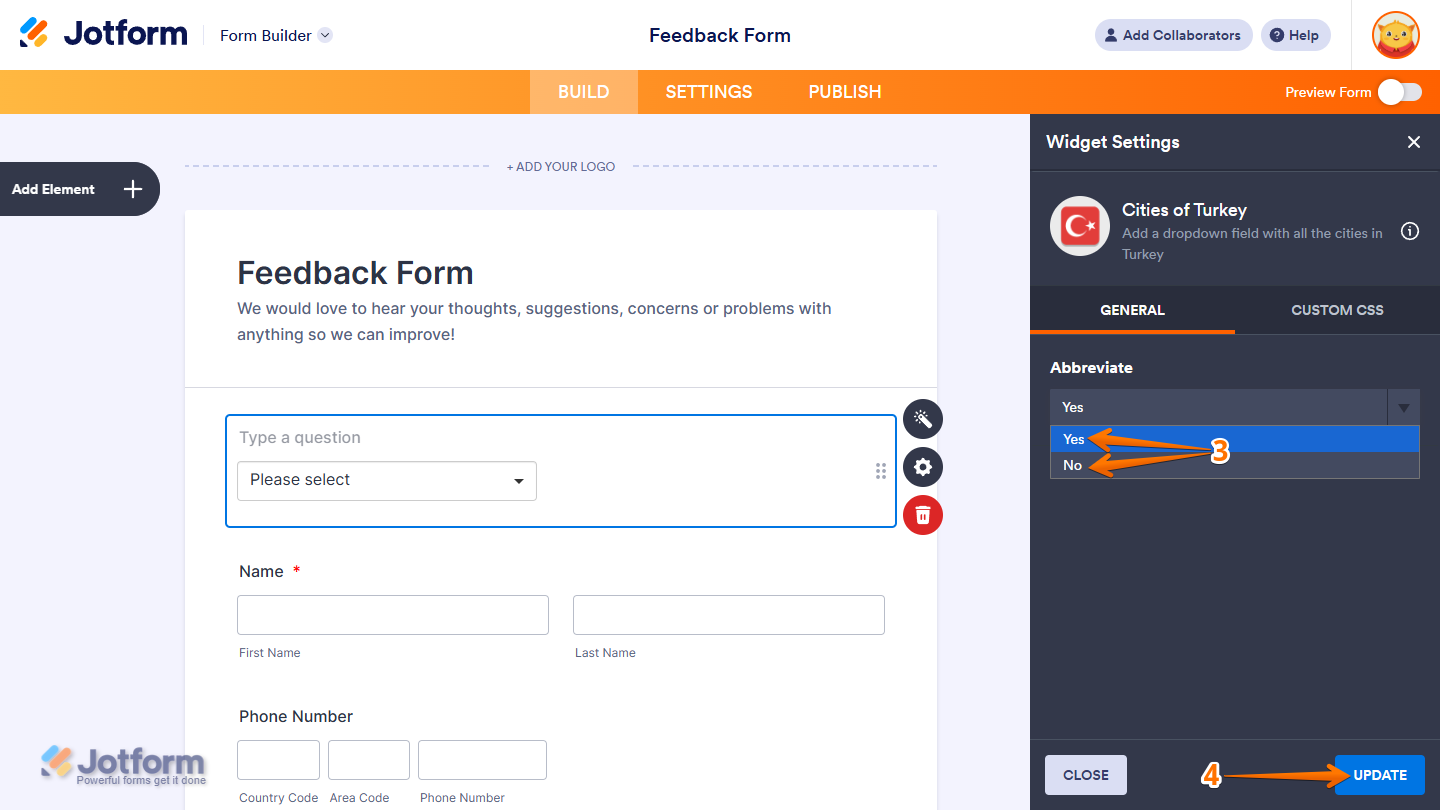
- Next, in the Widget Settings menu that opens on the right side of the page, under the General tab, select No in the Abbreviate Dropdown menu if you want the form to submit the state’s full name. Or, keep it set to Yes to submit the abbreviated version of the selected state.
- Once you’re done, click on Update.
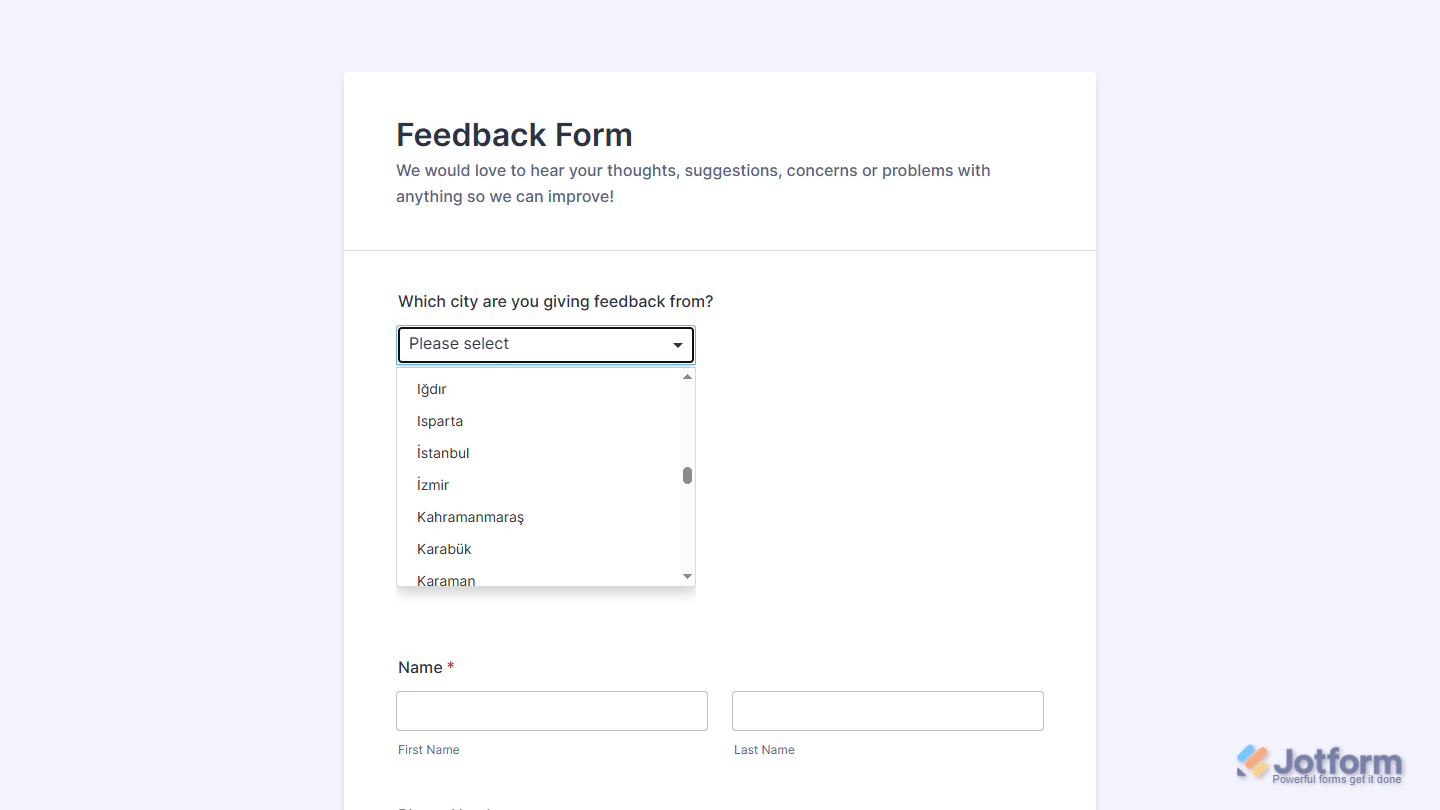
That’s it. Now you’ve added and set up the Cities of Turkey widget on your form. Wondering how it looks in action? Check out this demo form.
Notes
- For advanced styling of the Cities of Turkey widget, you can add your own custom CSS code under the Custom CSS tab in the Widget Settings. Our guide on How to Inject CSS Codes to Widgets walks you through everything.
- You can also configure the widget properties, like alignment, labels, size, visibility, and more, to control how it looks and behaves on your form. Check out our guide on How to Access and Configure the Question Properties of a Widget to learn more.

Send Comment: