With Jotform, you can add a live countdown timer to your form using the Countdown widget. It’s perfect for timed quizzes, limited-time offers, or creating a sense of urgency. Just drop it into your form, set the time, and choose what happens when the timer runs out.
Here are a few ways to use it:
- Create urgency for limited-time offers or promotions.
- Remind users about upcoming registration deadlines.
- Highlight application or submission cut-off dates.
- Build anticipation for events, launches, or giveaways.
Whether you’re starting fresh or updating a form, adding and setting up the Countdown widget takes only a few steps. Here’s a quick how-to:
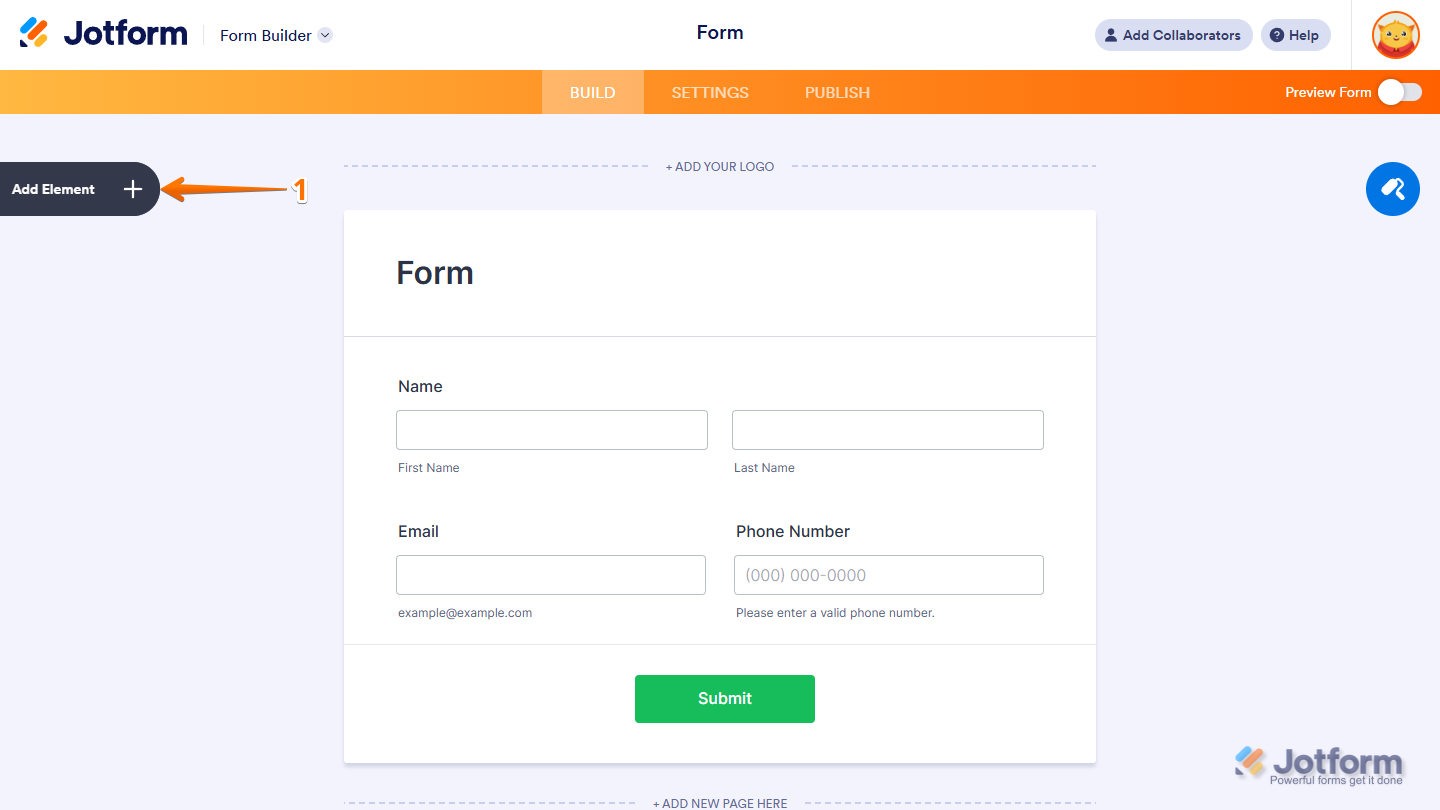
- In Form Builder, click on Add Element on the left side of the page.
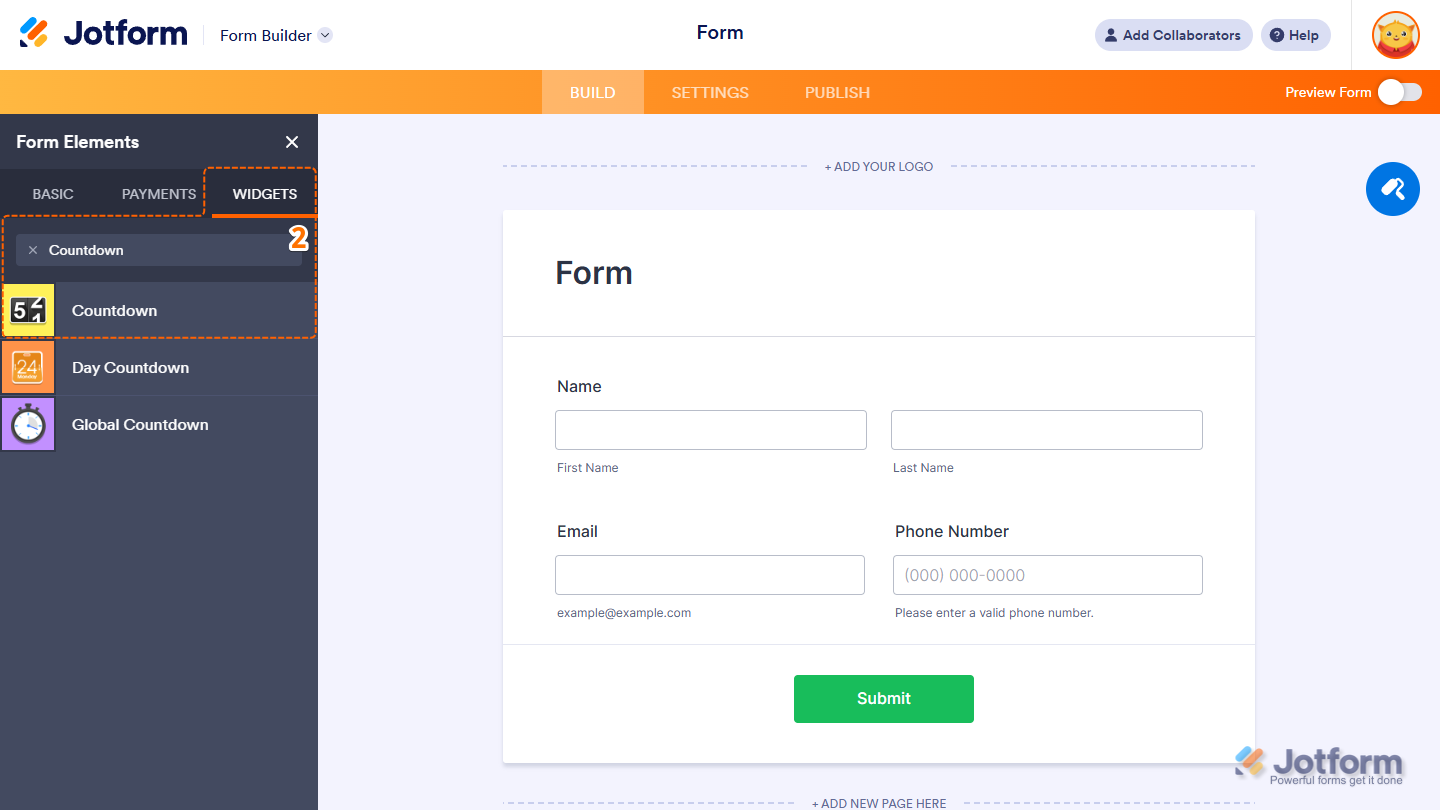
- Now, in the Form Elements menu, under the Widgets tab, search for Countdown, and then click on it. Or, just drag and then drop it to where you want it to be on your form.
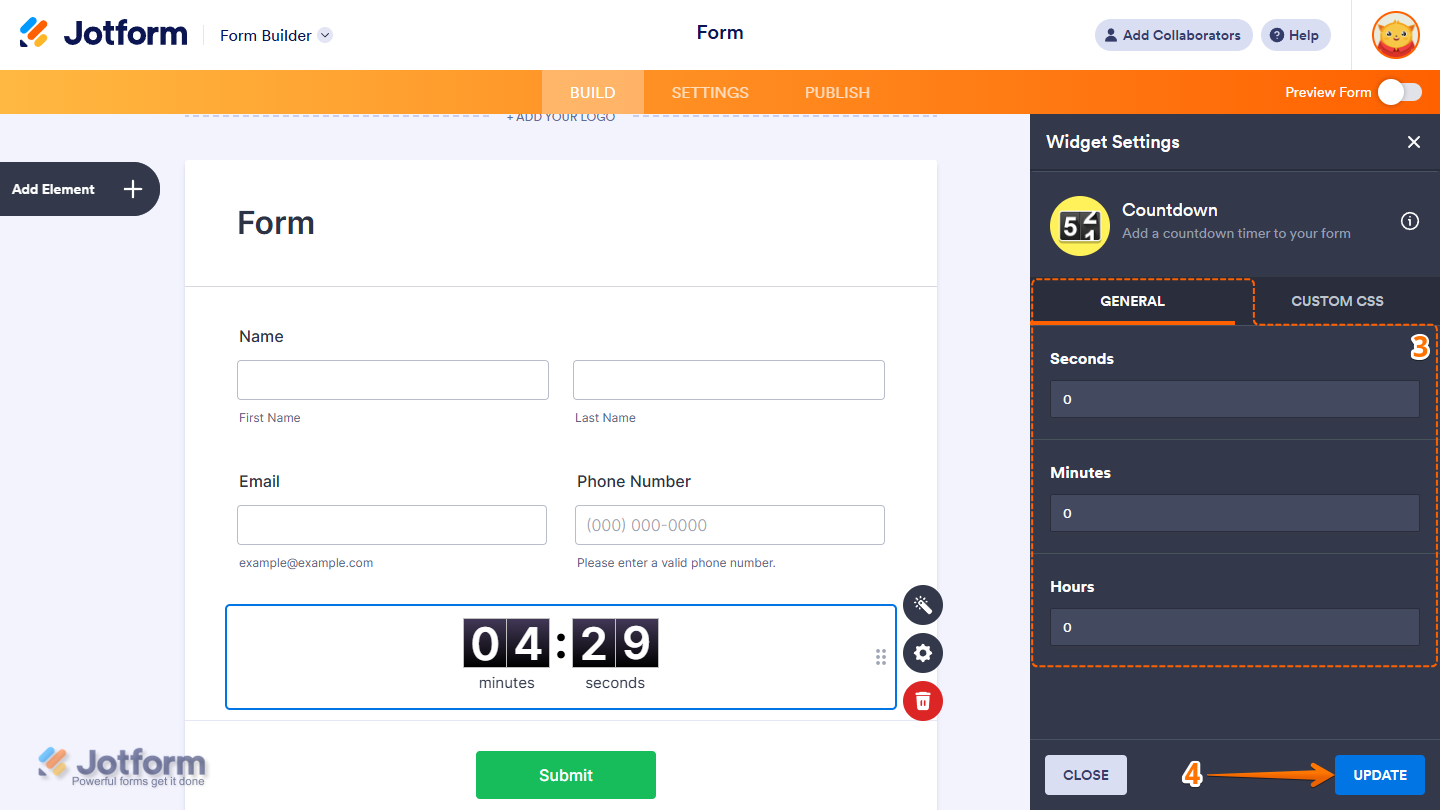
- Next, in the Widget Settings window that opens on the right side of the page, under the General tab, set up these options:
- Seconds — Set how many seconds you want the timer to count down.
- Minutes — Set the number of minutes you need.
- Hours — Set how many hours the countdown should run.
- Now, click on Update, and you’re done.
That’s it! You’ve successfully added and set up the Countdown widget on your form.
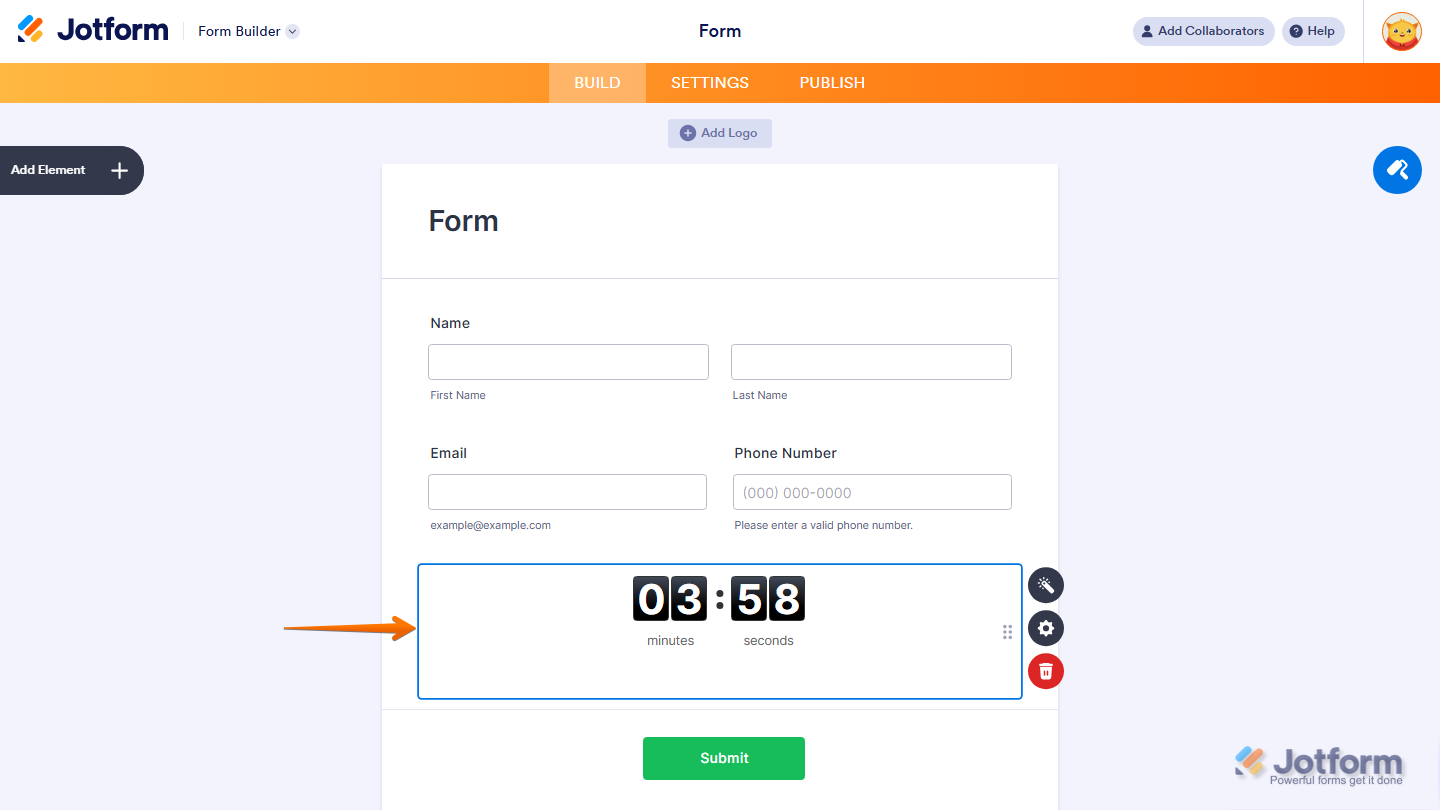
Wondering how it looks in action? Check out this Demo Form.
Note
- To style the fields and labels, you can inject custom CSS into the Custom CSS tab in the Widget Settings. To learn how it’s done, see our guide on How to Inject CSS Codes to Widgets.
- You can also configure the widget properties, like alignment, labels, size, visibility, and more, to control how it looks and behaves in your form. Check out our guide on How to Access and Configure the Question Properties of a Widget to learn more.

Send Comment: