Jotform makes it easy to collect international phone numbers with the Country Code widget, which lets users choose their country from a dropdown list so the correct country code and number format are automatically applied. You can simply add it to your form and it works right away without extra setup.
Here are a few ways to use it:
- Process international orders more accurately.
- Accept call-back requests from global clients.
- Collect properly formatted phone numbers worldwide.
- Support and grow your international audience.
Whether you’re building a new form or editing an existing one, you can add and configure the Country Code in just a few steps. This is how it’s done:
- In Form Builder, click on Add Element on the left side of the page.

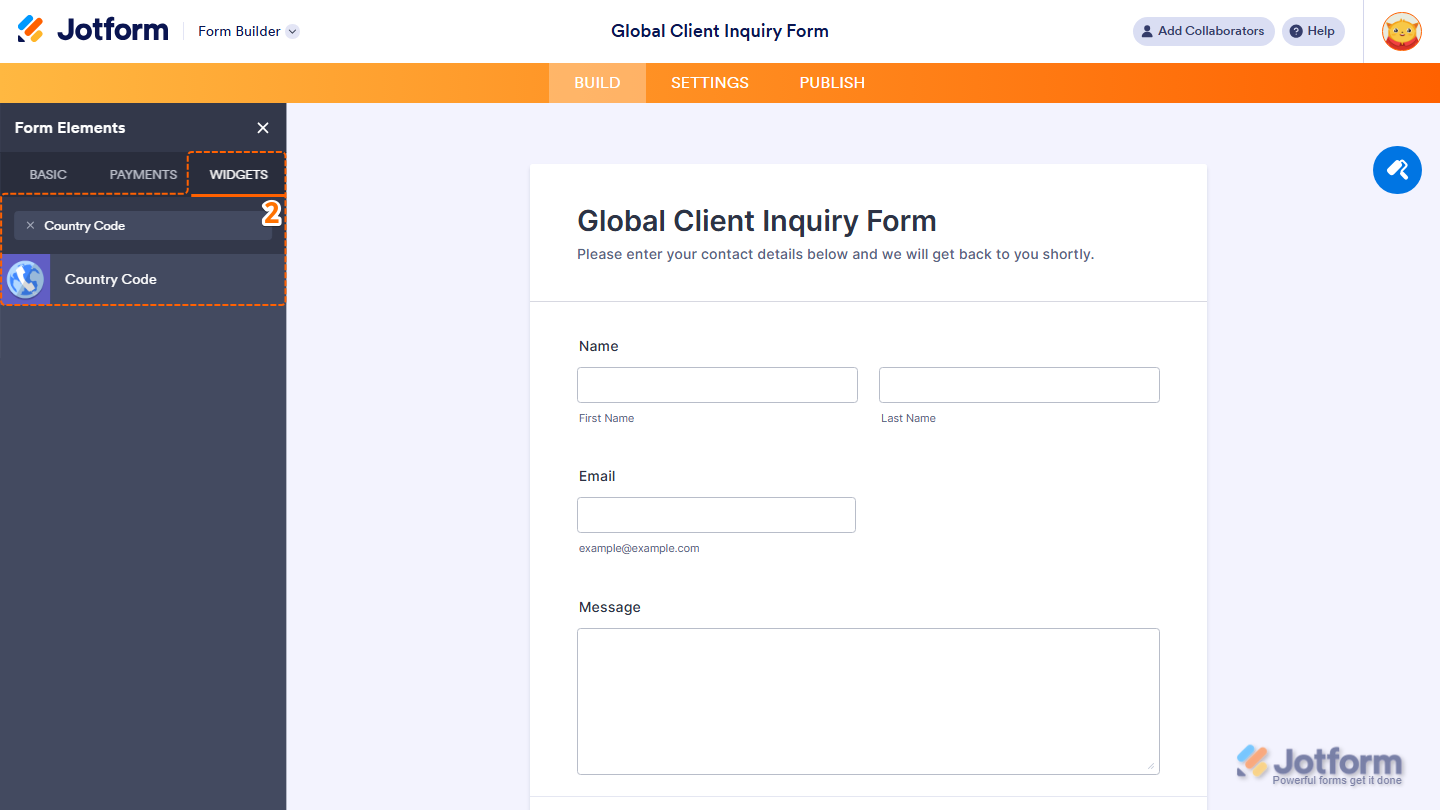
- Now, in the Form Elements menu, under the Widgets tab, search for Country Code and click on it. Or, just drag and drop it to where you want it to be on your form.
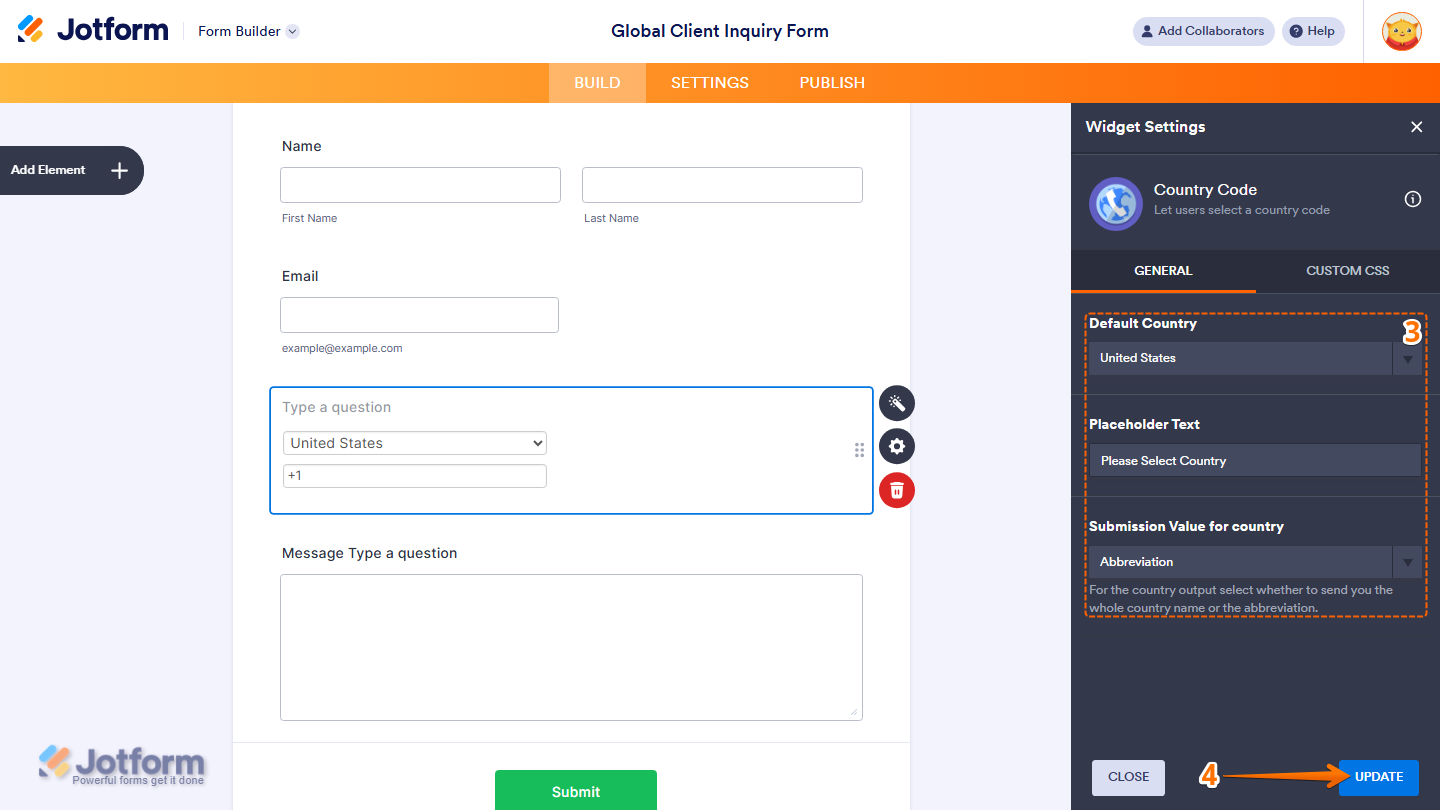
- Next, in the Widget Settings window that opens on the right side of the page, under the General tab, set up these things:
- Default Country — Select the country that should appear prefilled when the form loads.
- Placeholder Text — Add a placeholder to guide users before they make a selection.
- Submission Value for Country — Choose how the country should be sent in the submission data: The Whole Country Name or its Abbreviation.
- Once you’re done, click on Update.
That’s it. Now you’ve added and set up the Country Code widget on your form.

You can explore how it looks with this demo form.
Note
- For advanced styling of the Country Code widget, you can add your own custom CSS code under the Custom CSS tab in the Widget Settings. Our guide on How to Inject CSS Codes to Widgets walks you through everything.
- You can also configure the widget properties, like alignment, labels, size, visibility, and more, to control how it looks and behaves in your form. Check out our guide on How to Access and Configure the Question Properties of a Widget to learn more.

Send Comment: