Jotform’s Country Picker widget is a simple yet effective tool that lets users select their country from a searchable dropdown list, enhancing the ease and accuracy of form submissions that require location details. Ideal for travel bookings, international registrations, surveys, or any form that collects geographic information, this widget streamlines data collection by standardizing country inputs and reducing user errors. Its user-friendly interface ensures a smooth experience for both form owners and respondents, making it a practical addition to global-facing forms.
Here are a few ways to use it:
- Collect accurate country data for shipping and billing details.
- Ensure compliance by identifying users’ country of residence.
- Increase survey completion rates for international audiences.
- Keep address fields consistent across international forms.
- Let users quickly select their country from a standardized list.
- Reduce spelling errors by replacing manual country entry with a dropdown.
- Segment submissions by country for reporting and analysis.
- Simplify global registration and onboarding processes.
- Streamline workflows that require clean, structured location data.
- Support booking or service forms that depend on country-based availability.
Whether you’re creating a new form or updating an existing one, adding and setting up the Country Picker widget only takes a second—here’s what you’ll do:
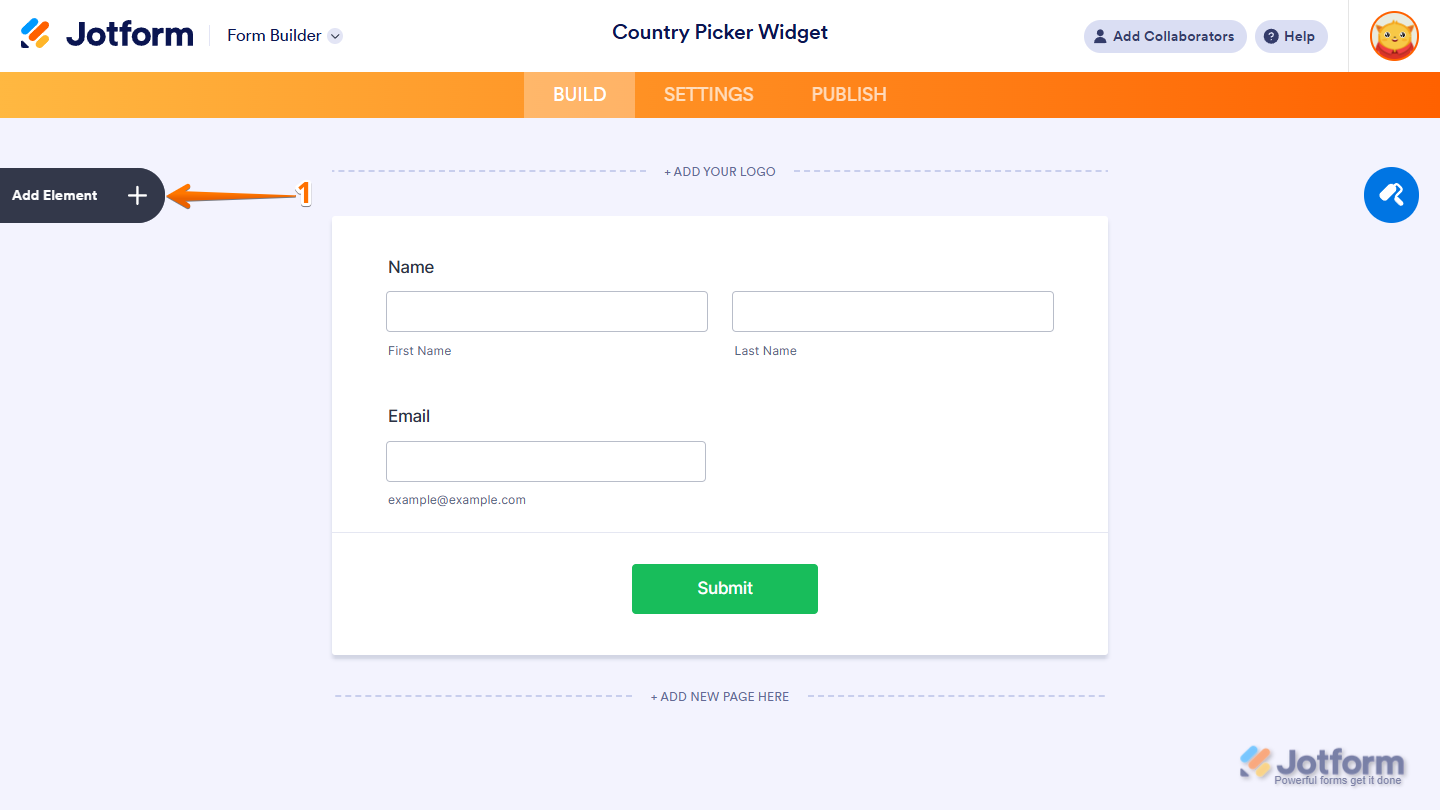
- In Form Builder, click on Add Element on the left side of the page.
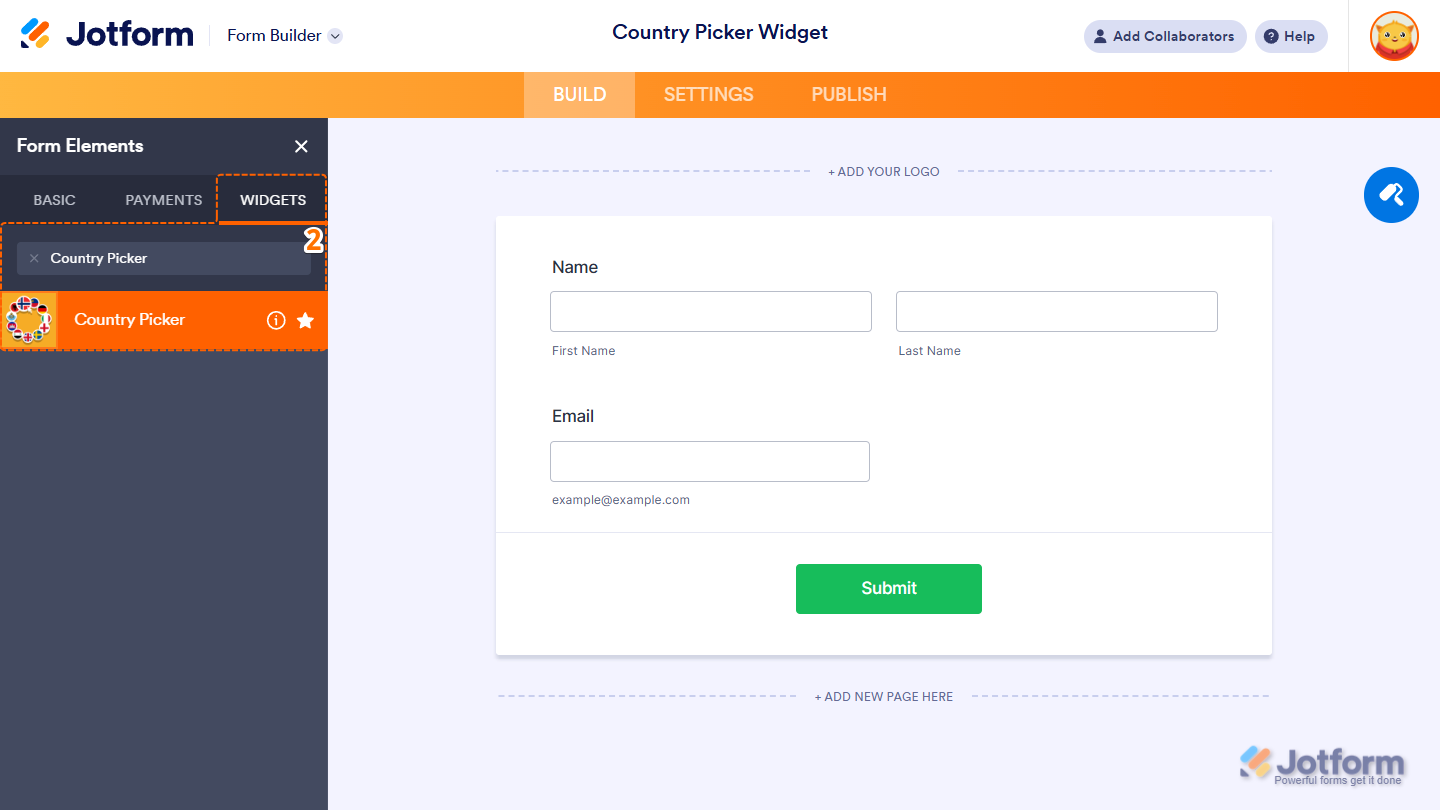
- Now, in the Form Elements menu, under the Widgets tab, search for Country Picker and click on it. Or just drag and drop it to where you want it on your form.
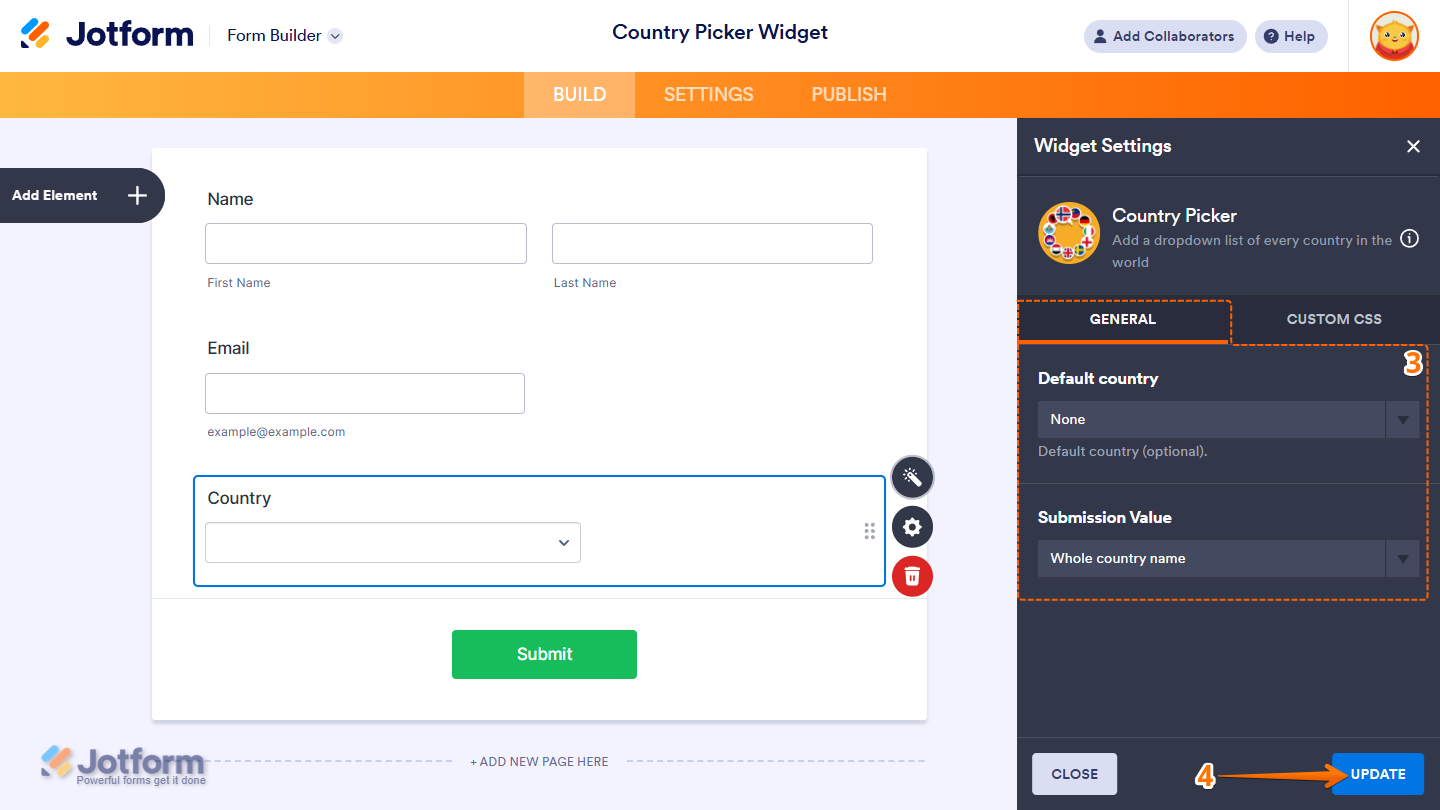
- Next, in the Country Picker Widget Settings menu that opens on the right side of the page, under the General tab, set up the following options:
- Default Country — Select the country that will be preselected when the widget loads in the form.
- Submission Value — Choose whether the selected country is submitted as its full name or as an abbreviation.
- Once everything’s set, click on Update.
That’s it! You’ve now successfully added and set up the Country Picker widget to your form. Ready to see it in real time? Have a look at this Demo Form.
Notes
- For advanced styling of the Voice Recorder widget, you can add your own custom CSS code under the Custom CSS tab in the Widget Settings. Our guide on How to Inject CSS Codes to Widgets walks you through everything.
- You can also configure the widget properties, like alignment, labels, size, visibility, and more, to control how it looks and behaves on your form. Check out our guide on How to Access and Configure the Question Properties of a Widget to learn more.

Send Comment: