With Jotform’s Currency Converter widget, you can easily give your customers a clear idea of your prices in their own currency. This handy tool updates with the latest exchange rates, helping users make informed decisions without having to leave your form. It’s perfect for businesses that serve an international audience, making your pricing more transparent and accessible.
Adding a currency converter not only improves the user experience but also builds trust, showing customers that you value clarity and convenience. With [company], providing this extra level of service has never been easier.
Here are a few ways to use it:
- Add a currency converter to your order or pricing forms.
- Help international customers understand your prices in their own currency.
- Make donation or fundraising forms more accessible to a global audience.
- Give users a quick, convenient way to compare costs without leaving your form.
- Improve transparency and build trust with customers by showing accurate, up-to-date conversions.
Whether you’re creating a new form or updating an existing one, you can add and set up the Currency Converter widget in a few easy steps. Here’s how to do it:
- In Form Builder, click on Add Element on the left side of the page.
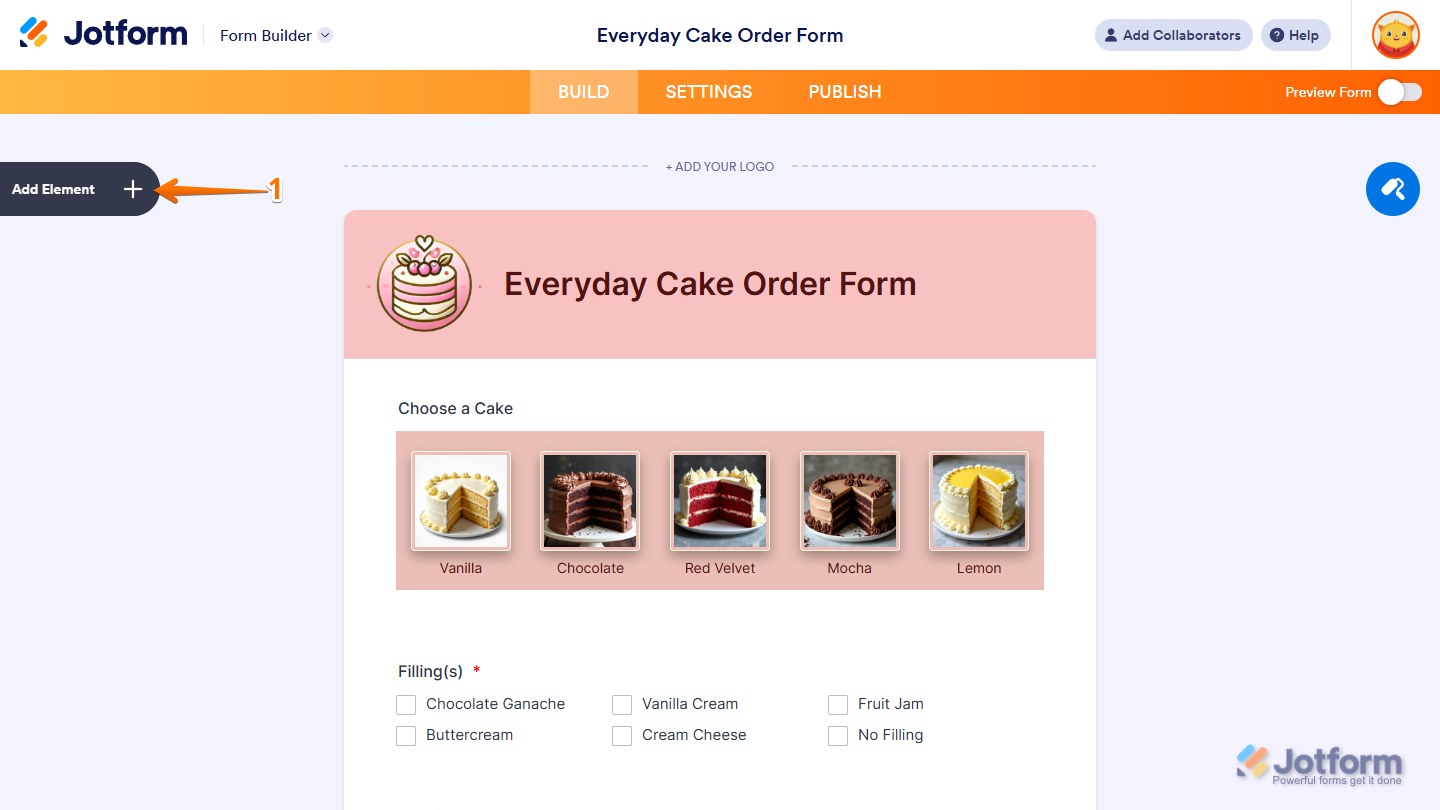
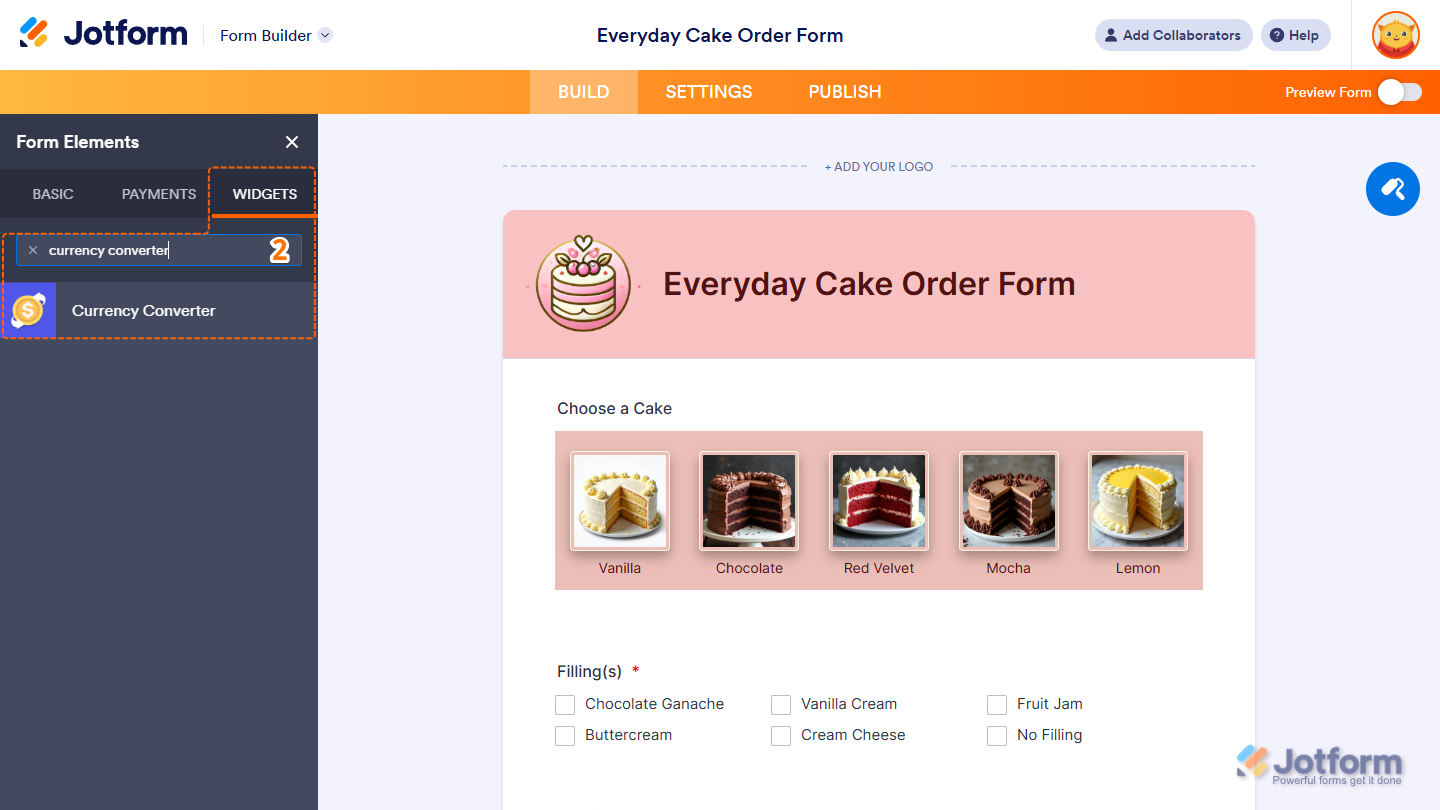
- Now, in the Form Elements menu, under the Widgets tab, search for Currency Converter and click on it. Or, just drag and drop it to where you want it to be on your form.
- Next, in the Widget Settings menu that opens on the right side of the page, under the General tab, select an option in the Theme Dropdown menu to choose an available color style for the widget.
- Once you’re done, click on Update.
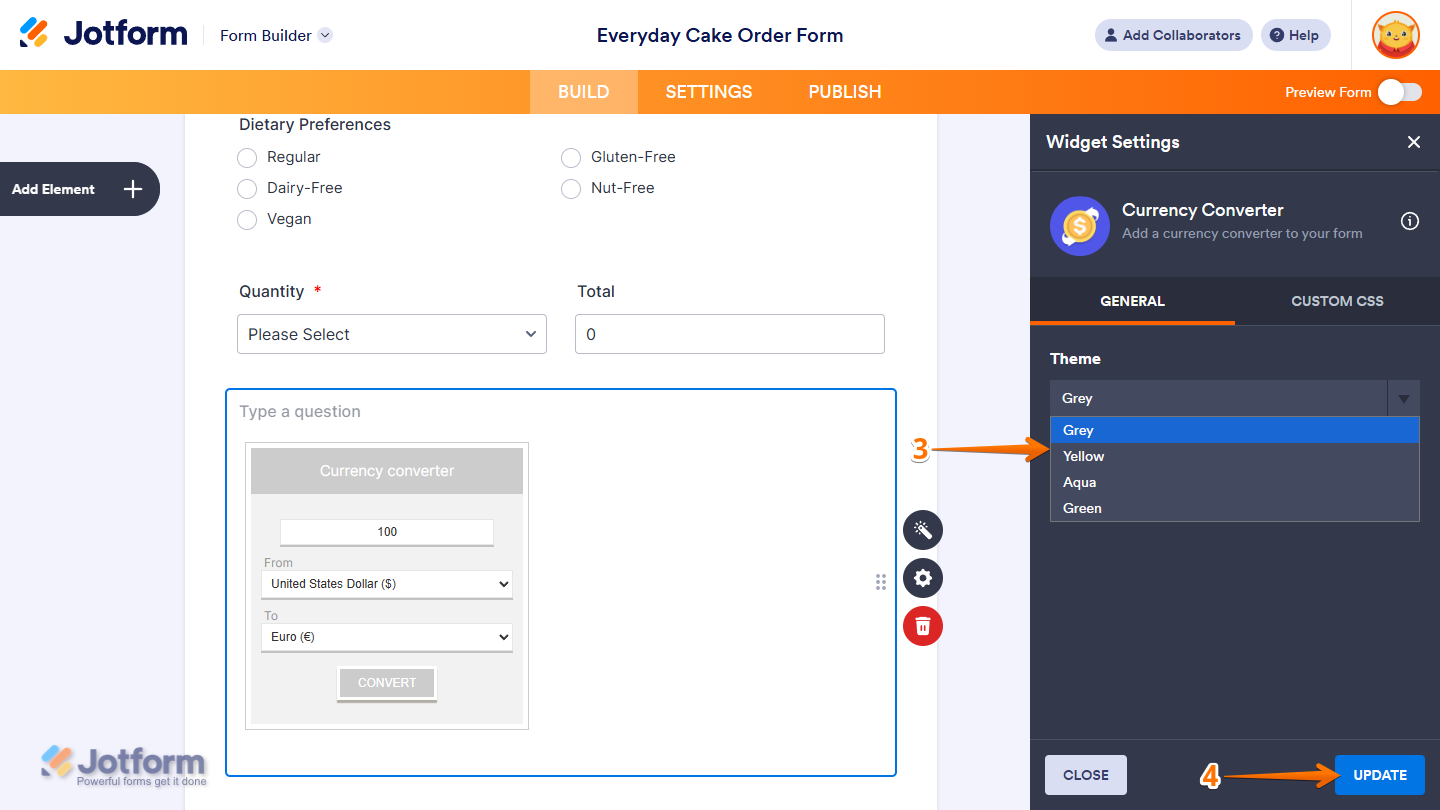
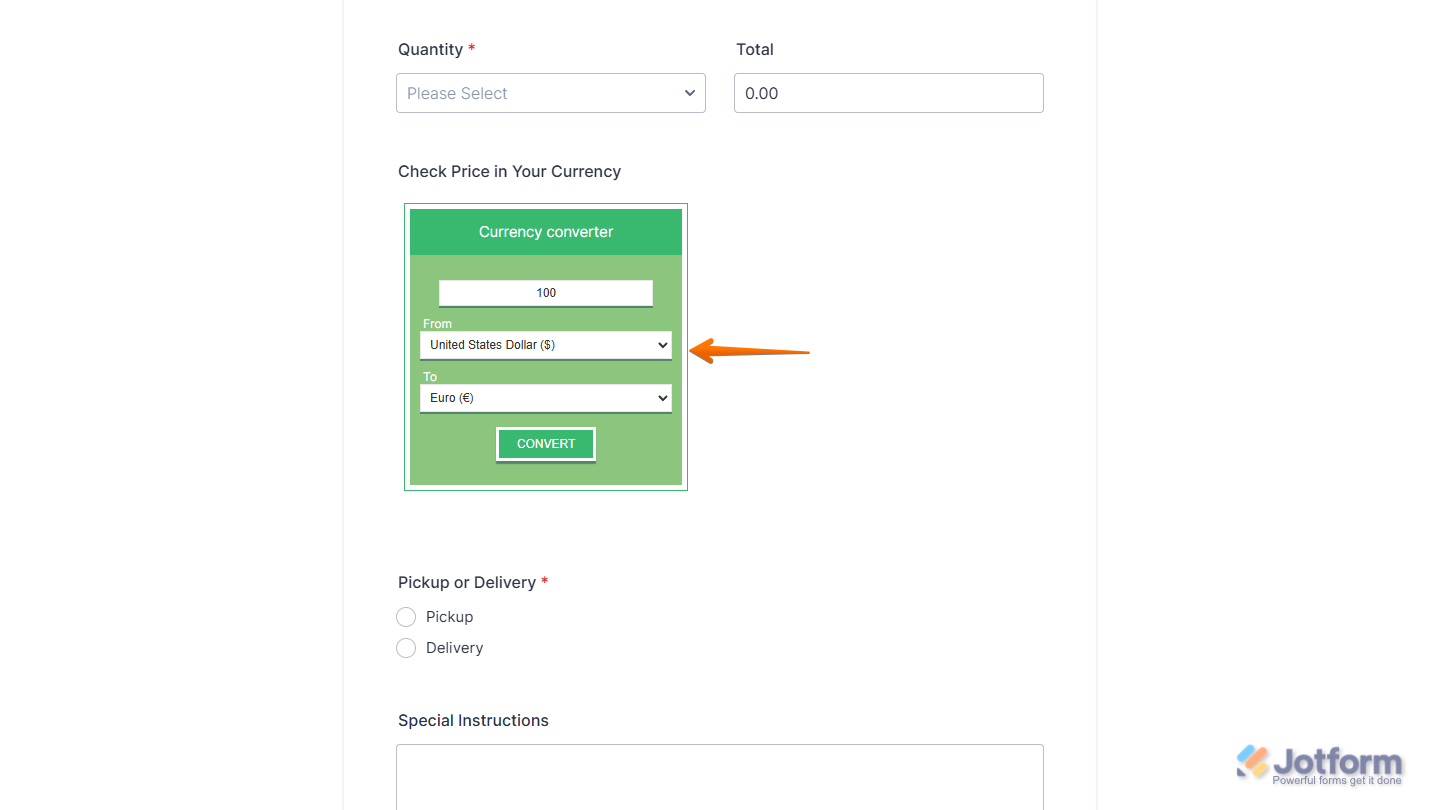
That’s it. Now you’ve added and set up the Currency Converter widget on your form. Wondering how it looks in action? Check out this demo form.
Notes
- For advanced styling of the Currency Converter widget, you can add your own custom CSS code under the Custom CSS tab in the Widget Settings. Our guide on How to Inject CSS Codes to Widgets walks you through everything.
- You can also configure the widget properties, like alignment, labels, size, visibility, and more, to control how it looks and behaves on your form. Check out our guide on How to Access and Configure the Question Properties of a Widget to learn more.

Send Comment: