With Jotform, you can easily bring creative content into your forms using the DeviantArt widget. It lets you display artwork, photography, and videos from DeviantArt directly on your form, so you can share inspiration, showcase styles, or highlight visual ideas in a more engaging way.
Whether you’re presenting design concepts or adding artistic context, this widget helps make your forms more visually appealing and easier to explore. It’s a simple way to guide users with creative references while keeping the experience engaging and easy to follow.
Here are a few ways to use it:
- Show DeviantArt artwork, photography, or videos to provide creative inspiration
- Share visual styles or themes for design and creative projects
- Add artistic references to guide users when filling out forms
- Showcase artwork or concepts on portfolio, application, or request forms
- Enhance surveys or feedback forms with visual context
- Make your forms more engaging with rich, creative content
Whether you’re creating a new form or updating an existing one, you can add and set up the DeviantArt widget in a few easy steps. Here’s how to do it:
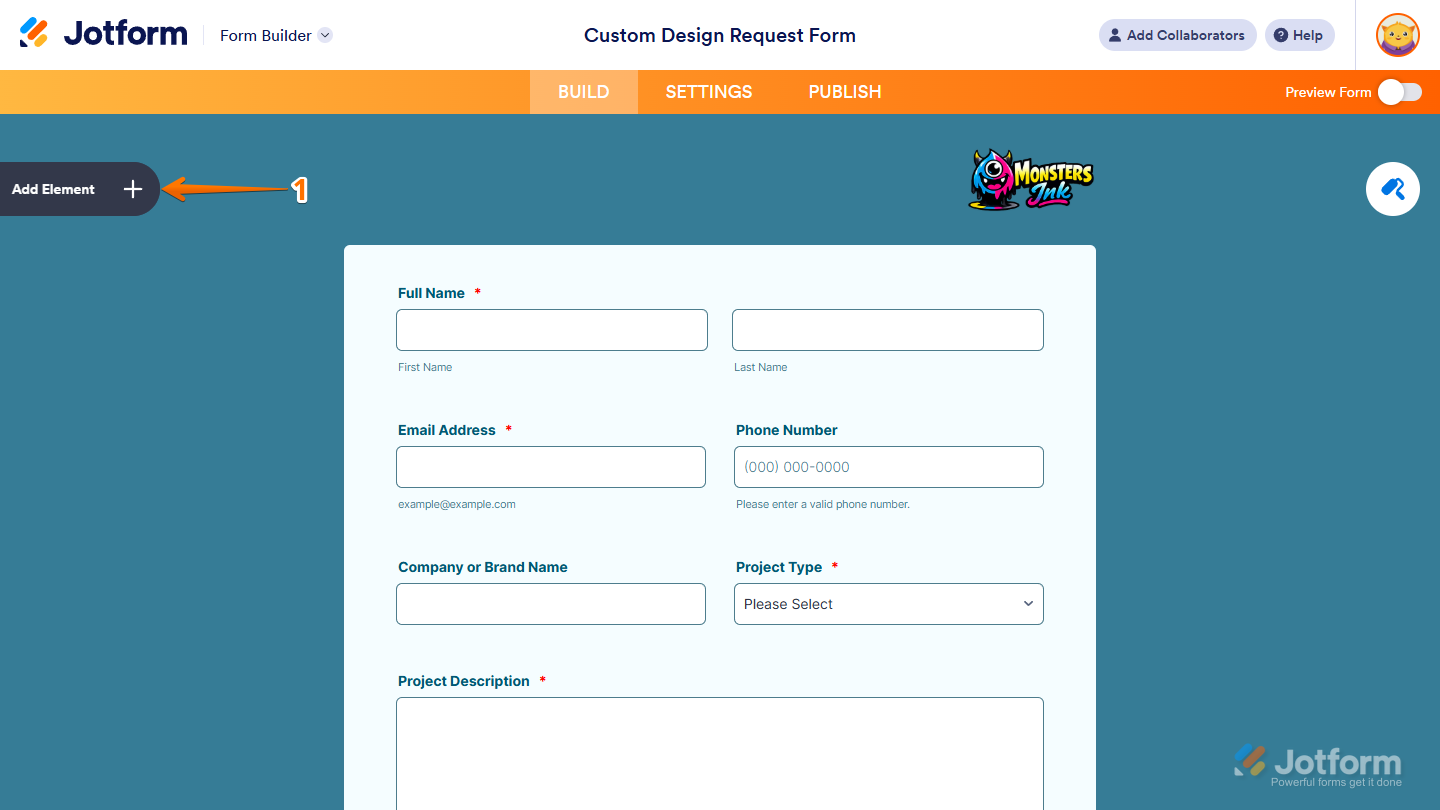
- In Form Builder, click on Add Element on the left side of the page.
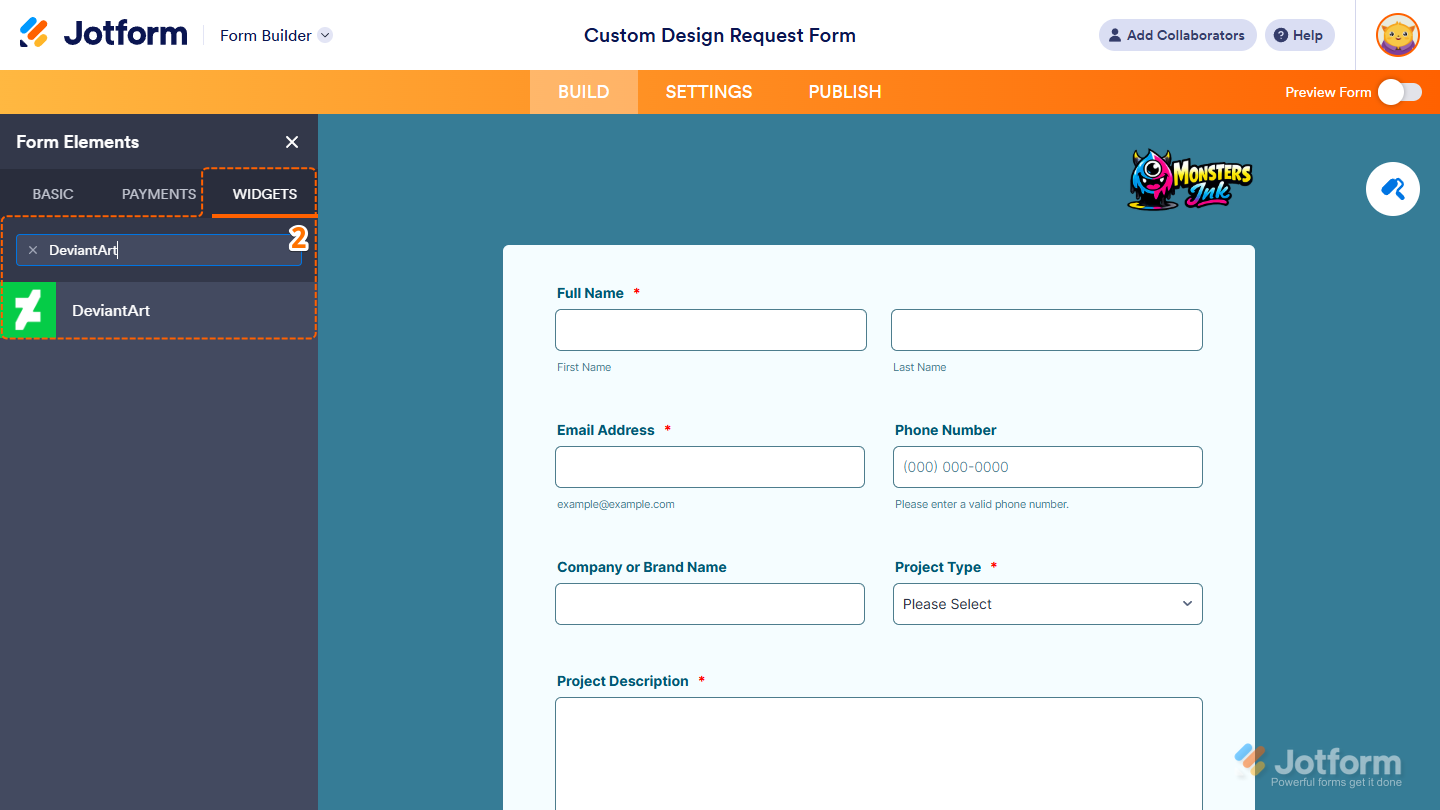
- Now, in the Form Elements menu, under the Widgets tab, search for DeviantArt and click on it. Or, just drag and drop it to where you want it to be on your form.
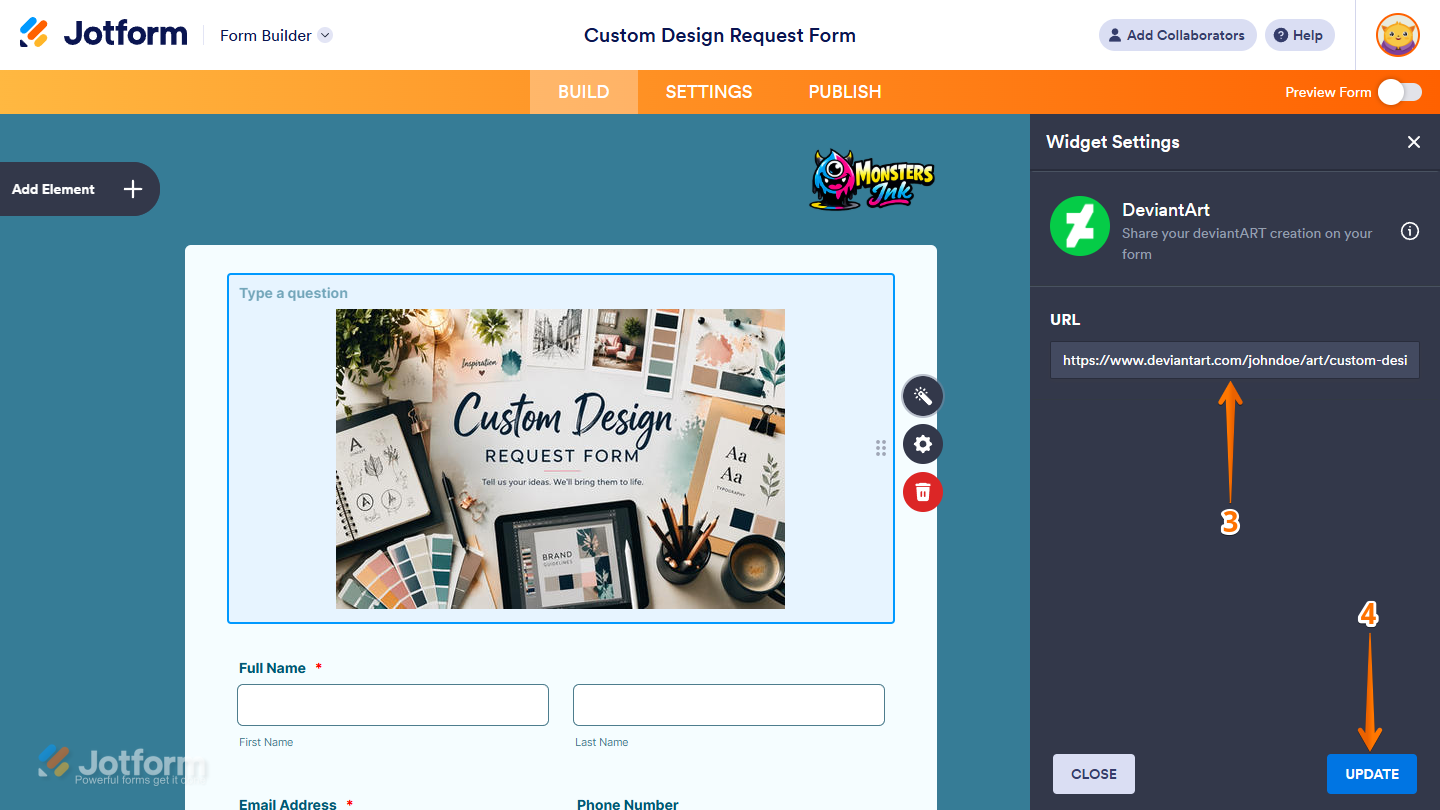
- Next, in the Widget Settings menu that opens on the right side of the page, enter the URL of the DeviantArt artwork you want to display in your form.
- Once you’re done, click on Update.
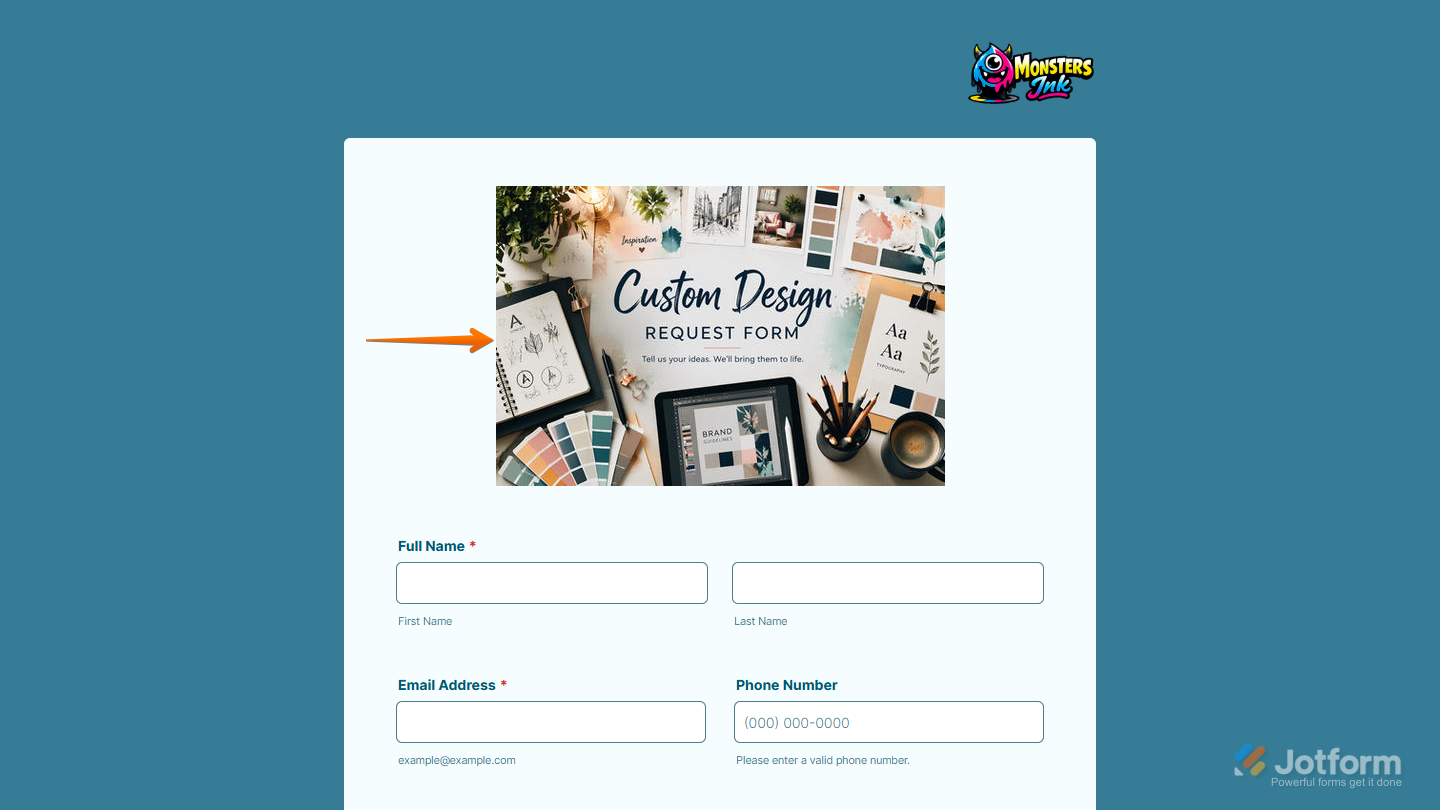
That’s it. Now you’ve added and set up the DeviantArt widget on your form. Wondering how it looks in action? Check out this demo form.
Note
You can also configure the widget properties, like alignment, labels, size, visibility, and more, to control how it looks and behaves on your form. Check out our guide on How to Access and Configure the Question Properties of a Widget to learn more.

Send Comment: