With Jotform, you can easily collect accurate distance values on any form using the Distance Converter widget. This handy tool lets users enter a distance in either miles or kilometers and automatically converts it to the unit you prefer. Whether you’re gathering travel details, project measurements, delivery information, or any type of distance-based input, it keeps everything consistent and easy to work with.
By taking care of the conversion for you, the Distance Converter widget removes guesswork, reduces user errors, and helps you maintain clean, uniform data across all submissions. It’s a simple way to make your forms smarter and more useful—no extra effort required.
Here are a few ways to use it:
- Collect distance inputs on travel, delivery, logistics, or transportation forms.
- Standardize measurements on project planning, construction, or fieldwork reports.
- Help users provide accurate distance details on booking, request, or service forms.
- Keep submissions consistent for research surveys that involve distance-based questions.
- Make international forms easier to fill out by supporting both miles and kilometers.
Whether you’re starting fresh or updating a form, adding and setting up the Distance Converter widget takes only a few steps. Here’s a quick how-to:
- In Form Builder, click on Add Element on the left side of the page.
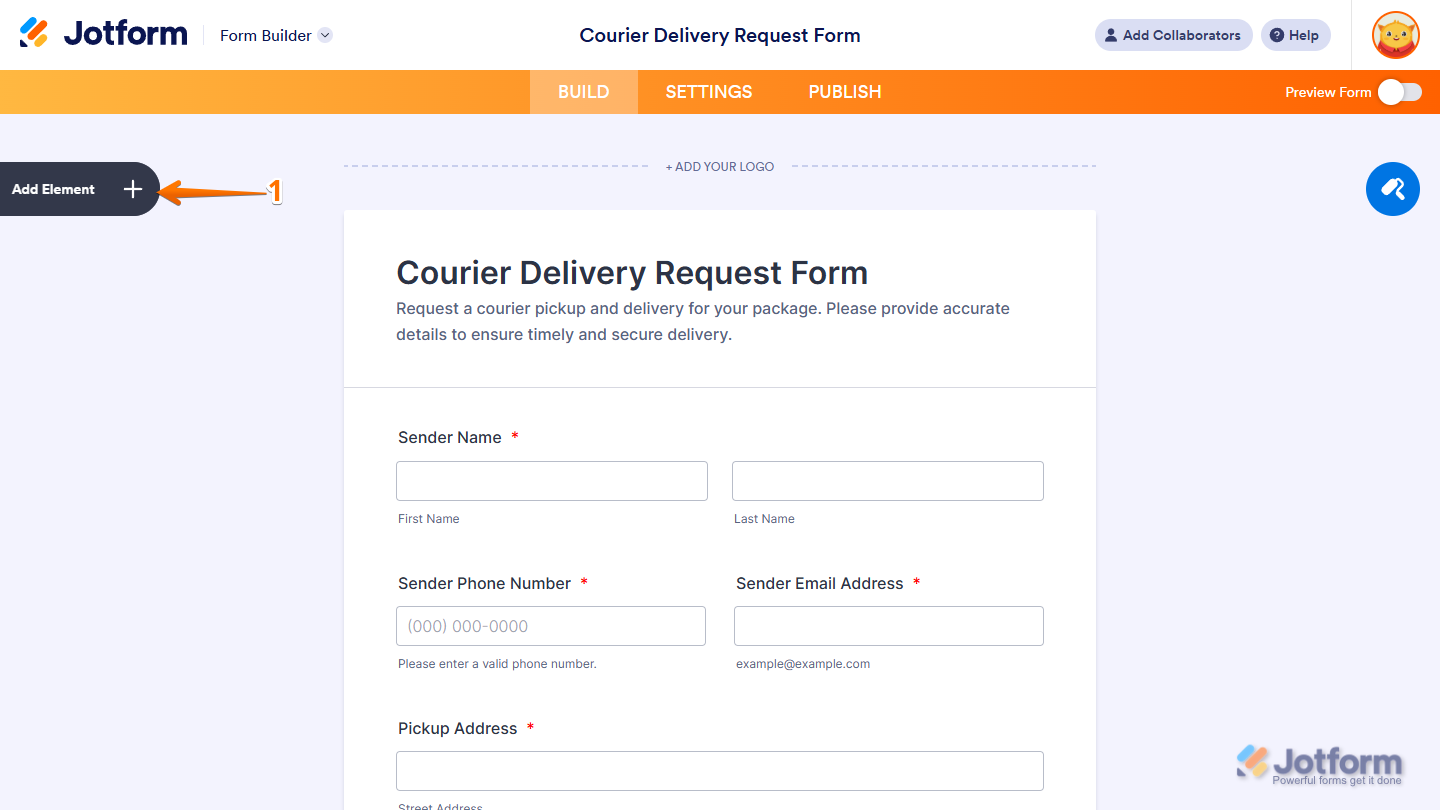
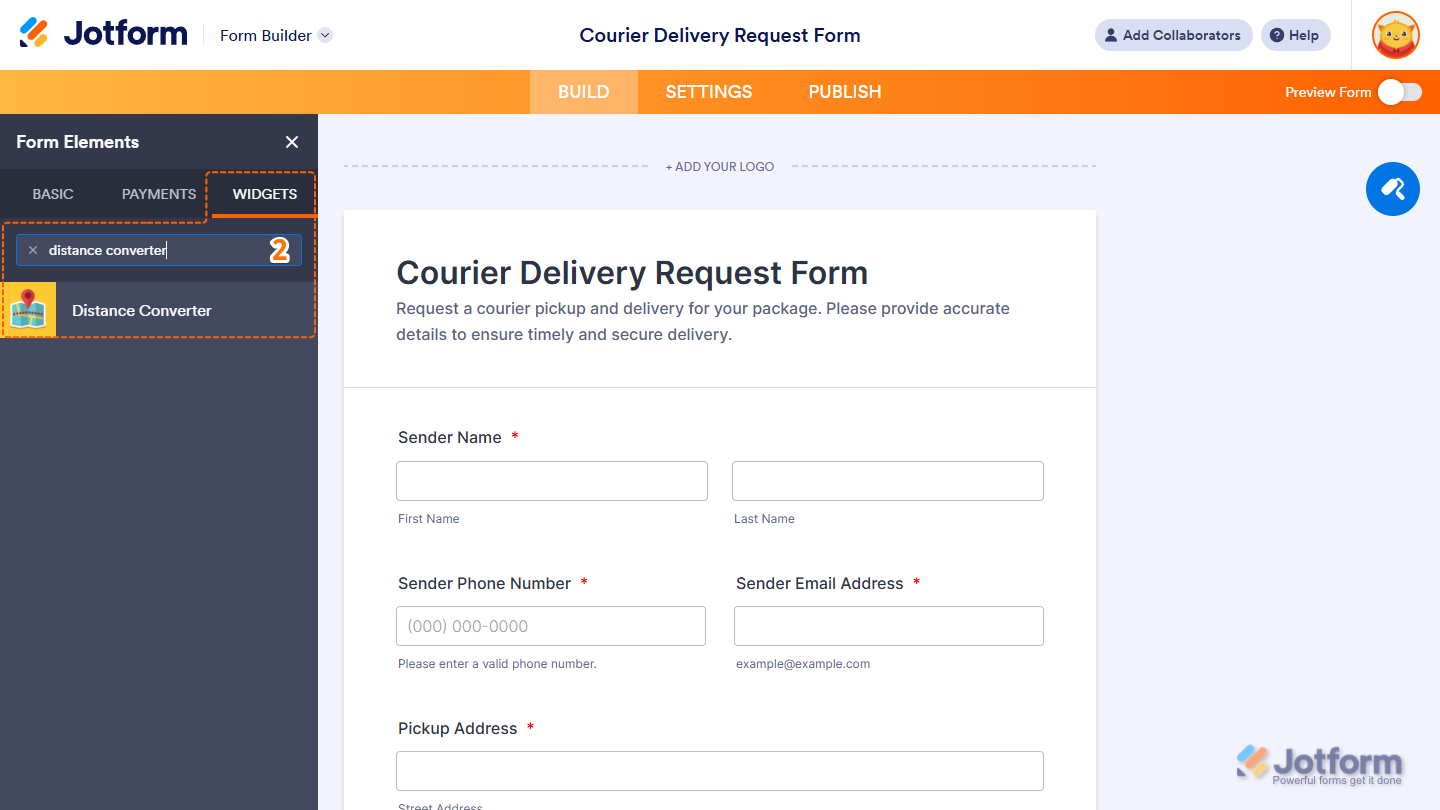
- Now, in the Form Elements menu, under the Widgets tab, search for Distance Converter and click on it. Or, just drag and drop it to where you want it to be on your form.
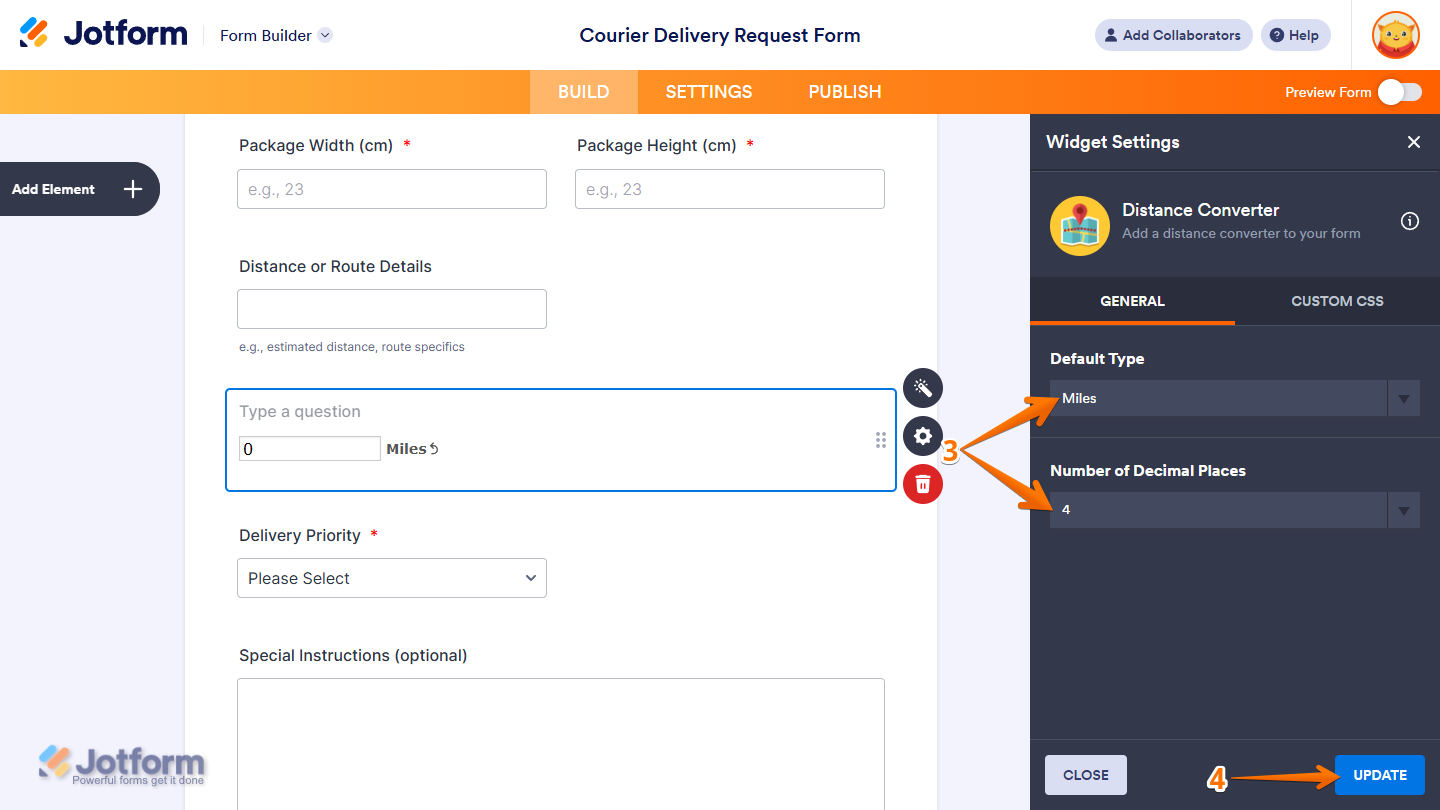
- Next, in the Widget Settings menu that opens on the right side of the page, under the General tab, you’ll see this list of settings you can configure:
- Default Type — Select Miles if you want users to start with miles and convert to KM. Or, keep it set to KM if you want users to start with kilometers and convert to miles.
- Number of Decimal Places — Select 1 through 6 to control how precise the converted value will appear, depending on the level of detail you need.
- Once everything’s set, click on Update.
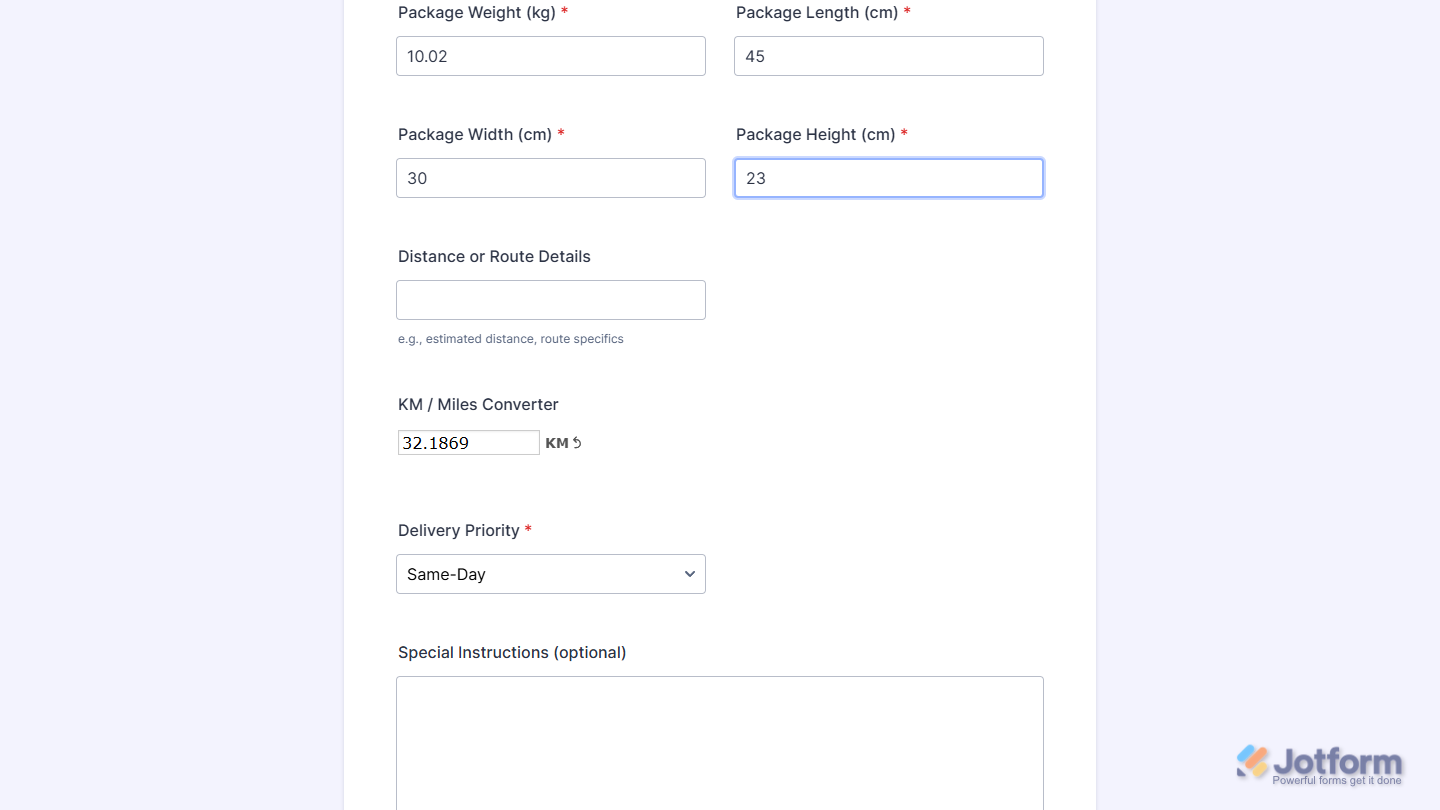
That’s it. You’ve successfully added and set up the Distance Converter widget on your form. You can test it on this demo form.
Notes
- For advanced styling of the Distance Converter widget, you can add your own custom CSS code under the Custom CSS tab in the Widget Settings. Our guide on How to Inject CSS Codes to Widgets walks you through everything.
- You can also configure the widget properties, like alignment, labels, size, visibility, and more, to control how it looks and behaves on your form. Check out our guide on How to Access and Configure the Question Properties of a Widget to learn more.

Send Comment: