Jotform’s Draw on Image widget makes your forms more interactive by allowing users to draw freely on a photo or diagram. Whether it’s for labeling parts of an image, giving visual feedback, or submitting design changes, this widget is a great way to collect detailed input in a visual format.
Here are a few ways to use it:
- Collect Visual Feedback — If you’re gathering feedback on a design, layout, or product image, users can draw directly on the picture to show what they’d like to change or highlight.
- Perfect for Approval or Review Forms — Design teams, architects, or clients can mark up blueprints, mockups, or product samples right inside your form—no extra tools needed.
- Enhance Inspection and Maintenance Forms — Technicians can mark specific areas on photos to indicate where an issue is found or what’s been fixed.
- Great for Education or Training — Teachers can use it for quizzes, diagrams, or image-based exercises where students identify or label parts of an image.
Note
Drawings made on the image are saved as part of the submission, so you can easily review them later.
Adding and Setting Up the Draw on Image Widget
Here’s how to quickly add and set up the Draw on Image widget, a handy tool that lets users mark or draw on an image right from their device. Get started like this:
- In Form Builder, click on Add Element on the left side of the page.
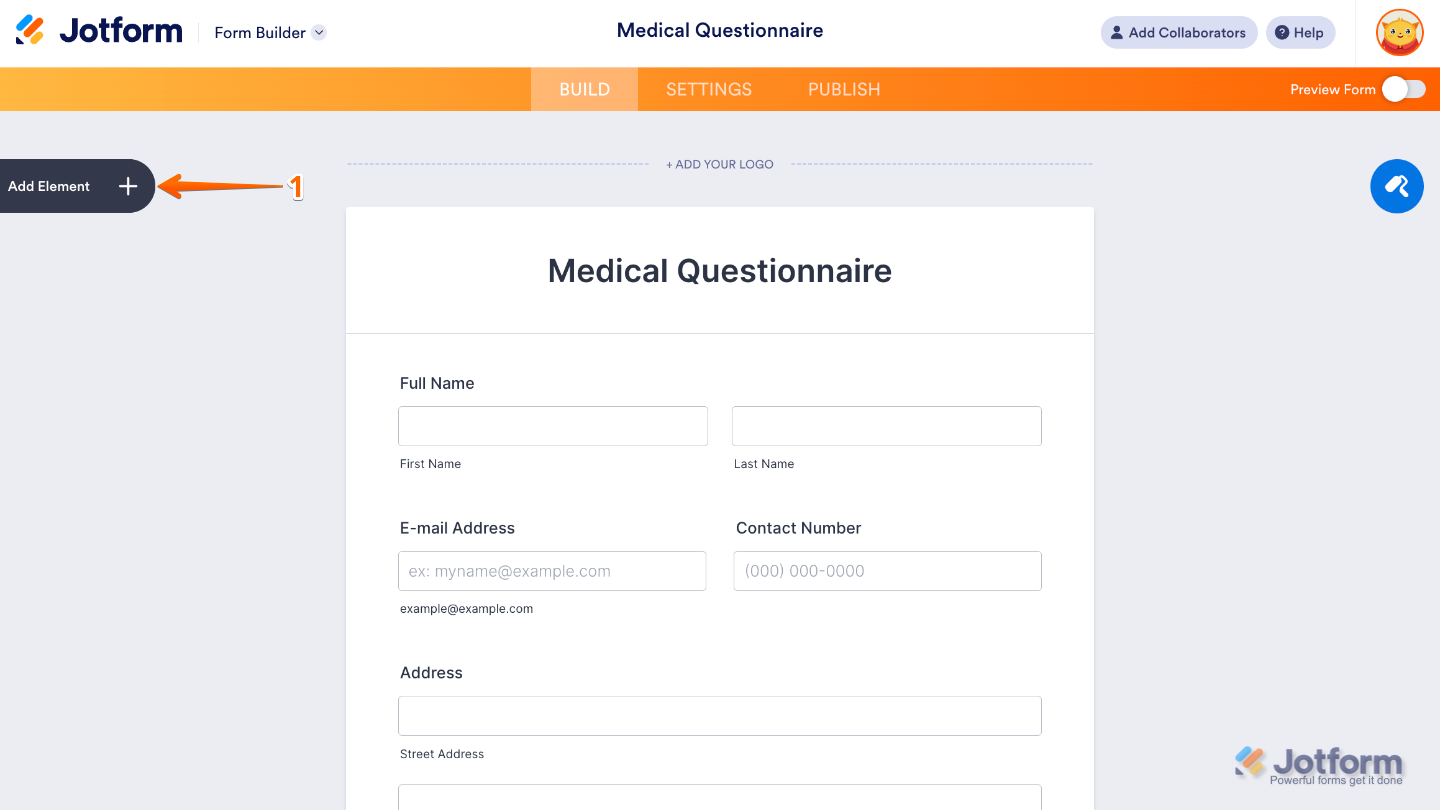
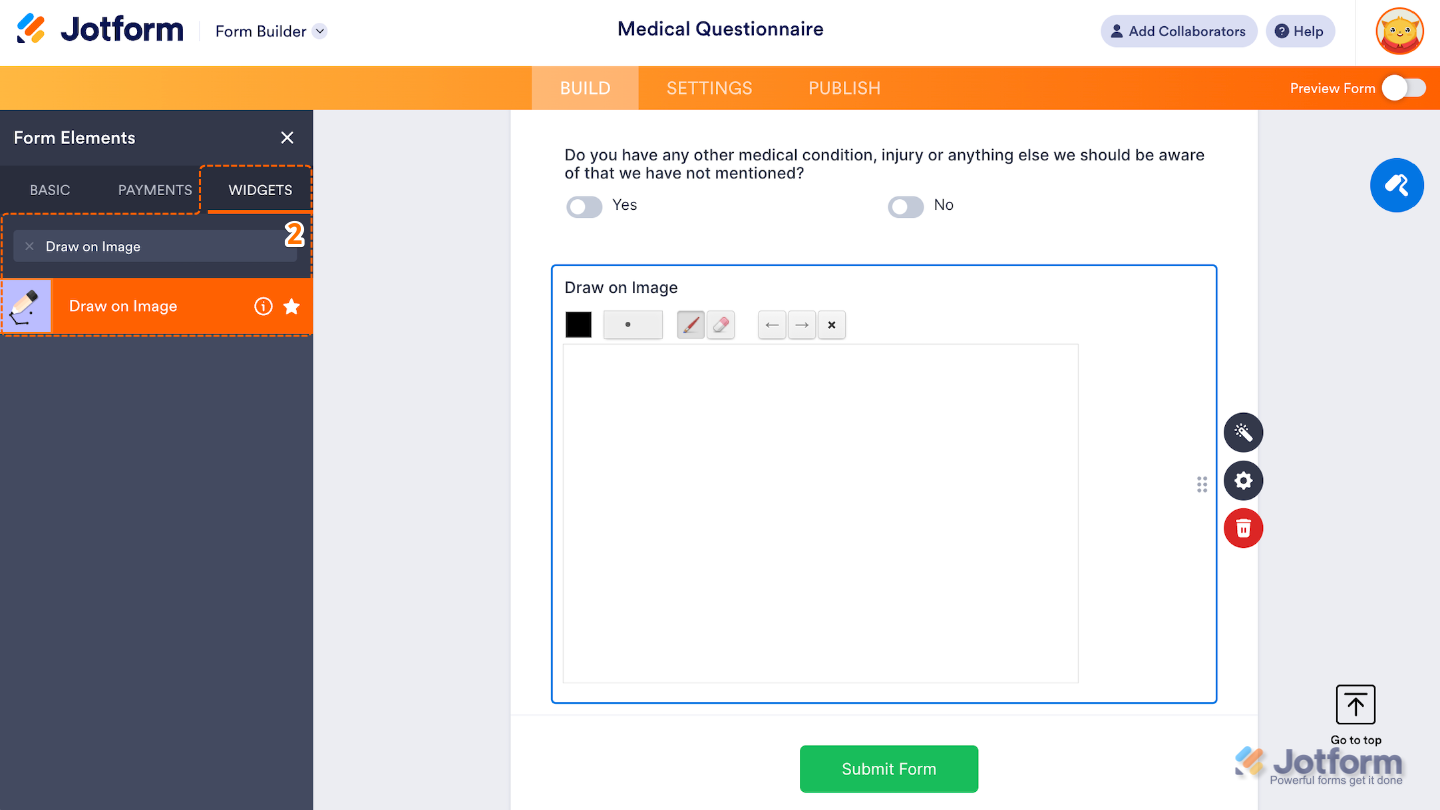
- Now, in the Form Elements menu, under the Widgets tab, search for Draw on Image and then click on it. Or, just drag and drop it to where you want it to be on your form.
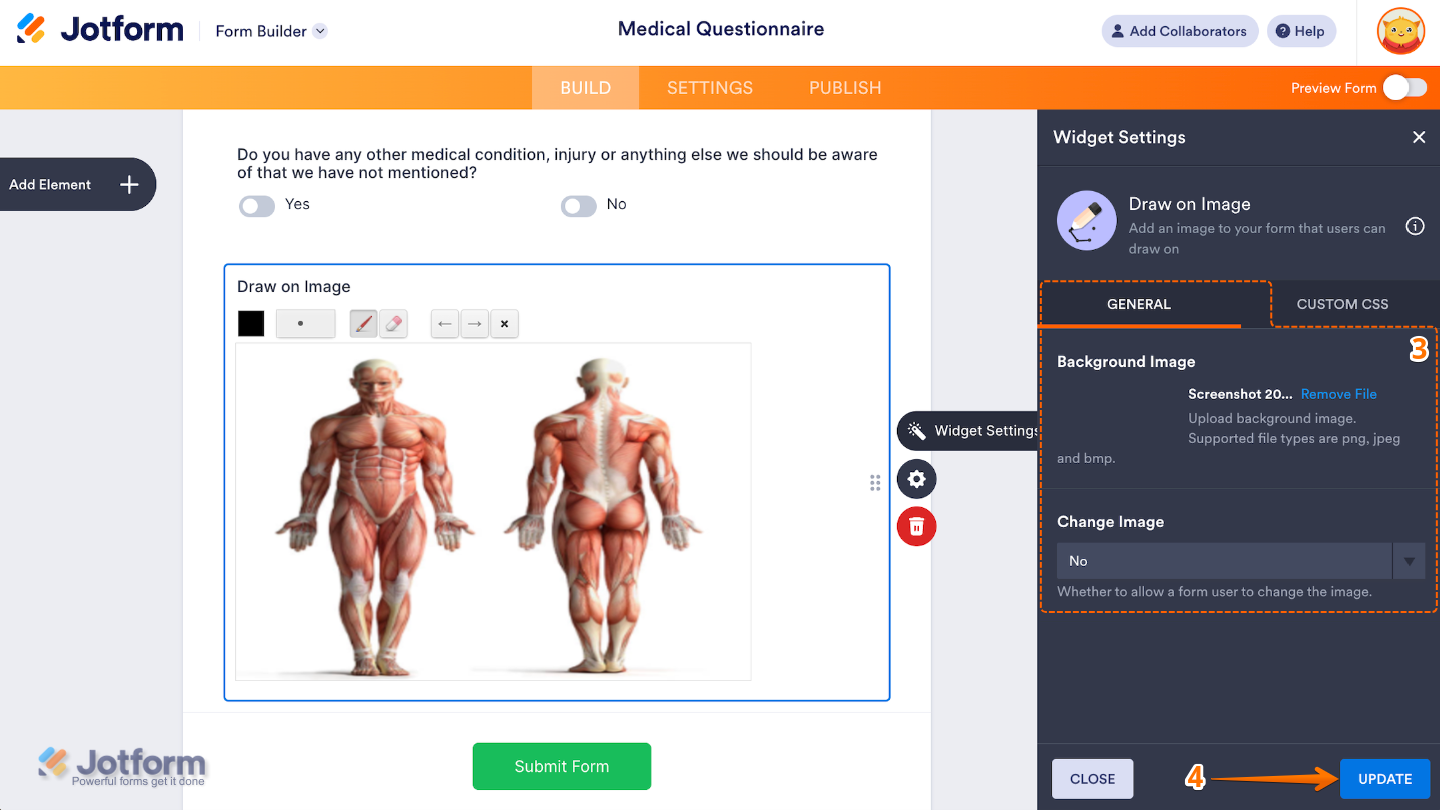
- Next, in the Widget Settings window that opens on the right side of the page, set up the following options:
- Background Image — This is where you upload the image that users will draw on. The widget supports PNG, JPEG, and BMP image formats.
- Change Image — Switch the option to Yes if you’d like to let users replace the image you uploaded. Once enabled, a New Image button will appear at the top of the field so they can upload their own.
- Once you’re done, click on Update.
That’s it. You’ve successfully added and set up the Draw on Image widget to your form. Now, you have a field in your form where users can draw directly on the image you uploaded, quick and easy. Wondering how it looks in action? Check out this Demo Form.
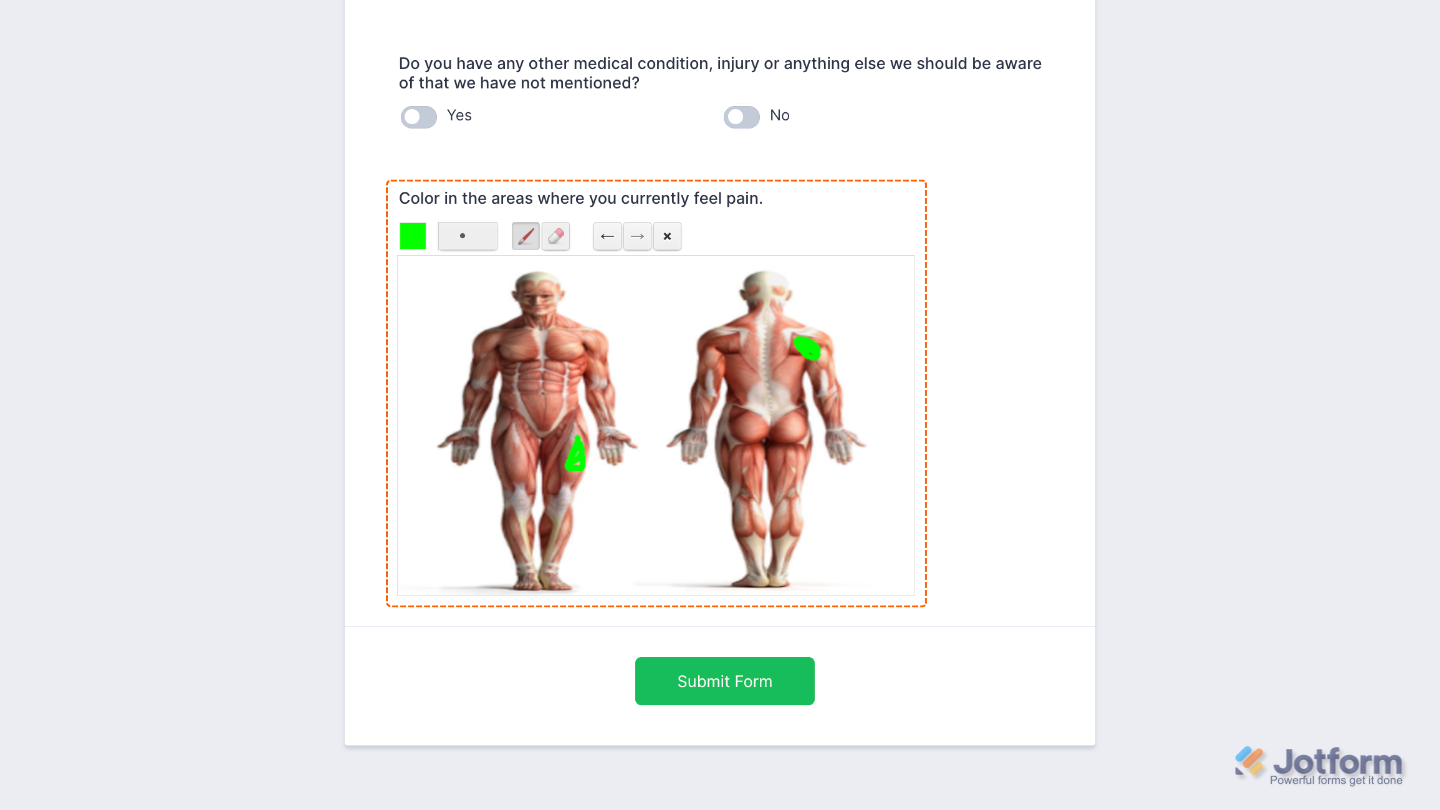
To further customize your Draw on Image field appearance, just click on the Gear icon to open its properties.
Note
For advanced styling, you can add your own custom CSS under the Custom CSS tab in the widget settings and style the Draw on Image field. Our guide on How to Inject CSS Codes to Widgets walks you through everything.
Pro Tip
Make sure to upload a clear and appropriately sized image to avoid issues with drawing visibility.

Send Comment: