With Jotform’s Dual Listbox widget, you can easily let users select answers by moving options between two boxes. This makes it easier to manage long lists and helps users clearly see their selected and unselected choices. You can also enable a search bar so users can quickly find specific options.
Here are a few ways to use it:
- Create a clear list of selectable options.
- Let users move choices from one box to another.
- Enable a search bar to help users find options quickly.
- Provide a smoother and more organized form experience.
Whether you’re creating a new form or updating an existing one, adding and setting up the Dual ListBox widget only takes a second—here’s what to do:
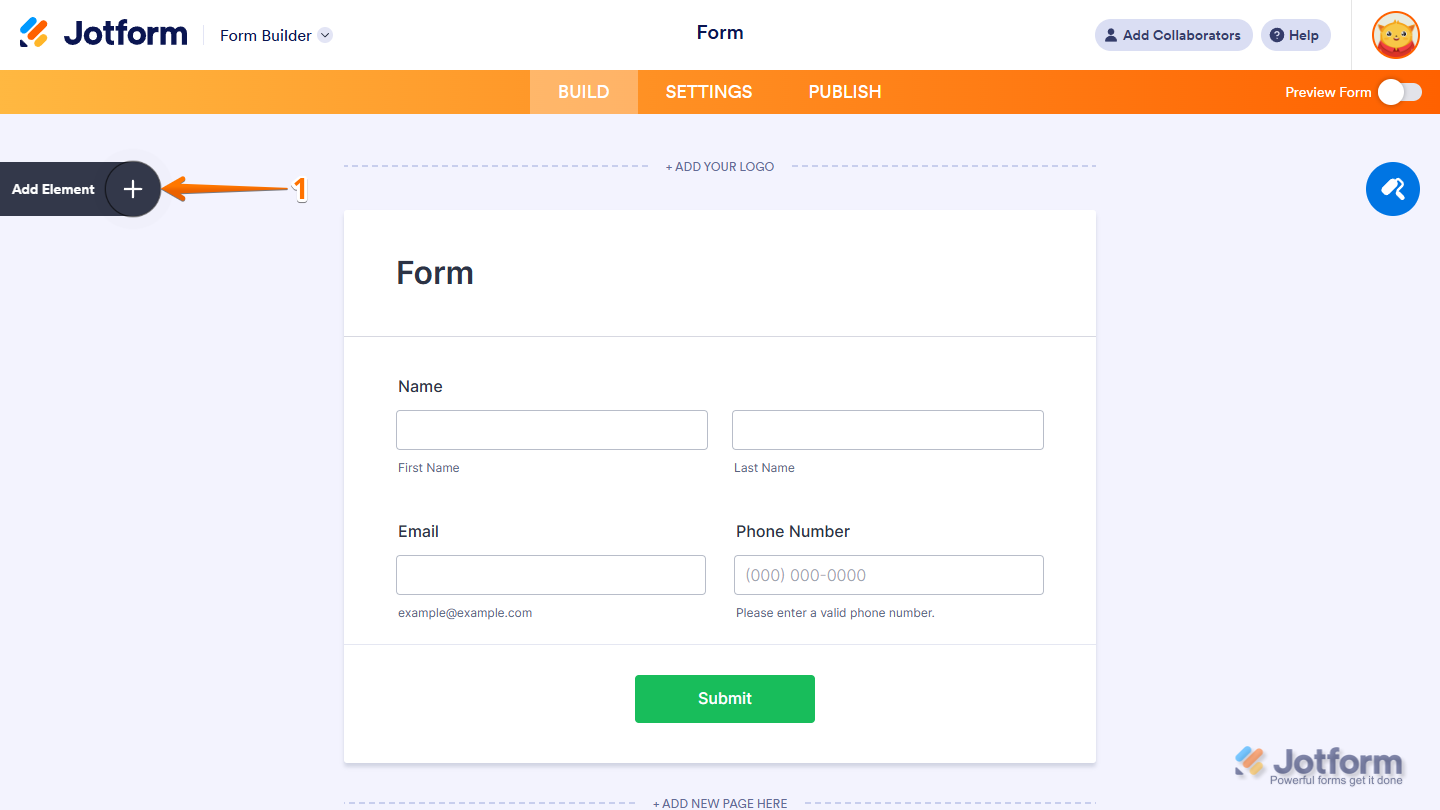
- In Form Builder, click on Add Element on the left side of the page.
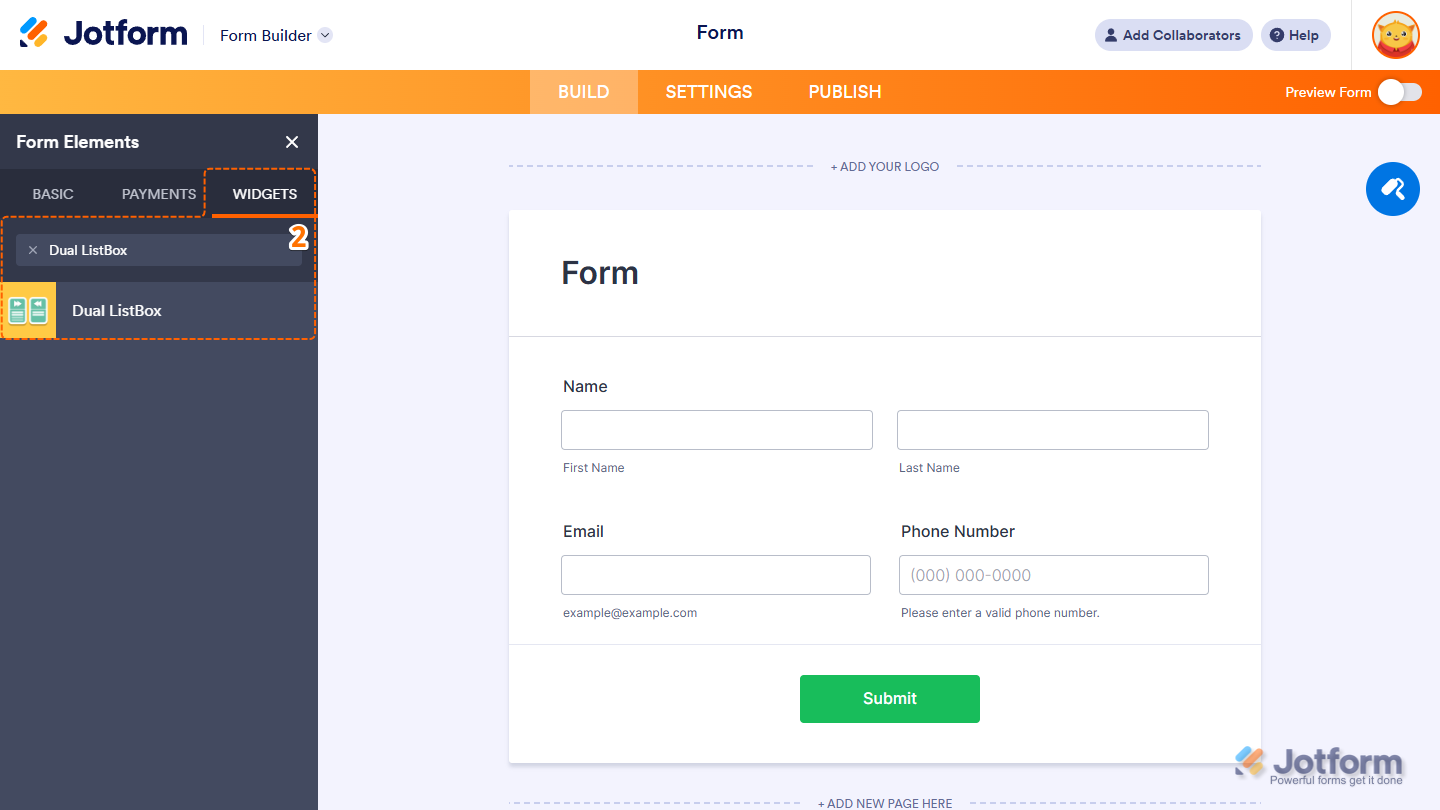
- Now, in the Form Elements menu, under the Widgets tab, search for Dual ListBox and click to add it to your form. Or, just drag and then drop it to where you want it to be on your form.
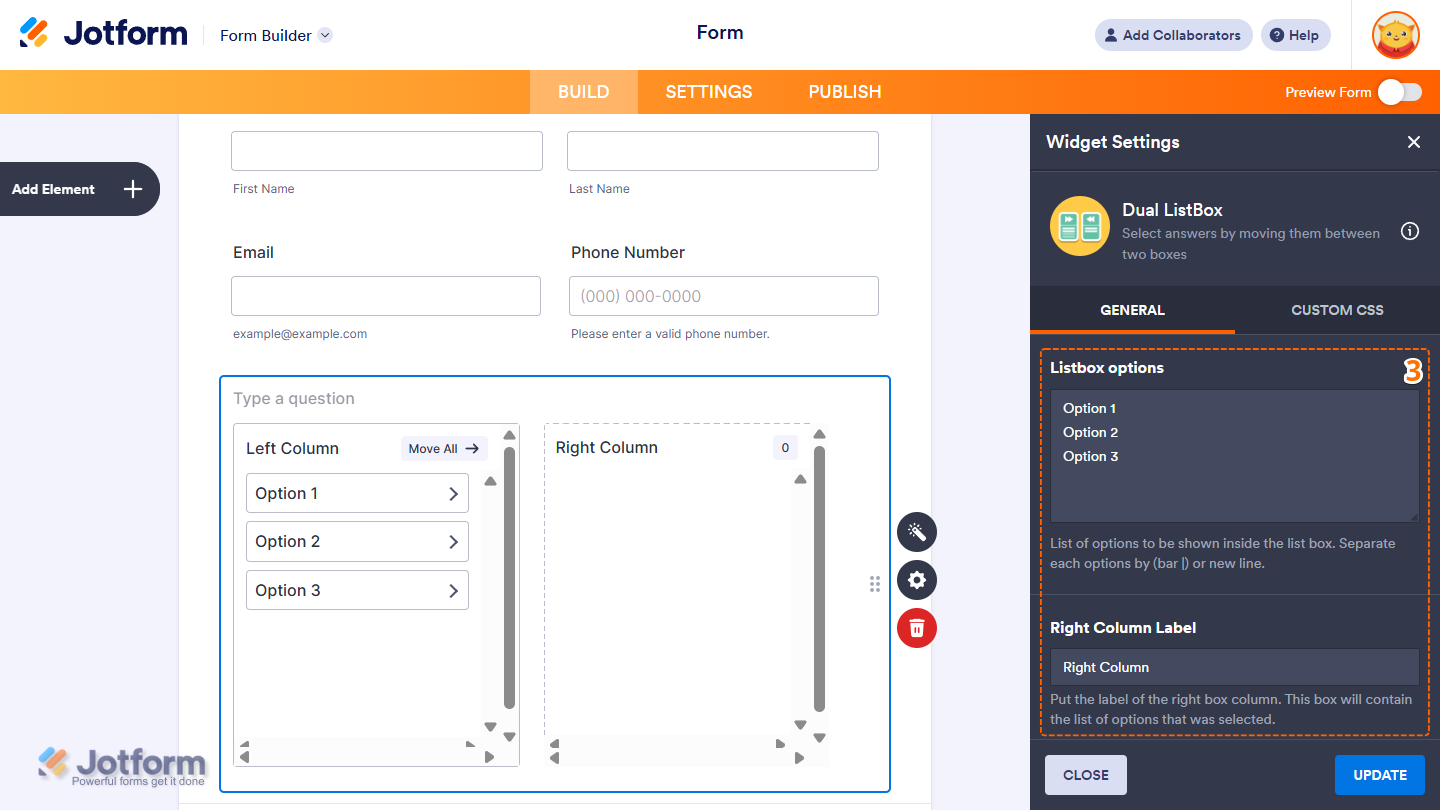
- Next, in the Widget Settings window that opens on the right side of the page, under the General tab, set up these things:
- Listbox Options — Enter the items to display in the listbox, separated by a new line.
- Right Column Label — Set the label for the right column.
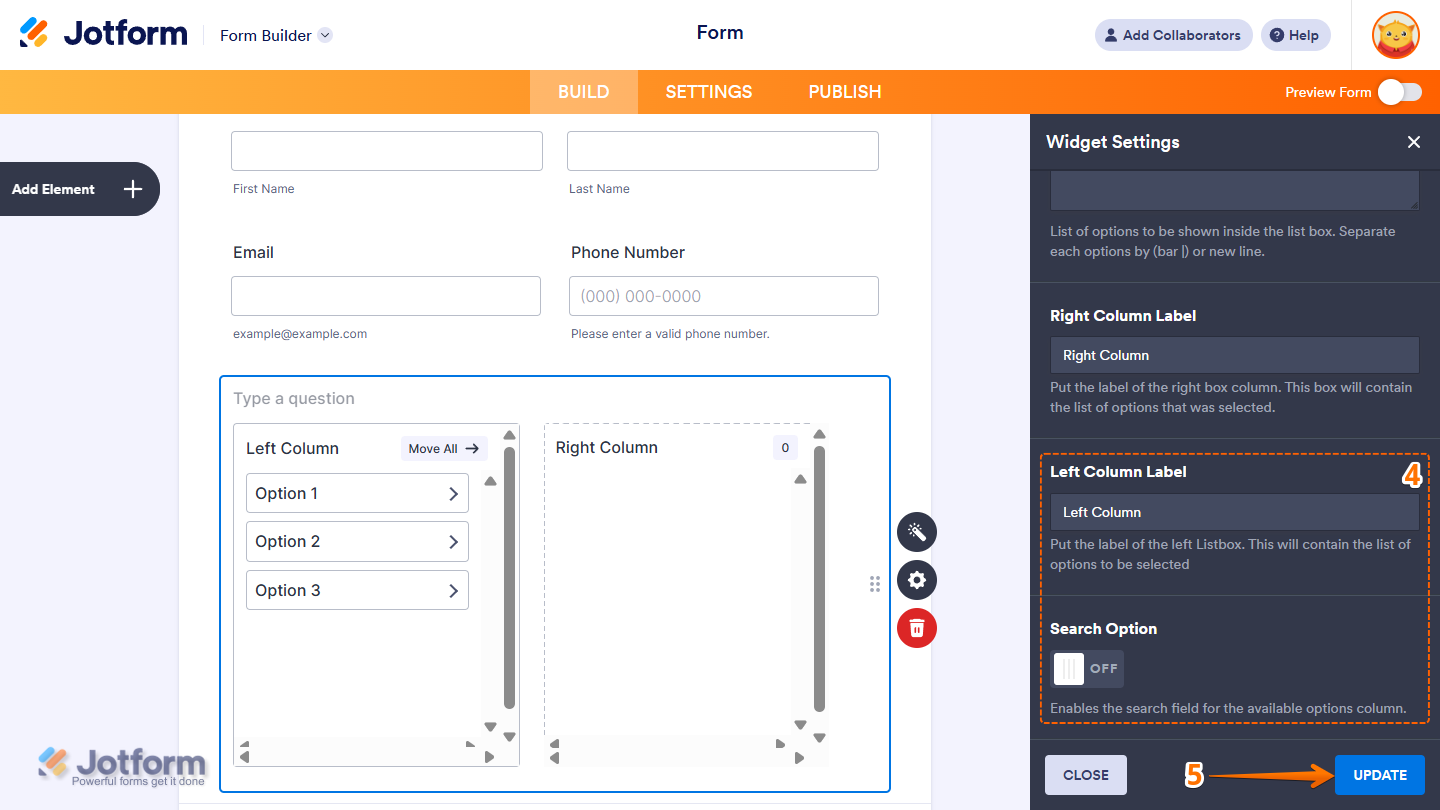
- Then, scroll down to the bottom and continue to set up these options:
- Left Column — Set the label for the left column.
- Search Option — Enable or disable the search bar.
- Now, click on Update, and you’re done.
That’s it! You’ve successfully added and set up the Dual ListBox widget on your form. Wondering how it looks in action? Check out this Demo Form.
Note
- To style the widgets look and feel, you can inject custom CSS into the Custom CSS tab in the Widget Settings. To learn how it’s done, see our guide on How to Inject CSS Codes to Widgets.
- You can also configure the widget properties, like alignment, labels, size, visibility, and more, to control how it looks and behaves in your form. Check out our guide on How to Access and Configure the Question Properties of a Widget to learn more.

Send Comment: