With Jotform, you can easily add a clean, interactive way for users to choose the exact colors they want. The Farbtastic Color Picker widget gives your form a responsive color wheel that lets people select precise shades with just a click or drag. It’s perfect for any form that needs customized color input — whether you’re asking for brand colors, design preferences, or someone’s personal favorites.
Jotform’s Farbtastic Color Picker helps you make your forms more engaging while collecting the specific color details you need, all without adding extra complexity for your users.
Here are a few ways to use it:
- Let users pick a custom color for their preferences or selections.
- Collect exact brand, design, or theme colors from respondents.
- Add a fun, interactive element to forms that ask for favorite colors.
- Gather precise shade choices for creative or visual projects.
- Let users choose colors when submitting design ideas or requests.
Whether you’re creating a new form or updating an existing one, you can add and set up the Farbtastic Color Picker widget in a few easy steps. Here’s how to do it:
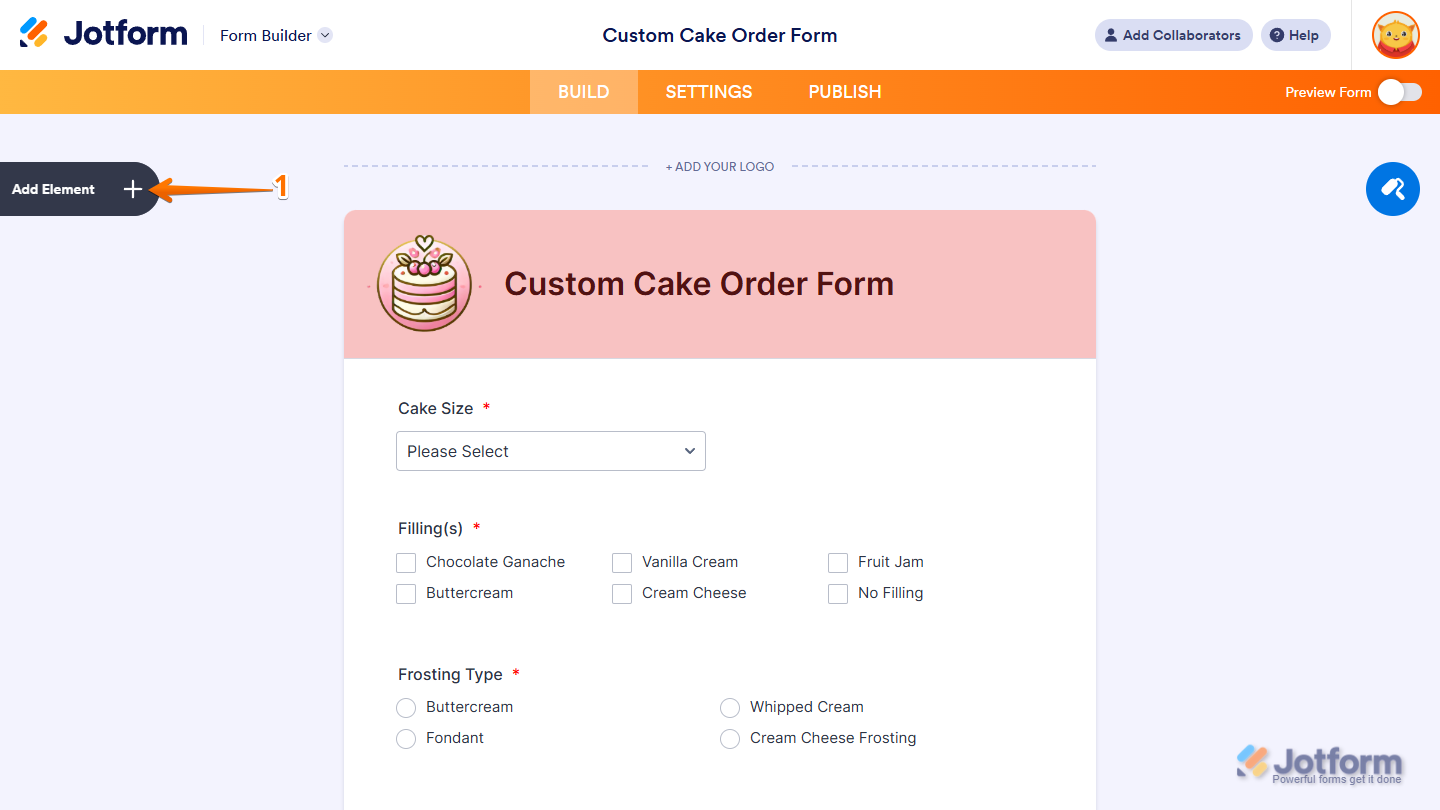
- In Form Builder, click on Add Element on the left side of the page.
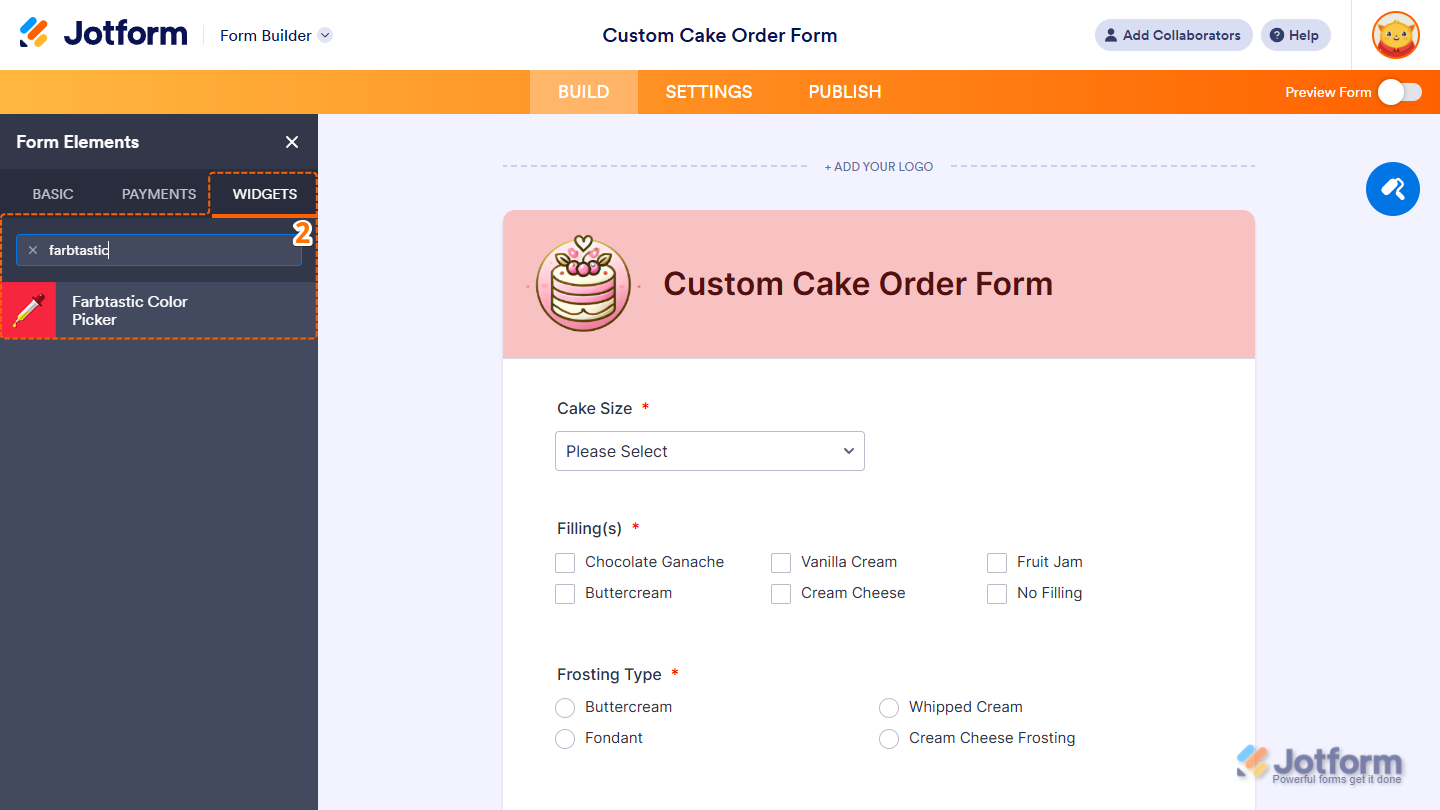
- Now, in the Form Elements menu, under the Widgets tab, search for Farbtastic Color Picker and click on it. Or, just drag and drop it to where you want it to be on your form.
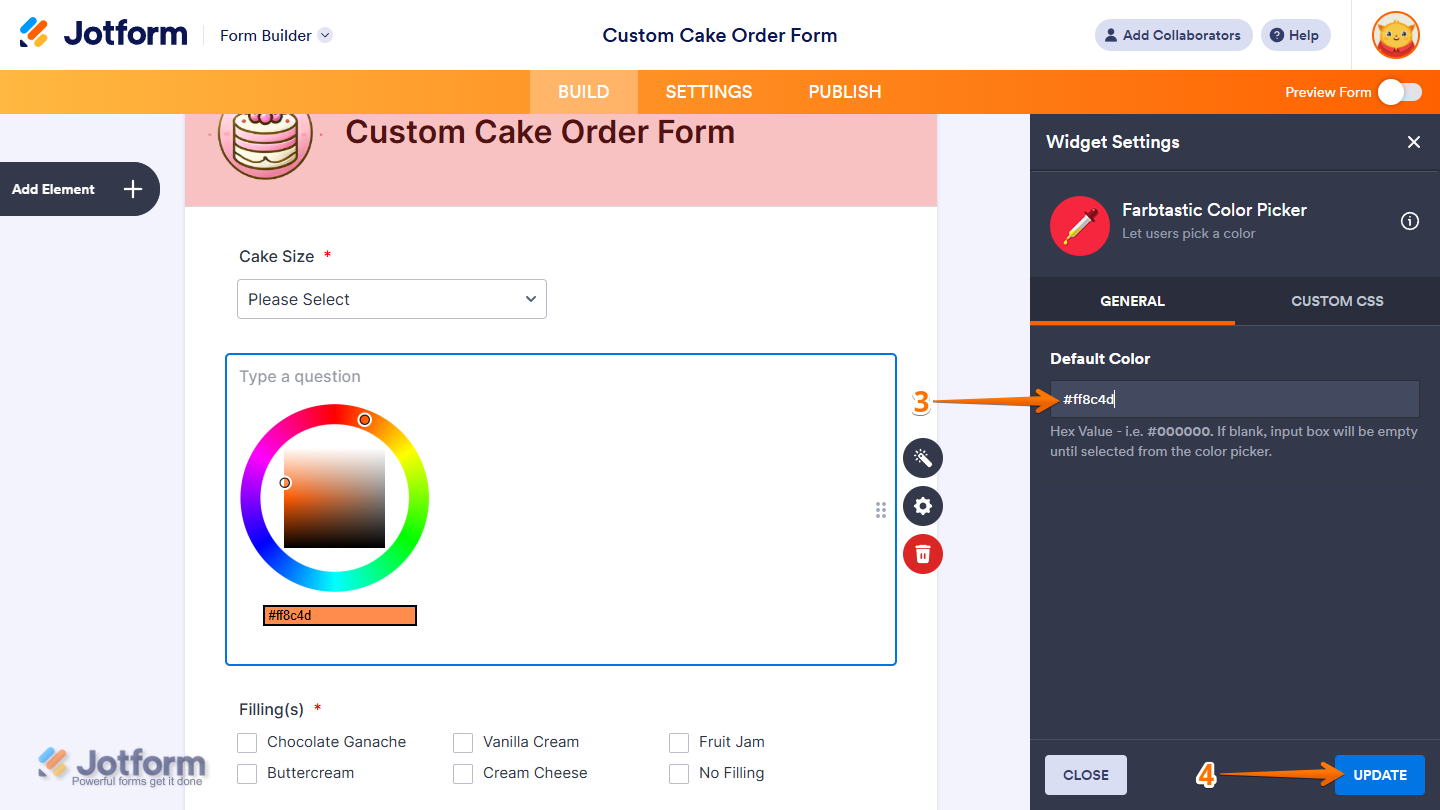
- Next, in the Widget Settings window that opens on the right side of the page, under the General tab, in the Default Color Input box, enter the hex value you want to use as the default color. If you leave it blank, the input box will remain empty until a color is selected from the picker.
- Once you’re done, click on Update.
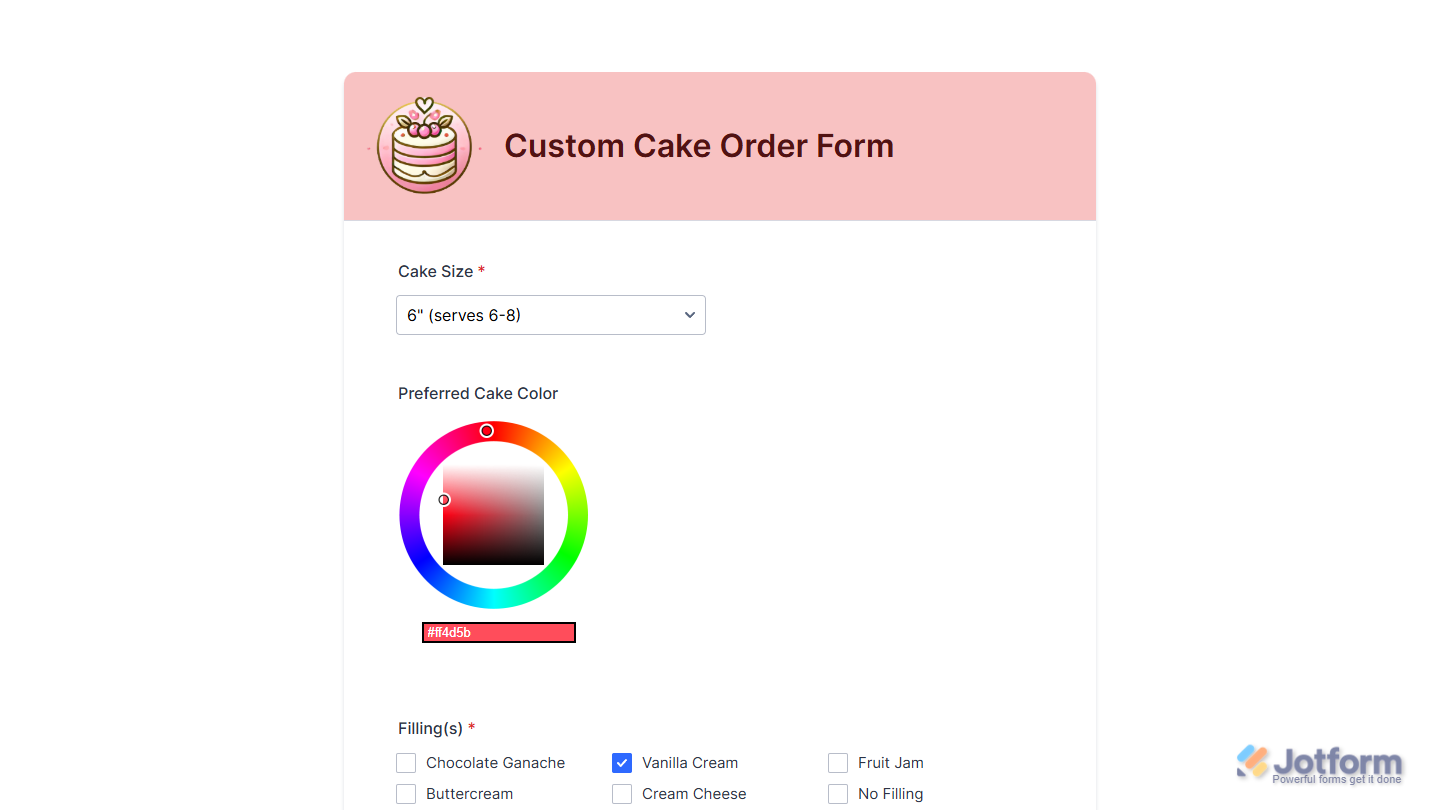
That’s it. Now you’ve added and set up the Farbtastic Color Picker widget on your form. Wondering how it looks in action? Check out this demo form.
Notes
- For advanced styling of the Farbtastic Color Picker widget, you can add your own custom CSS code under the Custom CSS tab in the Widget Settings. Our guide on How to Inject CSS Codes to Widgets walks you through everything.
- You can also configure the widget properties, like alignment, labels, size, visibility, and more, to control how it looks and behaves on your form. Check out our guide on How to Access and Configure the Question Properties of a Widget to learn more.

Send Comment: