Jotform’s Field Confirmation widget has you covered to make sure your form users enter the right details before submitting. By adding this handy tool to your form, you can prompt users to confirm important information—like email addresses, phone numbers, or ID numbers—by typing it in twice. It’s a simple yet effective way to reduce errors and give both you and your users extra peace of mind.
Here are a few ways to use it:
- Confirm Email Address Entries — You can use the Field Confirmation widget to ask users to re-enter their email address. This helps ensure the email is typed correctly and reduces the chance of sending messages to the wrong address.
- Verify Password Inputs — The widget is useful for forms that require users to create passwords. By asking them to enter the password twice, it confirms that both entries match before submission.
- Prevent Mistakes in Important Contact Details — For critical fields like phone numbers or account numbers, the widget helps users double-check their input by requiring confirmation. This improves data accuracy.
- Improve Registration Form Reliability — In sign-up or account creation forms, the widget ensures that key information is entered correctly. This helps prevent issues during login or communication later.
Adding and Setting Up the Field Confirmation Widget
Adding the Field Confirmation widget to your form makes it easy to double-check important details. Setting it up takes no time at all—here’s how:
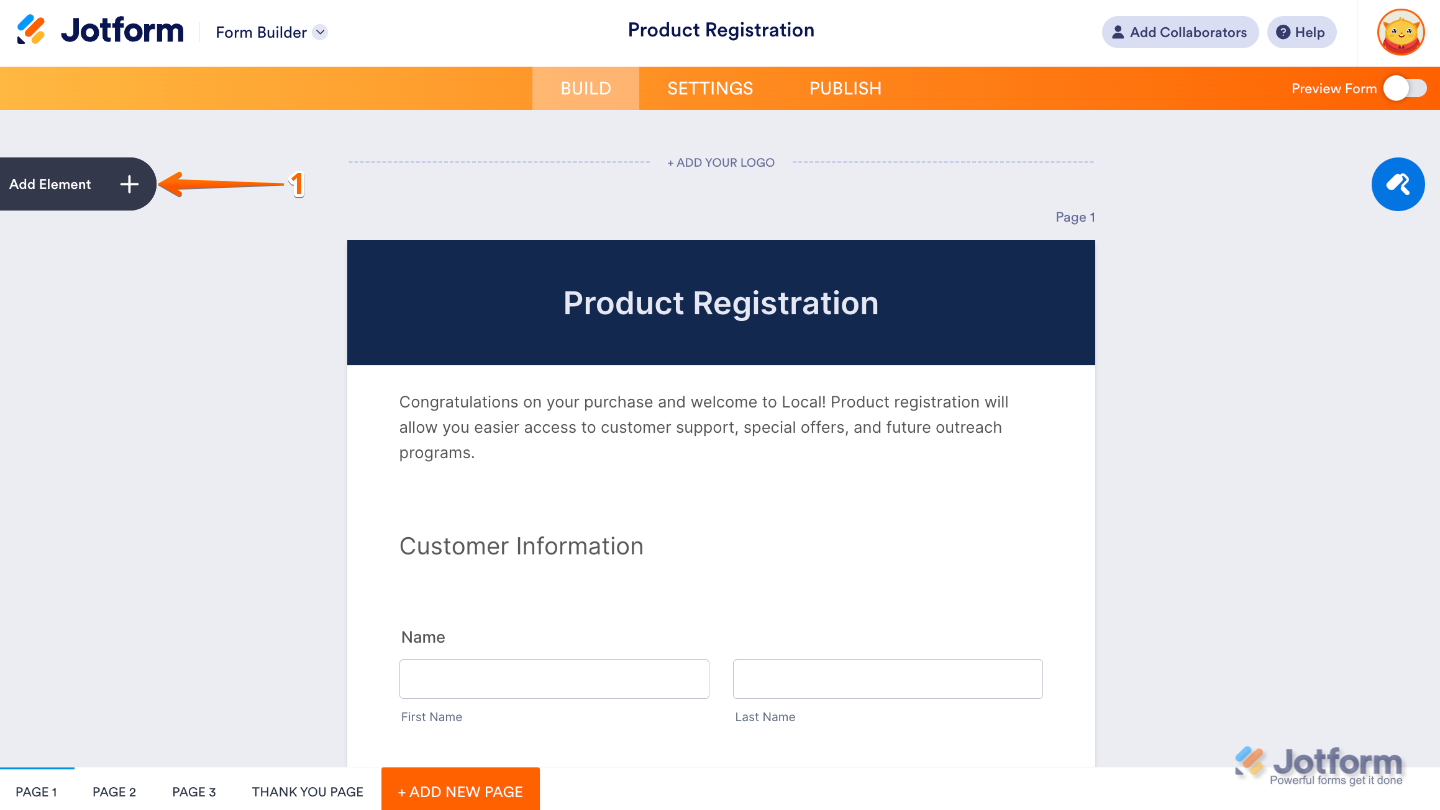
- In Form Builder, click on Add Element on the left side of the page.
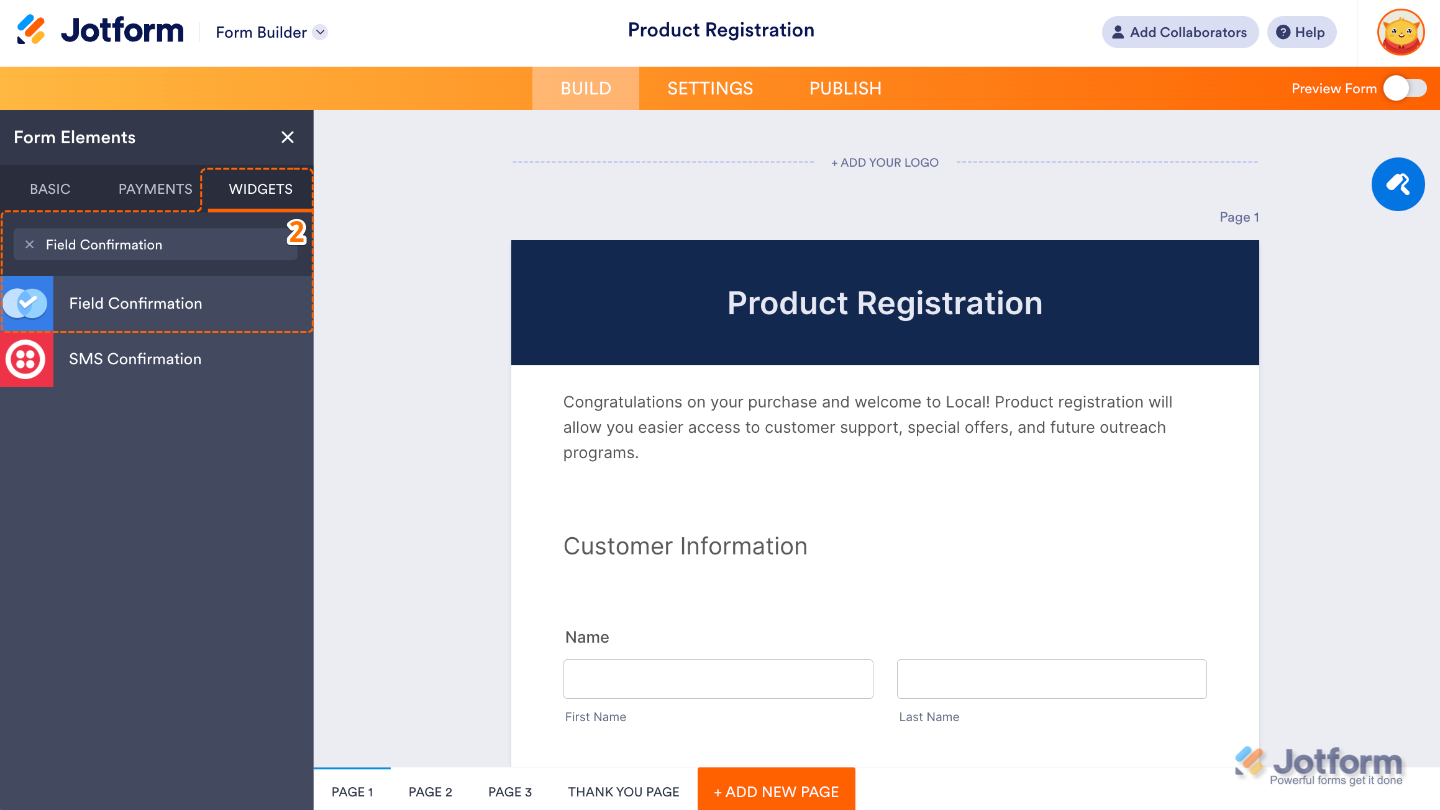
- Now, in the Form Elements menu, under the Widgets tab, search for Field Confirmation and then click on it. Or, just drag and drop it to where you want it to be on your form.
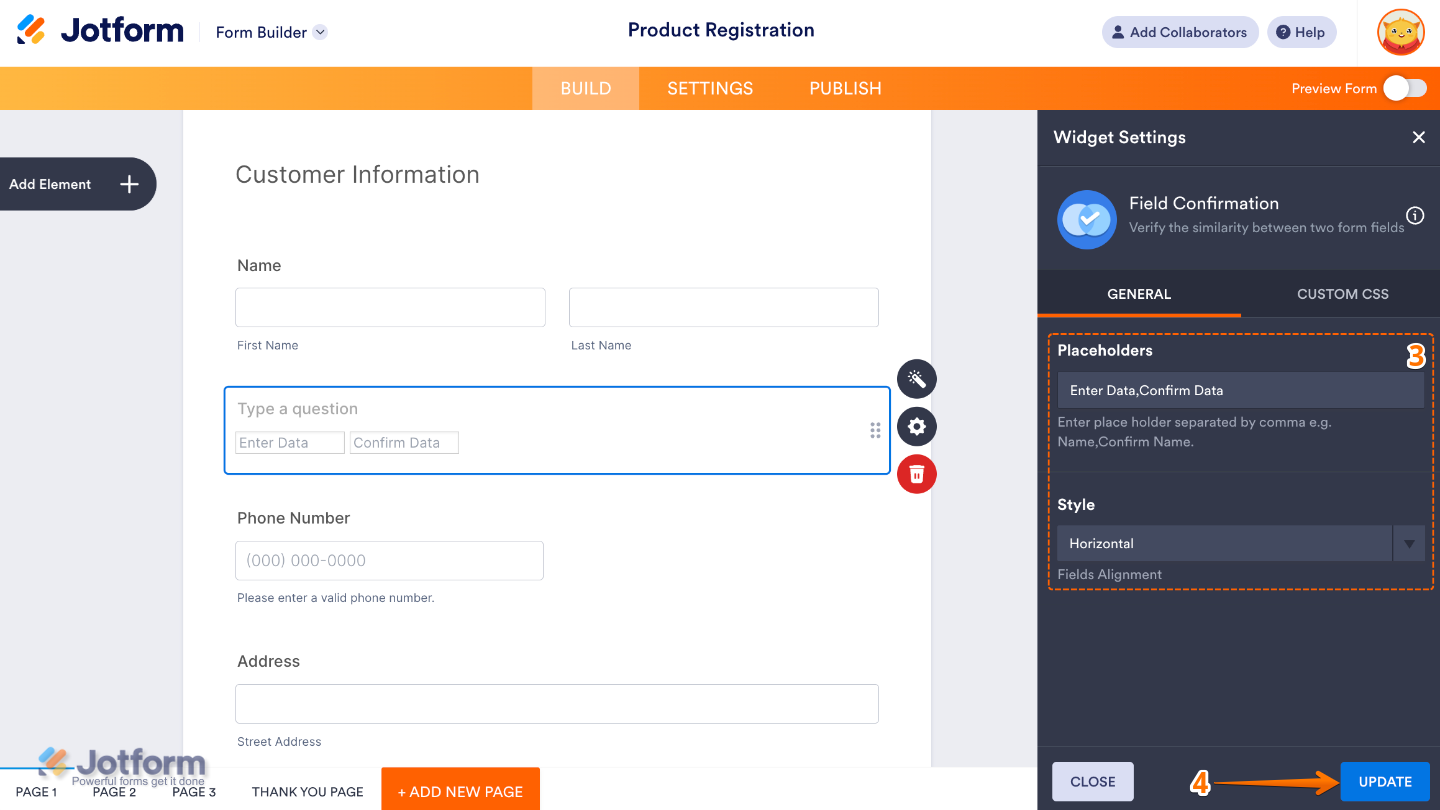
- Next, in the Widget Settings menu that opens on the right side of the page, set up these options:
- Placeholders — Add helpful hints inside each field, like “Enter your email” or “Confirm your password.” These placeholders work as gentle reminders, guiding users so they know exactly what to type in each box.
- Style — Customize how your confirmation fields appear on your form. You can display them either side by side (horizontal) or stacked on top of each other (vertical).
- Once you’re done, click on Update.
That’s it. You’ve successfully added and set up the Field Confirmation widget to your form. Now, you’ve got a field on your form that helps double-check important details—like emails, passwords, or other key info—by making sure the values in both boxes match up perfectly. Curious how it works on a live form? Check out this Demo Form.
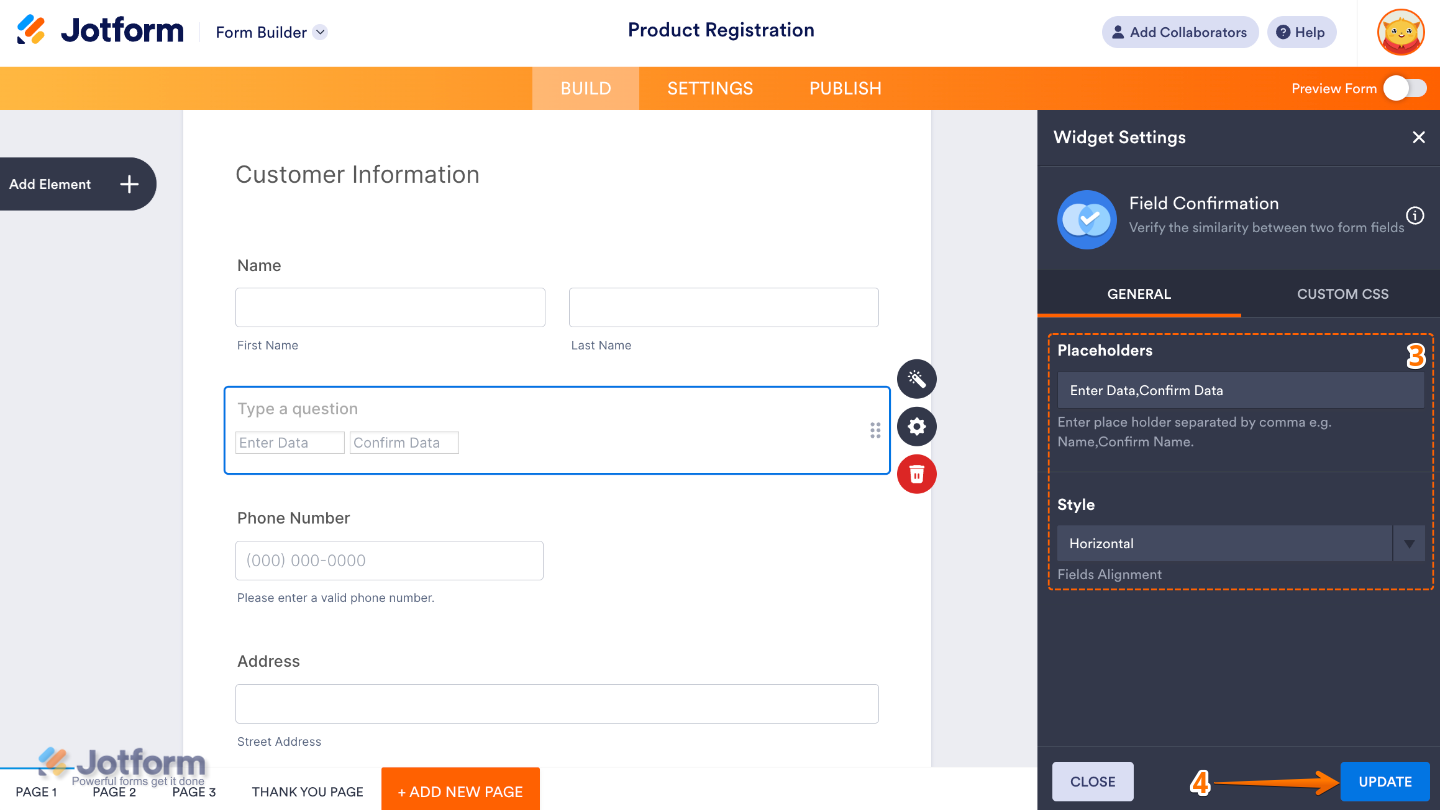
To further customize your Field Confirmation field’s appearance, just click on the Gear icon to open its properties.
Note
For advanced styling, you can add your own custom CSS under the Custom CSS tab in the widget settings and style the Field Confirmation field. Our guide on How to Inject CSS Codes to Widgets walks you through everything.

Send Comment: