The Fiverr Logo Maker widget, powered by Fiverr Logo Maker, lets your form users create a professional-looking logo without ever leaving your form. With its simple, guided design experience, users can easily explore branding ideas, customize their look, and preview their logo in a fun, intuitive way. It’s a great way to help them bring their brand vision to life—all in one convenient place.
Here are a few ways to use it:
- Let Users Create Logos Right Inside Your Form — Instead of sending users off to another website, this widget allows them to launch the Fiverr Logo Maker directly from your form. It’s perfect for anyone who wants a quick, easy way to design a logo without extra steps.
- Streamline Branding Requests — If you’re collecting branding details from clients or startups, this widget helps them visualize their logo ideas instantly. It keeps everything in one place and makes the creative process feel smooth and stress-free.
- Support Entrepreneurs and Small Businesses — For forms used by founders or new business owners, the widget offers a helpful jumpstart. They can experiment with logo styles and ideas while filling out your form, making the experience more valuable and engaging.
- Improve Design Briefs and Submissions — Rather than relying only on text descriptions like modern or bold, users can actually create a logo concept to show what they mean. This gives you clearer direction and reduces guesswork.
Adding and Setting Up the Fiverr Logo Maker Widget
Adding the Fiverr Logo Maker widget to your form gives your users an easy way to create a custom logo right on the spot. You’ll just need to do this:
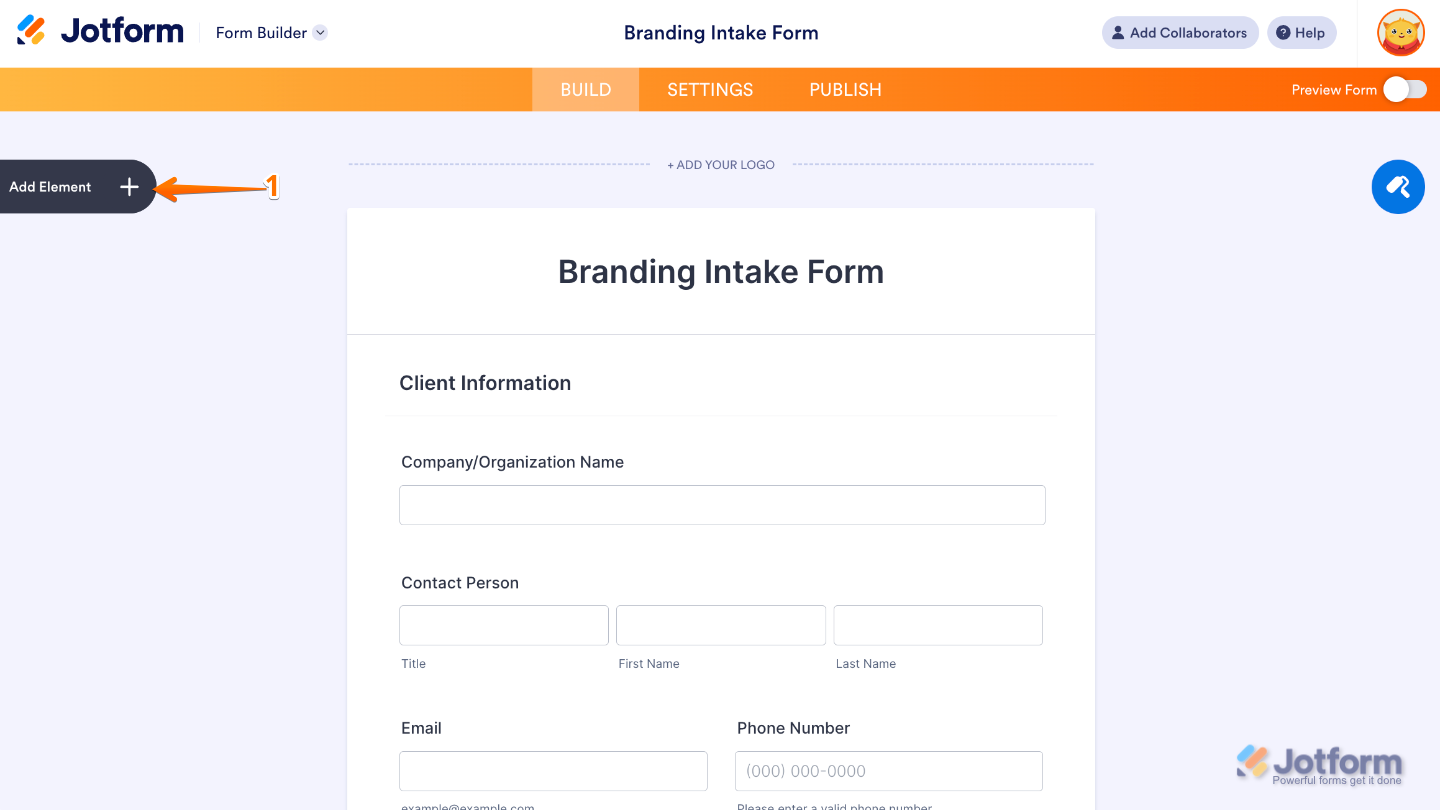
- In Form Builder, click on Add Element on the left side of the page.
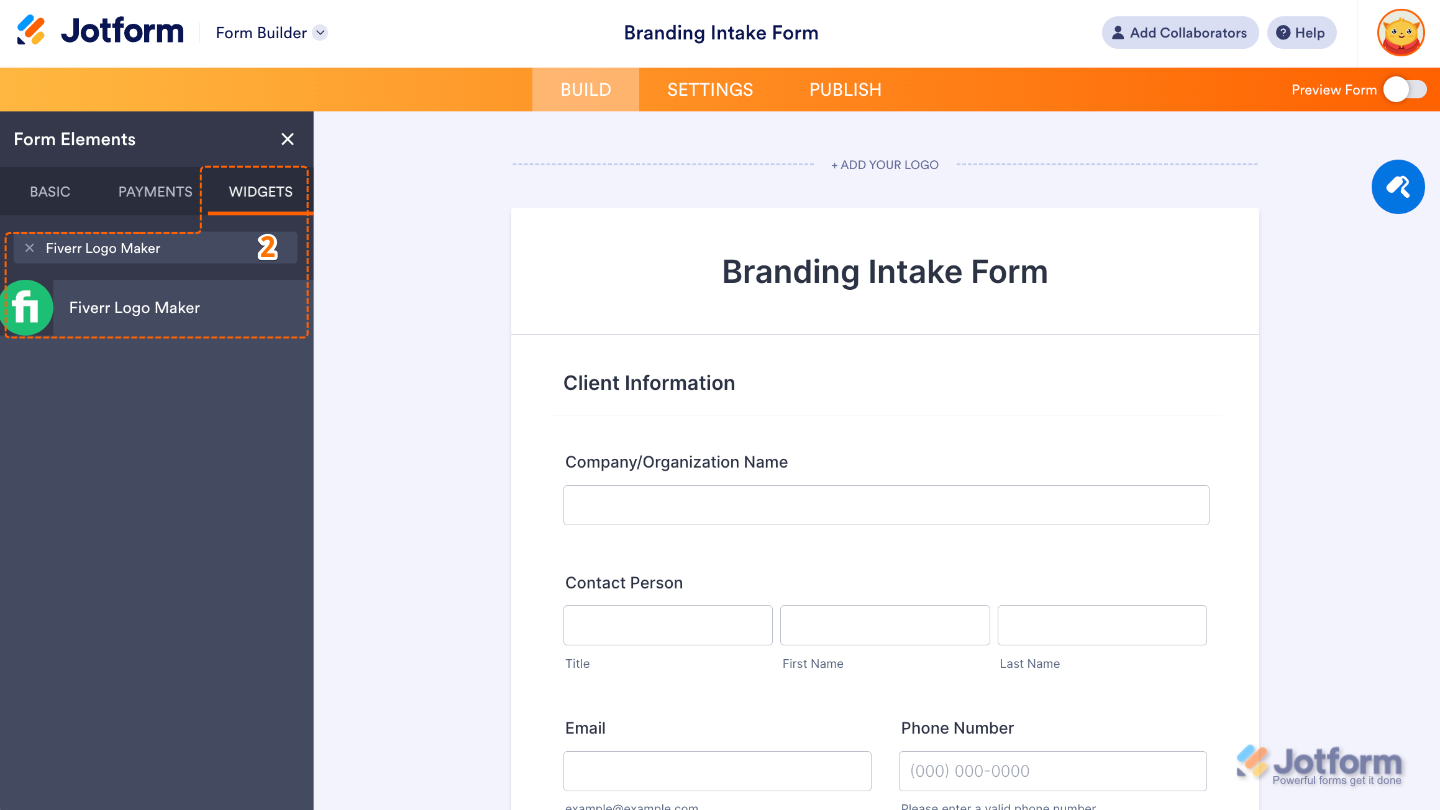
- Now, in the Form Elements menu, under the Widgets tab, search for Fiverr Logo Maker and then click on it. Or, just drag and drop it to where you want it to be on your form.
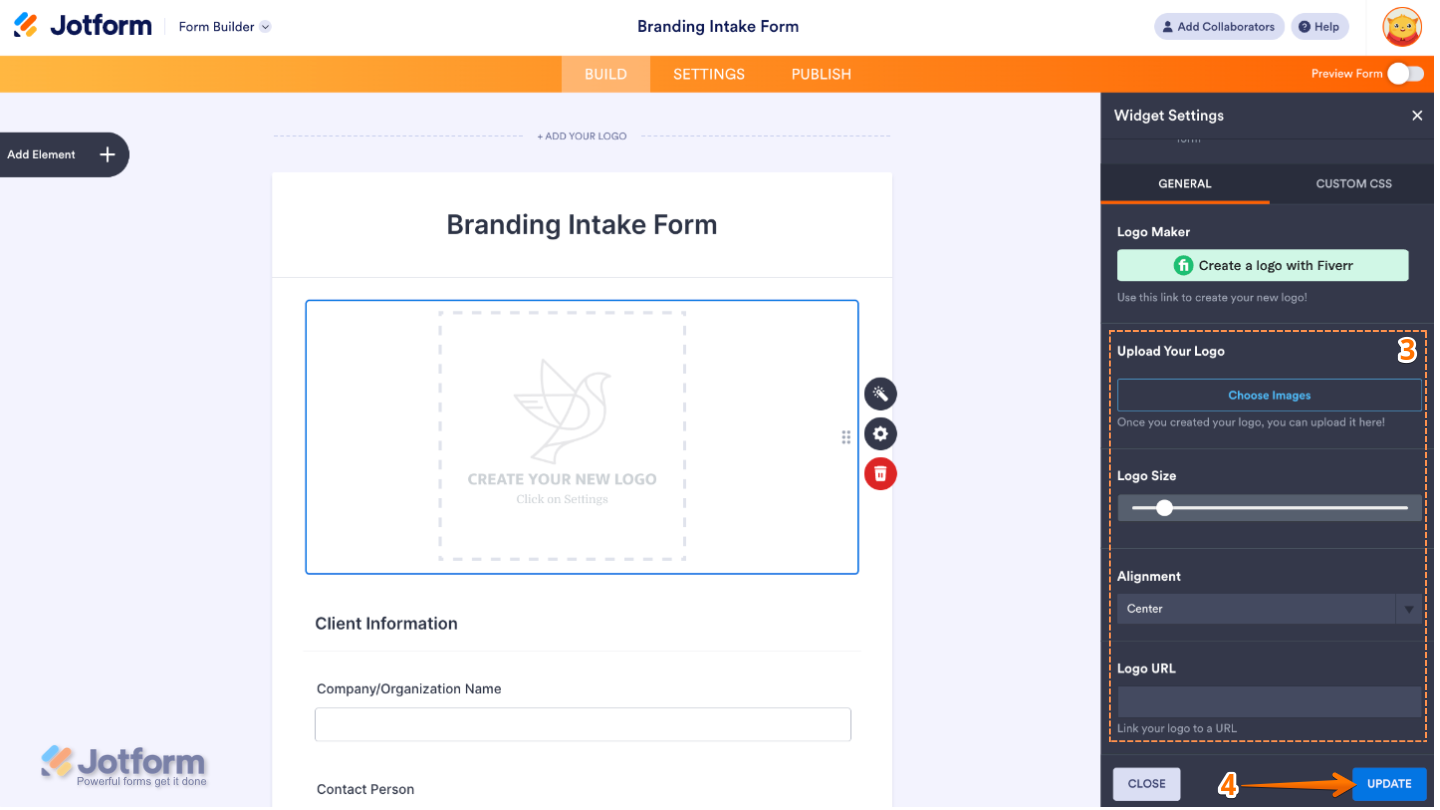
- Next, in the Widget Settings menu that opens on the right side of the page, set up these options:
- Upload Your Logo — This lets you add an existing logo of your own to display alongside the Fiverr Logo Maker widget.
- Logo Size — Use this to control how large or small your uploaded logo appears.
- Alignment — Allows you to choose where your logo sits—left, center, or right.
- Logo URL —This option turns your logo into a clickable link. When users click it, they can be taken to a website you choose, such as your homepage, portfolio, or a Fiverr profile.
- Once you’re done, click on Update.
That’s it. You’ve successfully added and set up the Fiverr Logo Maker widget on your form. Now users can easily create and preview custom logos, making it simple to collect brand designs directly through your form. Curious how it works on a live form? Check out this Demo Form.
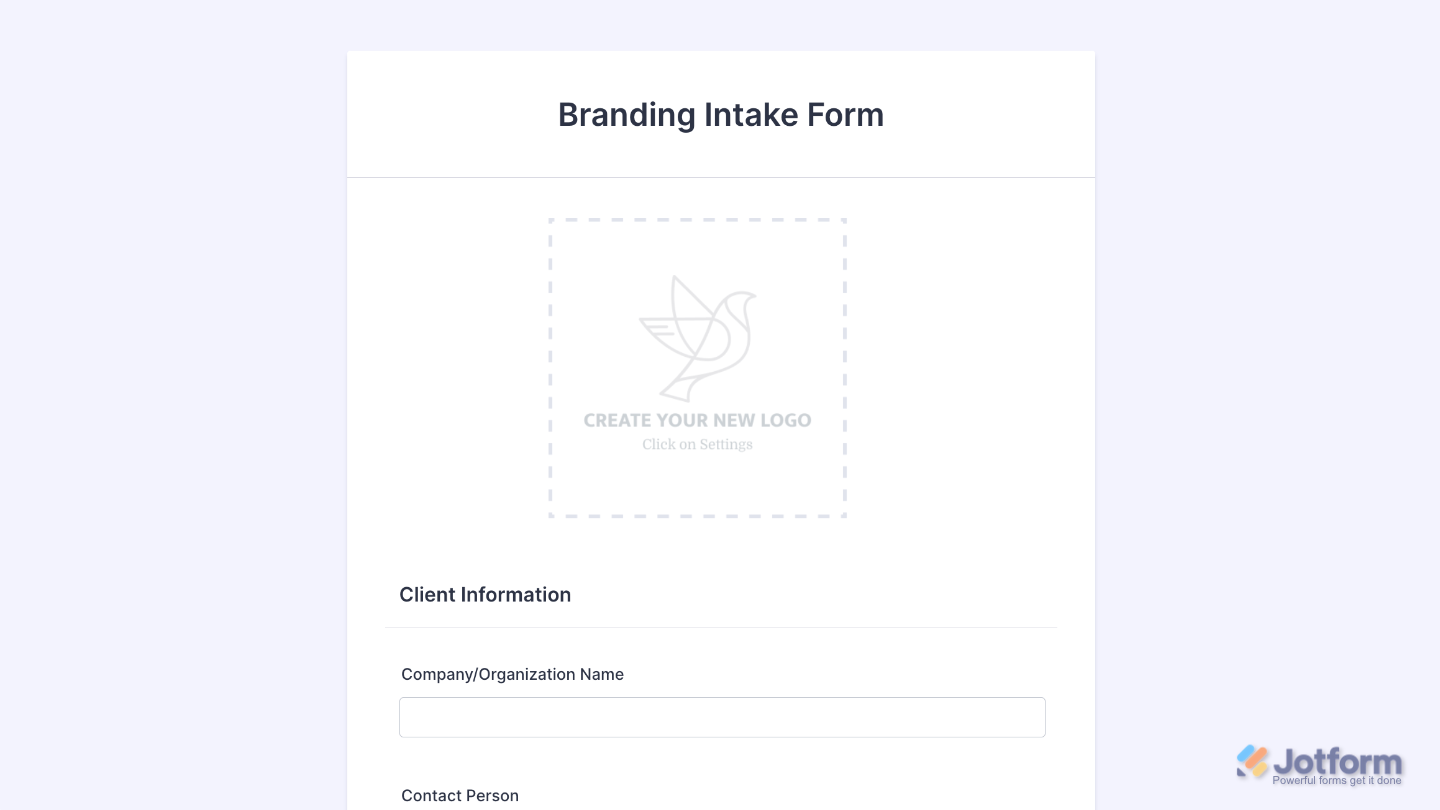
You can also configure the widget properties, like alignment, labels, size, visibility, and more, to control how it looks and behaves on your form. To learn how it’s done, see our guide on How to Access and Configure the Question Properties of a Widget.
Note
For advanced styling of the Fiverr Logo Maker widget, you can add your own custom CSS code under the Custom CSS tab in the Widget Settings. Our guide on How to Inject CSS Codes to Widgets walks you through everything.
Pro Tip
Logo creation is a visual task. Place the widget in a clean, spacious section so users can focus without distractions.

Send Comment: