Jotform’s Gift Registry widget lets you seamlessly add a fully featured multiple-selection field to your form. It enables users to choose items from a pre‑defined list, and automatically adjust availability as selections are made and submitted, preventing overbooking. Simple to set up and manage, this widget keeps your registry organized, up‑to‑date, and user‑friendly. Ensuring a smooth, worry‑free experience for both you and your guests.
Here are a few ways to use it:
- Let guests reserve wedding gifts from a pre-set list without duplicate selections.
- Manage baby shower registries with real-time item availability updates.
- Allow party attendees to claim specific contribution items (e.g., food, decor, prizes).
- Organize classroom wish lists where parents can select needed supplies.
- Set up nonprofit donation drives with limited-quantity items (e.g., 50 hygiene kits).
- Manage holiday gift exchanges with automatic item reservation.
- Coordinate community outreach programs by letting volunteers claim supply items.
- Create fundraiser item sponsorships with controlled availability.
- Allow team members to reserve shared equipment or materials.
- Organize group events where participants select specific roles or responsibilities without overlap.
Whether you’re creating a new form or updating an existing one, you can add and set up the Gift Registry widget on your form in a few easy steps. Here’s the quick way to do it:
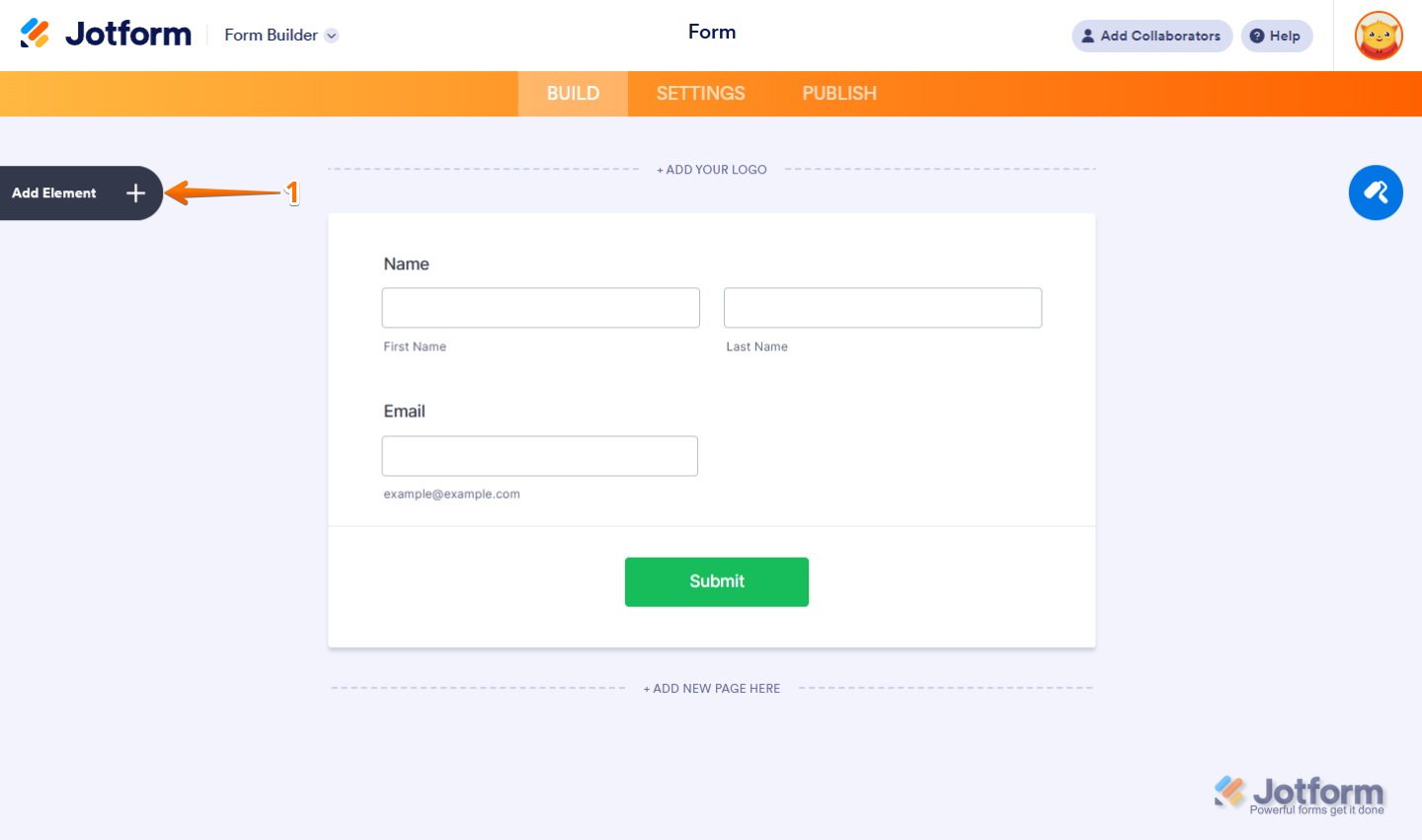
- In Form Builder, click on Add Element on the left side of the page.
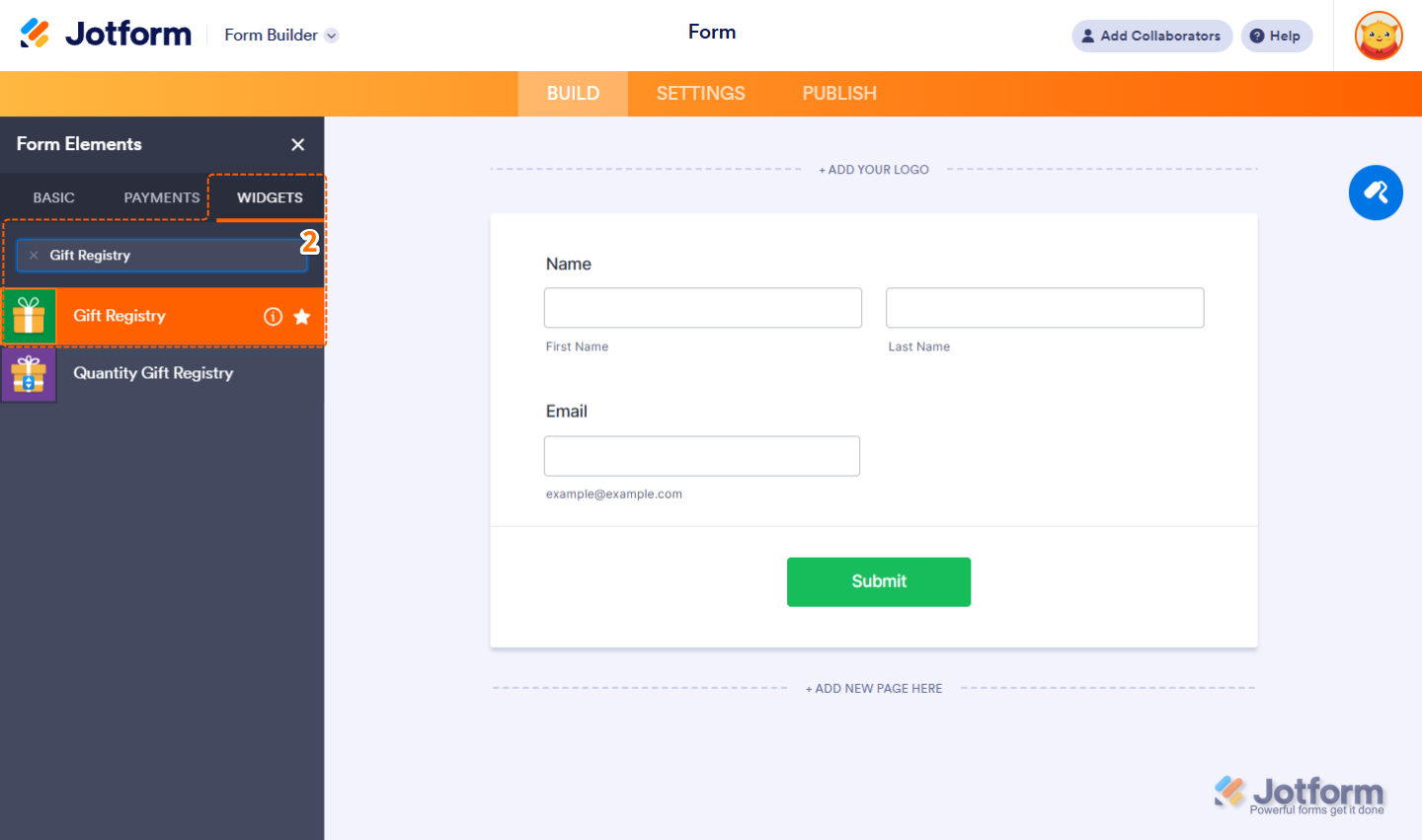
- Now, in the Form Elements menu, under the Widgets tab, search for Gift Registry and click on it. Or just drag and drop it to where you want it on your form.
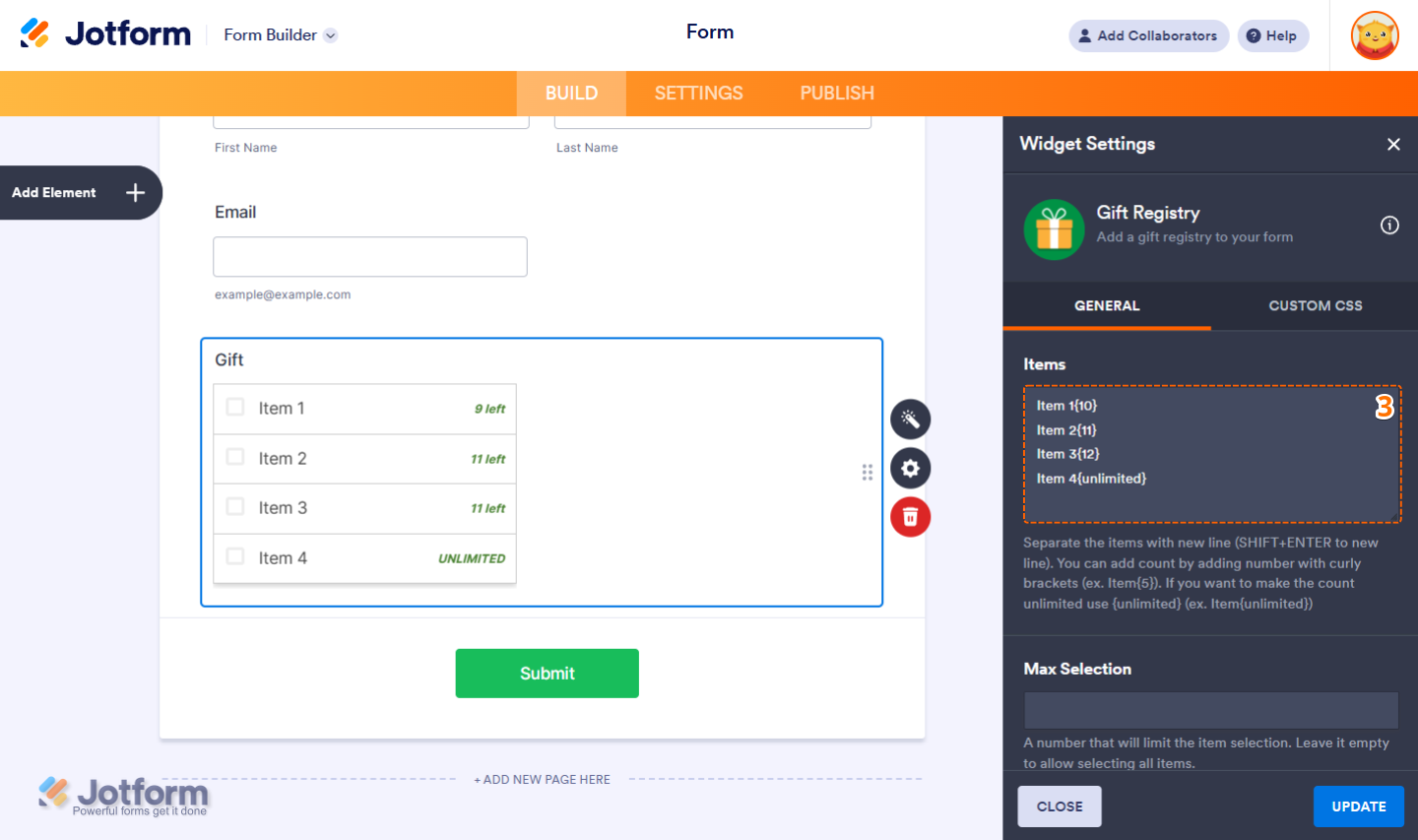
- Next, in the Gift Registry Widget Settings window that opens on the right side of the page, under the General tab, delete the default items from the Items box, then enter the new items, separated by new lines.
Note
You should add the count inside a curly bracket. For example, {10} means the item’s available quantity is 10. You can use {unlimited} to set the item count to unlimited.
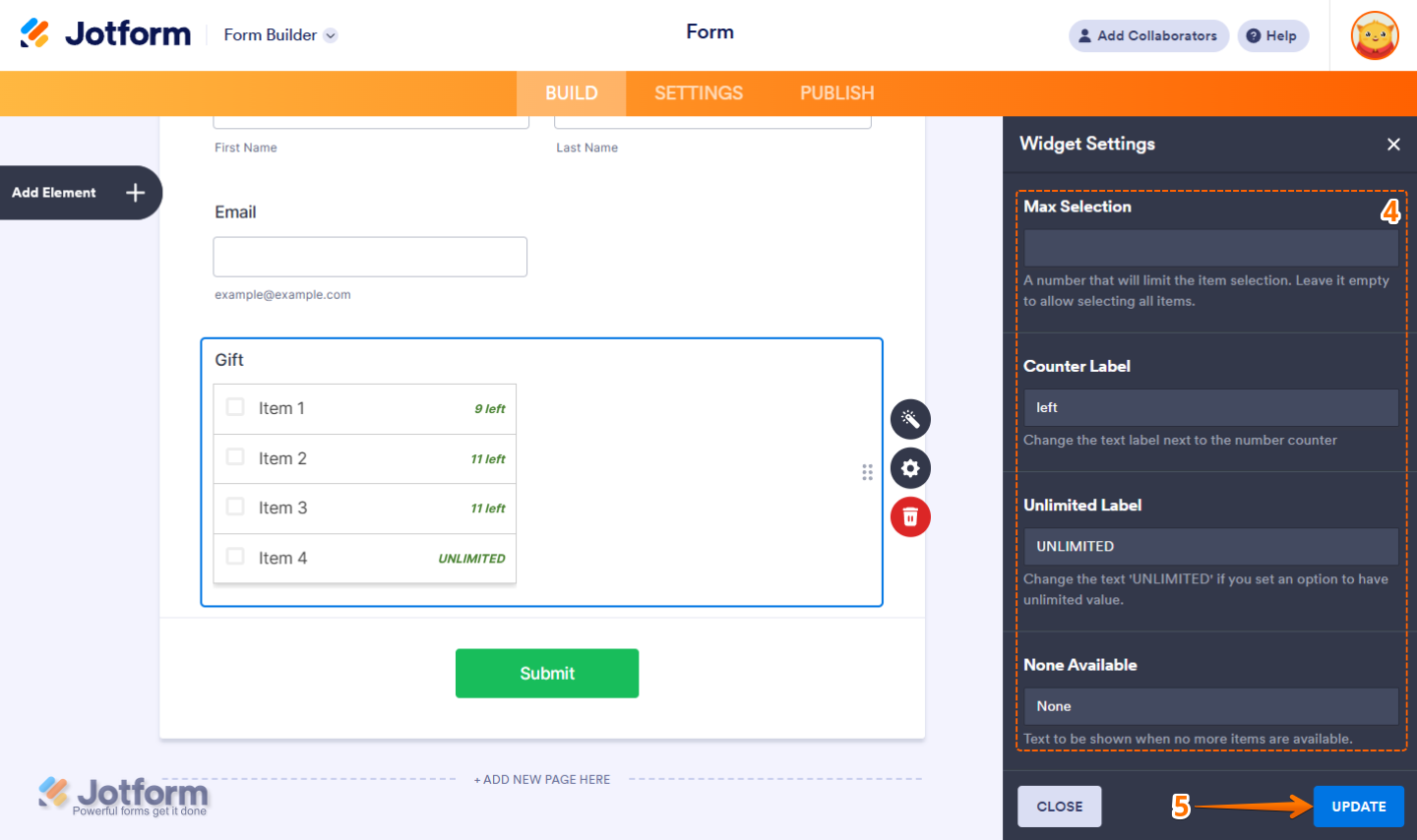
- Then, scroll down and continue to set up these settings:
- Max Selection — Enter a number to limit the number of items selected. Leave it empty to allow selecting all items.
- Counter Label — Change the text label next to the number counter.
- Unlimited Label — Change the text ‘UNLIMITED’ if you set an option to have an unlimited value.
- None Available — Enter the text to be shown when no more items are available.
- Once you’re done, click on Update.
That’s it! You’ve now successfully added and set up the Gift Registry widget to your form. Check out this demo form to see it in action.
Notes
- The selected and submitted items in the widget will appear in Jotform Tables as a single line and are separated by a new line in Jotform Inbox, Excel, CSV, and PDF Reports.
- Changing the item names inside the widget only applies to new submissions moving forward.
- To change the appearance of the widget, you can inject custom CSS into the Custom CSS tab in the Widget Settings. You can check out our guide on How to Inject CSS Codes to Widgets to learn more.
- You can adjust more of the widget’s properties, including the alignment of the field and its label, the width, visibility, and more, through its Question Properties window. Check out our guide on How to Access and Configure the Question Properties of a Widget to learn more.

Send Comment: