With Jotform, you can easily add a Global Countdown widget to your form, giving it a built-in timer that keeps everything on track. Whether you’re running timed evaluations, surveys, or tests, the countdown clock makes sure responses stay within the time limit.
The widget is flexible enough to fit different needs—you can prevent submissions until the timer ends or have the form submit automatically when time runs out. Since the countdown stays visible on every page of your form, participants always know how much time they have left, making it simple and stress-free to manage time-sensitive activities.
Here are a few ways to use it:
- Set up forms that close after a certain time.
- Run quick online quizzes with a time limit.
- Use it for applications or sign-ups with a deadline.
- Collect entries during live events or contests.
Whether you’re building a new form or editing an existing one, you can add and configure the Global Countdown widget in just a few steps. This is how it’s done:
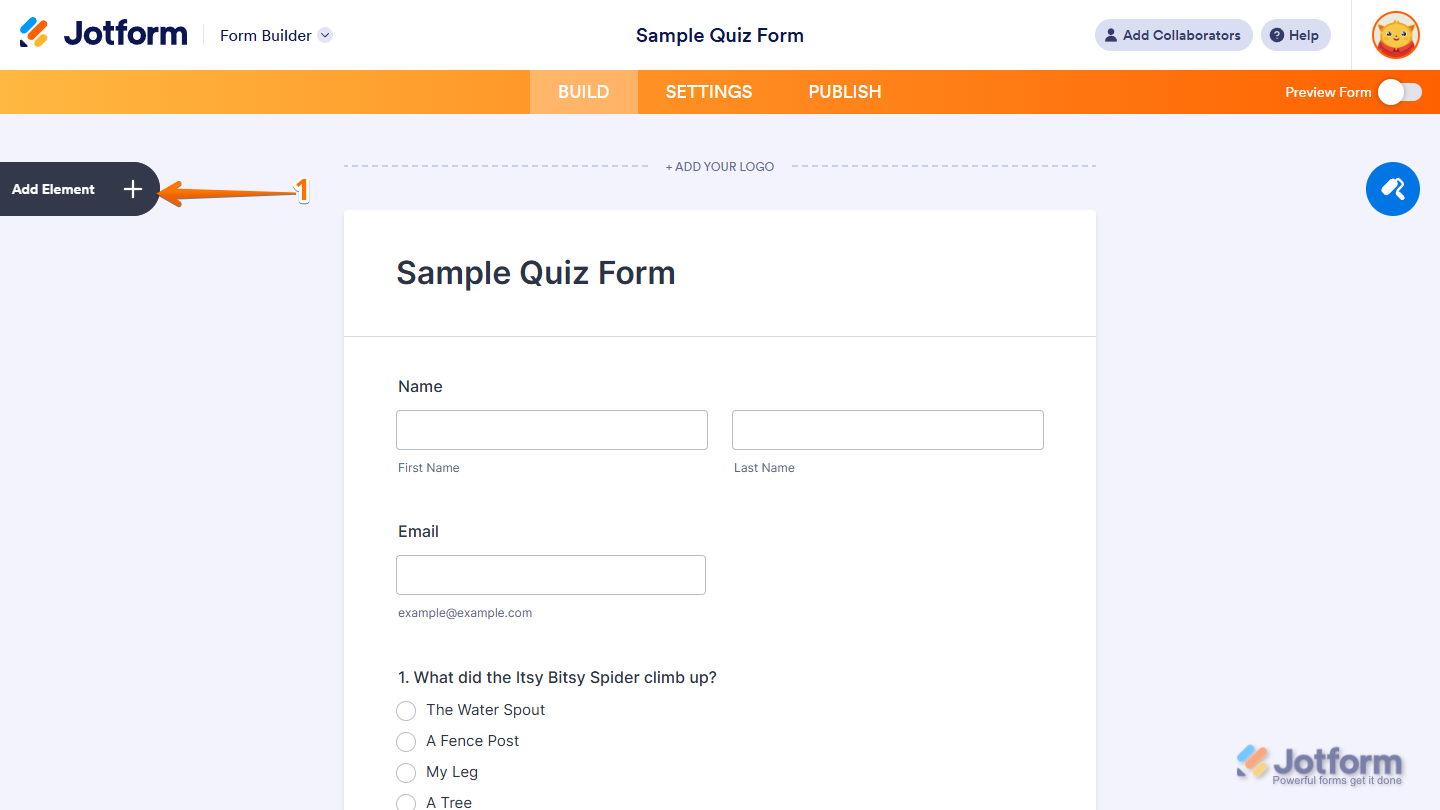
- In Form Builder, click on Add Element on the left side of the page.
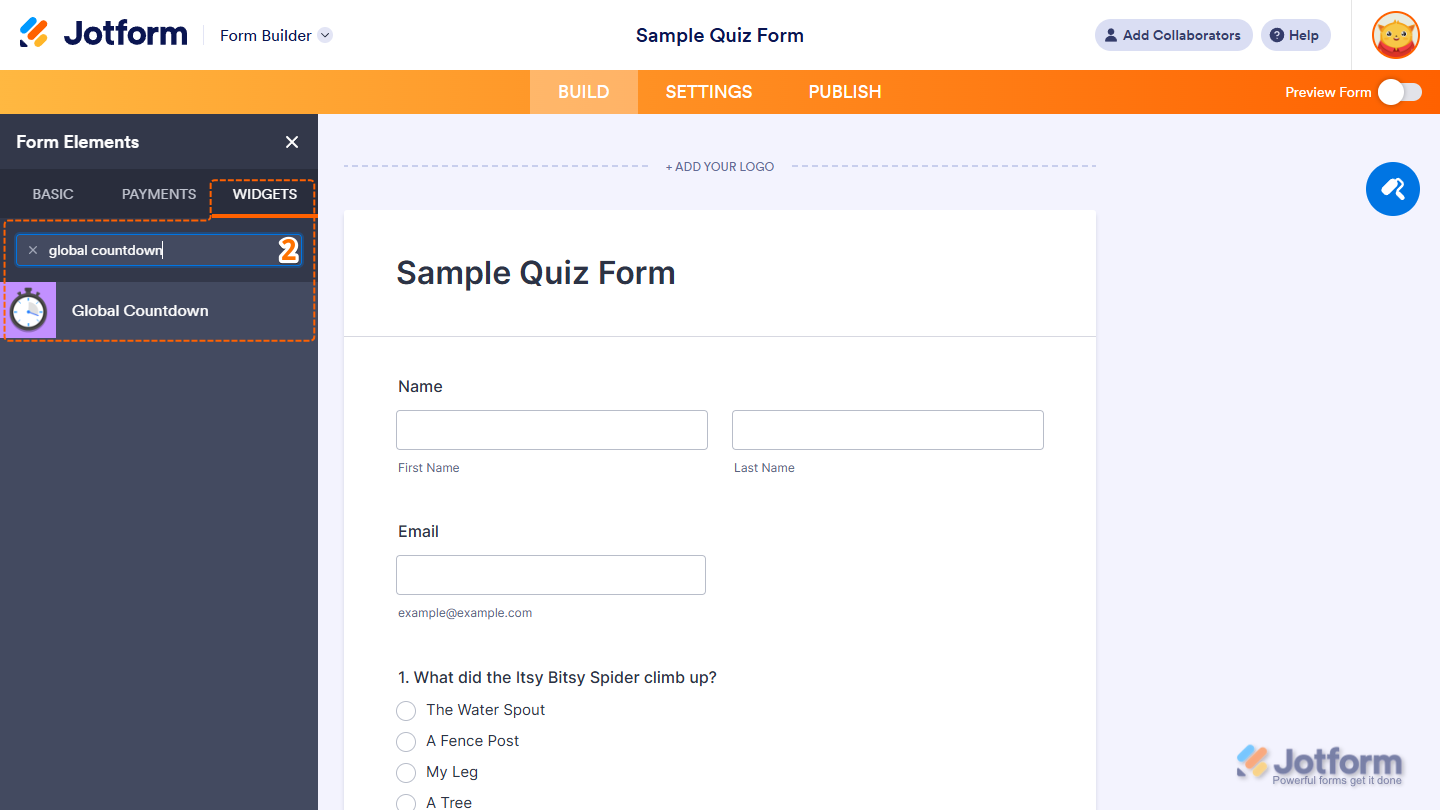
- Now, in the Form Elements menu, under the Widgets tab, search for Global Countdown and click on it. Or, just drag and drop it to where you want it to be on your form.
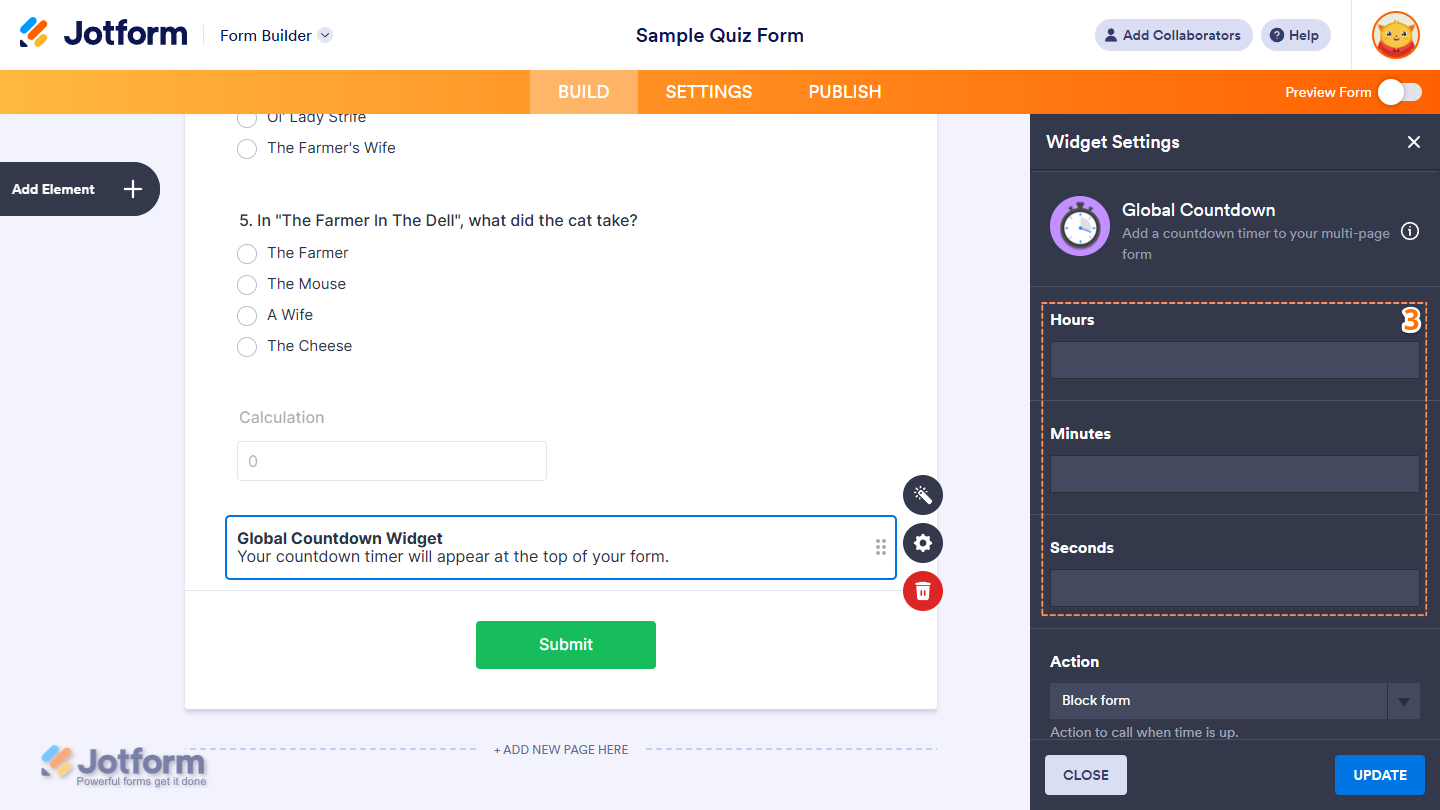
- Next, in the Widget Settings menu that opens on the right side of the page, under the General tab, you’ll see this list of settings you can configure:
- Hours — Enter how many hours the timer should run.
- Minutes — Enter how many minutes the timer should run.
- Seconds — Enter how many seconds the timer should run.
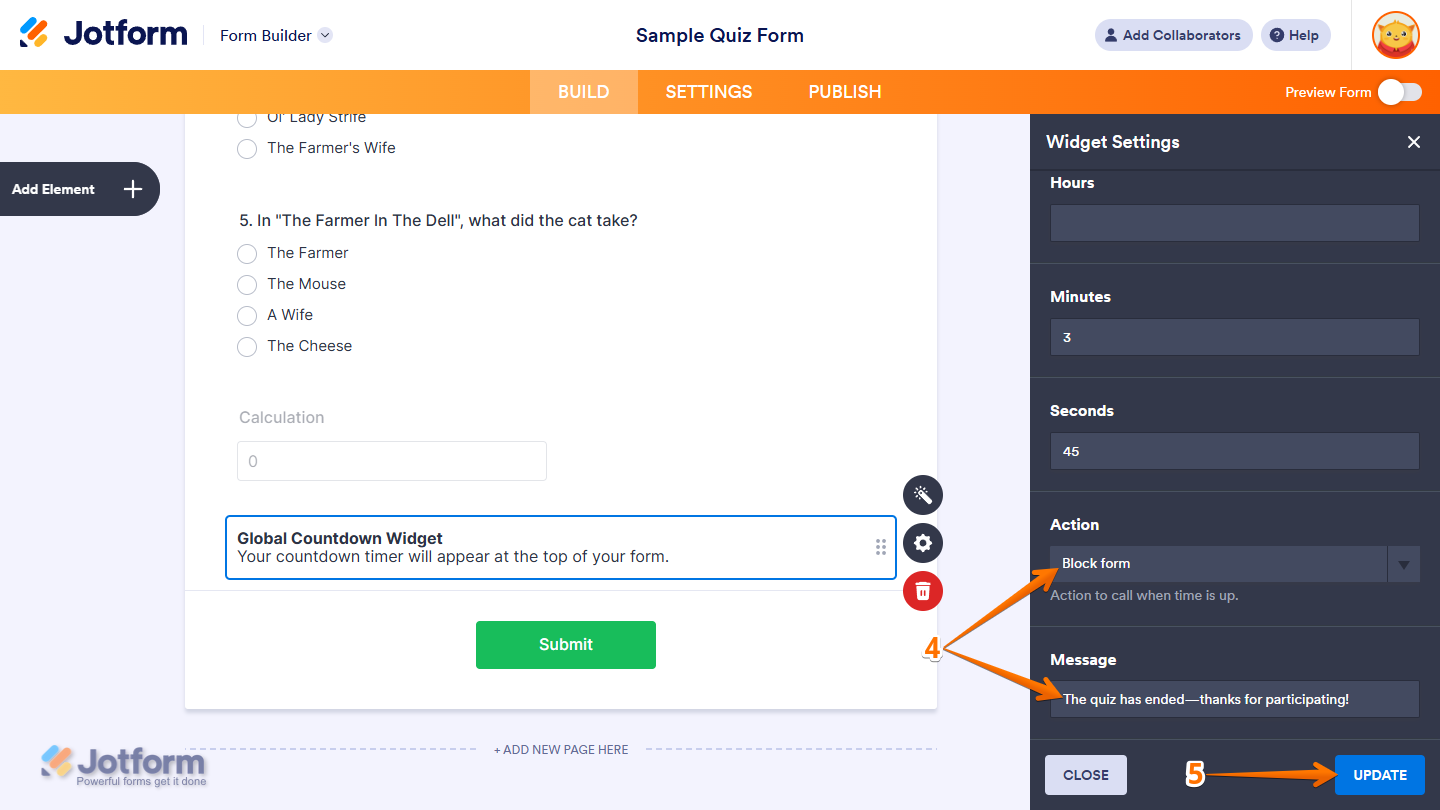
- Then, scroll down to the bottom and continue to set up these settings:
- Action — Choose what happens when the countdown ends. By default, it’s set to Block Form, which prevents users from submitting the form once the countdown expires. Select the Submit Form option if you want the form to submit automatically when the countdown ends. Check out our guide on How to Set Your Form to Submit Automatically to learn more.
- Message — Enter the text you want people to see once the countdown expires. This only appears when Block Form is selected and the form can’t be submitted anymore. It doesn’t replace the Thank-You page when Submit Form is selected, and the form submits automatically.
- Once you’re done, click on Update.
That’s it. The Global Countdown widget is ready to keep time on your form. Want to see it in action? Check out these demo forms:
- Block on Timeout — The form can’t be submitted once the countdown ends.
- Submit on Timeout — The form is submitted automatically when the countdown ends.
Notes
- The Hours counter won’t appear on the form when set to 0 in the Widget Settings.
- Leaving the Hours, Minutes, or Seconds boxes blank will automatically set them to 0, but if all three are blank, the widget won’t show on the form at all.
- The Global Countdown widget isn’t available on the Card Form layout. Need help changing your form layout? See our guide on How to Change Your Form Layout.
- You can also configure the widget properties, like alignment, labels, size, visibility, and more, to control how it looks and behaves on your form. Check out our guide on How to Access and Configure the Question Properties of a Widget to learn more.

Send Comment: