Jotform helps you quickly collect accurate height measurements with the Height Converter widget, which lets users switch between metric and imperial units when entering height values. The widget automatically converts the measurement to your preferred default unit, making it easier to standardize data from users around the world.
Here are a few ways to use it:
- Let users switch between metric and imperial height units.
- Collect more accurate height information.
- Standardize measurements for medical or fitness forms.
- Gather consistent data from international users.
Whether you’re starting fresh or updating a form, adding and setting up the Height Converter takes only a few steps. Here’s a quick how-to:
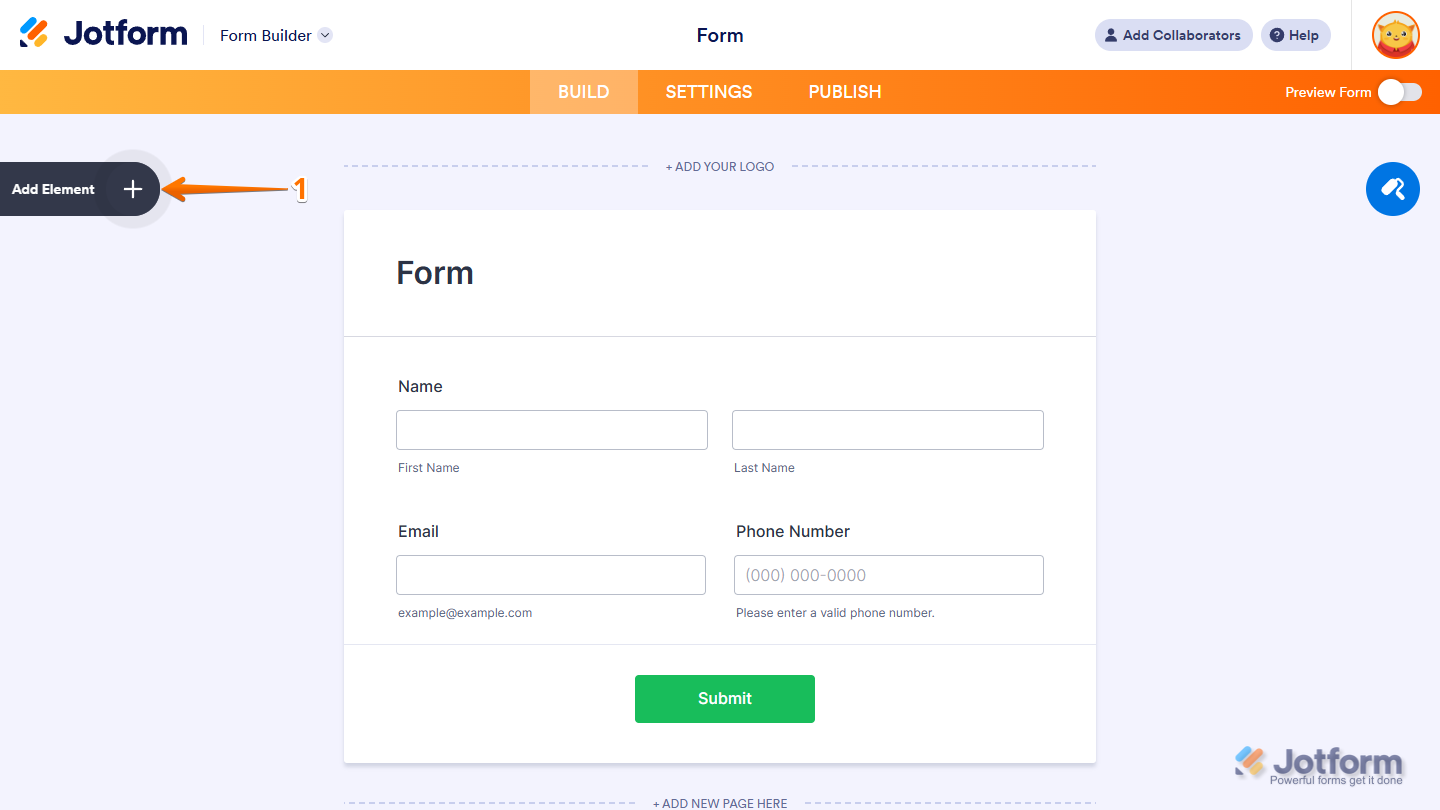
- In Form Builder, click on Add Element on the left side of the page.
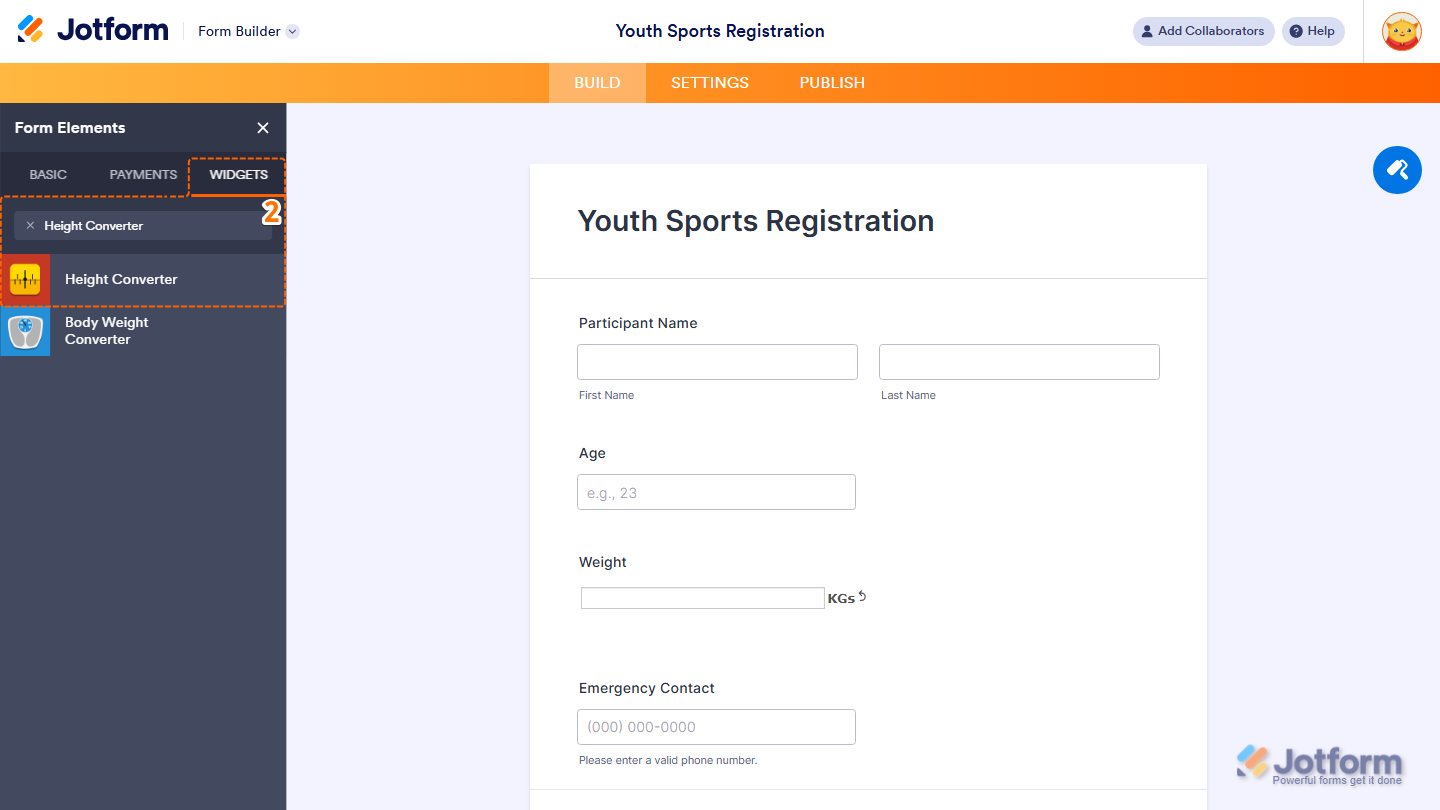
- Now, in the Form Elements menu, under the Widgets tab, search for Height Converter and click on it. Or, just drag and drop it to where you want it to be on your form.
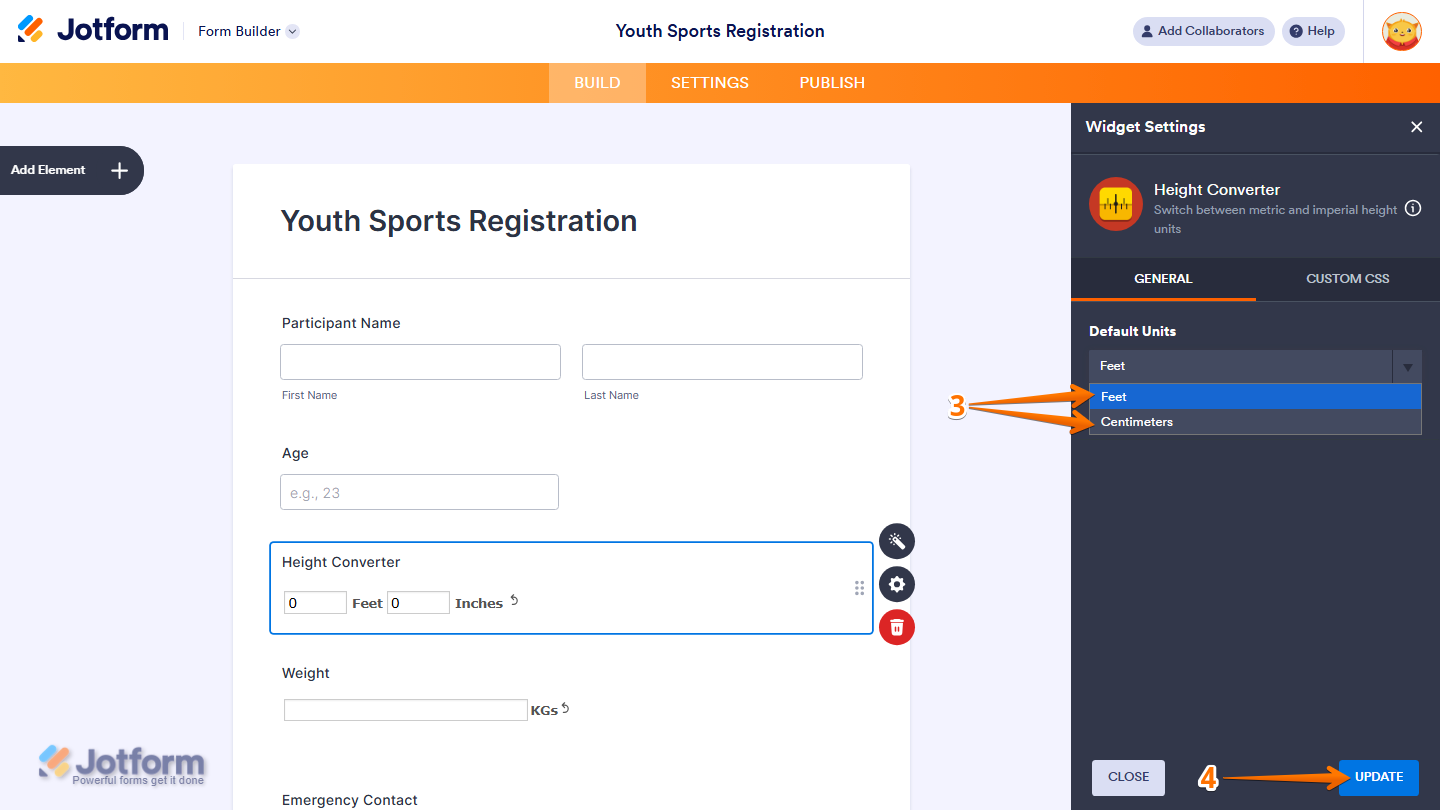
- Next, in the Widget Settings window that opens on the right side of the page, set up the Default Unit:
- Feet — Sets feet and inches as the default measurement unit.
- CM — Sets centimeters as the default measurement unit.
- Once you’re done, click on Update.
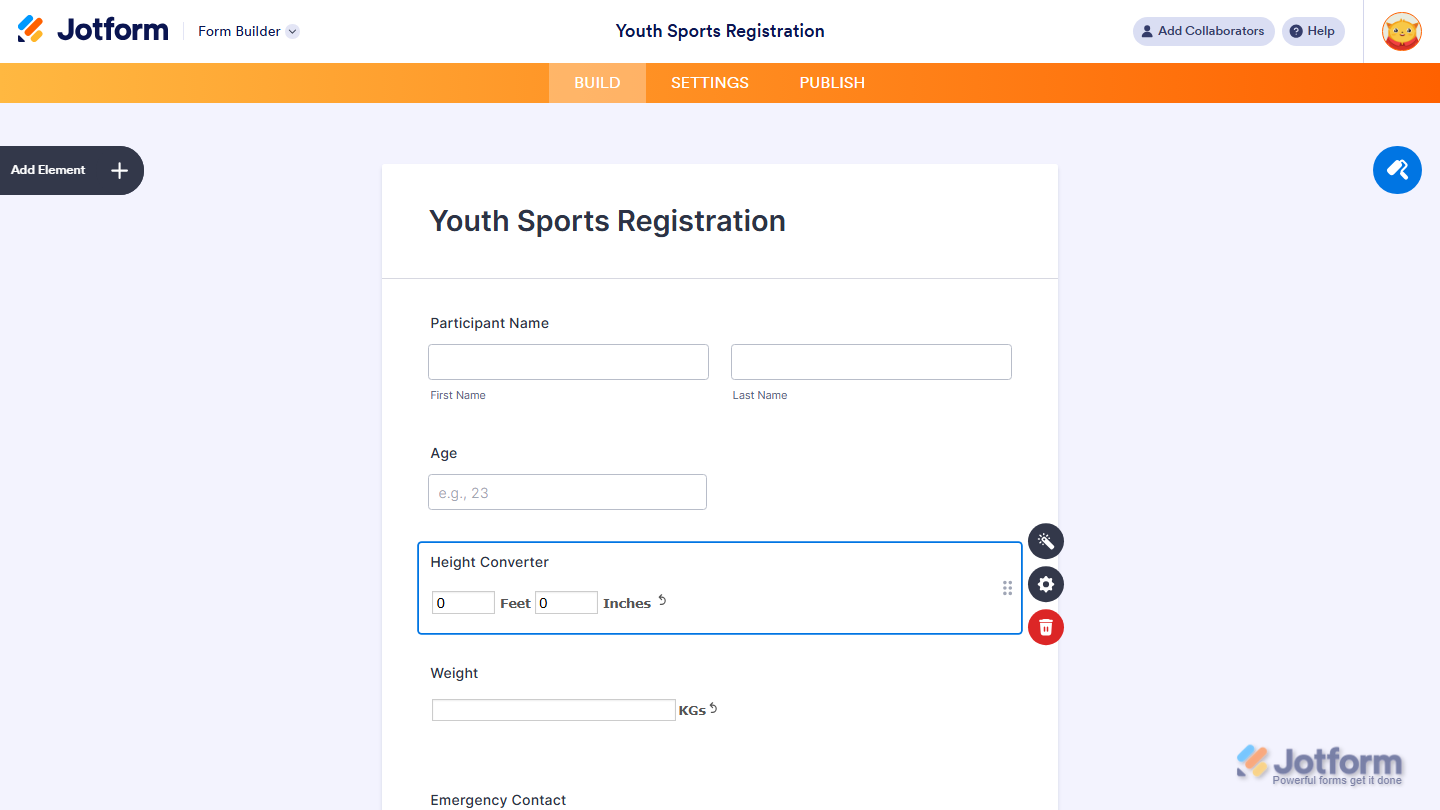
That’s it. You’ve successfully added and set up the Height Converter widget on your form. You can test it on this demo form.
Note
- For advanced styling of the Polaris Checkbox widget, you can add your own custom CSS code under the Custom CSS tab in the Widget Settings. Our guide on How to Inject CSS Codes to Widgets walks you through everything.
- You can also configure the widget properties, like alignment, labels, size, visibility, and more, to control how it looks and behaves in your form. Check out our guide on How to Access and Configure the Question Properties of a Widget to learn more.

Send Comment: