With Jotform, you can easily add a clean, modern time-selection experience to your forms using the iOS 7 Time widget. Inspired by the familiar iOS 7 interface, this widget gives users a smooth, mobile-style way to choose a specific time, making your form feel more intuitive and user-friendly.
It’s designed to blend seamlessly into any type of form, helping you collect accurate time details without adding extra steps or complexity. Whether you’re gathering scheduling information, booking requests, or anything time-related, this widget keeps the process simple and effortless for your users.
Here are a few ways to use it:
- Add a smooth, mobile-style time picker to any form that needs a specific time input.
- Let customers select preferred pickup or delivery times on order forms.
- Collect appointment or booking times for scheduling forms.
- Capture time details for event registrations, reservations, or service requests.
- Make it easier for users to provide accurate time information on surveys, feedback forms, or internal workflows.
Whether you’re creating a new form or updating an existing one, you can add and set up the iOS 7 Time widget in a few easy steps. Here’s how to do it:
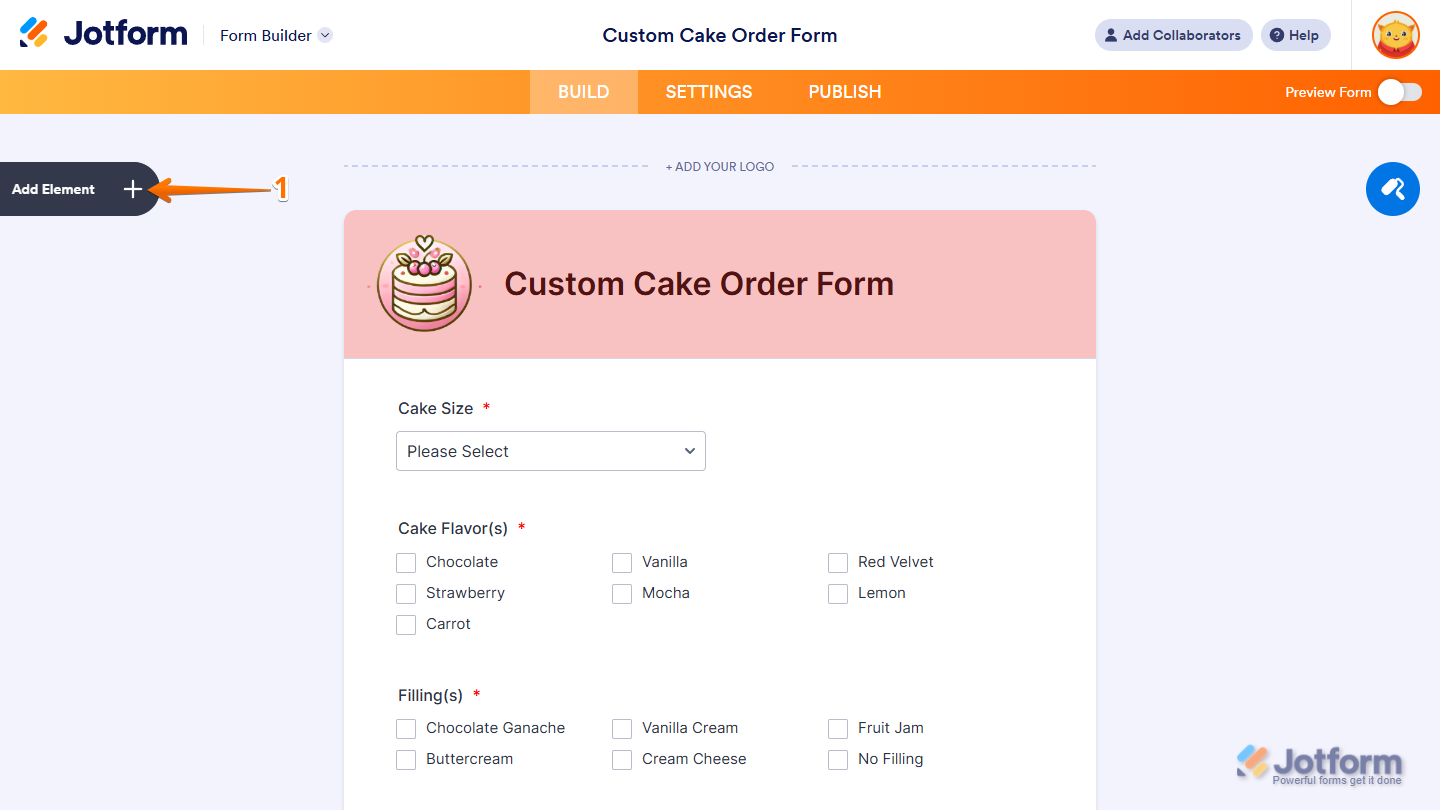
- In Form Builder, click on Add Element on the left side of the page.
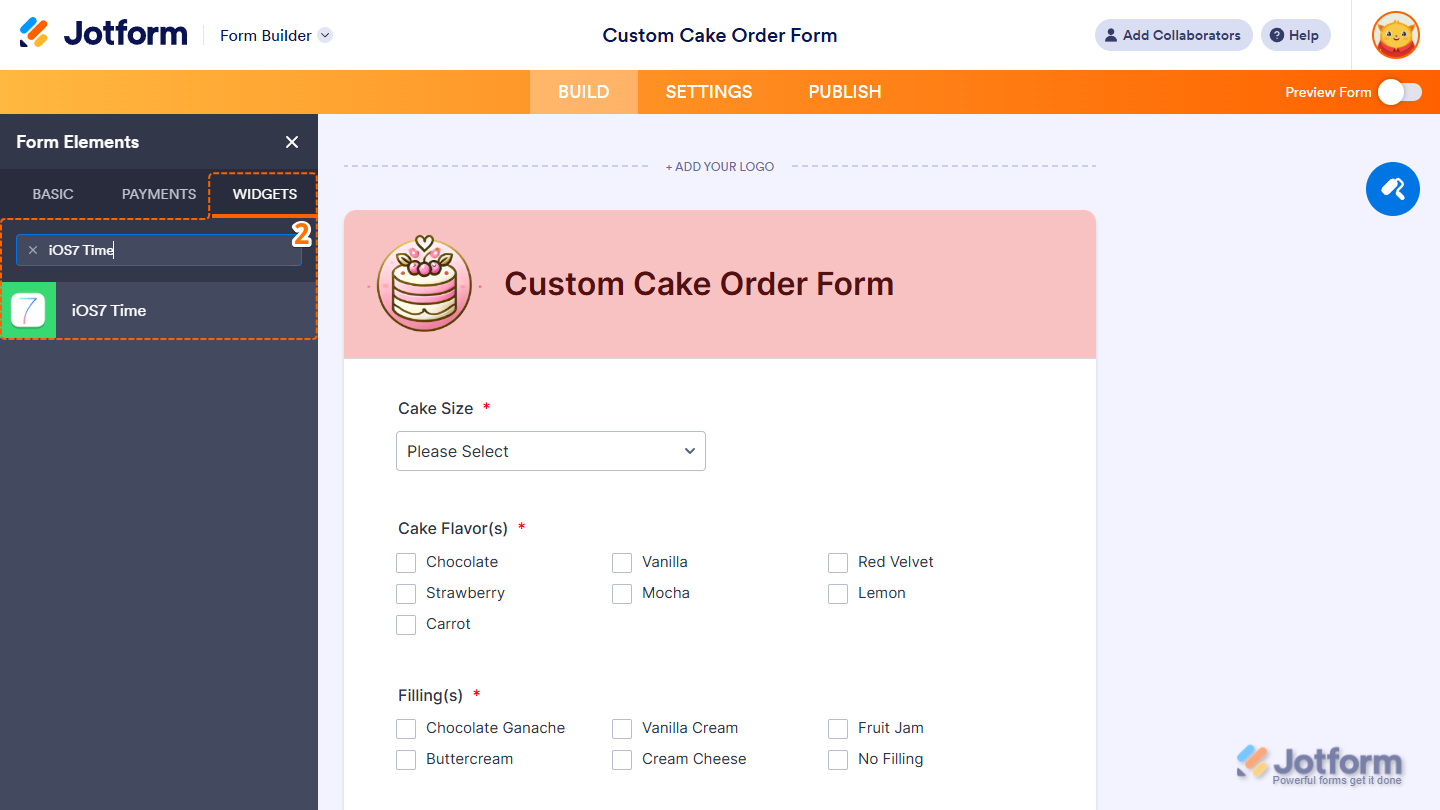
- Now, in the Form Elements menu, under the Widgets tab, search for iOS 7 Time and click on it. Or, just drag and drop it to where you want it to be on your form.
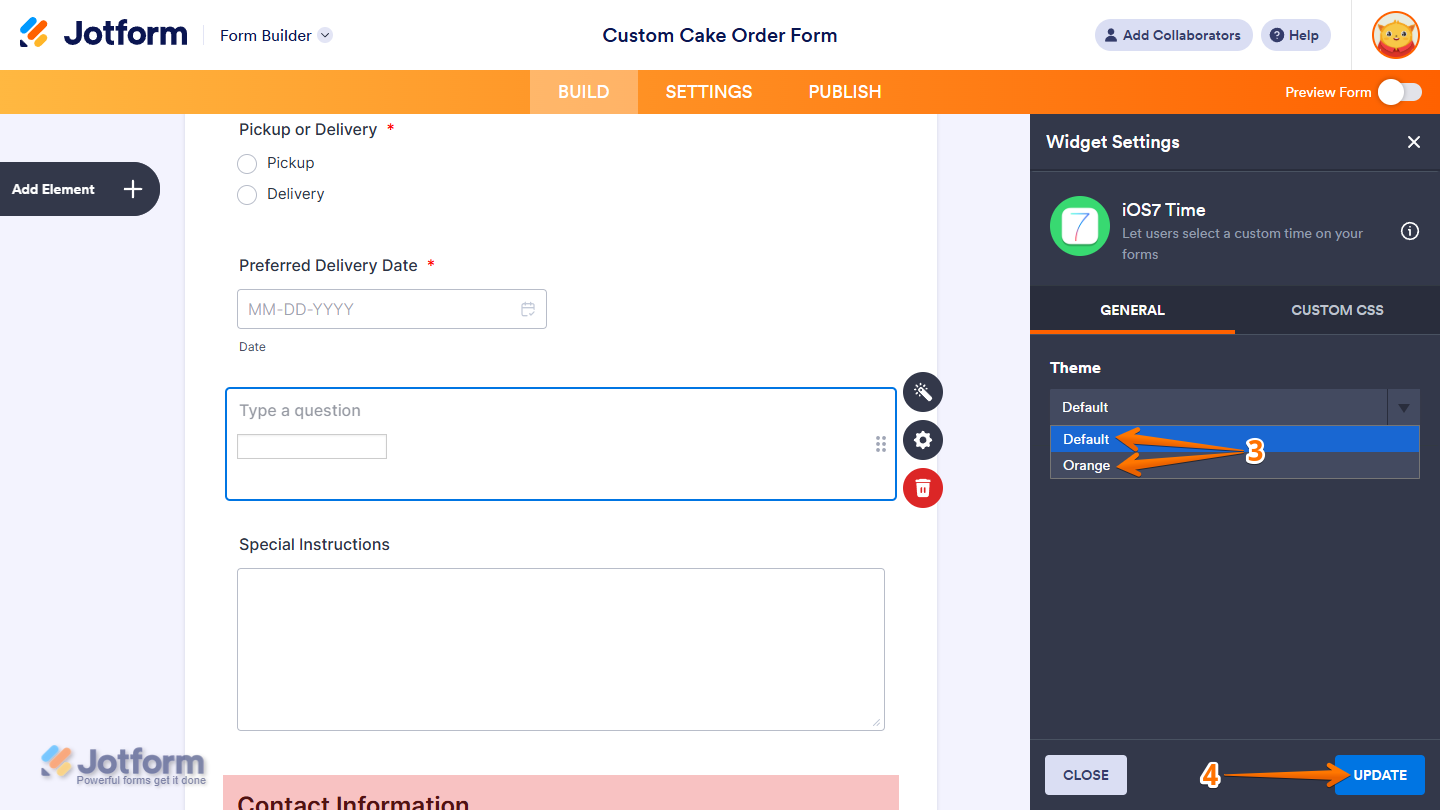
- Next, in the Widget Settings menu that opens on the right side of the page, under the General tab, select Orange in the Theme Dropdown menu if you want the widget to display with a bright accent color. Or, keep it set to Default to use the widget’s standard appearance.
- Once you’re done, click on Update.
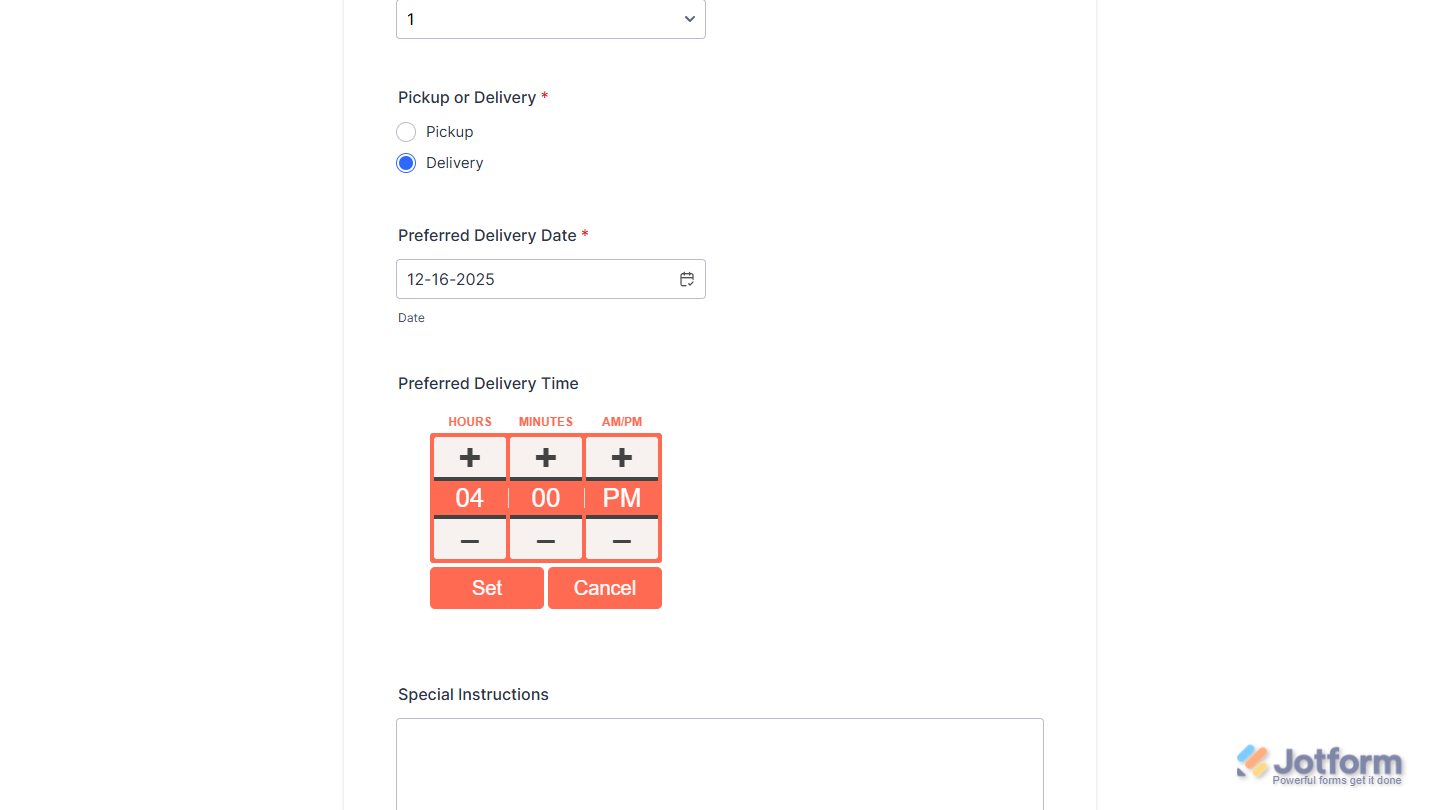
That’s it. Now you’ve added and set up the iOS 7 Time widget on your form. Wondering how it looks in action? Check out this demo form.
Notes
- For advanced styling of the iOS 7 Time widget, you can add your own custom CSS code under the Custom CSS tab in the Widget Settings. Our guide on How to Inject CSS Codes to Widgets walks you through everything.
- You can also configure the widget properties, like alignment, labels, size, visibility, and more, to control how it looks and behaves on your form. Check out our guide on How to Access and Configure the Question Properties of a Widget to learn more.

Send Comment: