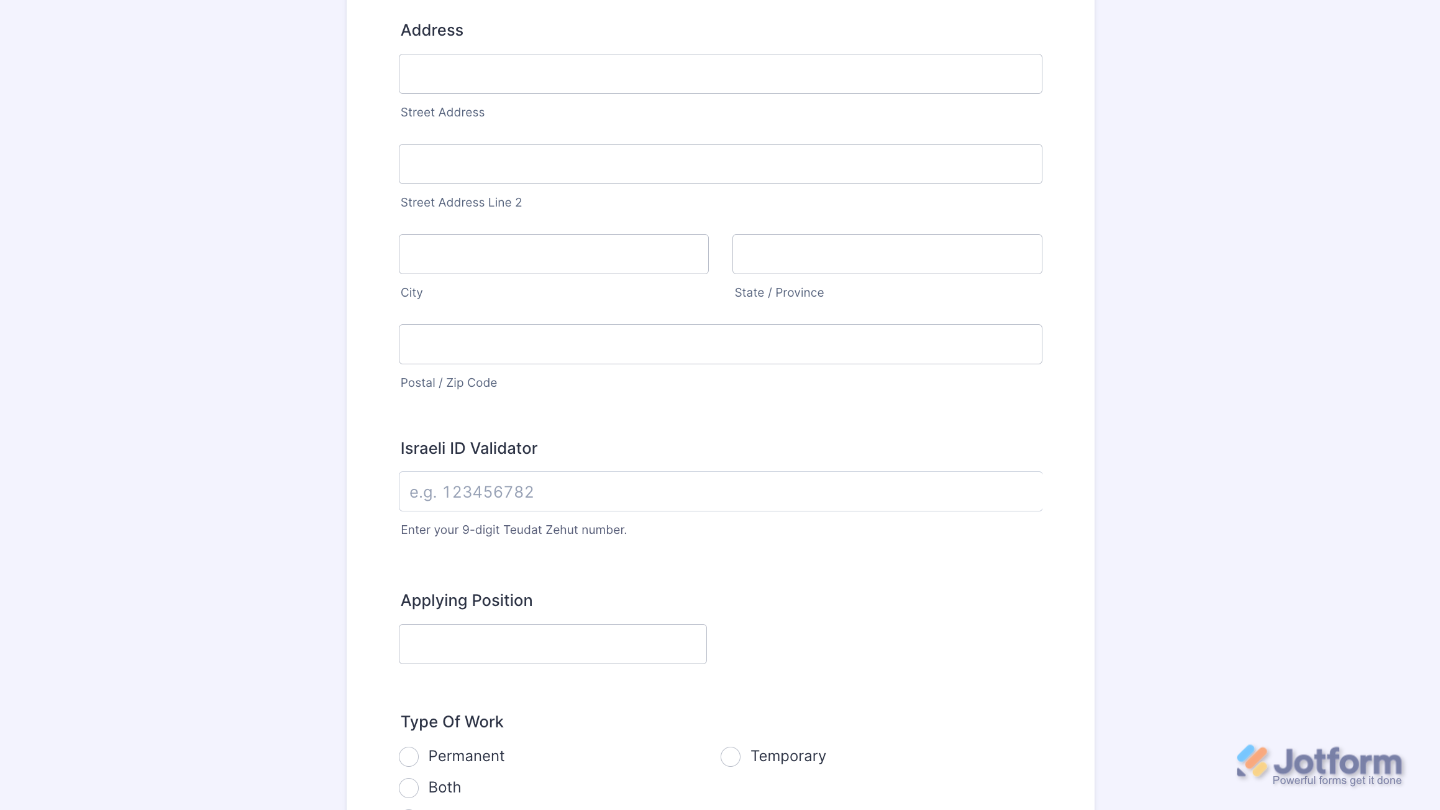
The Israeli ID Validator widget makes it easy to verify Israeli identity numbers directly on your form. It automatically checks the entered Teudat Zehut number before the form is submitted, helping reduce entry errors and keep your collected information accurate. Whether you’re collecting student IDs, processing membership applications, or handling organizational onboarding, this widget helps make the validation process simple and seamless.
Here are a few ways to use it:
- Verify student IDs — Validate student ID numbers during school registration to help reduce entry errors.
- Screen identity numbers during onboarding — Check identity numbers when collecting information for organizational onboarding.
- Reduce errors in healthcare forms — Validate identity numbers in healthcare administration forms to help keep submitted information accurate.
- Validate membership applications — Check identity numbers as part of membership applications before the form is submitted.
Note
The Israeli ID Validator checks whether the entered ID number follows the required validation rules. It does not verify the identity of the person who entered the number.
Adding and Setting Up the Israeli ID Validator Widget
With just a few simple steps, you can add the Israeli ID Validator widget to your form and automatically check Israeli ID numbers as users enter them. Here’s how to get started:
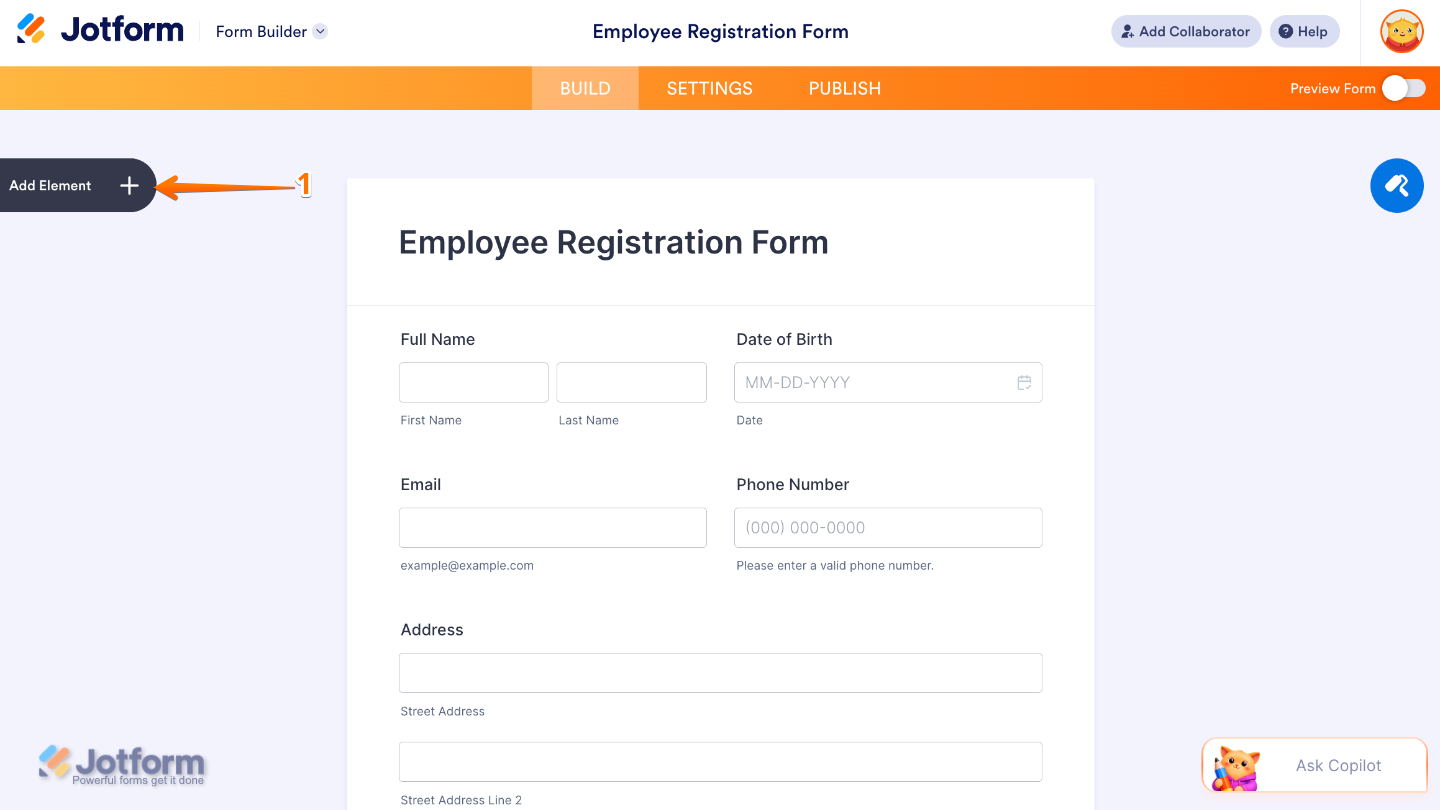
- In Form Builder, click on Add Element on the left side of the page.
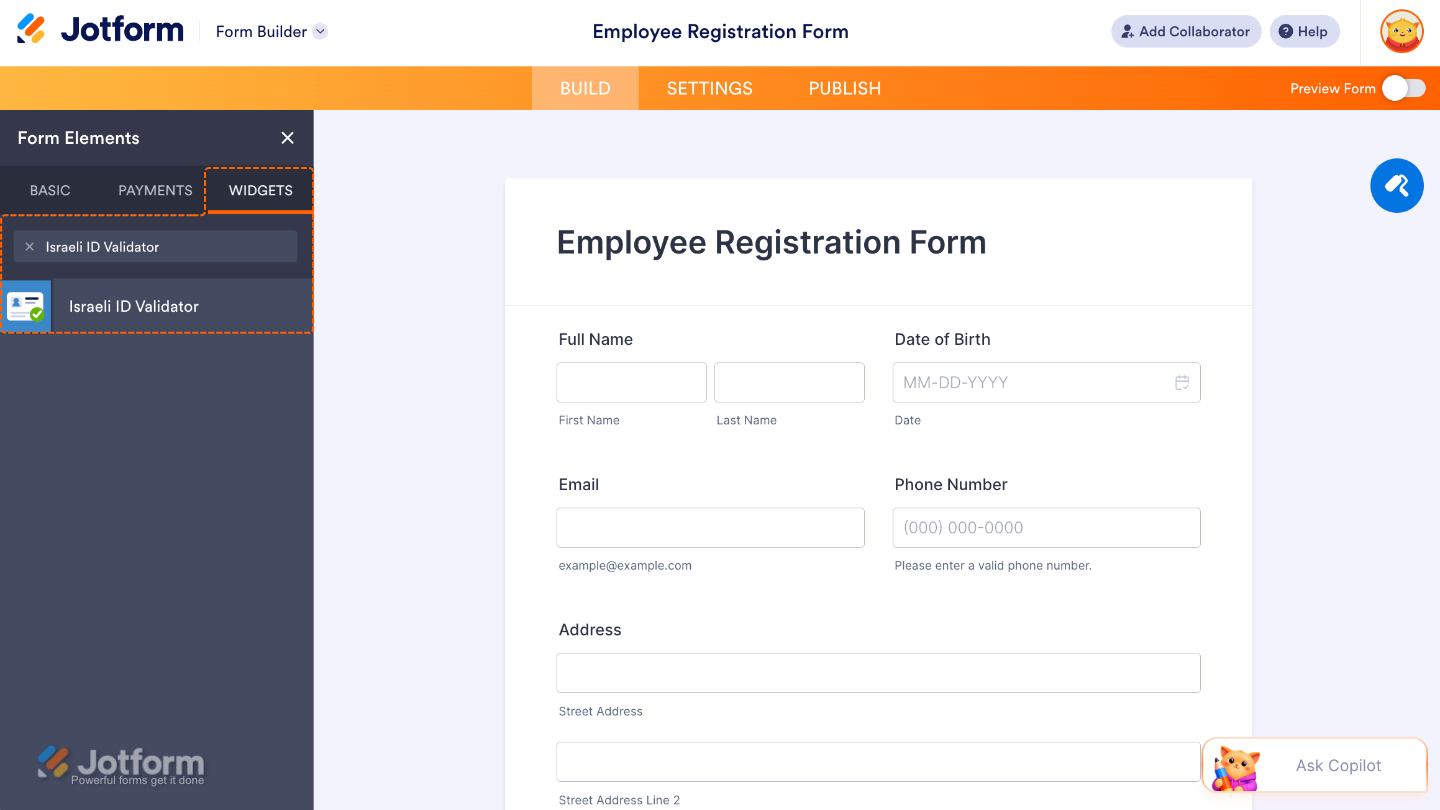
- Now, in the Form Elements menu, under the Widgets tab, search for Israeli ID Validator and then click on it. Or, just drag and drop it to where you want it to be on your form.
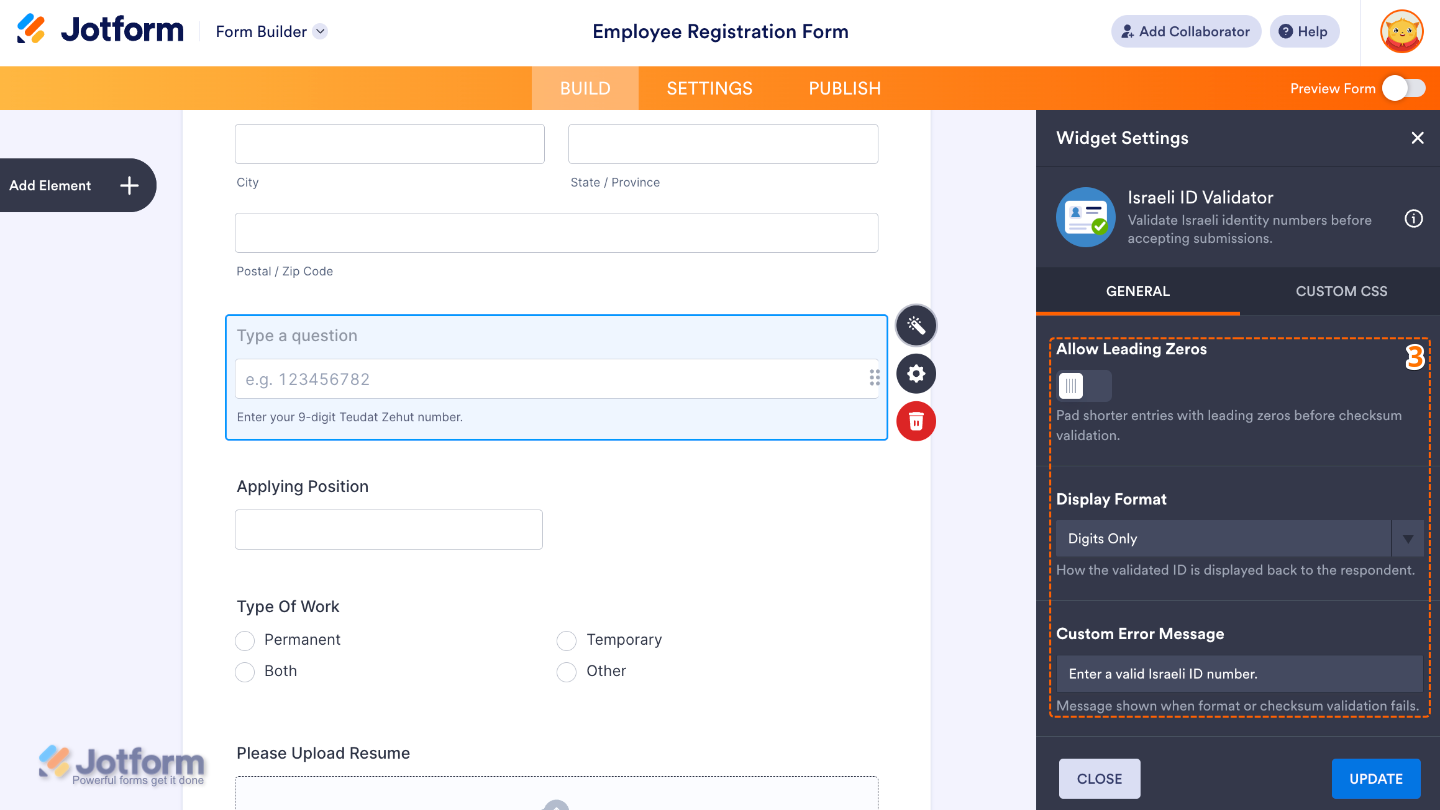
- Next, in the Widget Settings window that opens on the right side of the page, set up these options:
- Allow Leading Zeros — Choose whether to allow Israeli ID numbers that begin with one or more zeros.
- Display Format — Choose how the Israeli ID number is displayed in the field as users enter it.
- Custom Error Message — Enter your own message to show when a user enters an invalid Israeli ID number.
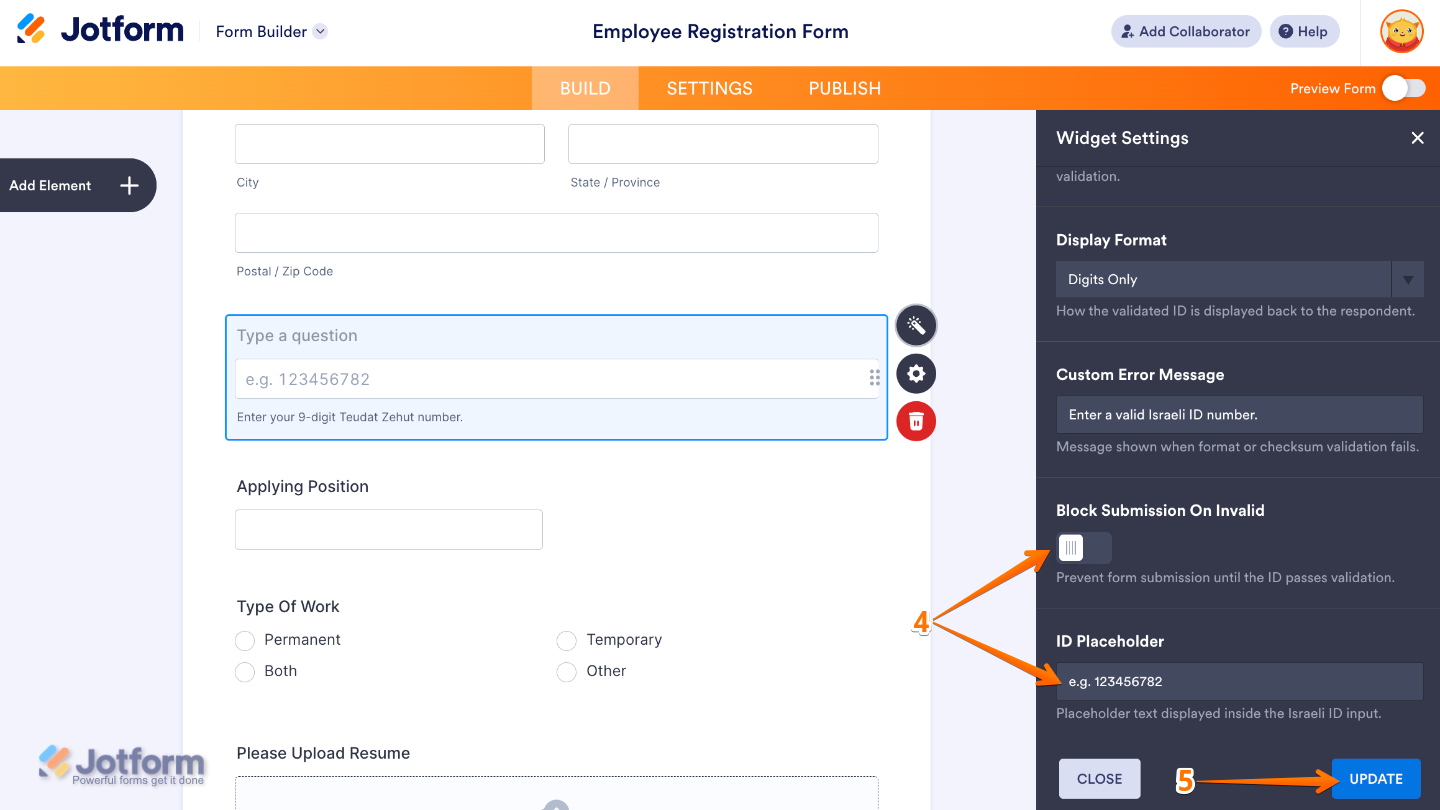
- Then, scroll down and continue to set up these options:
- Block Submission On Invalid — Prevent users from submitting the form when the entered Israeli ID number is invalid.
- ID Placeholder — Enter the placeholder text that appears in the ID field before the user enters their number.
- Once you’re done, click on Update.
That’s it! You’ve successfully added and set up the Israeli ID Validator widget on your form. Users can now enter their Israeli ID numbers, and the widget will automatically check them before the form is submitted, helping reduce entry errors and keep your collected information accurate. Ready to see it in action? Check out this demo form.
You can also configure the widget properties, like alignment, labels, size, visibility, and more, to control how it looks and behaves on your form. To learn how it’s done, see our guide on How to Access and Configure the Question Properties of a Widget.
Note
For advanced styling of the Israeli ID Validator widget, you can add your own custom CSS code under the Custom CSS tab in the Widget Settings. Our guide on How to Inject CSS Codes to Widgets walks you through everything.

Send Comment: