Jotform makes it easy to add a smooth, user-friendly typing experience to any form with the Keypad widget. This free widget lets you display an on-screen keypad in the layout you prefer—alphabetic, numeric, or a full keyboard—so users can enter information quickly and comfortably. It’s a simple way to make your forms more interactive, accessible, and convenient for anyone filling them out, whether they’re using a touchscreen device or just prefer a guided input method.
With Jotform’s Keypad widget, you can offer a cleaner, more intuitive way for users to type, helping them complete your form with fewer distractions and a lot more ease.
Here are a few ways to use it:
- Add an on-screen keypad to forms that need guided text or number entry.
- Make it easier for users to type on touchscreen devices.
- Improve accuracy when collecting codes, IDs, or short text inputs.
- Simplify data entry for surveys, feedback forms, and quick submissions.
- Offer a cleaner input method for order forms, booking forms, or request workflows.
Whether you’re starting fresh or updating a form, adding and setting up the Keypad widget takes only a few steps. Here’s a quick how-to:
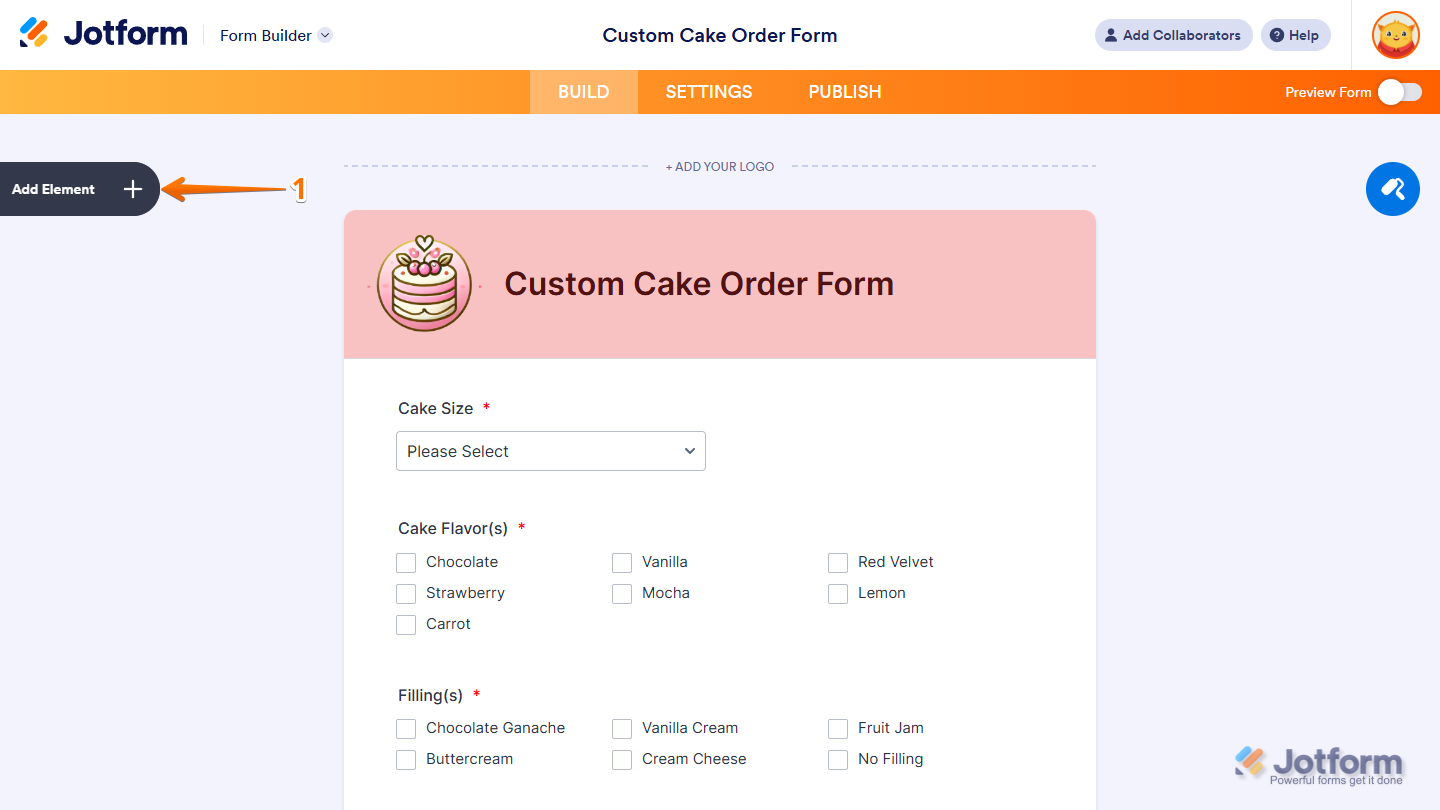
- In Form Builder, click on Add Element on the left side of the page.
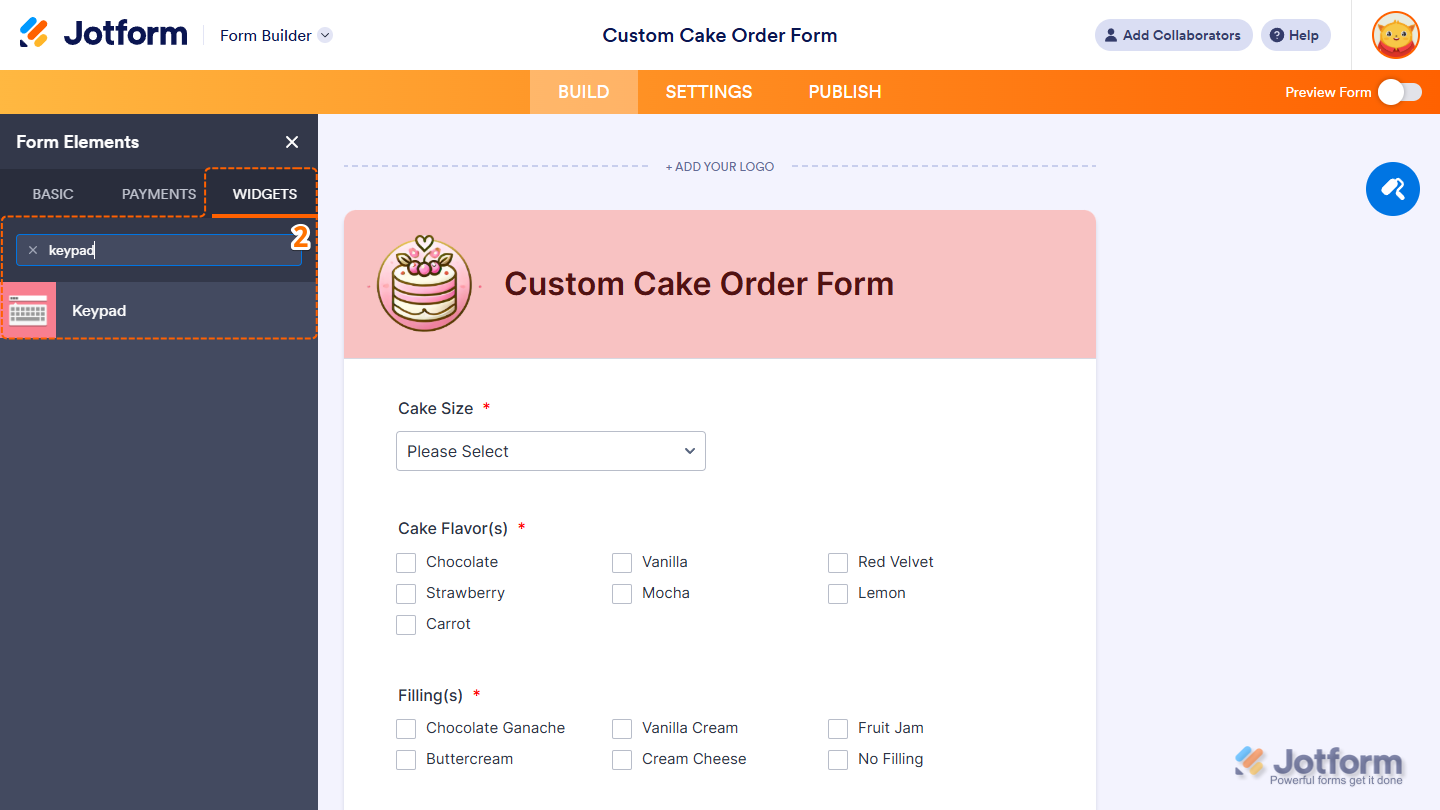
- Now, in the Form Elements menu, under the Widgets tab, search for Keypad and click on it. Or, just drag and drop it to where you want it to be on your form.
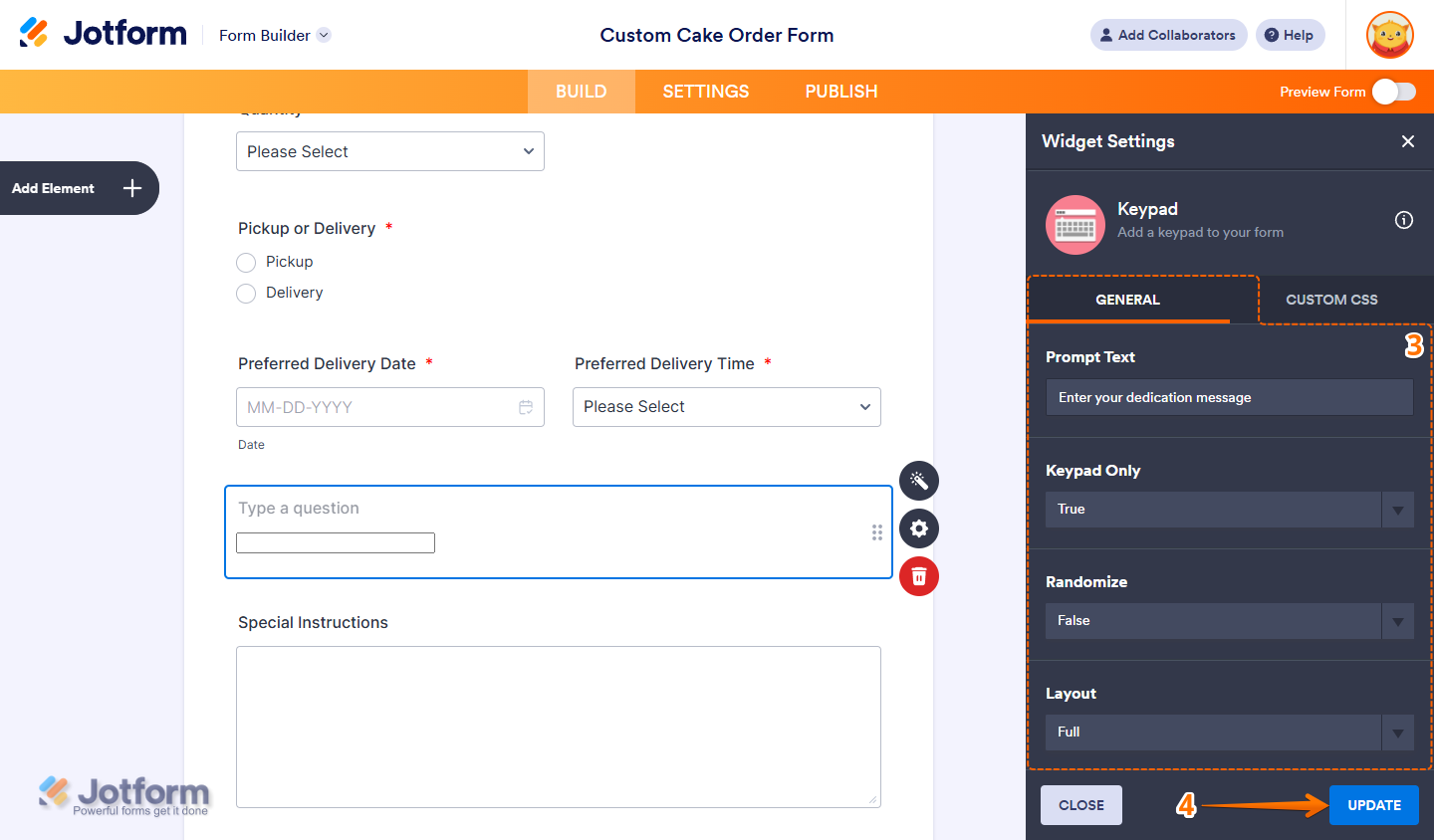
- Next, in the Widget Settings menu that opens on the right side of the page, under the General tab, you’ll see this list of settings you can configure:
- Prompt Text — Enter the text you want to display above the keypad to guide users on what to type.
- Keypad Only — Select False if you want to allow users to type using their physical keyboard. Or, keep it set to True if you want users to enter their responses using the on-screen keypad only.
- Randomize — Select False if you want the keypad to appear in its standard Qwerty layout. Or, keep it set to True if you want the keys to appear in random order each time for added security or variation.
- Layout — Keep it set to Alphabetic if you want to keep the default A–Z keypad. Or, select Numeric for numbers only, or Full for a complete keyboard with letters, numbers, and symbols.
- Once everything’s set, click on Update.
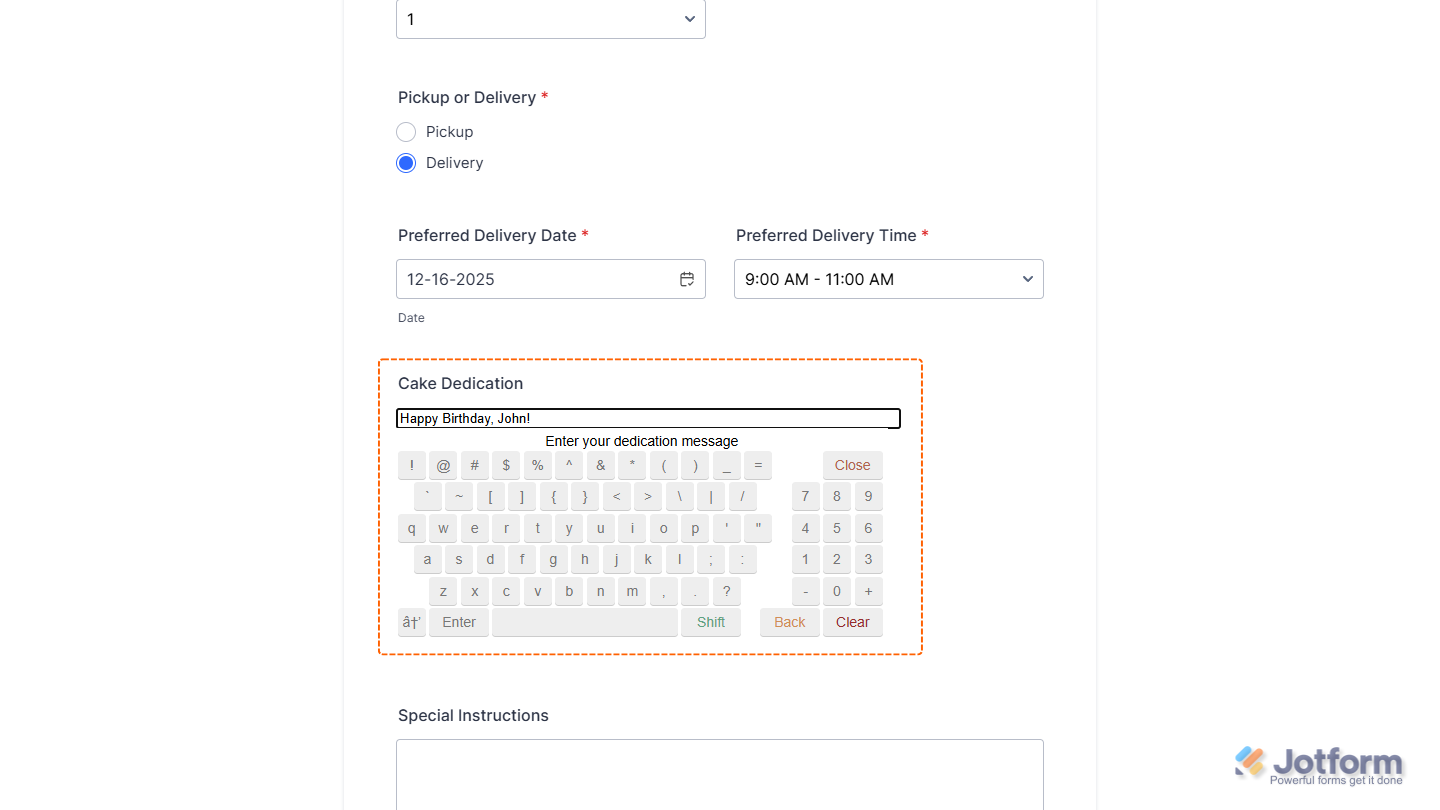
That’s it. You’ve successfully added and set up the Keypad widget on your form. You can test it on this demo form.
Notes
- For advanced styling of the Keypad widget, you can add your own custom CSS code under the Custom CSS tab in the Widget Settings. Our guide on How to Inject CSS Codes to Widgets walks you through everything.
- You can also configure the widget properties, like alignment, labels, size, visibility, and more, to control how it looks and behaves on your form. Check out our guide on How to Access and Configure the Question Properties of a Widget to learn more.

Send Comment: