The Knob widget is a fun and interactive way for users to input numerical values on your form. It lets respondents simply turn a dial to select a number, making data entry more engaging and intuitive than typing in a value. Whether you’re collecting ratings, setting quantities, or measuring preferences, this widget adds a sleek, hands-on element to your form.
Here are a few ways to use it:
- Collect Ratings or Scores — Instead of a plain number field, let users “dial in” their rating. Perfect for feedback forms, surveys, or performance assessments.
- Fine-Tune Quantities or Percentages — Use it for things like budgeting, project estimates, or progress tracking. Users can easily adjust values with a smooth, tactile interface.
- Interactive Forms for Learning or Games — If your form includes quizzes, training exercises, or interactive tools, the knob adds a playful and engaging element that keeps users involved.
- Visualize Choices Clearly —The circular design makes it easy to see at a glance what value has been selected. It’s especially handy when you want input to feel precise yet intuitive.
Adding and Setting Up the Knob Widget
Adding the Knob widget to your form gives your users a fun, intuitive way to select a value by simply turning a dial. Here’s how to get going:
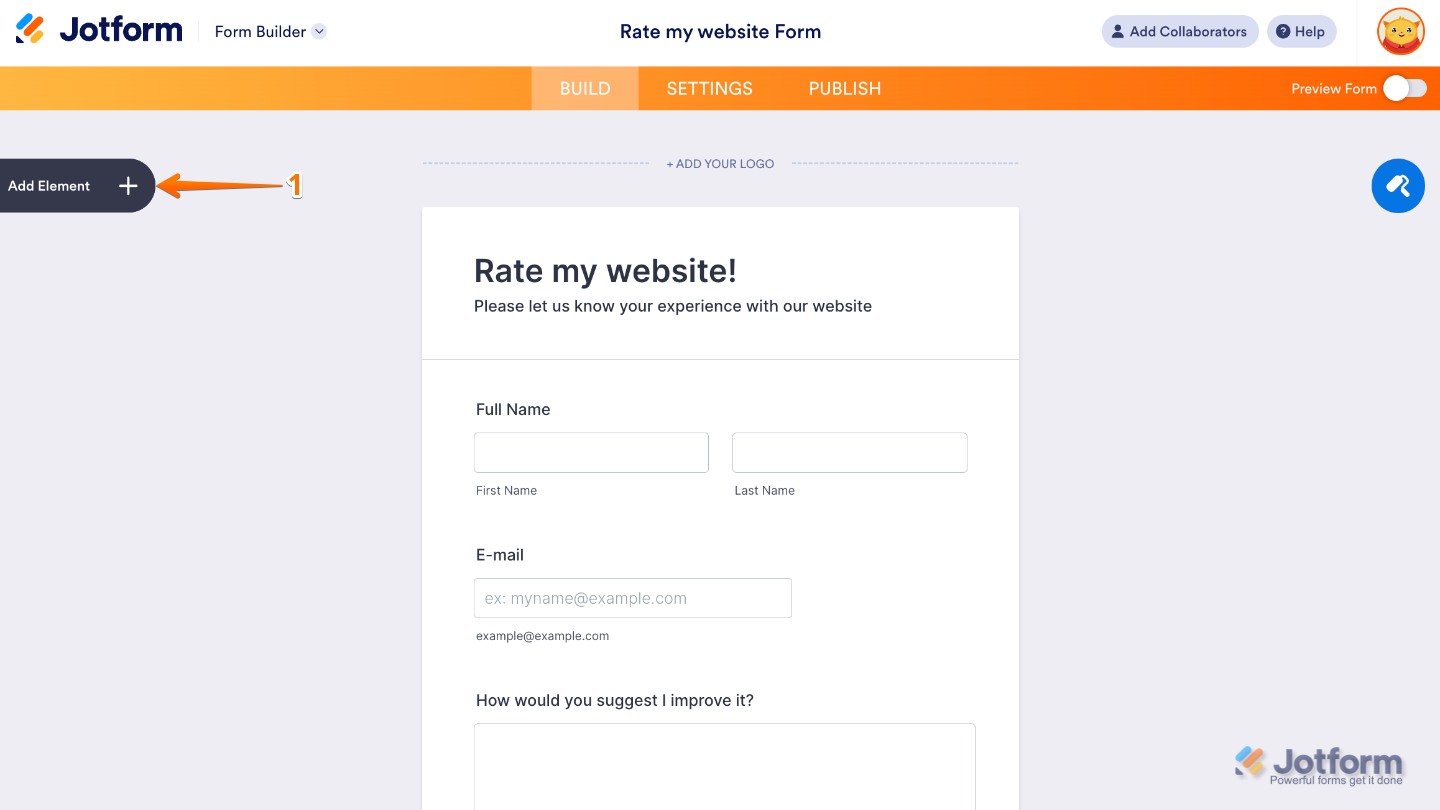
- In Form Builder, click on Add Element on the left side of the page.
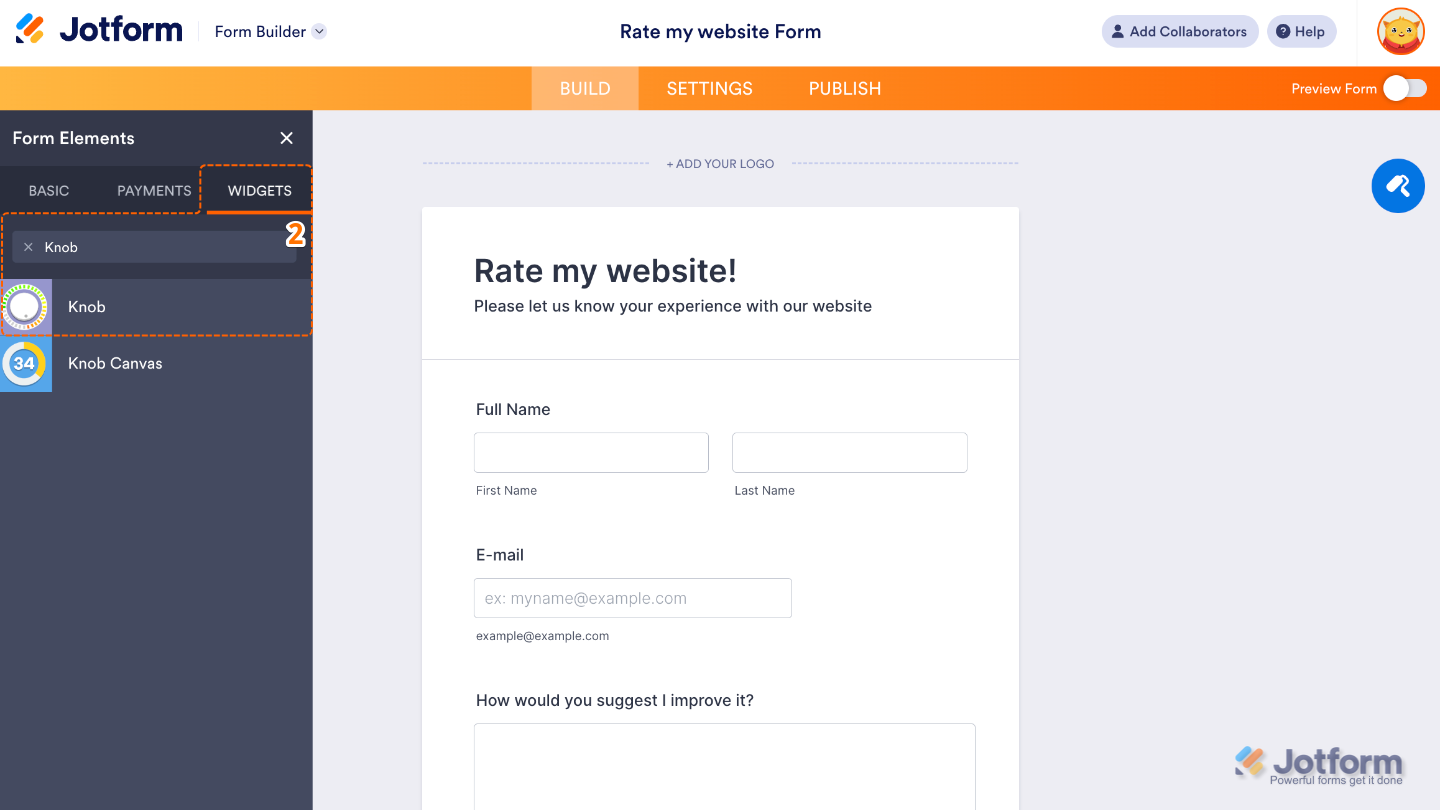
- Now, in the Form Elements menu, under the Widgets tab, search for Knob and then click on it. Or, just drag and drop it to where you want it to be on your form.
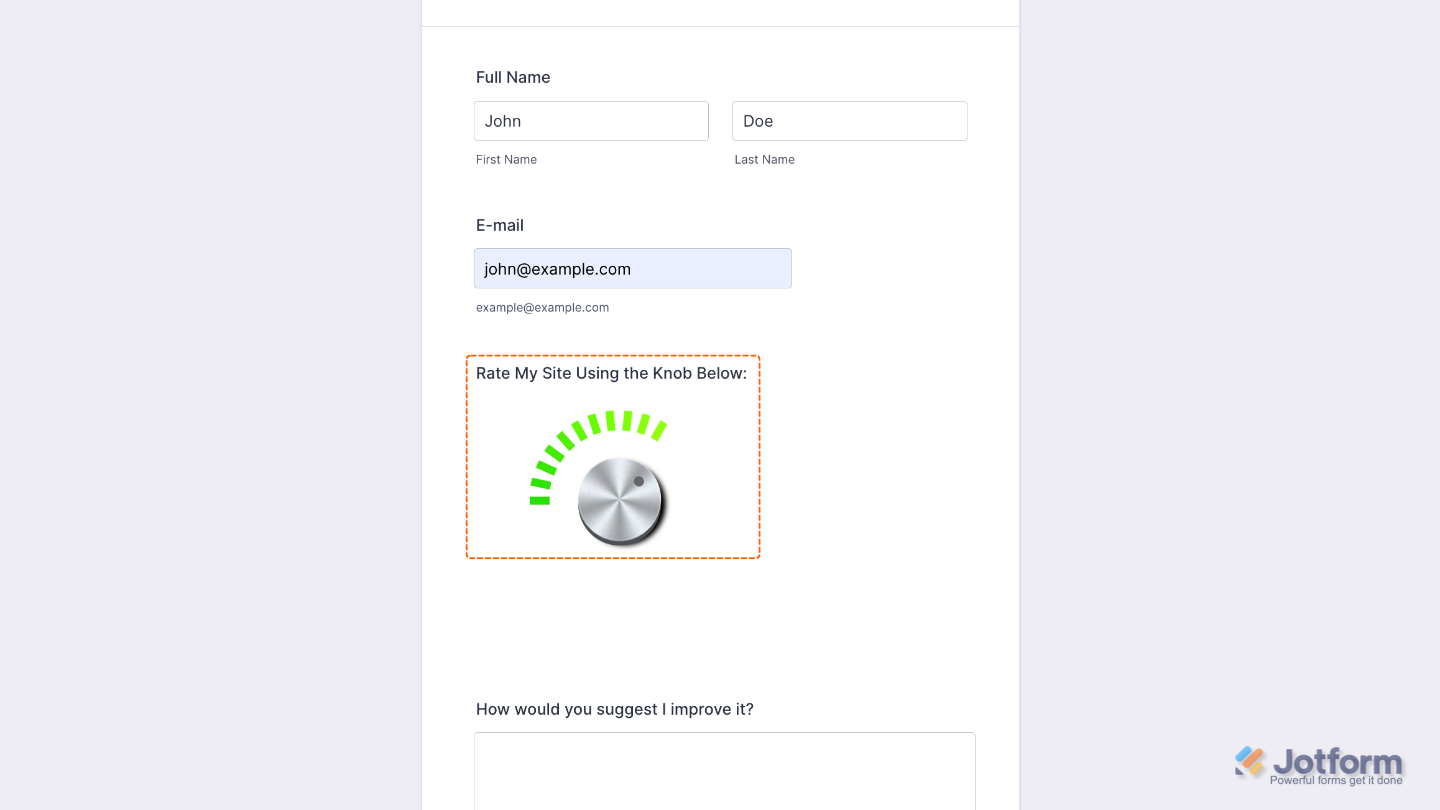
Just add a field label, and you’re all set. You’ve successfully added and set up the Knob widget on your form. Now your users can easily adjust values with a simple turn of the dial, giving them a smooth, interactive way to input numbers with precision. Curious how it works on a live form? Check out this Demo Form.
You can also configure the widget properties, like alignment, labels, size, visibility, and more, to control how it looks and behaves on your form. To learn how it’s done, see our guide on How to Access and Configure the Question Properties of a Widget.
Note
For advanced styling of the Knob widget, you can add your own custom CSS code under the Custom CSS tab in the Widget Settings. Our guide on How to Inject CSS Codes to Widgets walks you through everything.
Pro Tip
The Knob Widget is great when you want users to choose a value with a simple twist—perfect for ratings, intensity levels, or any form where sliders feel too long.

Send Comment: