With Jotform, you can easily add an extra layer of protection to your forms using the Math Captcha widget. This simple tool asks users to solve a quick, randomly generated math problem before submitting, helping you filter out spam and ensure that real people—not bots—are interacting with your form.
It’s a straightforward way to keep your submissions clean and reliable, and you can even adjust the maximum number used in the equations to control how easy or challenging the questions will be. Whether you’re collecting inquiries, orders, or feedback, Math CAPTCHA helps keep your forms secure without slowing down your users.
Here are a few ways to use it:
- Require users to answer a quick math question before submitting.
- Add a simple verification step to keep your form secure.
- Reduce spam and automated submissions.
- Confirm user authenticity without slowing them down.
- Add an extra layer of protection to order forms, inquiry forms, feedback forms, and more.
Whether you’re creating a new form or updating an existing one, you can add and set up the Math Captcha widget in a few easy steps. Here’s how to do it:
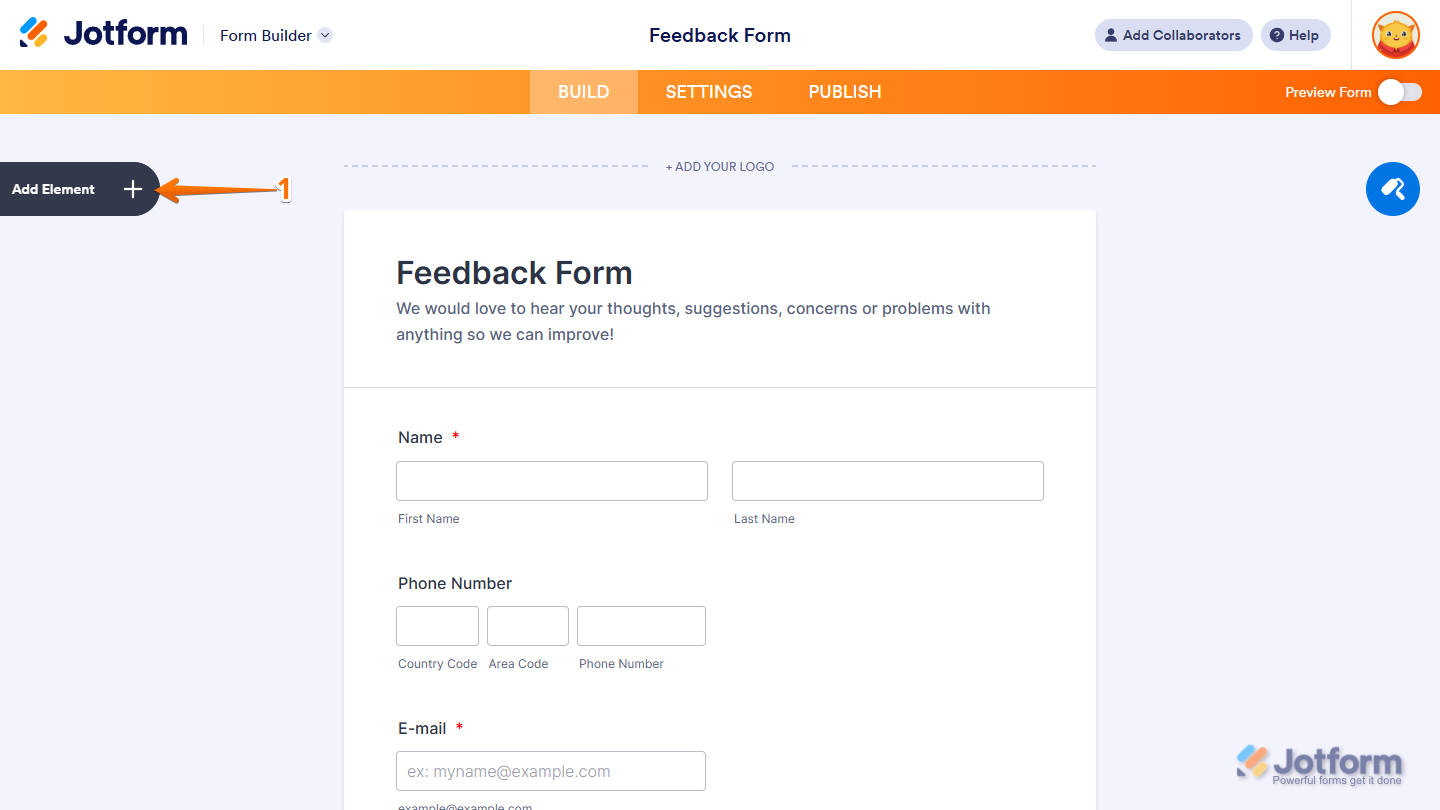
- In Form Builder, click on Add Element on the left side of the page.
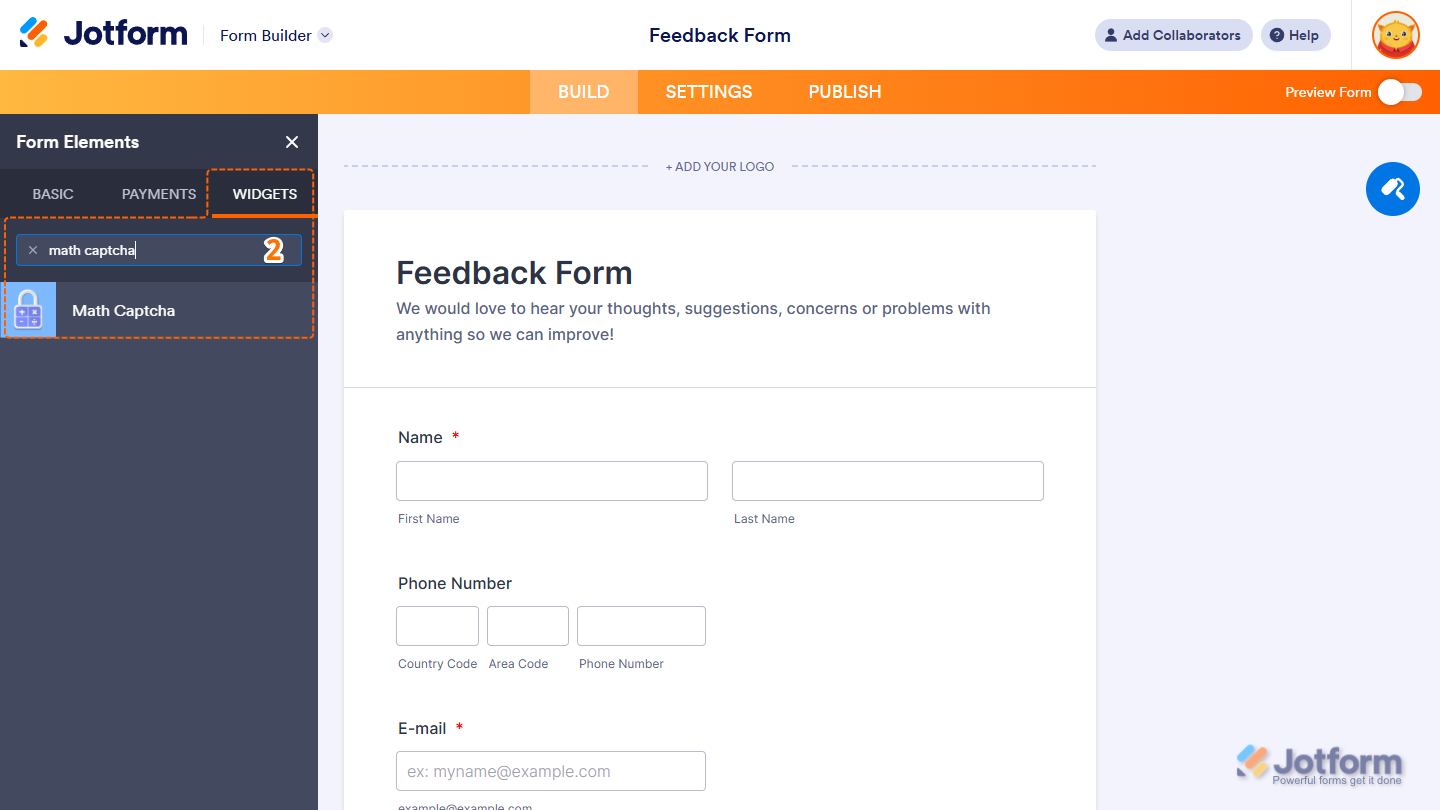
- Now, in the Form Elements menu, under the Widgets tab, search for Math Captcha and click on it. Or, just drag and drop it to where you want it to be on your form.
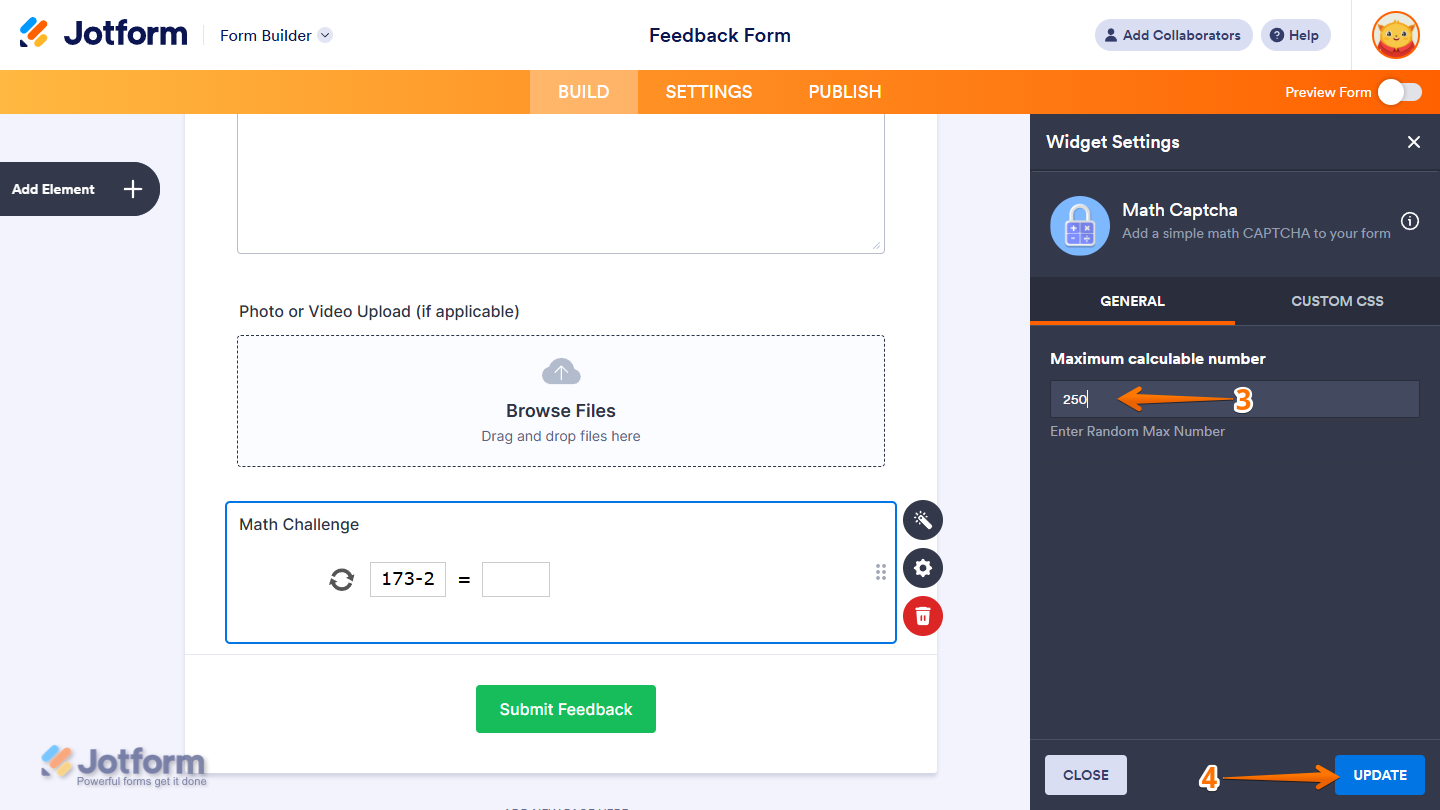
- Next, in the Widget Settings menu that opens on the right side of the page, under the General tab, delete the default value in the Maximum Calculable Number input box and enter the highest number you want the widget to use when generating math problems.
- Once you’re done, click on Update.
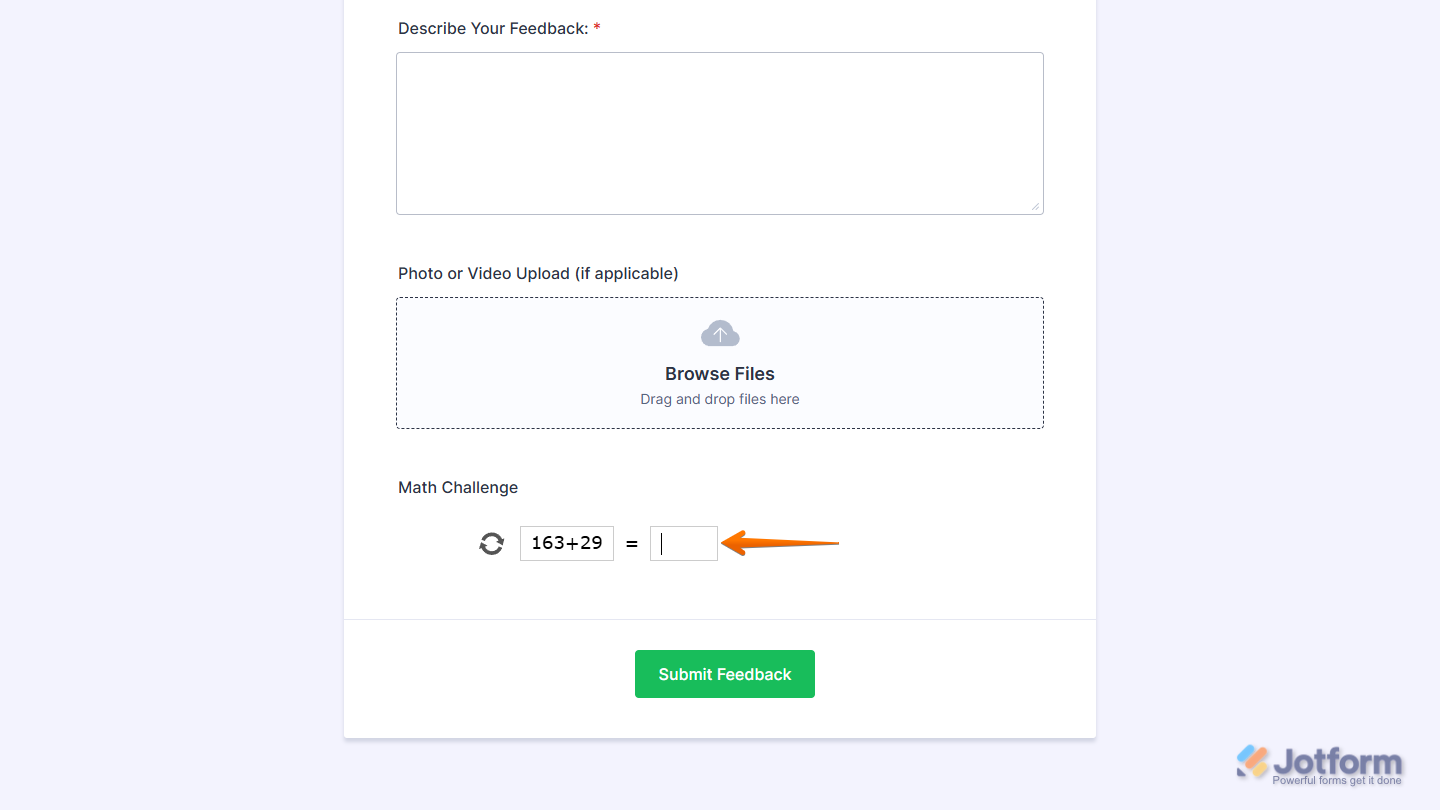
That’s it. Now you’ve added and set up the Math Captcha widget on your form. Wondering how it looks in action? Check out this demo form.
Notes
- For advanced styling of the Math Captcha widget, you can add your own custom CSS code under the Custom CSS tab in the Widget Settings. Our guide on How to Inject CSS Codes to Widgets walks you through everything.
- You can also configure the widget properties, like alignment, labels, size, visibility, and more, to control how it looks and behaves on your form. Check out our guide on How to Access and Configure the Question Properties of a Widget to learn more.

Send Comment: