Jotform’s MathJax widget lets you display mathematical formulas and equations in your form using TeX, LaTeX, or MathML notation. It renders high-quality expressions clearly without any coding, making it easier to present complex math content in a clean and readable format.
Here are a few ways to use it:
- Display TeX, LaTeX, or MathML notations in your form.
- Show mathematical formulas and equations clearly.
- Add instructional math content to quizzes or forms.
- Present complex expressions in a readable format.
Whether you’re creating a new form or updating an existing one, you can add and set up the MathJax widget in a few easy steps. Here’s how to do it:
- In Form Builder, click on Add Element on the left side of the page.

- Now, in the Form Elements menu, under the Widgets tab, search for MathJax and click on it. Or, just drag and drop it to where you want it to be on your form.

- Next, in the Widget Settings window that opens on the right side of the page, under the General tab, you’ll see these settings you can configure:
- Question Field — Enter your LaTeX code or formula here.
- Answer Label — Enter the label or title for the answer field.
- Once you’re done, click on Update.
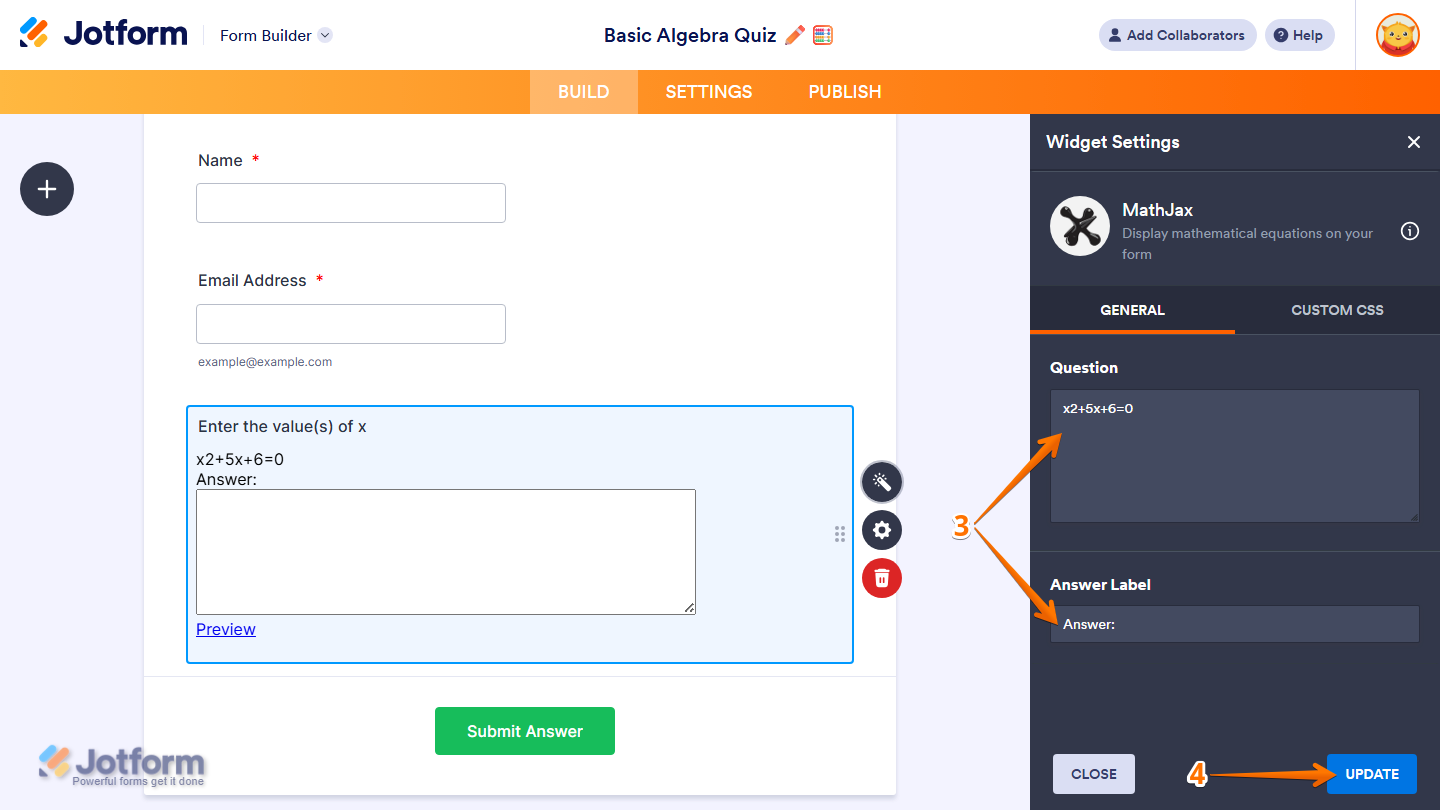
That’s it. You’ve successfully added and set up the MathJax widget on your form.
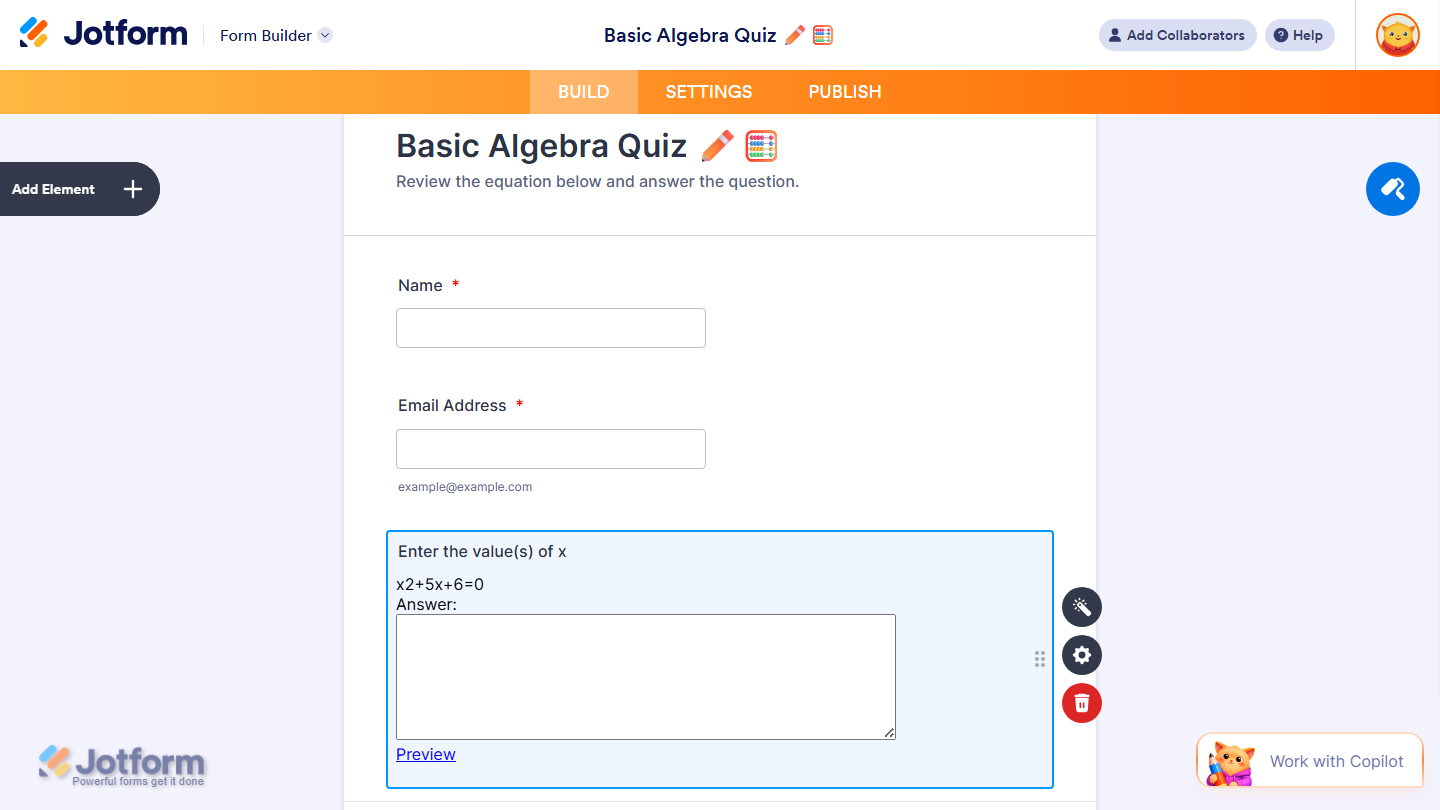
Wondering how it looks in action? Check out this demo form.
Note
- For advanced styling of the MathJax widget, you can add your own custom CSS code under the Custom CSS tab in the Widget Settings. Our guide on How to Inject CSS Codes to Widgets walks you through everything.
- You can also configure the widget properties, like alignment, labels, size, visibility, and more, to control how it looks and behaves in your form. Check out our guide on How to Access and Configure the Question Properties of a Widget to learn more.

Send Comment: