The Matrix Calculator widget is a great way to perform calculations based on multiple inputs arranged in rows and columns. It’s a good way to add some powerful number-crunching to your form without making things complicated for your users. Whether you’re collecting scores, measuring data, or computing totals, this widget helps you handle complex calculations behind the scenes while keeping your form clean and easy to use.
Here are a few ways to use it:
- Do Complex Calculations Behind the Scenes — If your form needs to crunch numbers, especially when multiple values depend on each other—the Matrix Calculator can handle all the heavy lifting. You can set up formulas once, and the widget automatically computes totals, results, or scores for you.
- Create Advanced Scoring Systems — Whether you’re building an assessment, evaluation form, or personality quiz, you can assign different weights to answers and let the widget calculate a final score. It keeps everything accurate, consistent, and completely automated.
- Simplify Financial or Cost Calculations — For forms used in budgeting, invoicing, or quoting, the Matrix Calculator helps compute totals based on user inputs. Items, quantities, fees, and discounts can all feed into the formula — saving you manual work and ensuring the math is always right.
- Model Decision Logic or Weighted Choices —If your form includes choices that carry different point values or importance levels, the widget can compute outcomes using a matrix-style calculation. This lets you build more advanced logic without needing custom code.
Adding and Setting Up the Matrix Calculator Widget
Adding the Matrix Calculator widget to your form gives you a powerful way to perform automatic calculations based on values entered into a matrix field. Setting it up takes no time at all—here’s how:
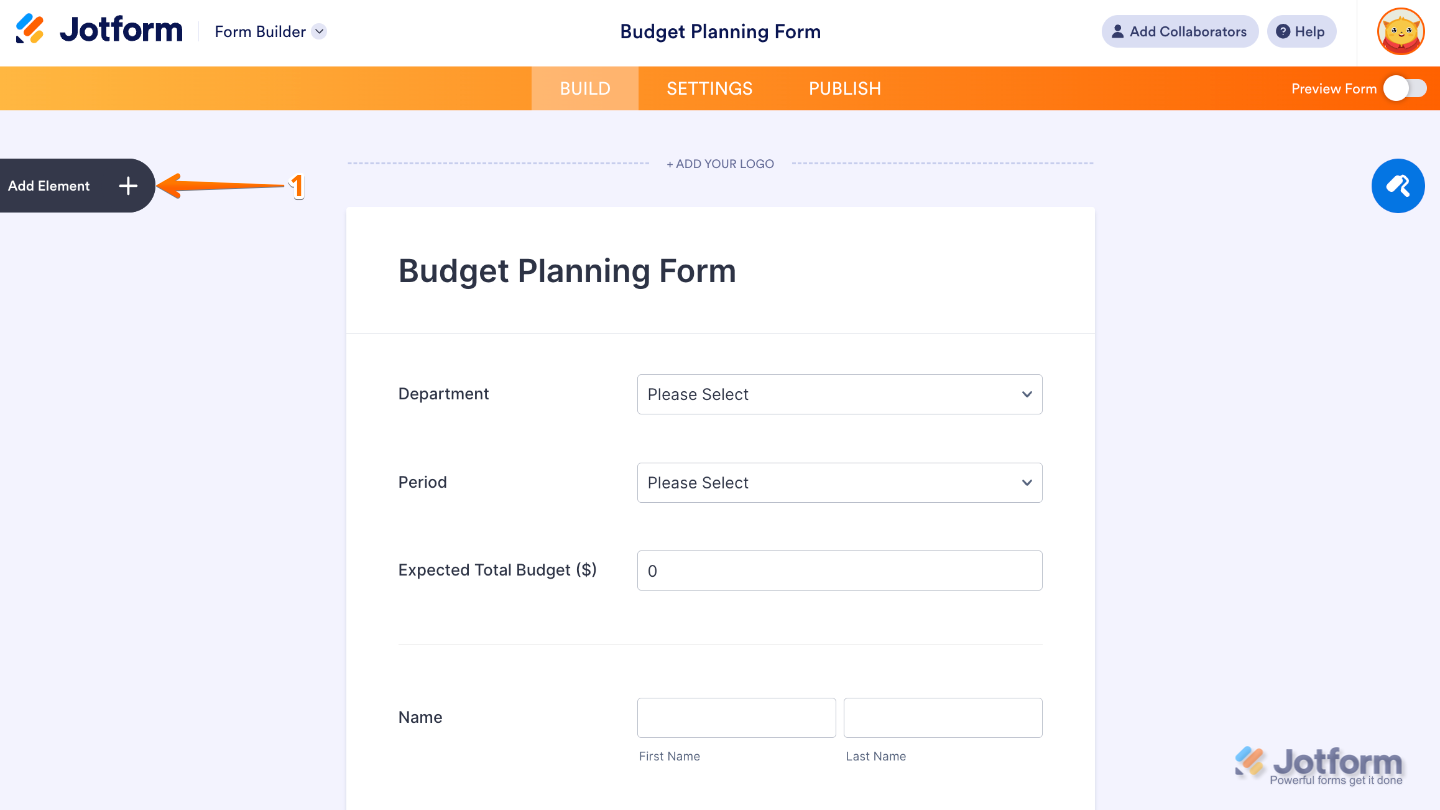
- In Form Builder, click on Add Element on the left side of the page.
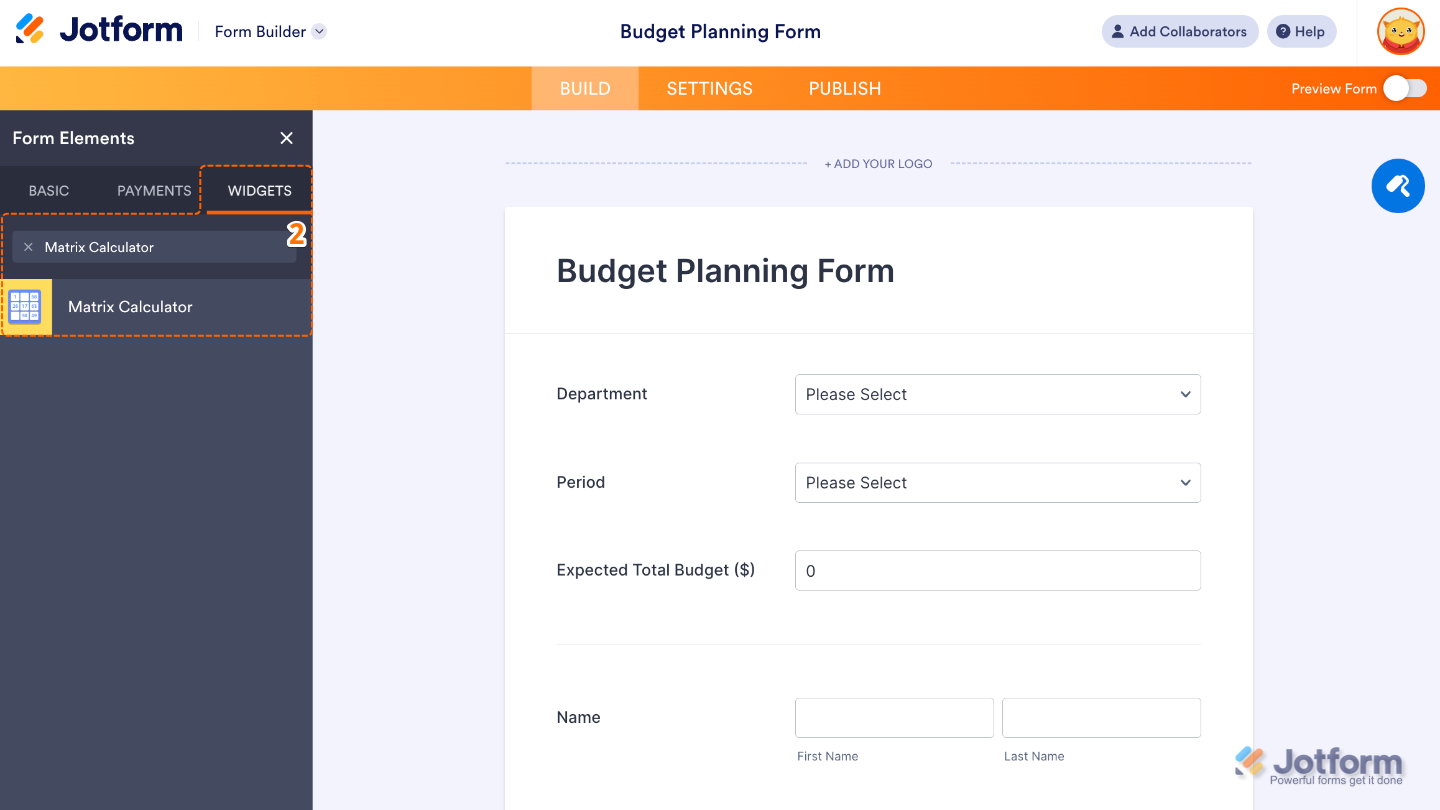
- Now, in the Form Elements menu, under the Widgets tab, search for Matrix Calculator and then click on it. Or, just drag and drop it to where you want it to be on your form.
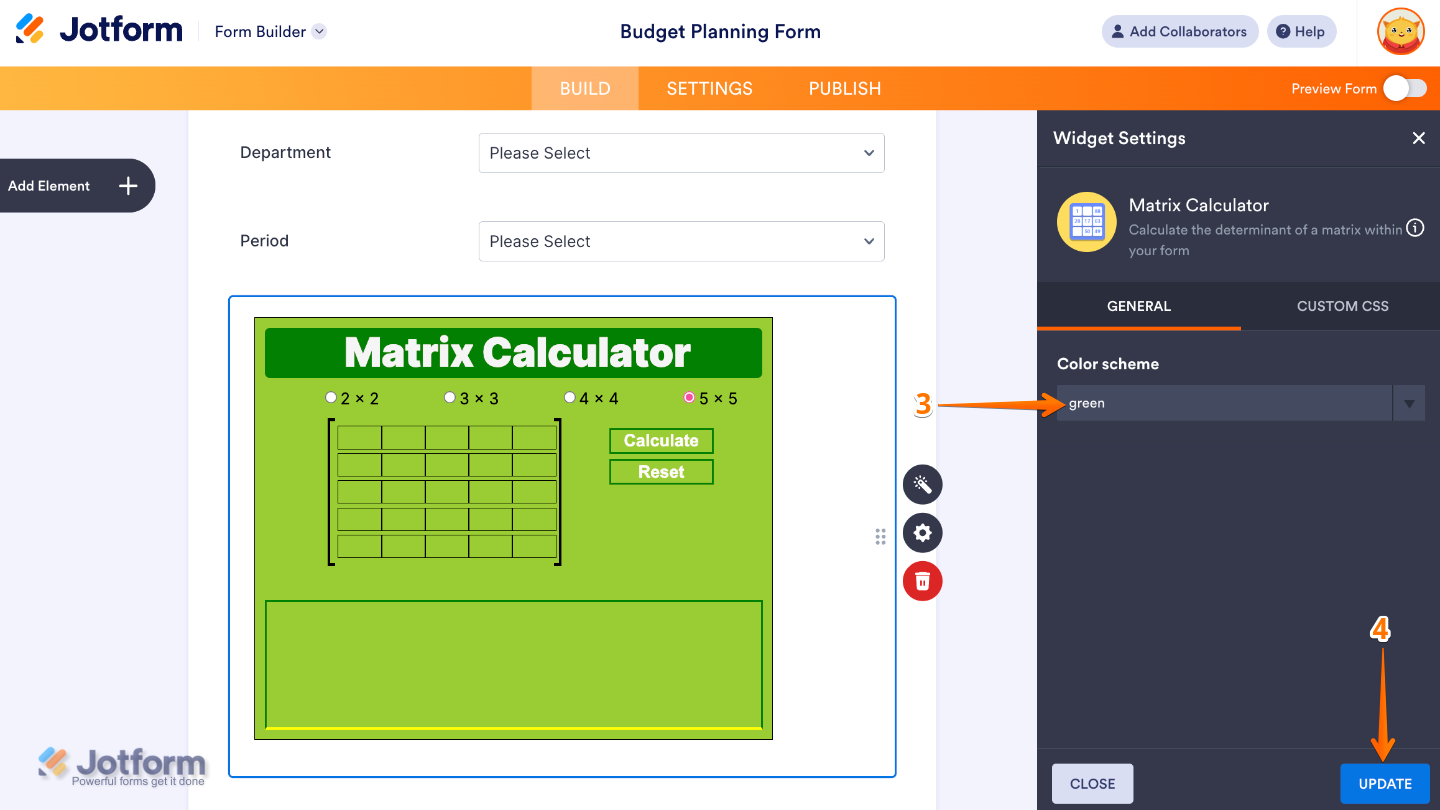
- Next, in the Widget Settings menu that opens on the right side of the page, set up Color Scheme options to customize the colors of your matrix, so your calculator not only works well but also looks great.
- Once you’re done, click on Update.
That’s it. You’ve successfully added and set up the Matrix Calculator widget on your form. Now you can automatically compute totals and scores based on your matrix entries, making complex calculations faster, cleaner, and completely hassle-free. Curious how it works on a live form? Check out this Demo Form.
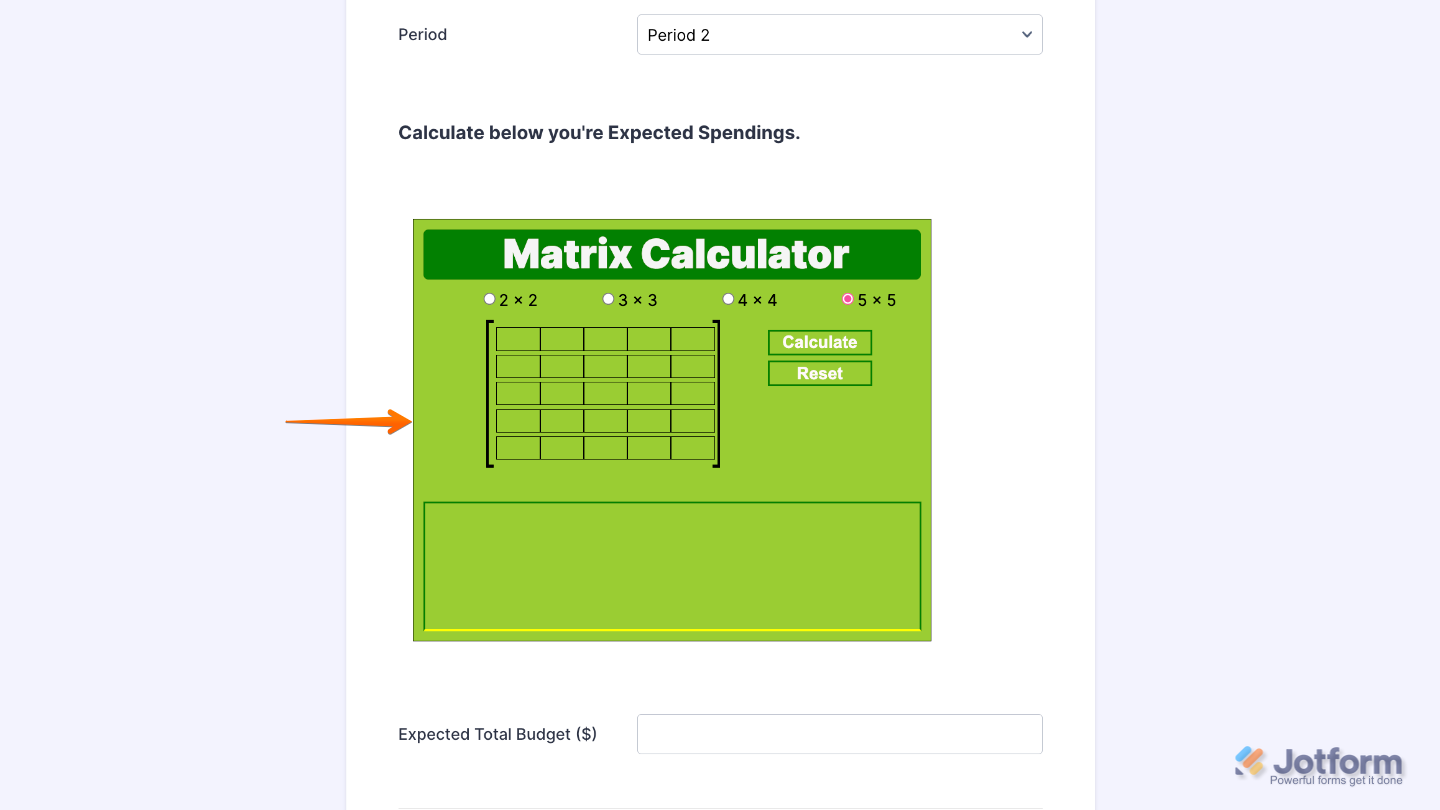
You can also configure the widget properties, like alignment, labels, size, visibility, and more, to control how it looks and behaves on your form. To learn how it’s done, see our guide on How to Access and Configure the Question Properties of a Widget.
Note
For advanced styling of the Matrix Calculator widget, you can add your own custom CSS code under the Custom CSS tab in the Widget Settings. Our guide on How to Inject CSS Codes to Widgets walks you through everything.
Pro Tips
- Clear row and column labels help users understand exactly what they’re evaluating or selecting. Avoid overly long or complex titles—brevity is your friend.
- The widget calculates totals automatically. Make sure the total row or column is easy to spot, so users can quickly see results.

Send Comment: