Jotform’s Orderable List widget lets you effortlessly create a drag‑and‑drop ranking question in your form. It’s ideal for surveys, quizzes, or feedback forms where you want users to prioritize items, rank preferences, or organize steps in a process. Whether you’re collecting opinions, testing knowledge, or managing workflows, this widget makes it easy for users to visually rearrange options with just a few clicks or taps—enhancing both engagement and data clarity.
Here are a few ways to use it:
- Allow applicants to prioritize job locations or departments.
- Allow voters to rank candidates or proposals.
- Collect feature requests and have users sort them by urgency.
- Collect ranked choices for event sessions or workshop topics.
- Conduct surveys that require ordered responses instead of simple selections.
- Enable participants to arrange travel destination preferences.
- Gather student course preferences in order of priority.
- Let customers arrange package inclusions based on importance.
- Let teams prioritize project tasks or initiatives.
- Let users rank preferences (e.g., favorite products, features, or services).
Whether you’re creating a new form or updating an existing one, you can add and set up the Orderable List widget on your form in a few easy steps. It only takes a minute to set up—here’s how:
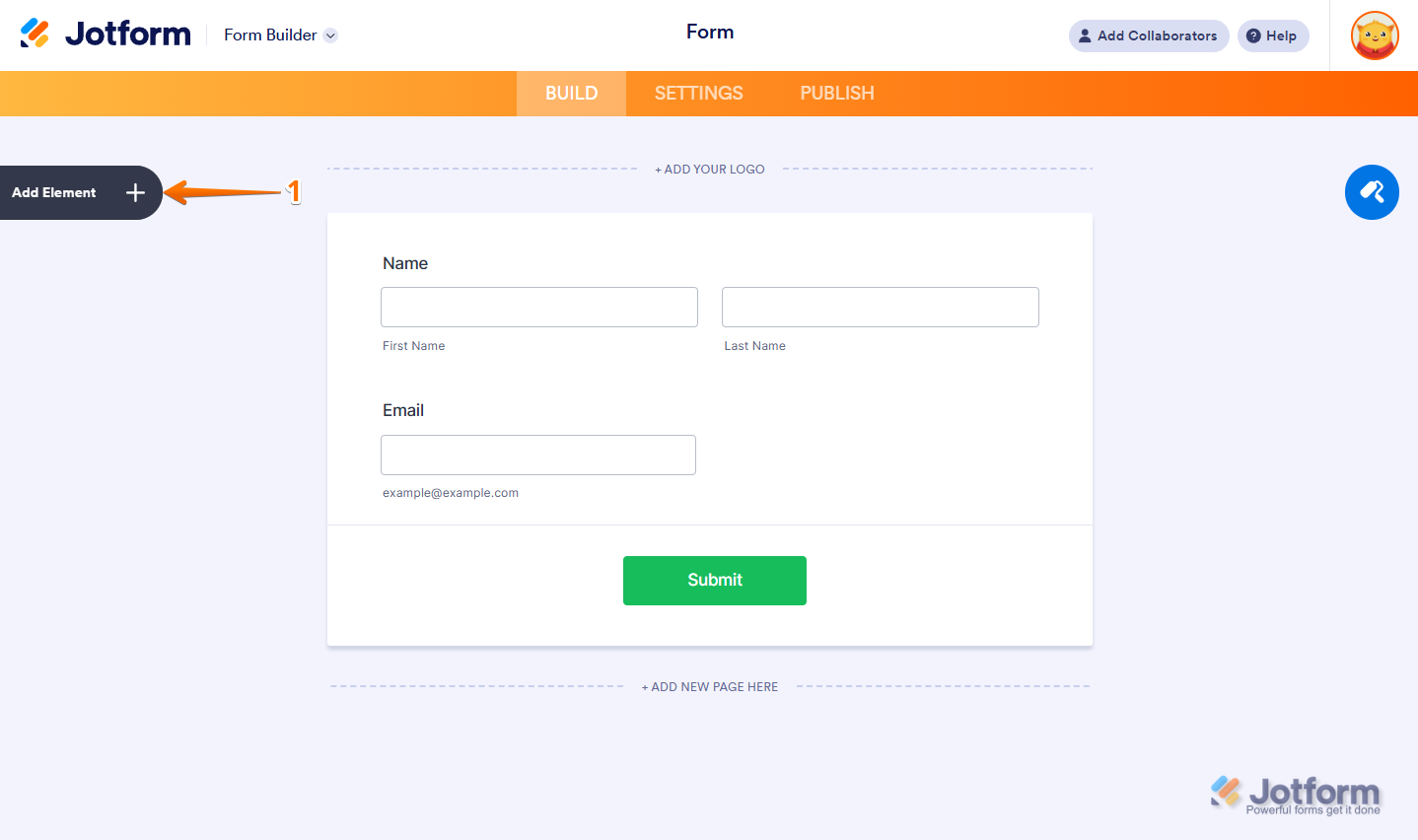
- In Form Builder, click on Add Element on the left side of the page.
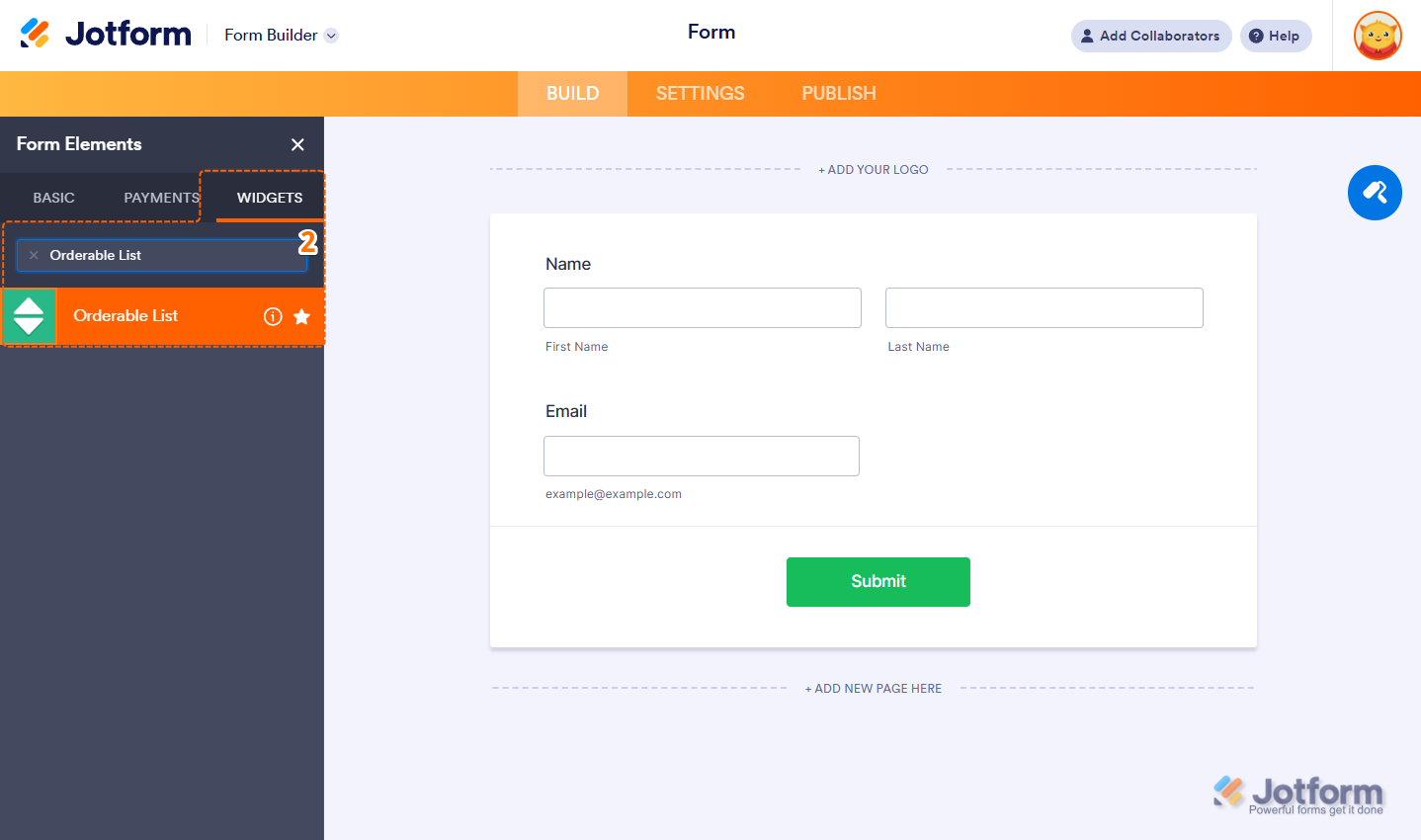
- Now, in the Form Elements menu, under the Widgets tab, search for Orderable List and click on it. Or just drag and drop it to where you want it on your form.
- Next, in the Orderable List Widget Settings menu that opens on the right side of the page, under the General tab, replace the options from the List Items box with your new options.
- Once you’re done, click on Update.
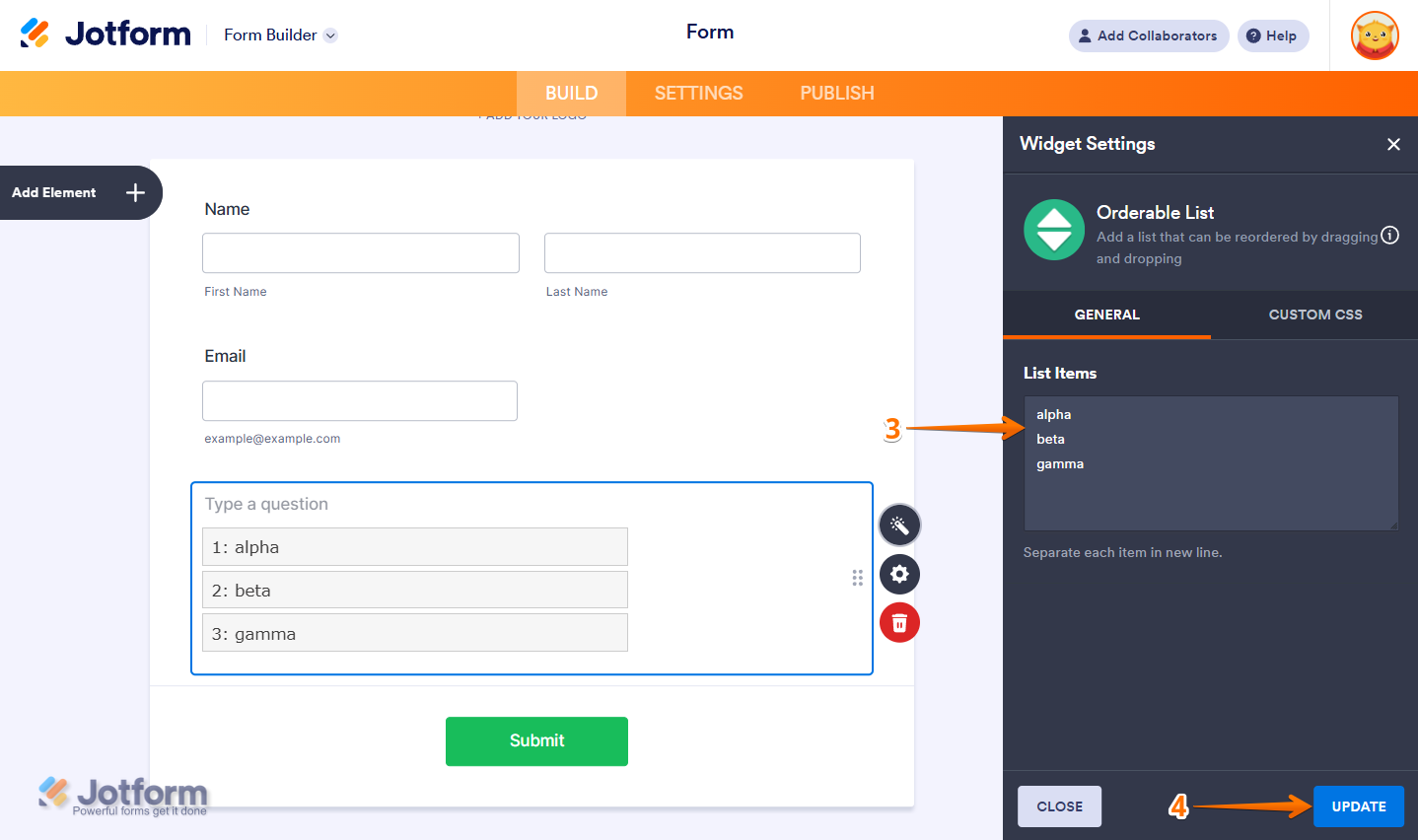
That’s it! You’ve now successfully added and set up the Orderable List widget to your form. Check out this demo form to see it in action.
Notes
- For advanced styling of the widget, you can add your own custom CSS code under the Custom CSS tab in the Widget Settings. Our guide on How to Inject CSS Codes to Widgets walks you through everything.
- You can also configure the widget properties, like alignment, labels, size, visibility, and more, to control how it looks and behaves on your form. Check out our guide on How to Access and Configure the Question Properties of a Widget to learn more.

Send Comment: