Jotform’s Social Follow widget is a great way to boost your online presence by letting users easily connect with you on popular social media platforms. Whether you’re promoting a brand, business, or personal profile, this widget displays clickable icons that link directly to your social pages—encouraging engagement and helping you grow your audience without leaving the form. It’s perfect for forms related to events, subscriptions, feedback, or contact, where you want to keep users connected beyond just a single submission.
Here are a few ways to use it:
- Connect customers to your support or community channels.
- Direct applicants to the company’s social pages for updates.
- Display your social media profiles directly on your form.
- Encourage users to follow your brand after submitting a form.
- Grow your audience while collecting leads or inquiries.
- Highlight official accounts to build credibility and trust.
- Increase visibility for new product launches or campaigns.
- Promote business pages during event registrations.
- Share nonprofit or advocacy pages during donation drives.
- Turn confirmation or thank-you pages into social growth opportunities.
Whether you’re creating a new form or updating an existing one, adding and setting up the Social Follow widget only takes a second—here’s what to do:
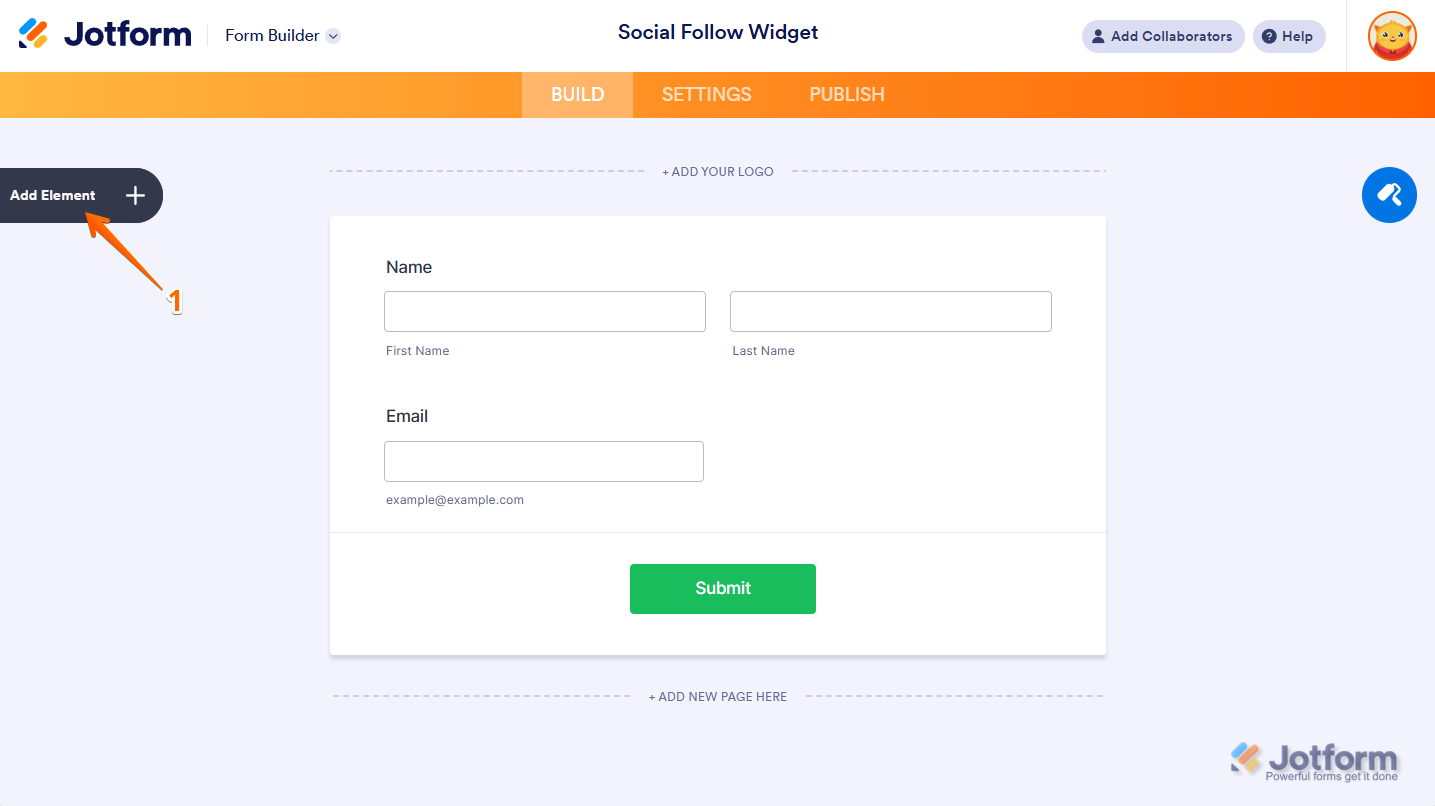
- In Form Builder, click on Add Element on the left side of the page.
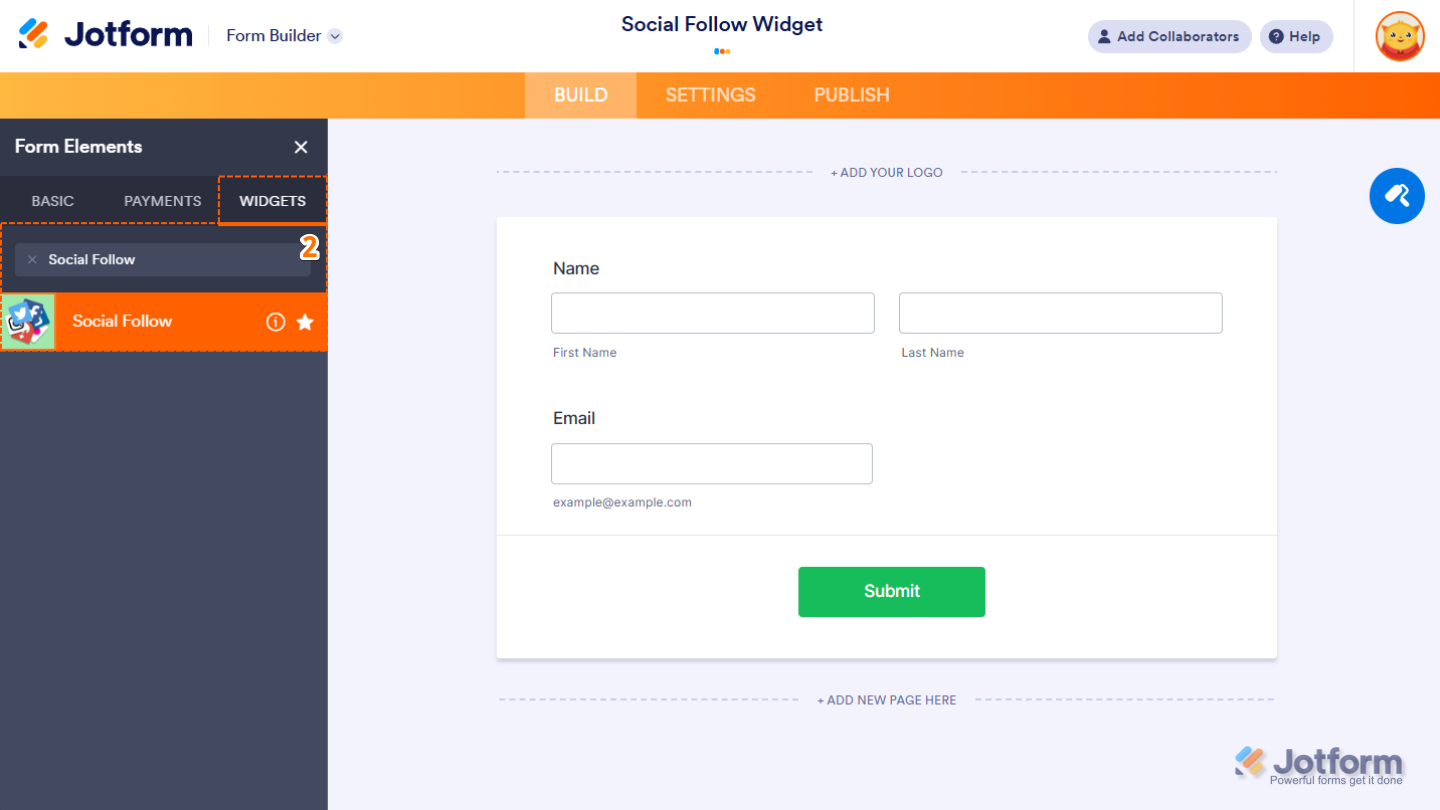
- Now, in the Form Elements menu, under the Widgets tab, search for Social Follow and click on it. Or just drag and drop it to where you want it on your form.
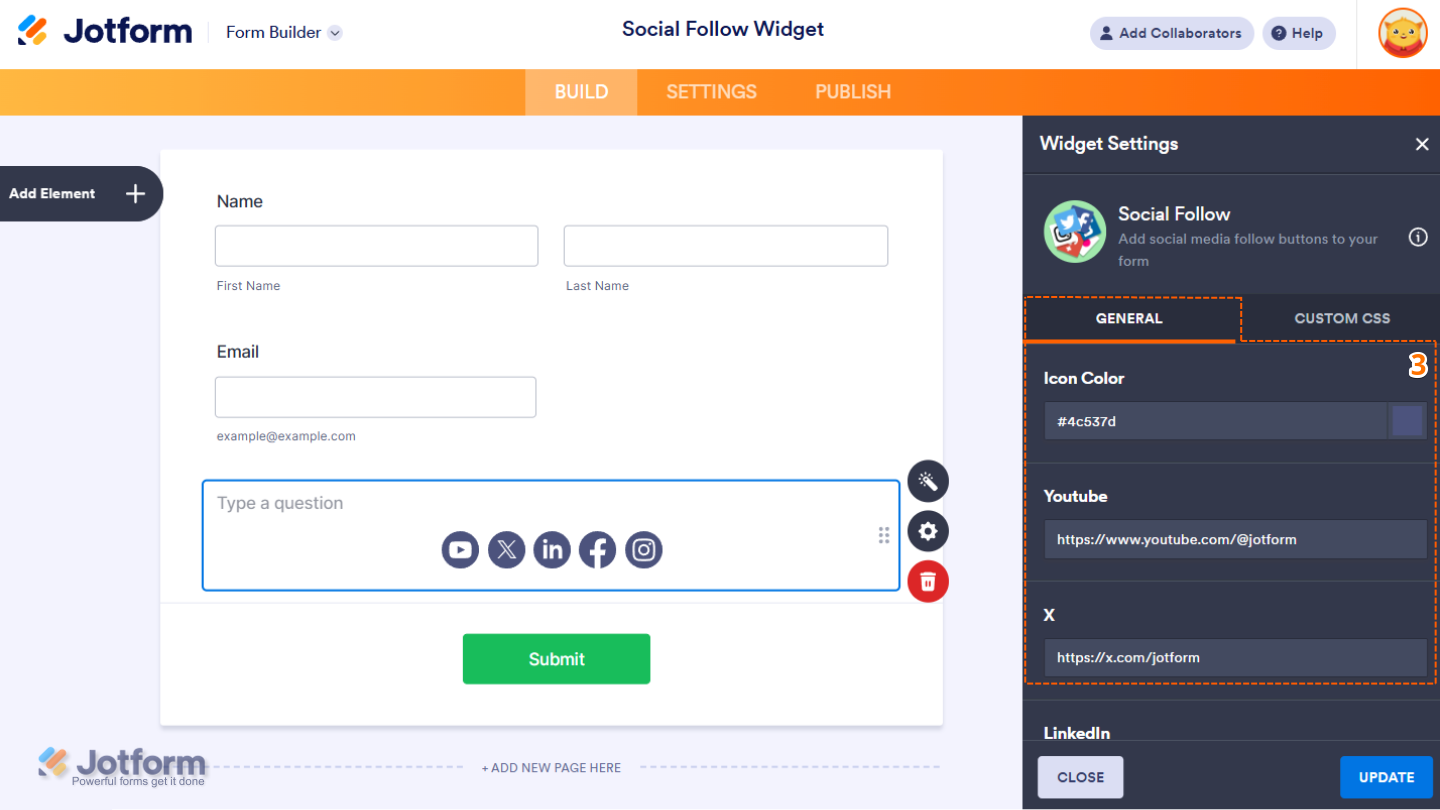
- Next, in the Social Follow Widget Settings menu that opens on the right side of the page, under the General tab, set up the following options:
- Icon Color — Select the color of the icons for the social media platforms you’ve configured.
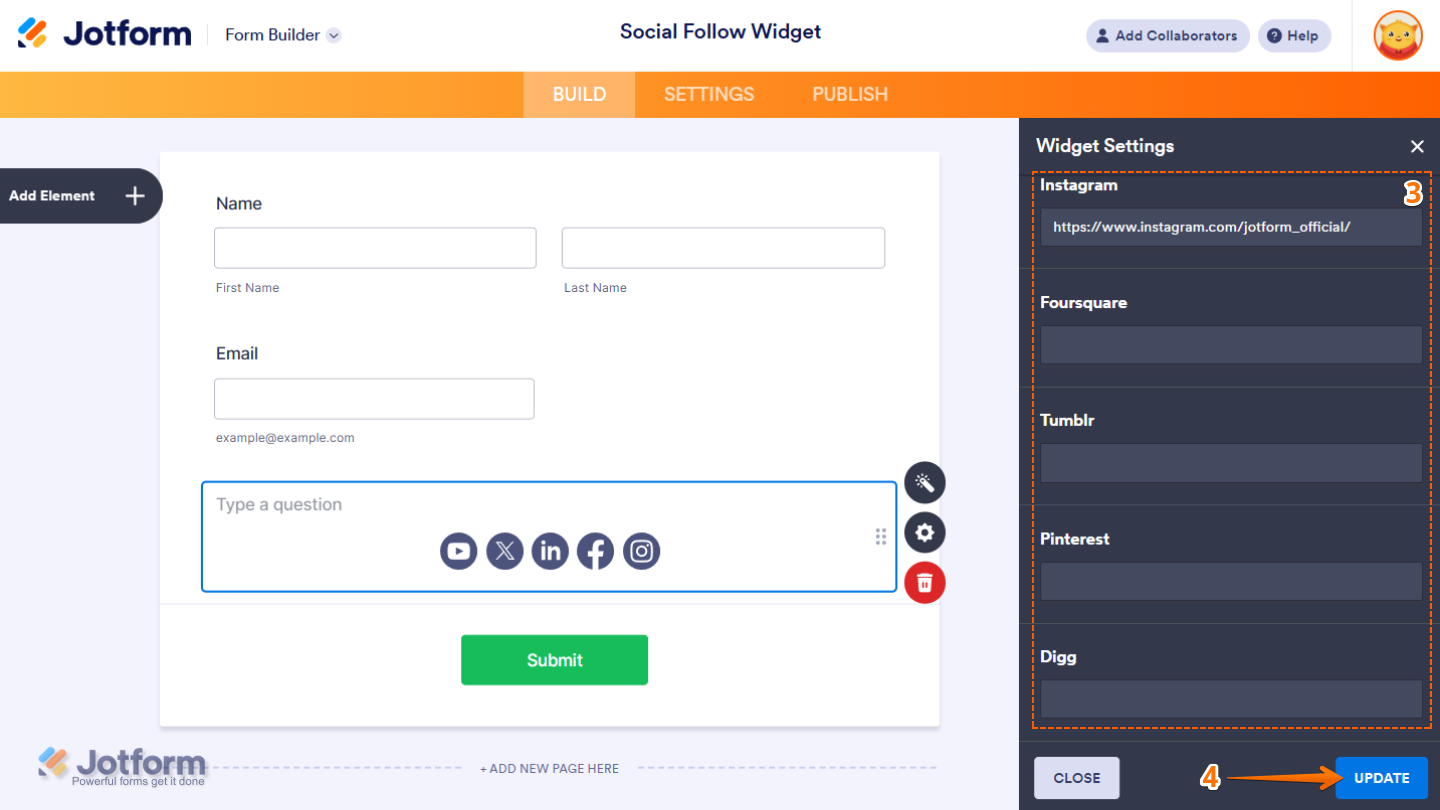
- Social Media Profiles — Add the full profile URL of the following: YouTube, X, LinkedIn, Facebook, Flickr, Vimeo, Instagram, Foursquare, Tumblr, Pinterest, and Digg.
- Once everything’s set, click on Update.
That’s it! You’ve now successfully added and set up the Social Follow widget to your form. Want a quick preview? This Demo Form shows how it works.
Notes
- To change the appearance of the icons in the widget, you can inject custom CSS into the Custom CSS tab in the Widget Settings. You can check out our guide on How to Inject CSS Codes to Widgets to learn more.
- You can also configure the widget properties, like alignment, labels, size, visibility, and more, to control how it looks and behaves on your form. Check out our guide on How to Access and Configure the Question Properties of a Widget to learn more.

Send Comment: