With Jotform, you can easily add a fun and interactive touch to your forms using the Spoiler Text widget. This tool lets you hide content behind a clickable spoiler bar, making it perfect for quizzes, surveys, and any form where you want to reveal information only when the user is ready.
Jotform’s Spoiler Text widget helps you keep your form clean and organized while still delivering details in a dynamic way. It’s a simple, creative feature that makes your forms more engaging without adding extra clutter.
Here are a few ways to use it:
- Add hidden hints or clues in online quizzes.
- Reveal answers or explanations only when users choose to see them.
- Hide optional details in surveys to keep your form short and easy to follow.
- Provide extra context in application or request forms without overwhelming the user.
- Share expandable step-by-step guidance in interactive forms.
Whether you’re creating a new form or updating an existing one, you can add and set up the Spoiler widget in a few easy steps. Here’s how to do it:
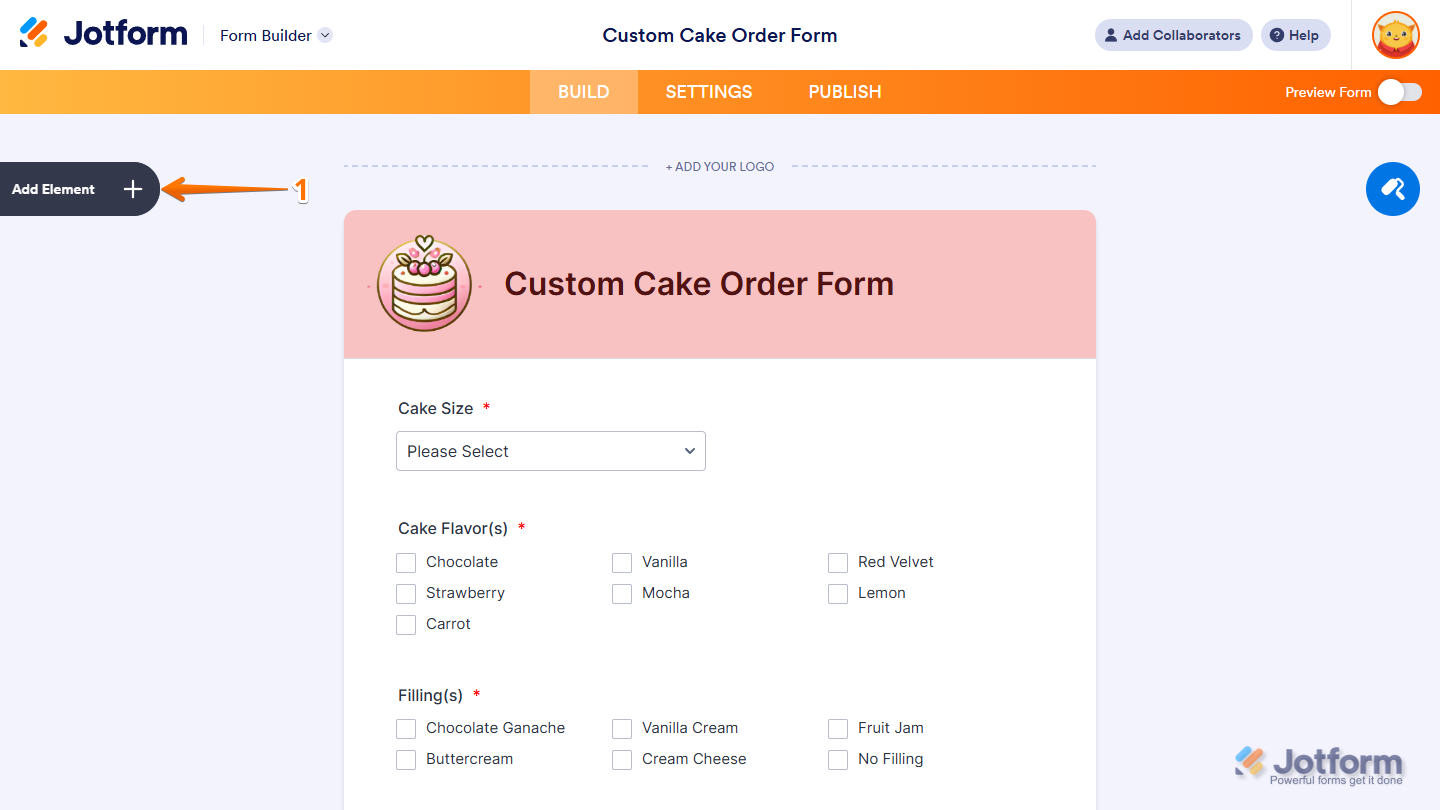
- In Form Builder, click on Add Element on the left side of the page.
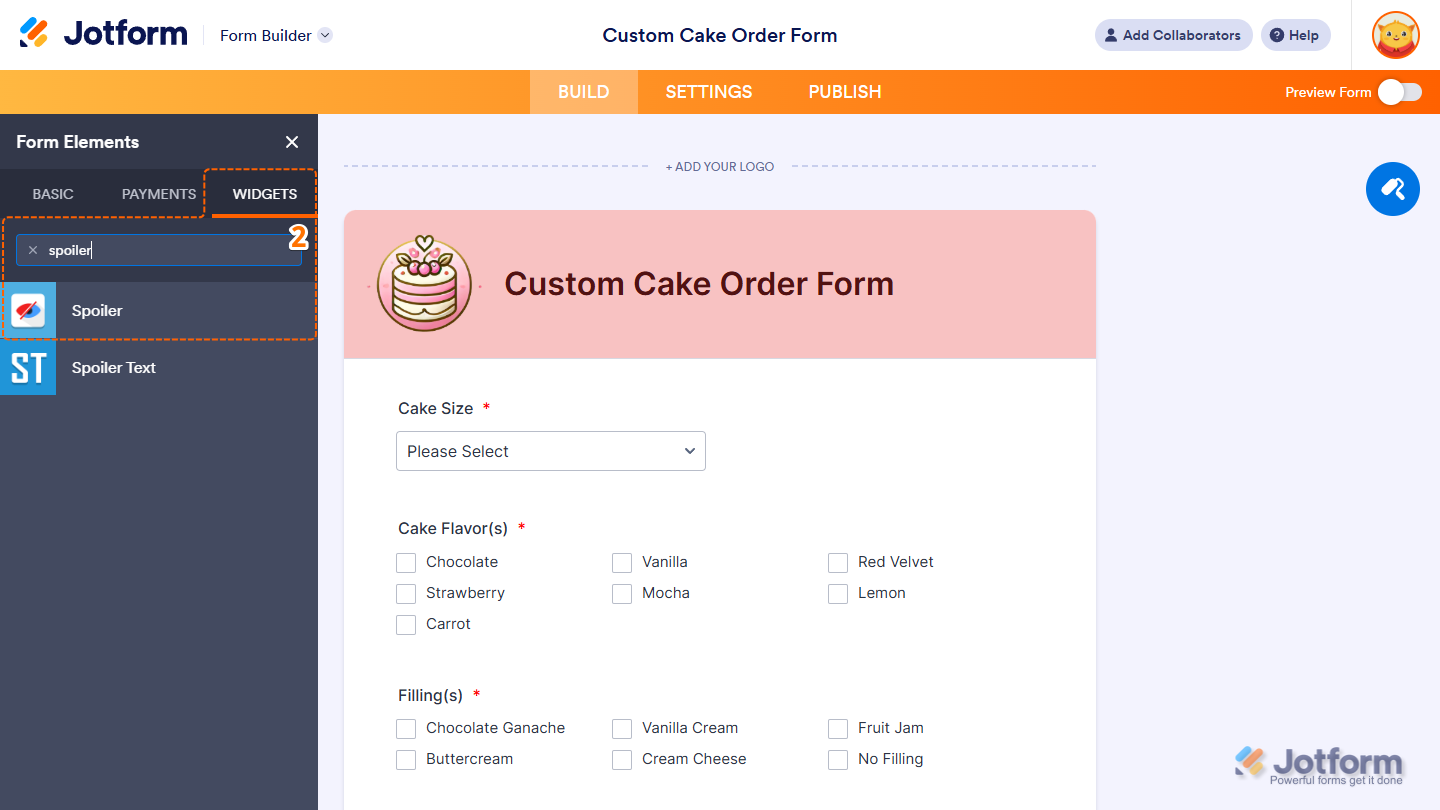
- Now, in the Form Elements menu, under the Widgets tab, search for Spoiler and click on it. Or, just drag and drop it to where you want it to be on your form.
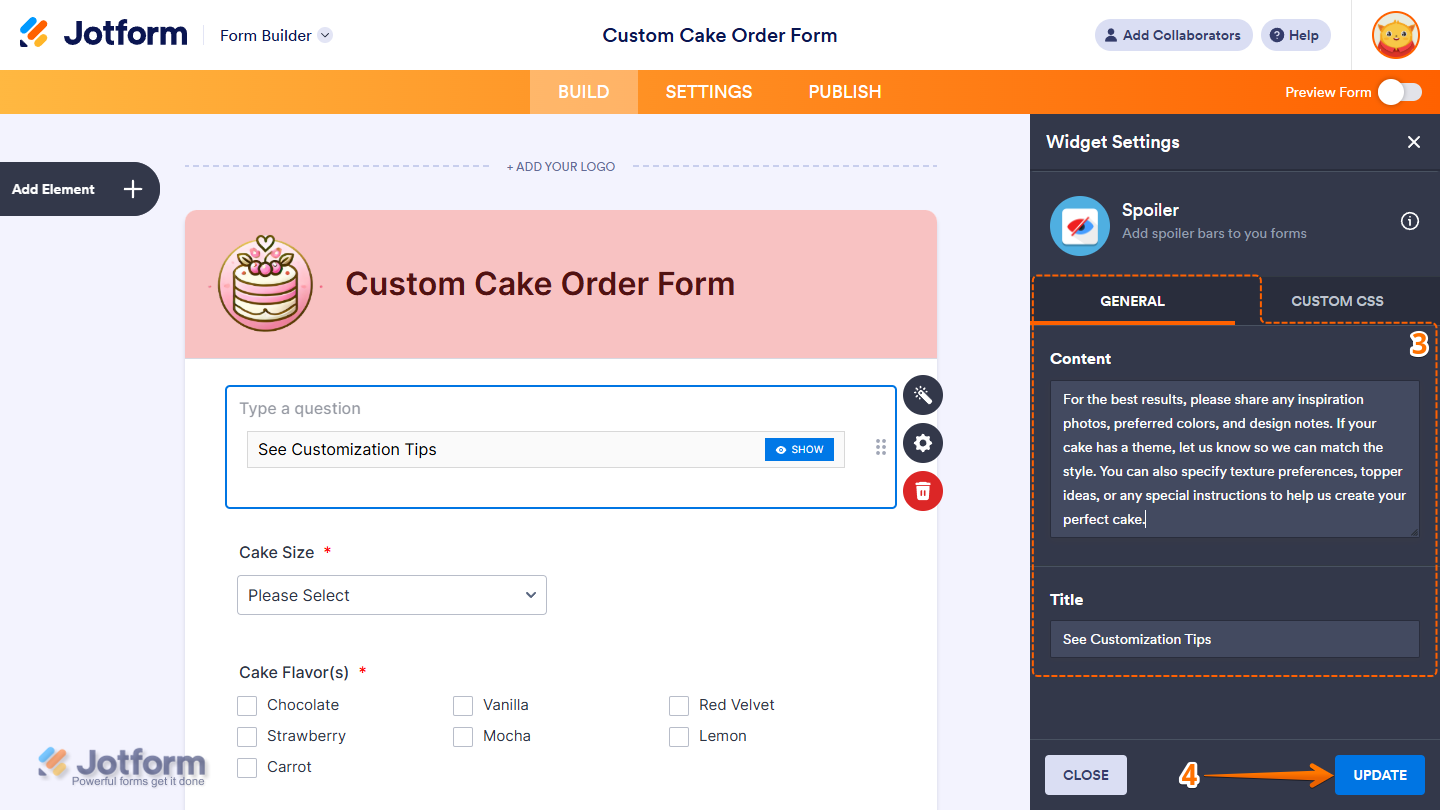
- Next, in the Widget Settings menu that opens on the right side of the page, under the General tab, you’ll see this list of settings you can configure:
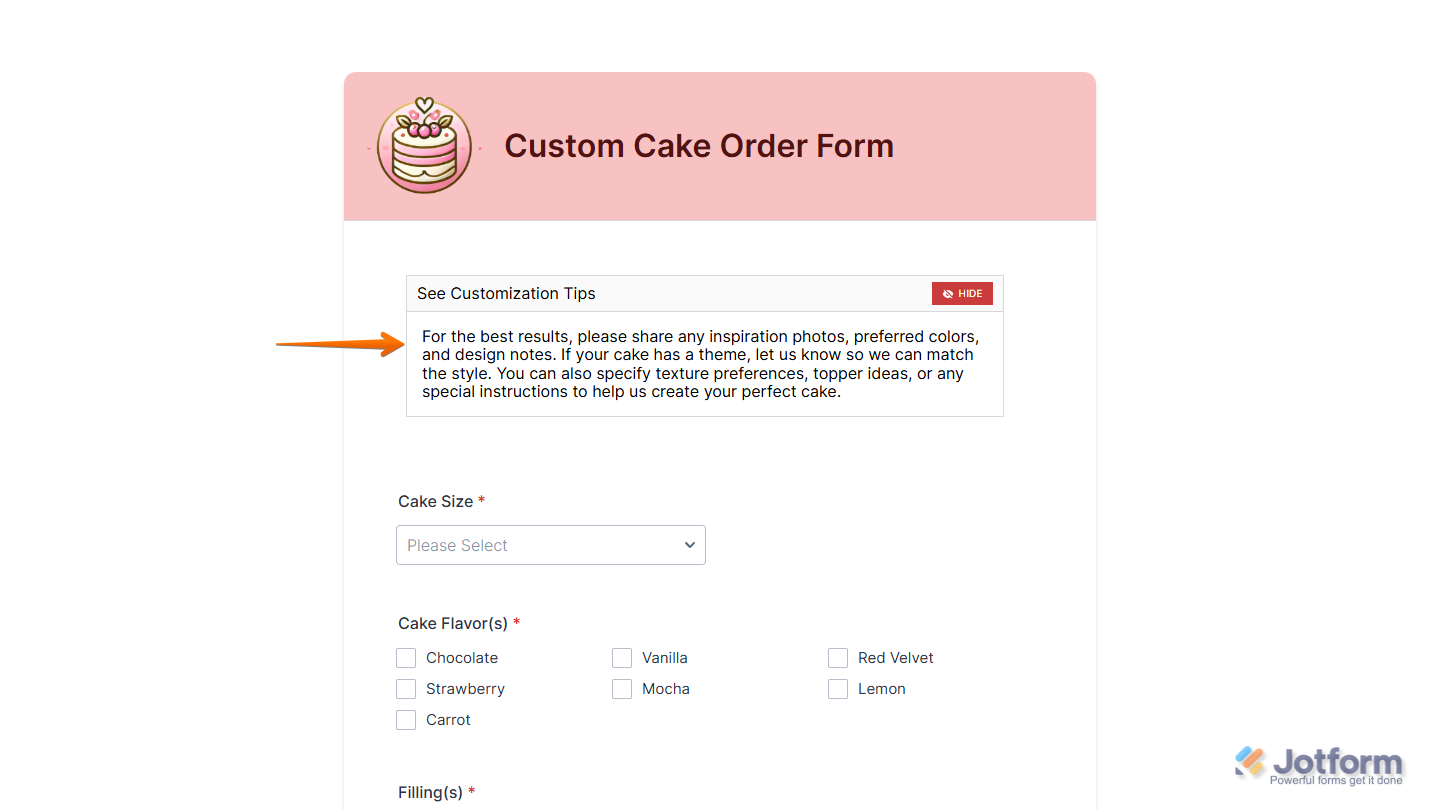
- Content — Delete the default text in the input box and enter the text you want to reveal. This is the hidden content that will appear when the user clicks on the Show button. Clicking on the Hide button will collapse the content again.
- Title — Delete the default text in the input box and enter the label or heading you want users to see first. This becomes the visible line that users will only see initially on the form.
- Once everything’s set, click on Update.
That’s it. Now you’ve added and set up the Spoiler widget on your form. You can test it on this demo form.
Notes
- For advanced styling of the Spoiler widget, you can add your own custom CSS code under the Custom CSS tab in the Widget Settings. Our guide on How to Inject CSS Codes to Widgets walks you through everything.
- You can also configure the widget properties, like alignment, labels, size, visibility, and more, to control how it looks and behaves on your form. Check out our guide on How to Access and Configure the Question Properties of a Widget to learn more.

Send Comment: