With Jotform’s Spotify widget, you can embed songs, playlists, or podcasts directly into your form without any coding. Simply paste your Spotify link and let users play audio, save tracks, or copy links without leaving the form. This adds an interactive and engaging touch to your form experience.
Here are a few ways to use it:
- Add songs directly to your form.
- Embed playlists for events or promotions.
- Share podcast episodes with your audience.
- Let users play, save, and copy Spotify links from your form.
What You’ll Need to Get Started
You’ll need your Spotify Song, Playlist or Podcast URL to set up the Spotify widget .If you’re not sure how or where to get this, check out these support articles from Spotify on Spotify URLs and IDs to learn more.
Whether you’re starting fresh or updating a form, adding and setting up the Spotify widget takes only a few steps. Here’s a quick how-to:
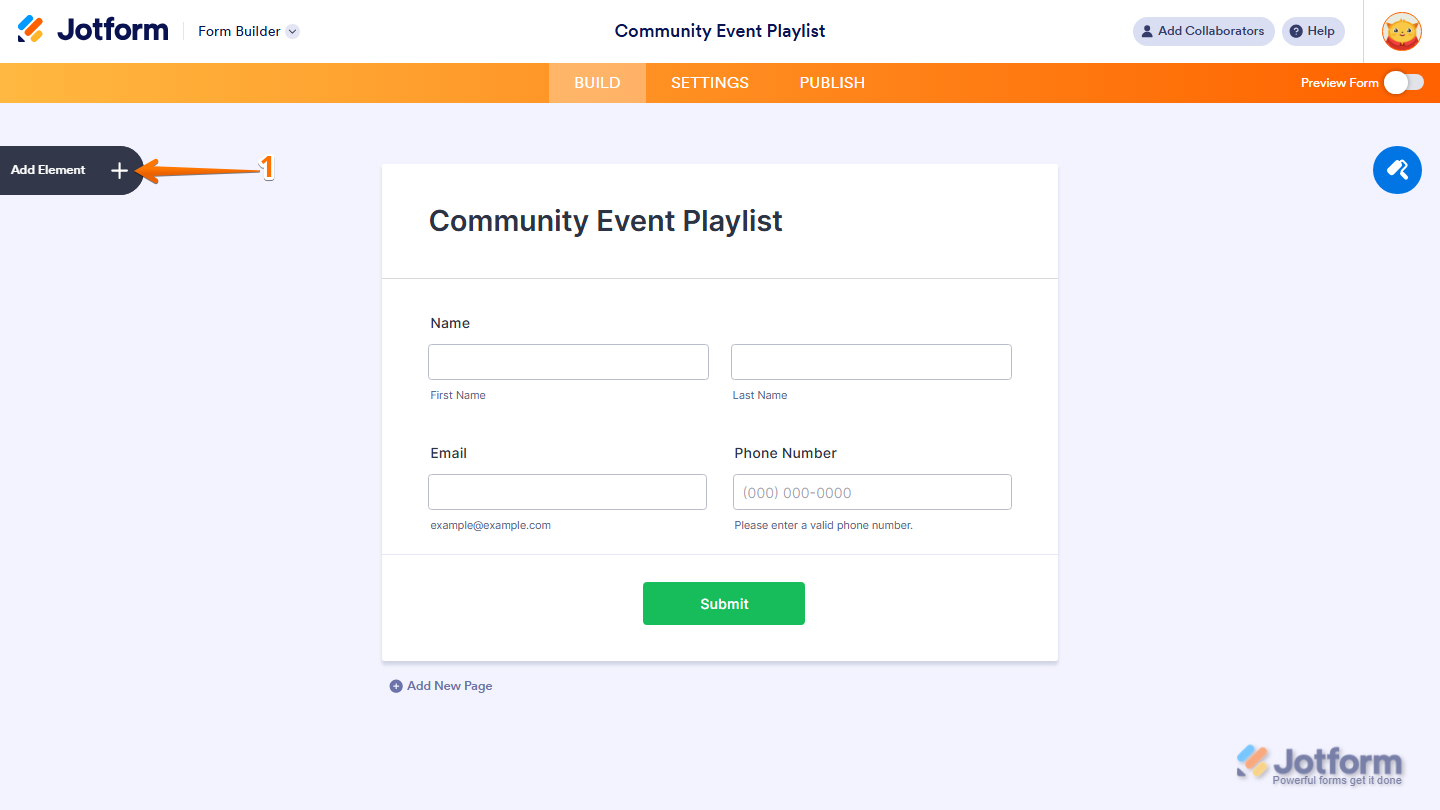
- In Form Builder, click on Add Element on the left side of the page.
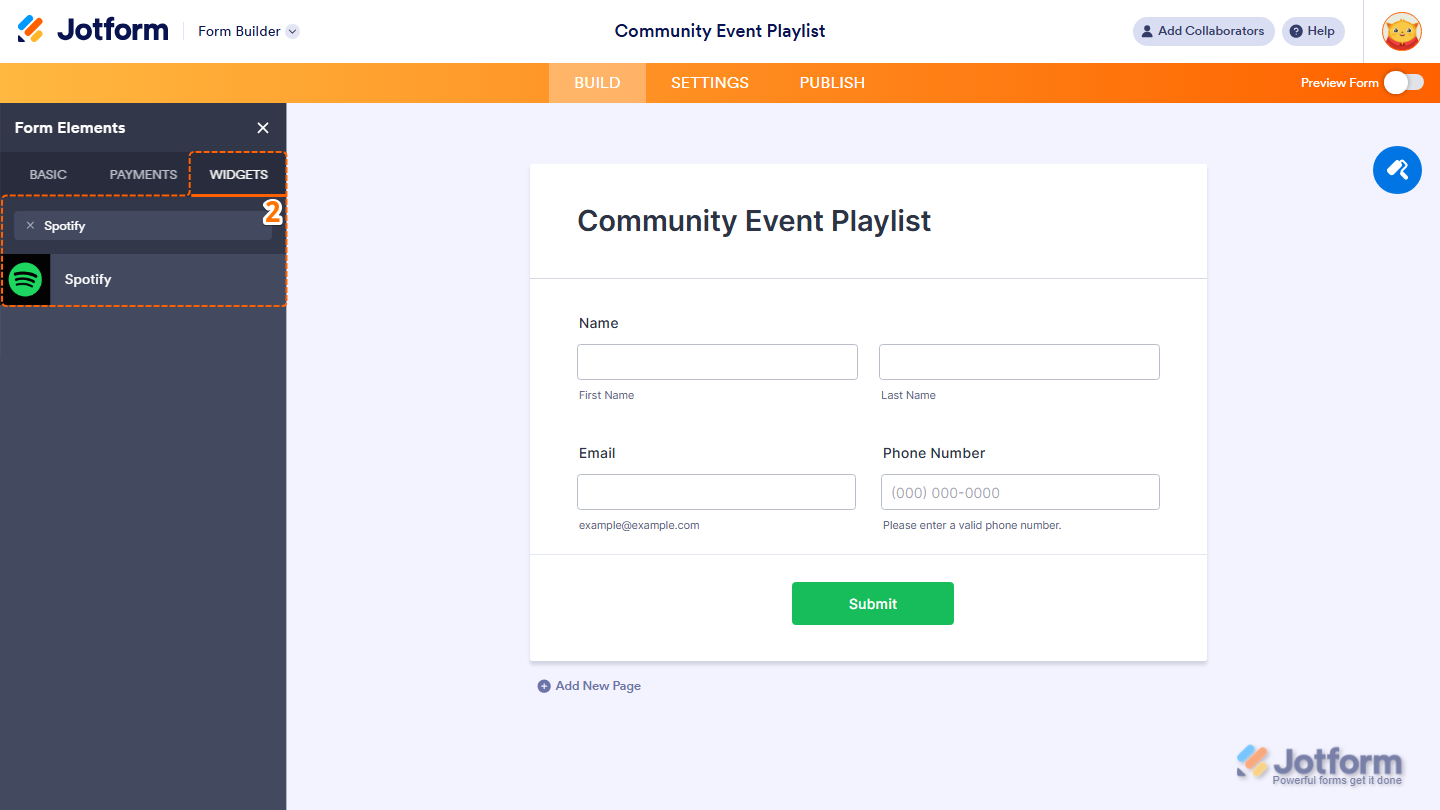
- Now, in the Form Elements menu, under the Widgets tab, search for Spotify and click on it. Or, just drag and drop it to where you want it to be on your form.
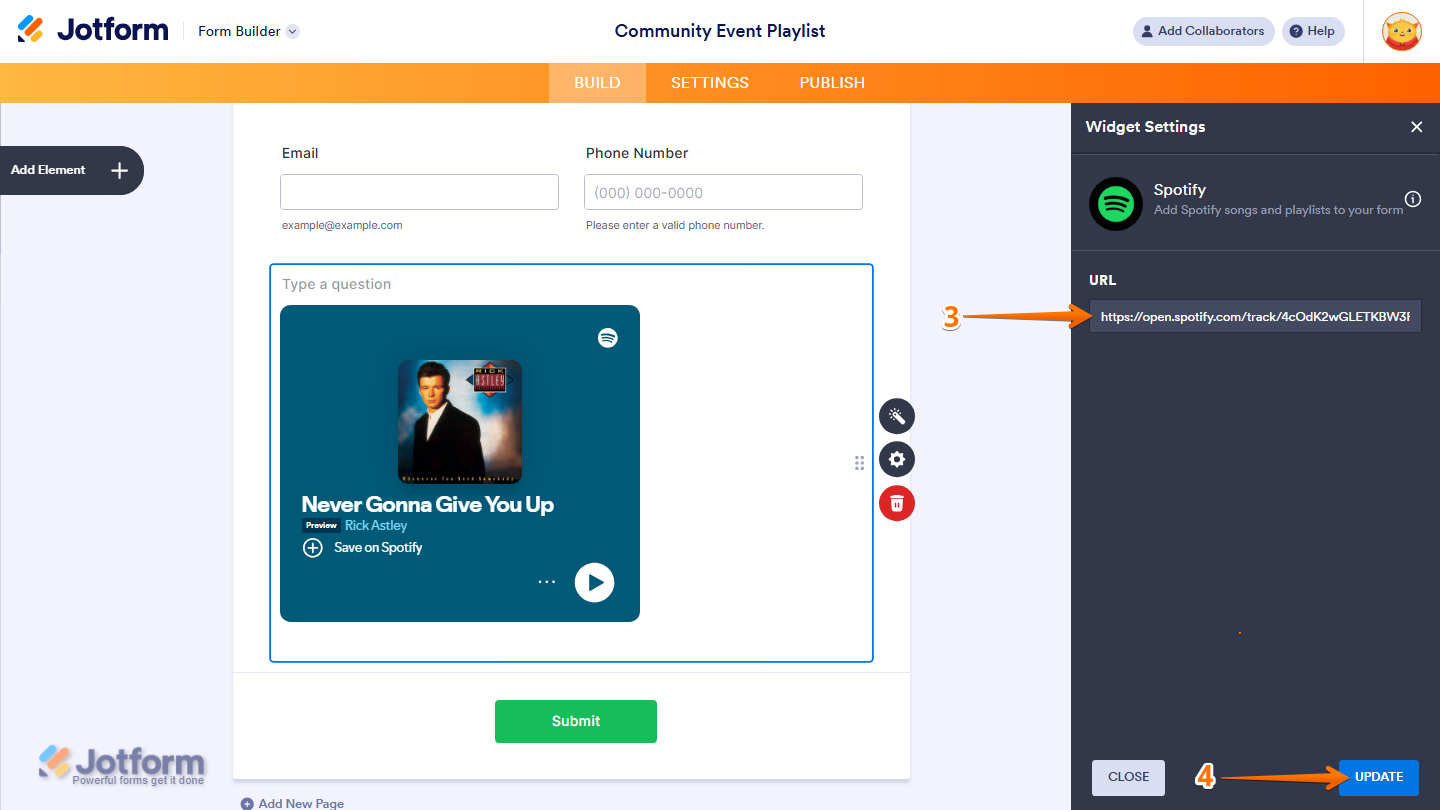
- Next, in the Widget Settings window that opens on the right side of the page, enter your Spotify Song, Playlist or Podcast URL in the URL Input box.
- Once you’re done, click on Update.
That’s it. Now you’ve added and set up the Spotify widget on your form.
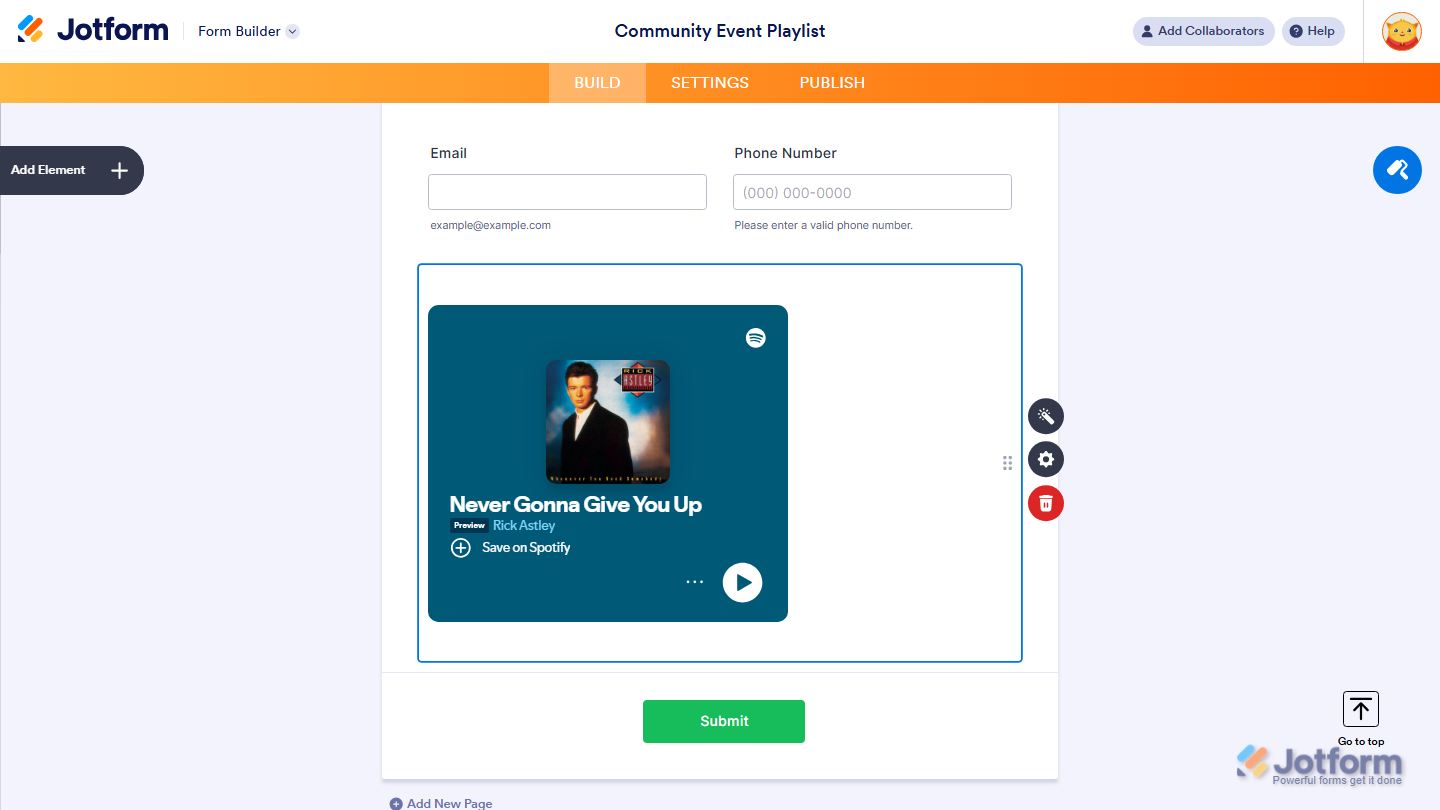
Want to see how it works? Check out this live demo form.
Note
You can also configure the widget properties, like alignment, labels, size, visibility, and more, to control how it looks and behaves in your form. Check out our guide on How to Access and Configure the Question Properties of a Widget to learn more.

Send Comment: