With Jotform, you can easily add a ready‑made dropdown of all the states of Germany to any form, saving you the time and hassle of building and maintaining your own list. Jotform’s States of Germany widget gives you a complete, accurate selection of German states that helps your users quickly and confidently choose their region. It keeps your forms clean, consistent, and user‑friendly — especially when location details are important.
Whether you’re collecting addresses for registrations, applications, orders, or surveys, this widget makes it simple for respondents to share where they’re located. It’s a small addition that makes your form feel more professional while letting you focus on what matters most, not tedious dropdown lists.
Here are a few ways to use it:
- Let your users quickly pick their state in German registration, application, or sign-up forms.
- Collect accurate state information from German respondents in surveys, feedback forms, or contact forms.
- Keep entries limited to valid German states to avoid spelling mistakes or incorrect locations.
- Help users complete forms faster with a ready-to-use, intuitive dropdown.
- Easily segment or filter your responses by German state to understand your audience better.
- Guide users smoothly through multi-step or detailed forms with clear location options.
- Boost completion rates for surveys, applications, and order forms by simplifying state selection.
- Give your customers and respondents a smoother, more professional experience when entering their location.
Whether you’re creating a new form or updating an existing one, you can add and set up the States of Germany widget in a few easy steps. Here’s how to do it:
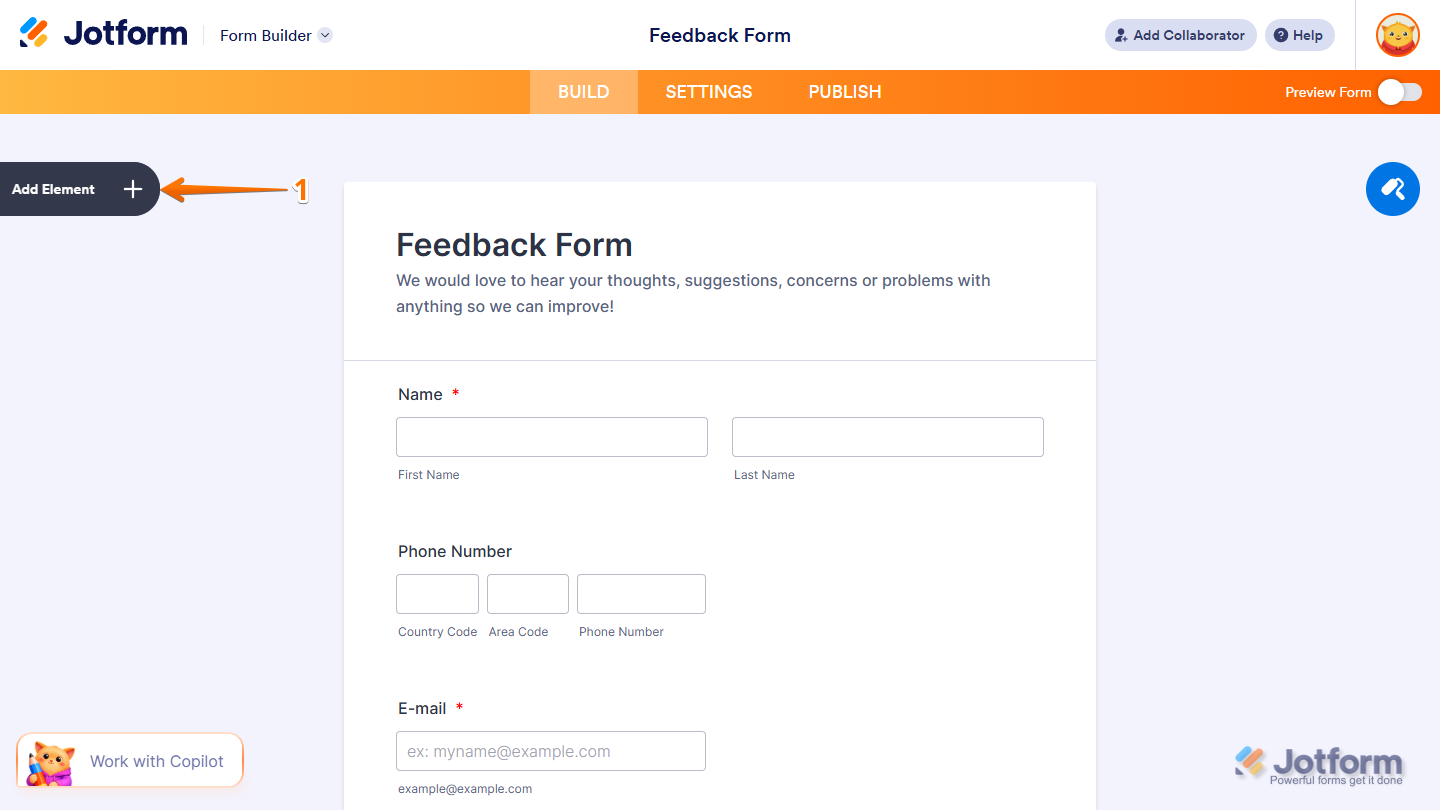
- In Form Builder, click on Add Element on the left side of the page.
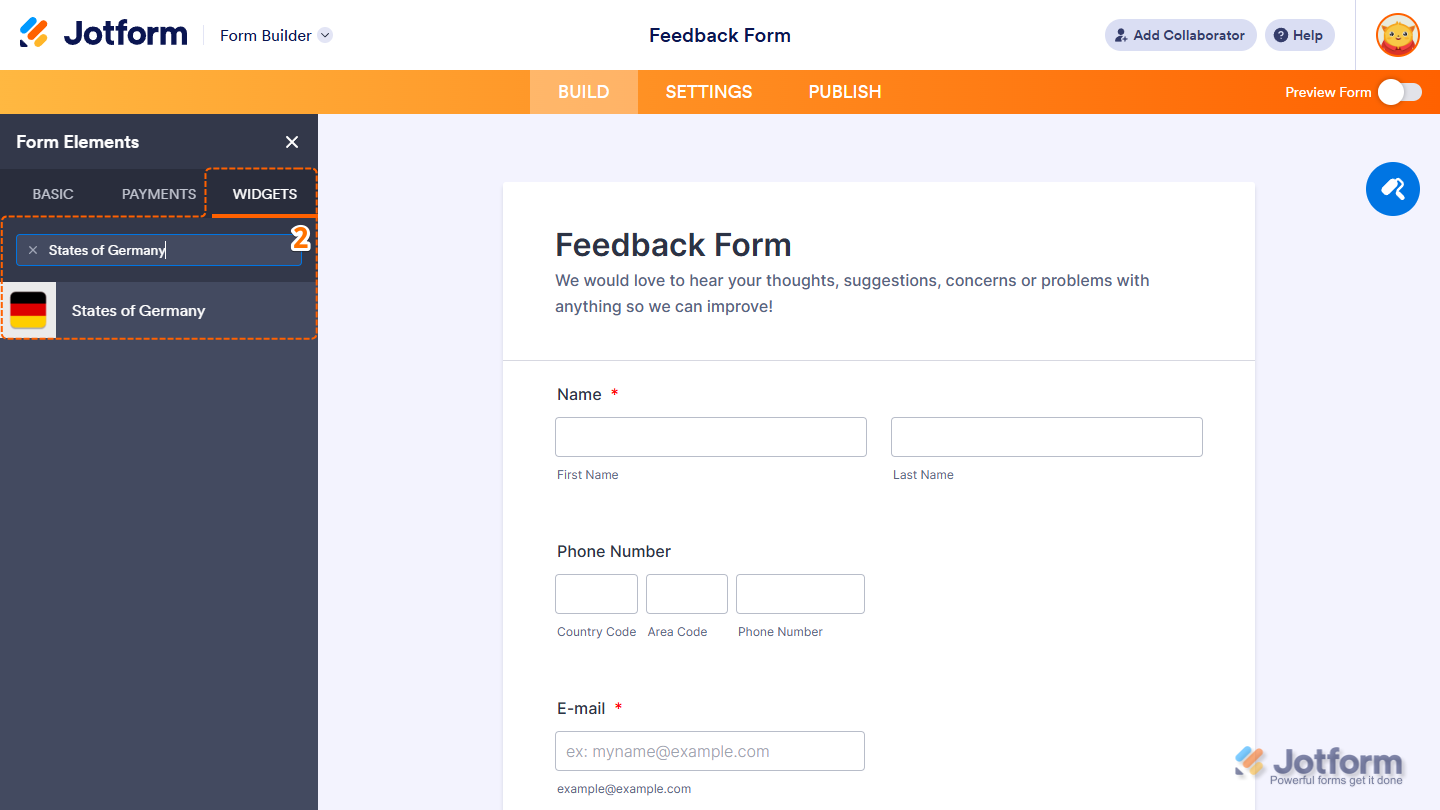
- Now, in the Form Elements menu, under the Widgets tab, search for States of Germany and click on it. Or, just drag and drop it to where you want it to be on your form.
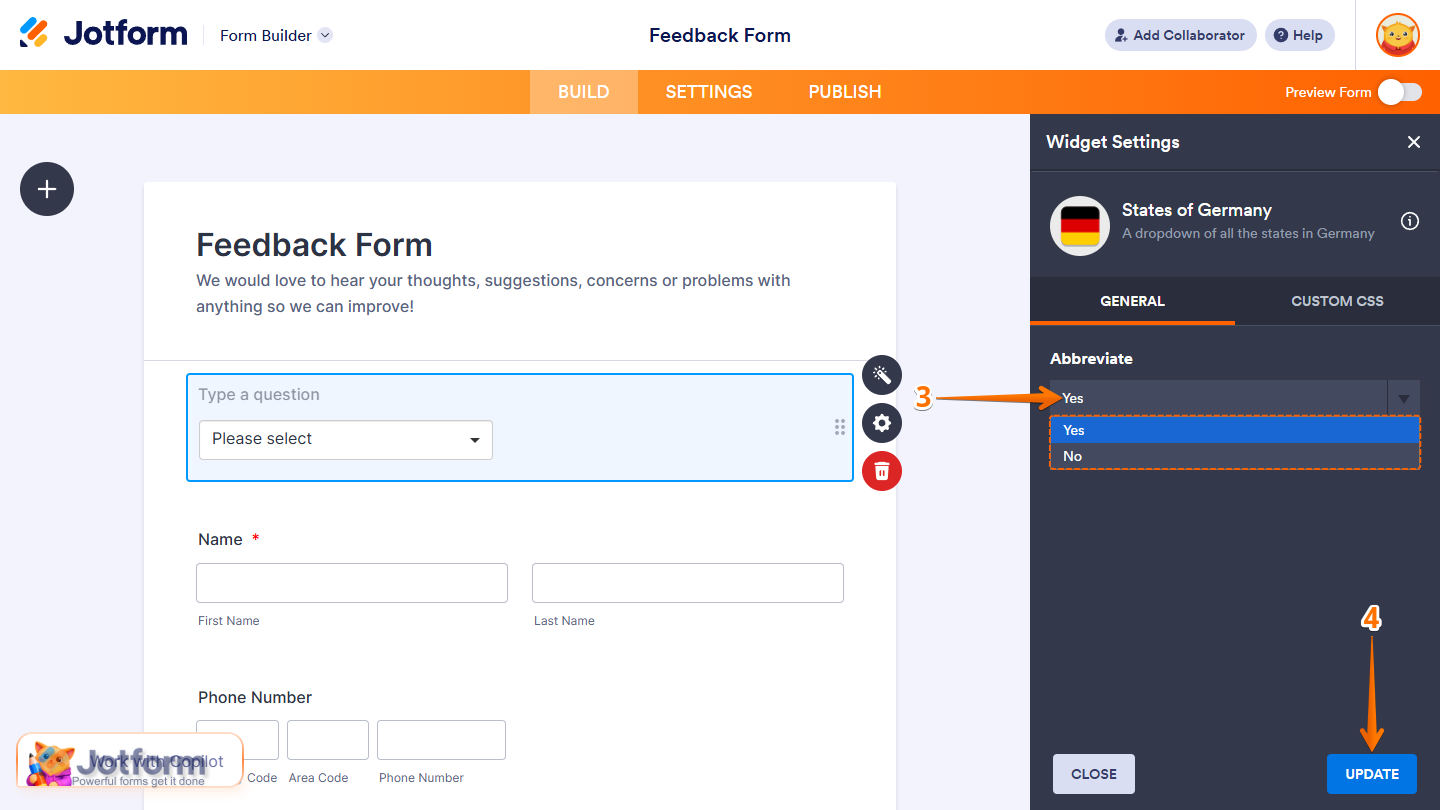
- Next, in the Widget Settings menu that opens on the right side of the page, under the General tab, select No in the Abbreviate Dropdown menu if you want the form to submit the state’s full name. Or, keep it set to Yes to submit the abbreviated version of the selected state.
- Once you’re done, click on Update.
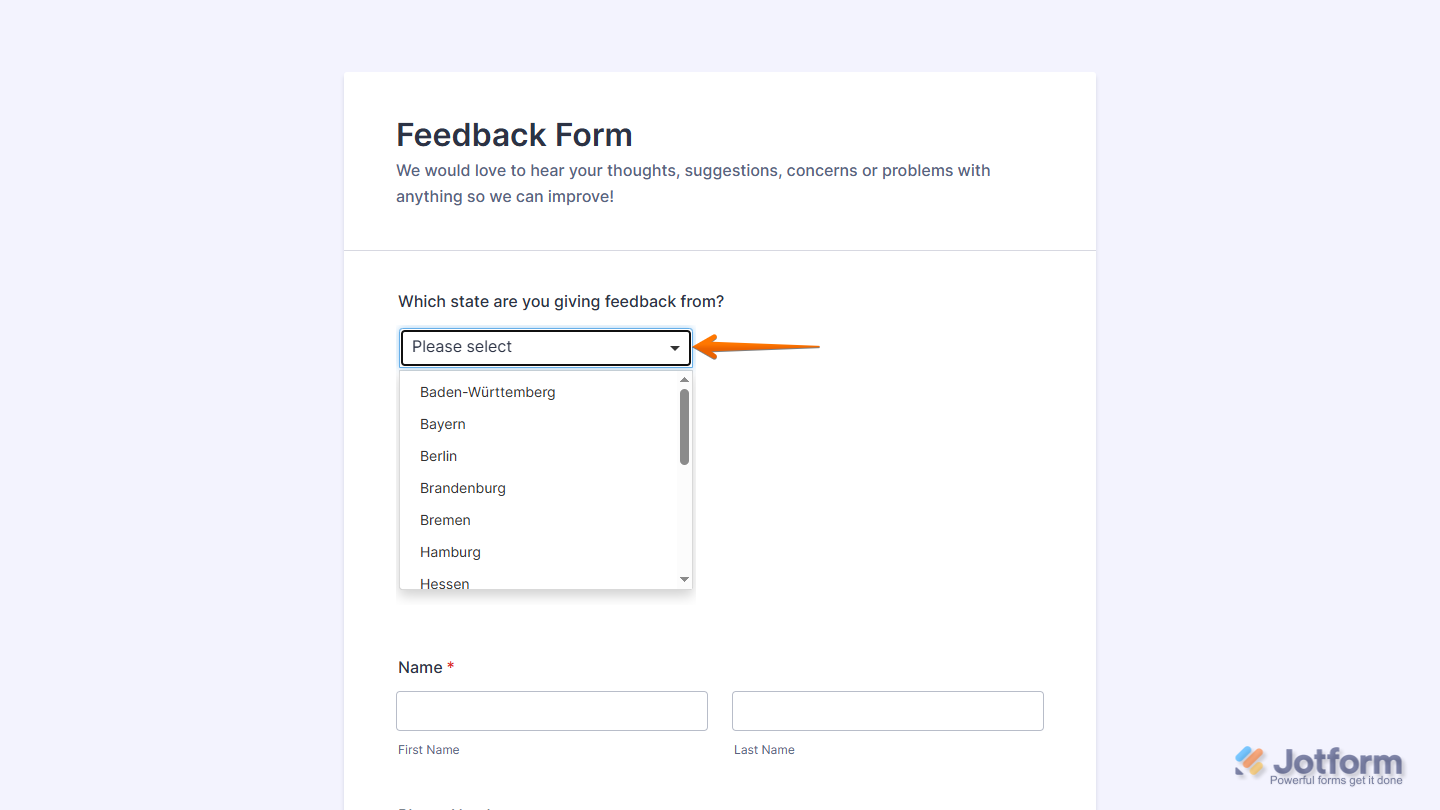
That’s it. Now you’ve added and set up the States of Germany widget on your form. Wondering how it looks in action? Check out this demo form.
Notes
- For advanced styling of the States of Germany widget, you can add your own custom CSS code under the Custom CSS tab in the Widget Settings. Our guide on How to Inject CSS Codes to Widgets walks you through everything.
- You can also configure the widget properties, like alignment, labels, size, visibility, and more, to control how it looks and behaves on your form. Check out our guide on How to Access and Configure the Question Properties of a Widget to learn more.

Send Comment: