Jotform’s Submissions Counter widget can easily display the total number of submissions directly on your form. It’s a great way to build trust, show popularity, or set urgency for limited-time offers and registrations.
Here are a few ways to use it:
- Build Excitement for Events — If you’re running event registrations, the counter can show how many people have already signed up. It creates buzz and encourages others to join in before spots run out.
- Track Participation in Real Time — For hosting a challenge, giveaway, or contest, the counter lets everyone see how many entries have been submitted so fast, adding to the excitement.
- Create Urgency — Pair the counter with limited slots (like for a workshop or class). When users see the number of submissions climbing, they’ll be more motivated to secure their spot quickly.
- Boost Credibility — Showing a high submission count reassures new users that others are engaging with your form, which builds trust and confidence.
Adding and Setting Up the Submissions Counter Widget
Add a submission counter to your online forms to show form users how many times your form has been submitted previously. Setting it up takes no time—here’s how:
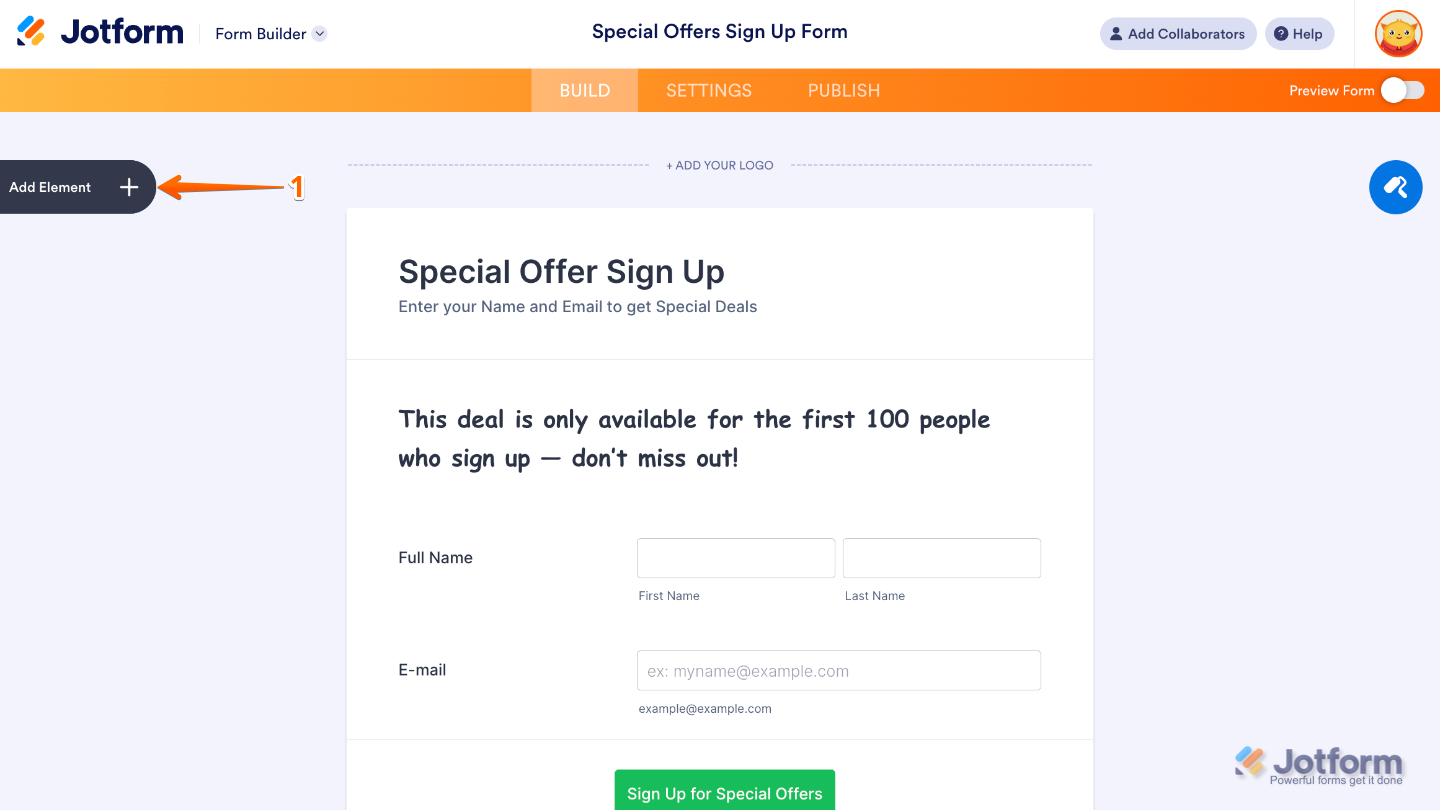
- In Form Builder, click on Add Element on the left side of the page.
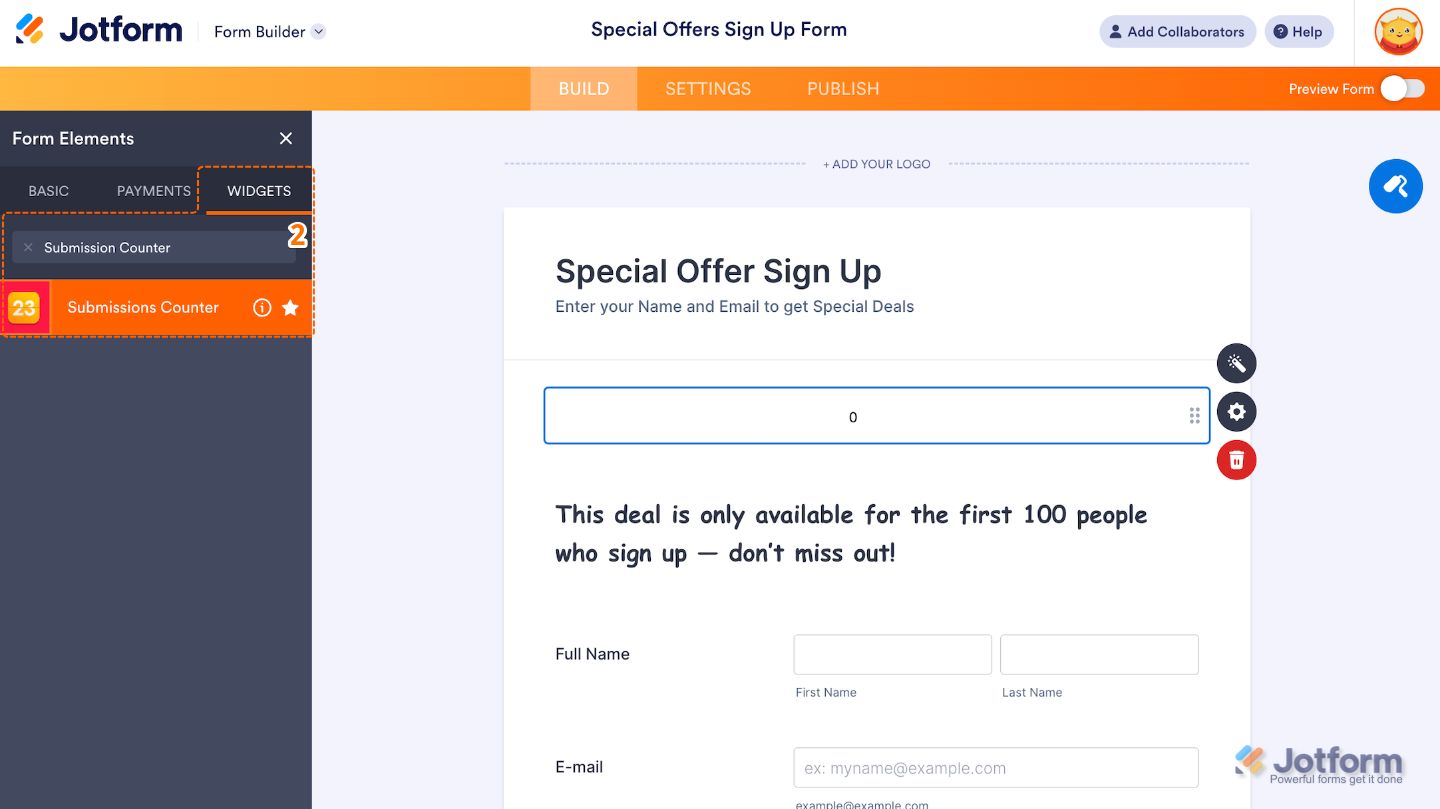
- Now, in the Form Elements menu, under the Widgets tab, search for Submissions Counter and then click on it. Or, just drag and drop it to where you want it to be on your form.
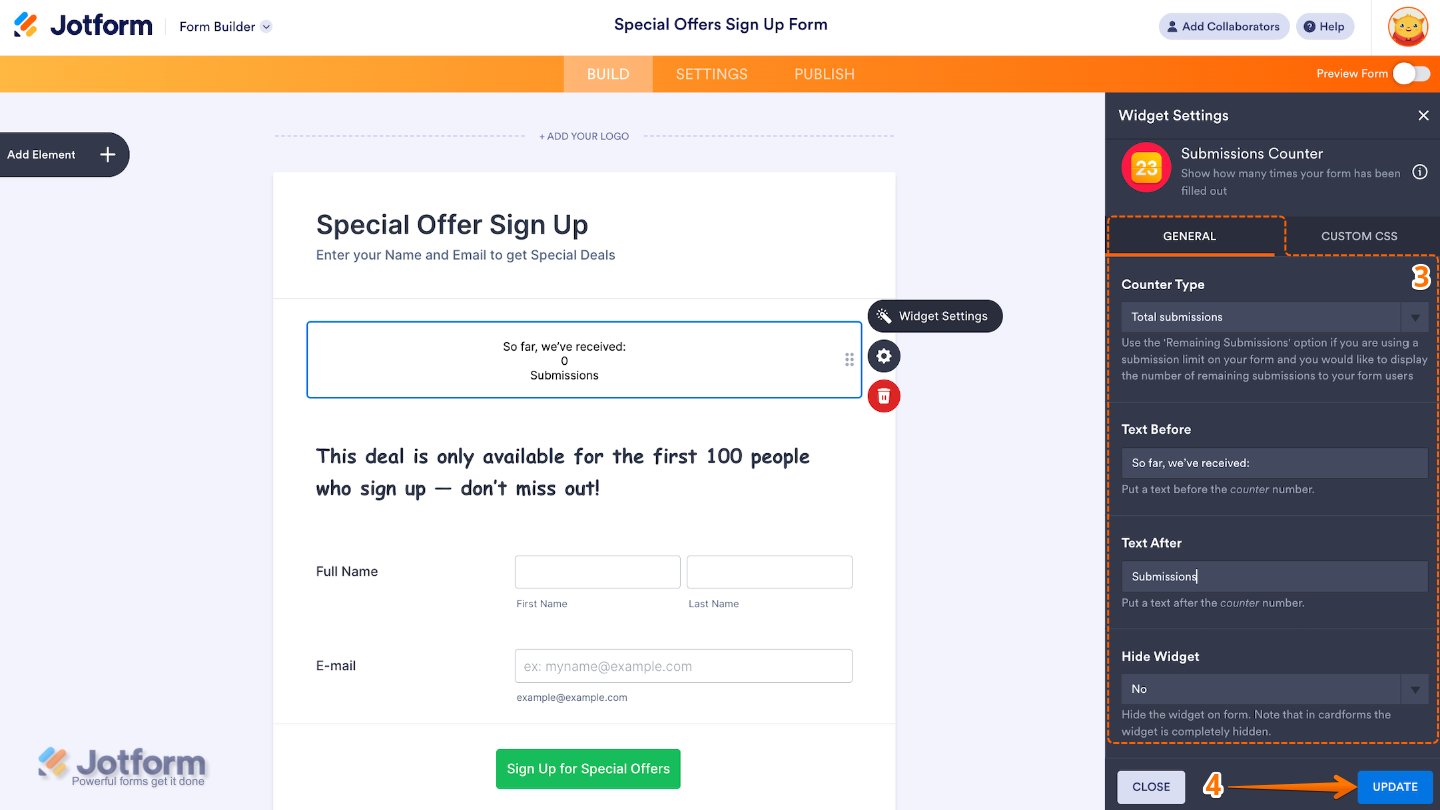
- Next, in the Widget Settings window that opens on the right side of the page, set up the following options:
- Counter Type — Pick the type of submission count you’d like to show, whether it’s the Total Submissions, Today’s Submissions, or Remaining Submissions.
- Text Before — Set this up to add a text that appears before the counter number.
- Text After — Edit this to customize the text that appears after the counter number.
- Hide Widget — Toggle this to hide the widget from the form view if needed.
- Once you’re done, click on Update.
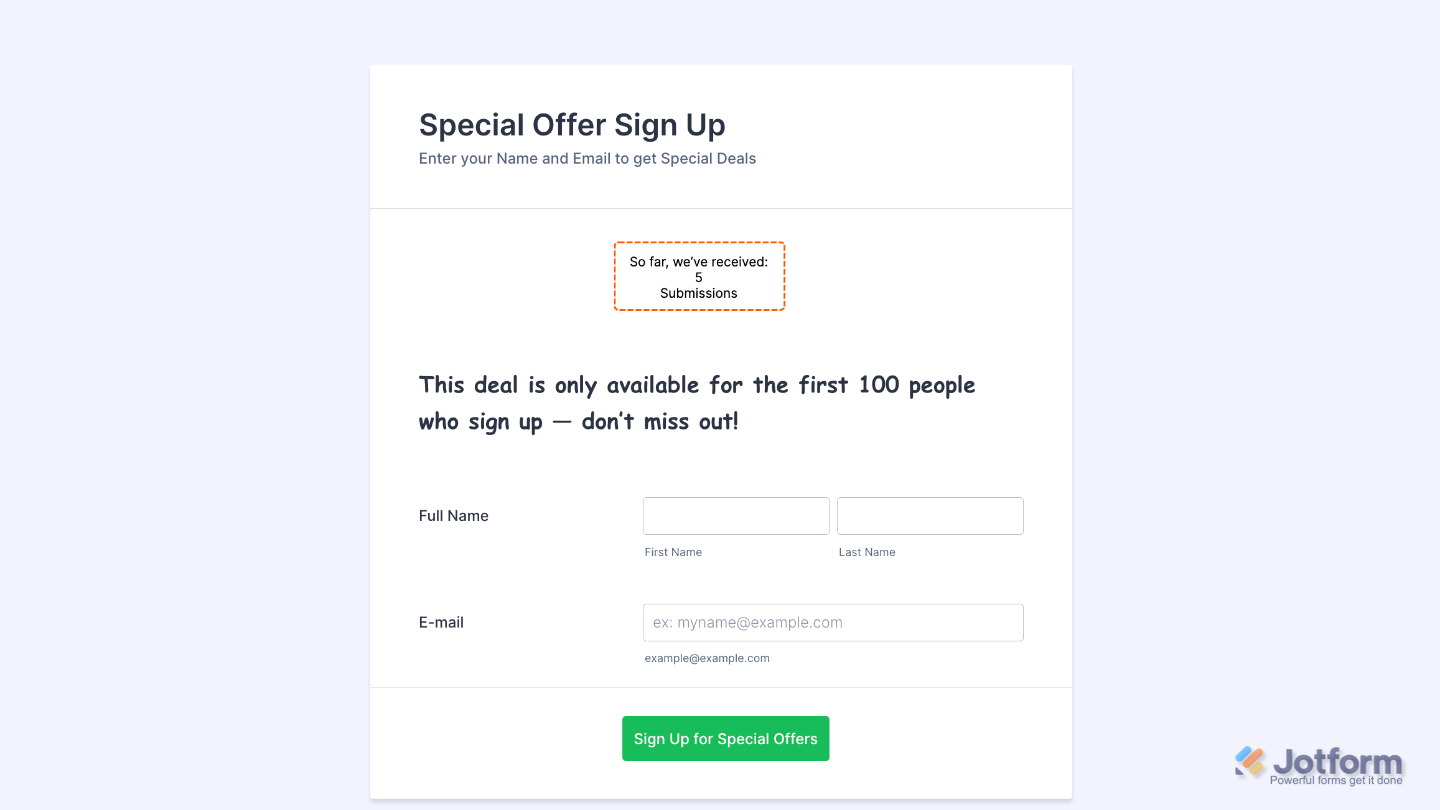
That’s it. You’ve successfully added and set up the Submissions Counter widget to your form. Now, your form shows how many submissions it has received—keeping everyone in the loop. Curious how it works on a live form? Check out this Demo Form.
To further customize your Submissions Counter field appearance, just click on the Gear icon to open its properties.
Note
For advanced styling, you can add your own custom CSS under the Custom CSS tab in the widget settings and style the Submissions Counter field. Our guide on How to Inject CSS Codes to Widgets walks you through everything.
Pro Tips
- Build a sense of urgency for limited offers by using the Remaining Submissions option with a message like “Only X spots left!”.
- Pair the widget with the Disable on Submission limit feature to help prevent extra submissions. You’ll find more info in our guide on How to Add Time and Response Limit to Your Form.
- Use Today’s Submissions to track daily interest or engagement in ongoing campaigns.

Send Comment: