Jotform’s Tic Tac Toe widget adds a fun, interactive element to your form. It’s a great way to keep users engaged, break up longer forms, or simply give your form a playful touch. Just add the widget, adjust a few settings, and you’re ready to give users a quick game while they fill out your form.
Here are a few ways to use it:
- Add a Lighthearted Break in Long Forms — If your form is on the longer side, a quick game of tic tac toe can serve as a mini breather for your users. It helps break up the flow and keeps people from feeling rushed or overwhelmed, almost like a tiny mental stretch in between sections.
- Make Quizzes and Learning Activities More Fun — For teachers, trainers, or team leads, this widget can be a playful element in interactive quizzes or learning modules. Even if it’s just for fun, it adds a warm, engaging touch that makes the experience less formal and more enjoyable.
- Include an Icebreaker in Onboarding Forms — Sometimes forms can feel stiff, especially onboarding or team-building ones. A quick round of tic tac toe can lighten the mood and set a friendly tone right from the start. It’s a simple way to say, “Hey, relax — this won’t be boring!”
- Boost Engagement in Event or Workshop Forms — If you’re setting up a registration or participation form for workshops, youth activities, or creative events, the Tic Tac Toe widget acts like a fun little bonus. It gives people something interactive to remember your form by.
Adding and Setting Up the Tic Tac Toe Widget
Adding the Tic Tac Toe widget to your form gives users a fun, interactive way to play a quick game right inside your form. You can set it up like this:
- In Form Builder, click on Add Element on the left side of the page.
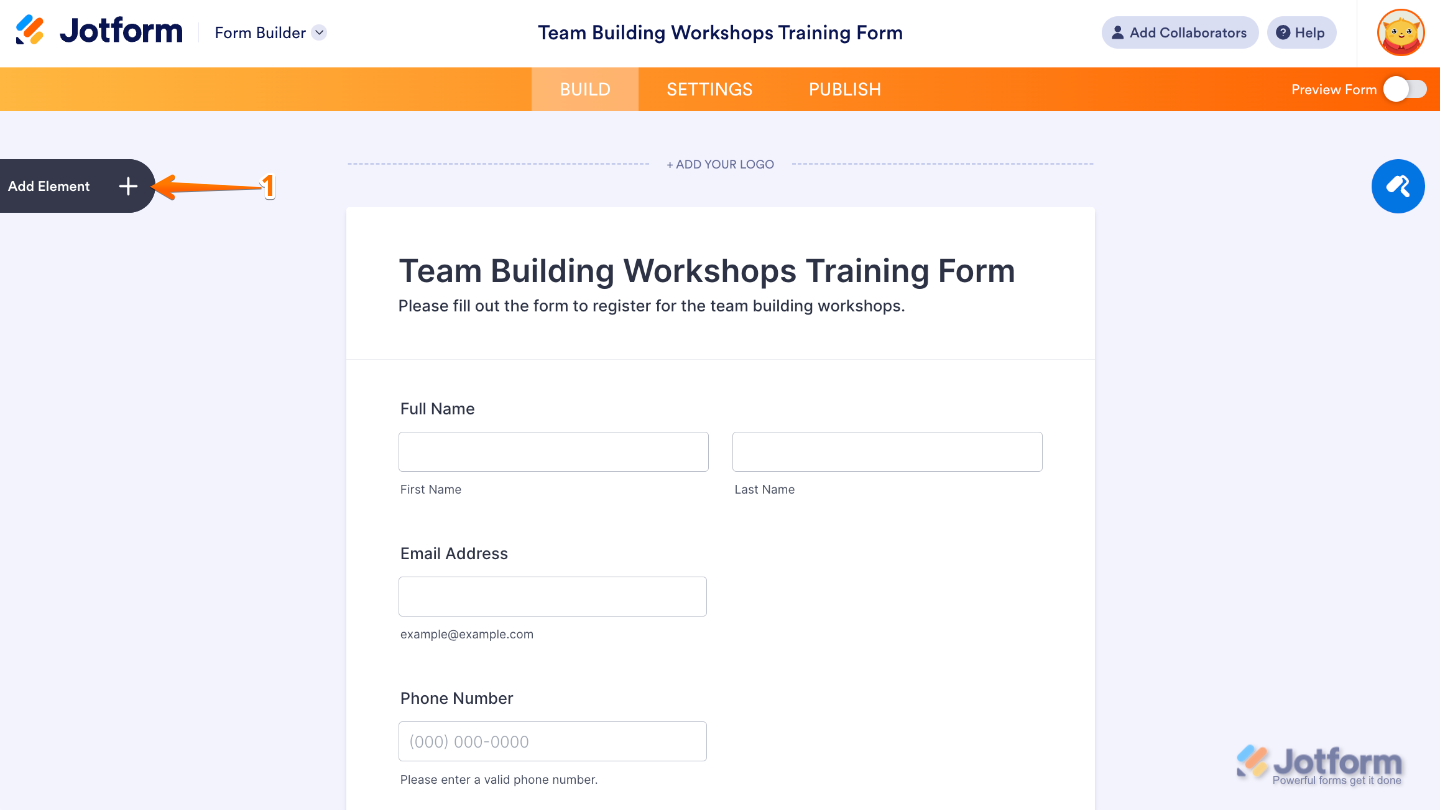
- Now, in the Form Elements menu, under the Widgets tab, search for Tic Tac Toe and then click on it. Or, just drag and drop it to where you want it to be on your form.
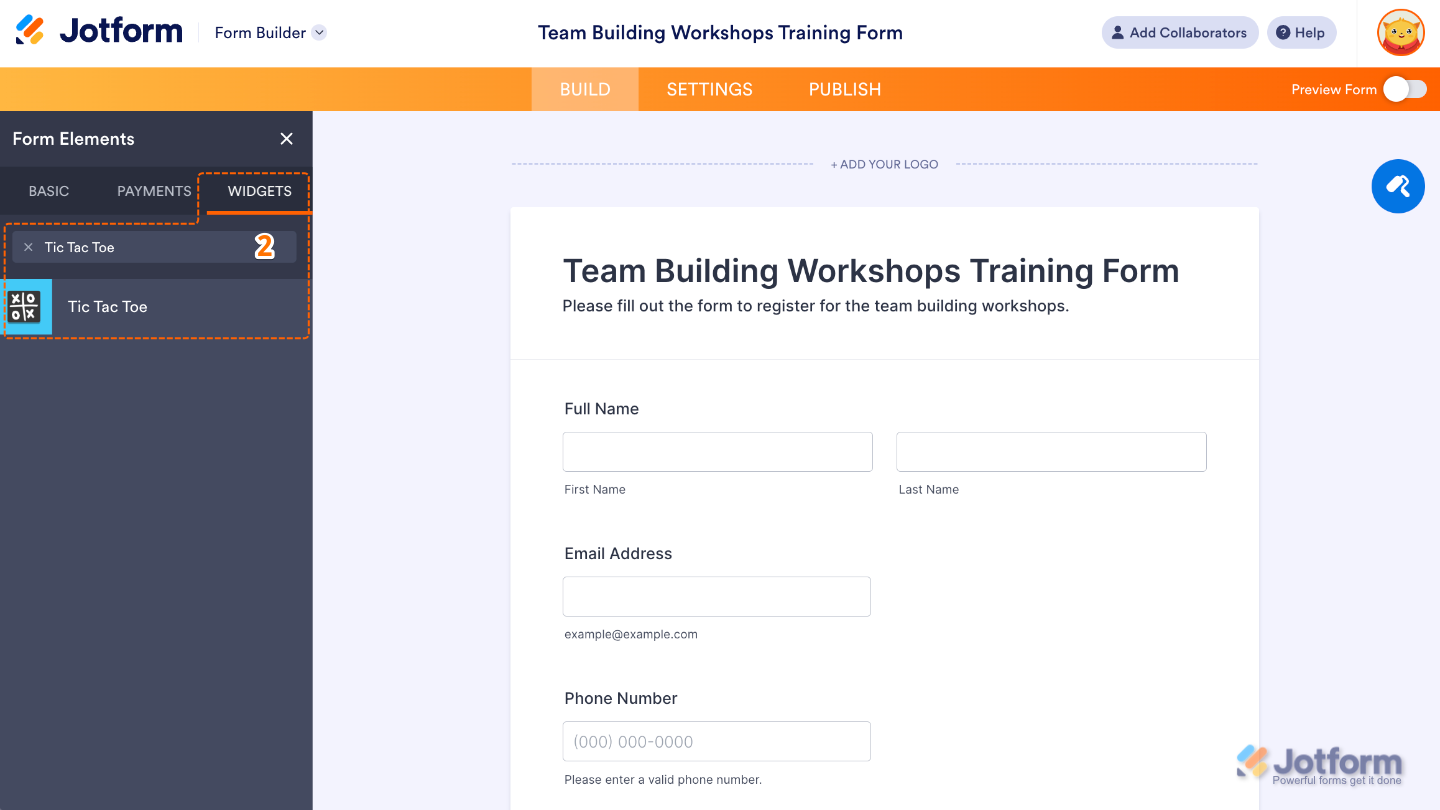
That’s it. You’ve successfully added and set up the Tic Tac Toe widget on your form. Now your users can enjoy a quick, interactive game right on the page, adding a fun and engaging touch to their form experience. Curious how it works on a live form? Check out this Demo Form.
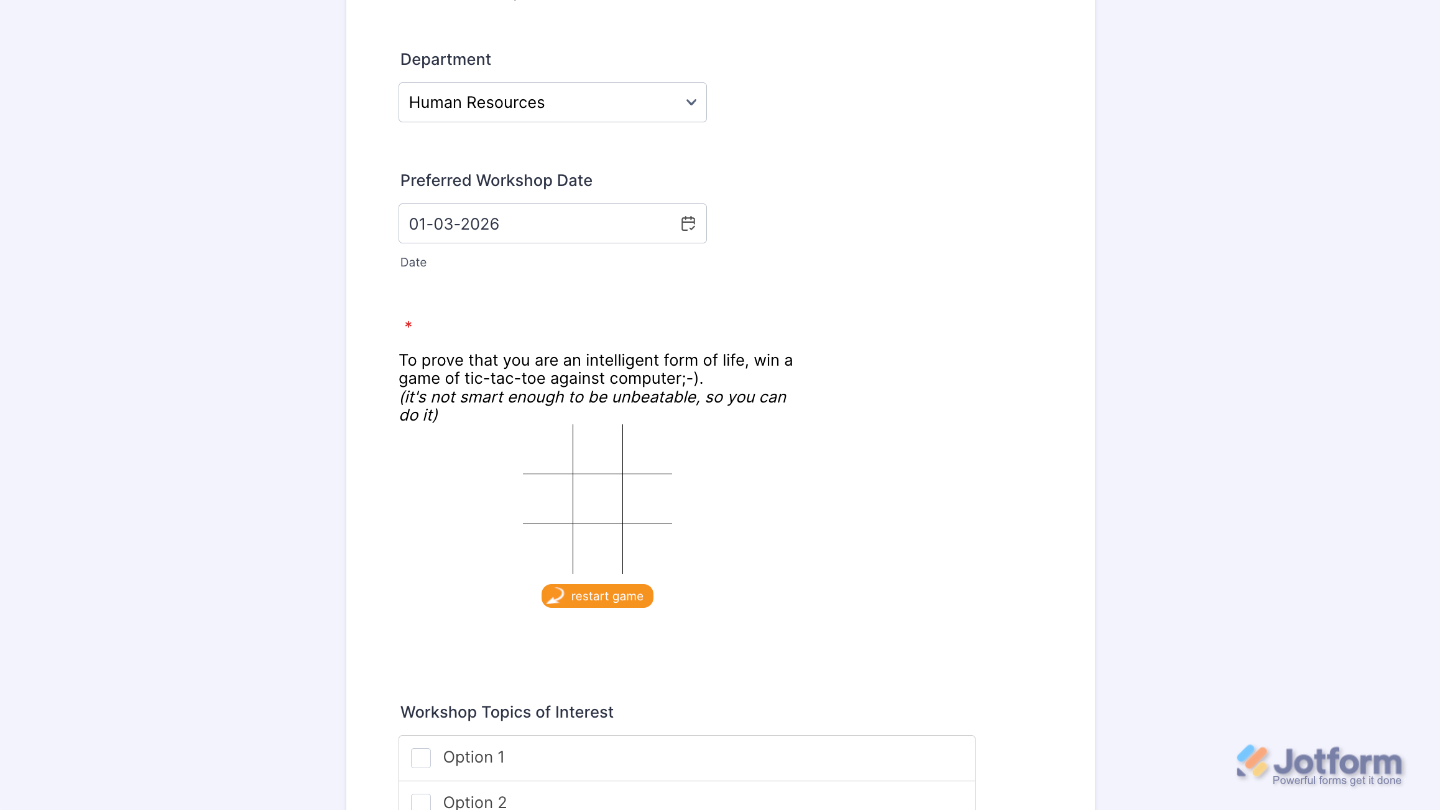
You can also configure the widget properties, like alignment, labels, size, visibility, and more, to control how it looks and behaves on your form. To learn how it’s done, see our guide on How to Access and Configure the Question Properties of a Widget.
Note
For advanced styling of the Tic Tac Toe widget, you can add your own custom CSS code under the Custom CSS tab in the Widget Settings. Our guide on How to Inject CSS Codes to Widgets walks you through everything.
Pro Tips
- The Tic Tac Toe widget is perfect when you want to lighten the mood—great for game-themed forms, engagement activities, icebreakers, or just giving users a playful moment.
- Because it’s a visual, tap-heavy game, giving it enough room makes gameplay smoother—especially for mobile users with smaller screens.

Send Comment: