Jotform takes the hassle out of adding moving text to your form with the Ticker widget. It lets you display scrolling messages across the screen so you can share announcements, reminders, or highlights in a more eye-catching way. This adds motion and visual interest without needing any coding.
Here are a few ways to use it:
- Display scrolling text messages on your form.
- Share announcements or reminders with users.
- Add a dynamic visual element to your form design.
- Show important updates that users should notice right away.
Whether you’re creating a new form or updating an existing one, adding and setting up the Ticker widget only takes a second—here’s what to do:
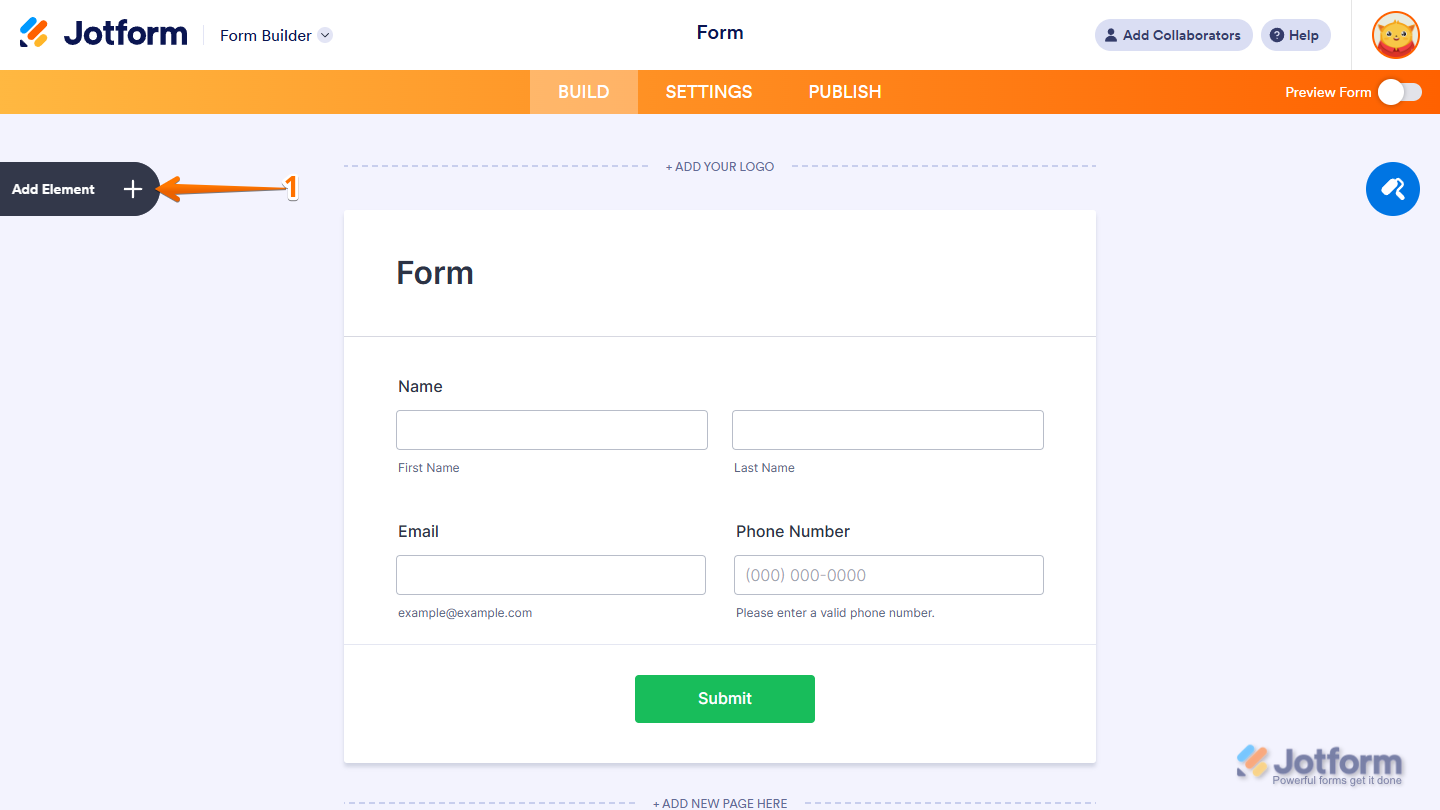
- In Form Builder, click on Add Element on the left side of the page.
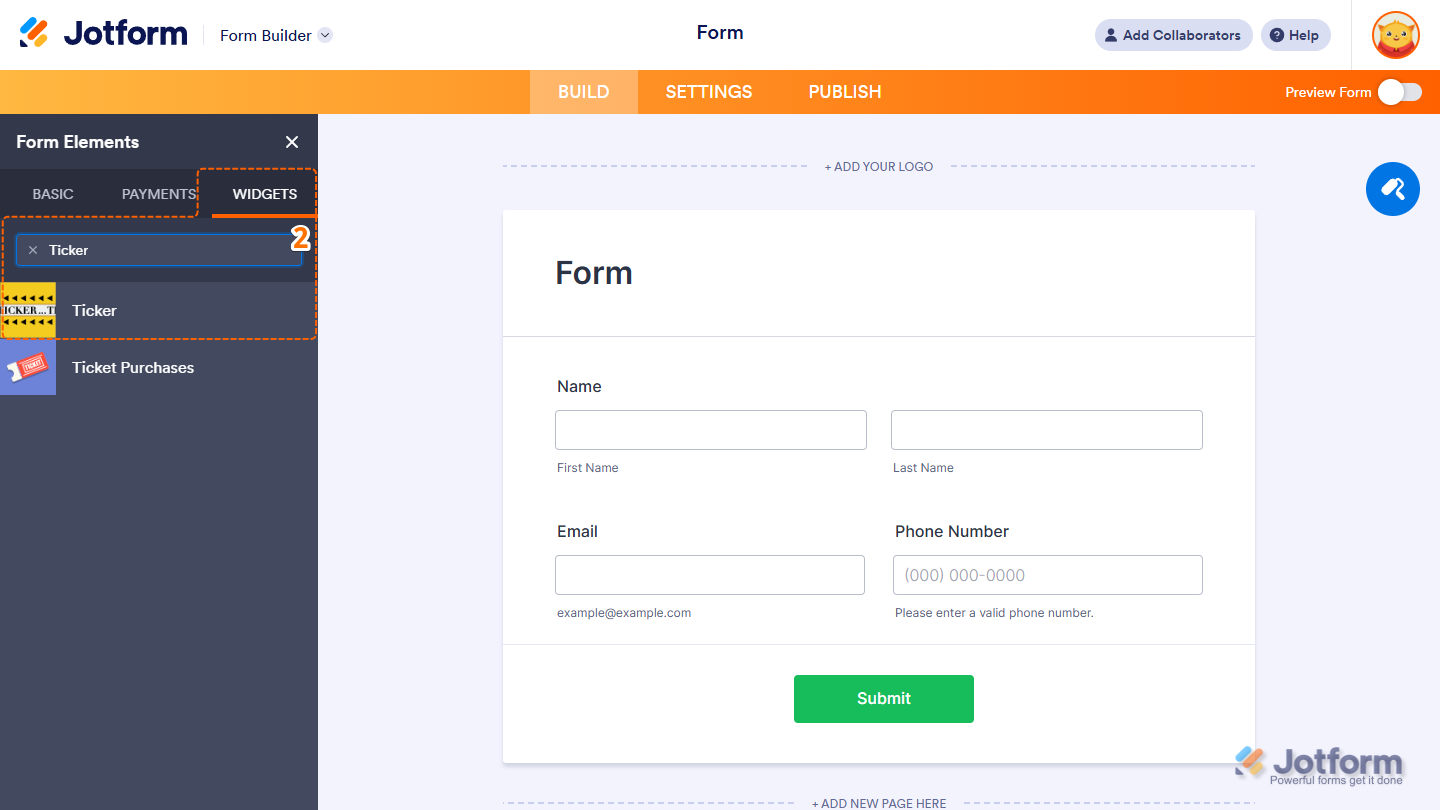
- Now, in the Form Elements menu, under the Widgets tab, search for Ticker and click to add it to your form. Or, just drag and then drop it to where you want it to be on your form.
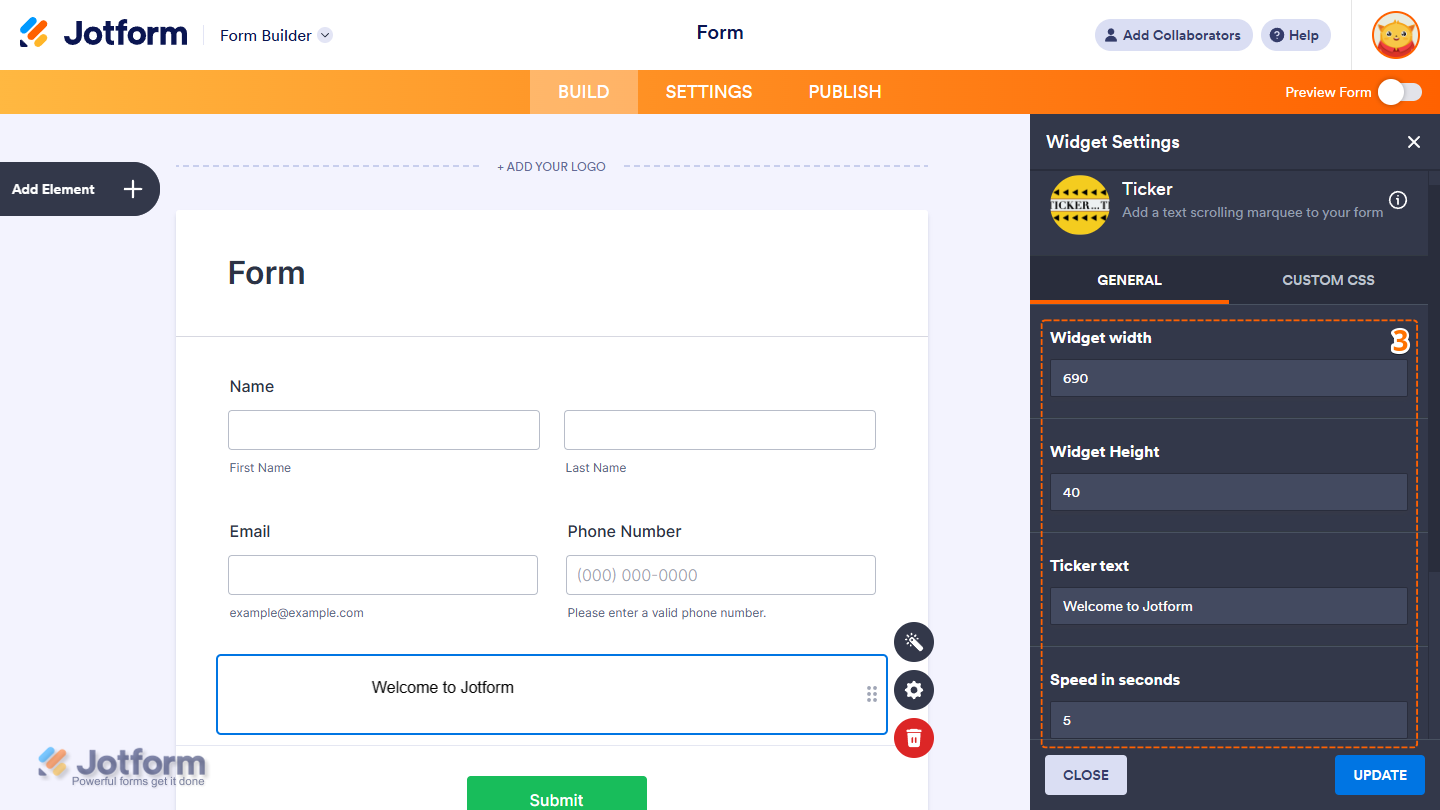
- Next, in the Widget Settings window that opens on the right side of the page, under the General tab, set up these things:
- Widget Width — Define how wide the widget will appear on your form.
- Widget Height — Set the height of the widget’s display area.
- Ticker Text — Enter the text that will scroll across the widget.
- Speed in Seconds — Control how fast the ticker text moves.
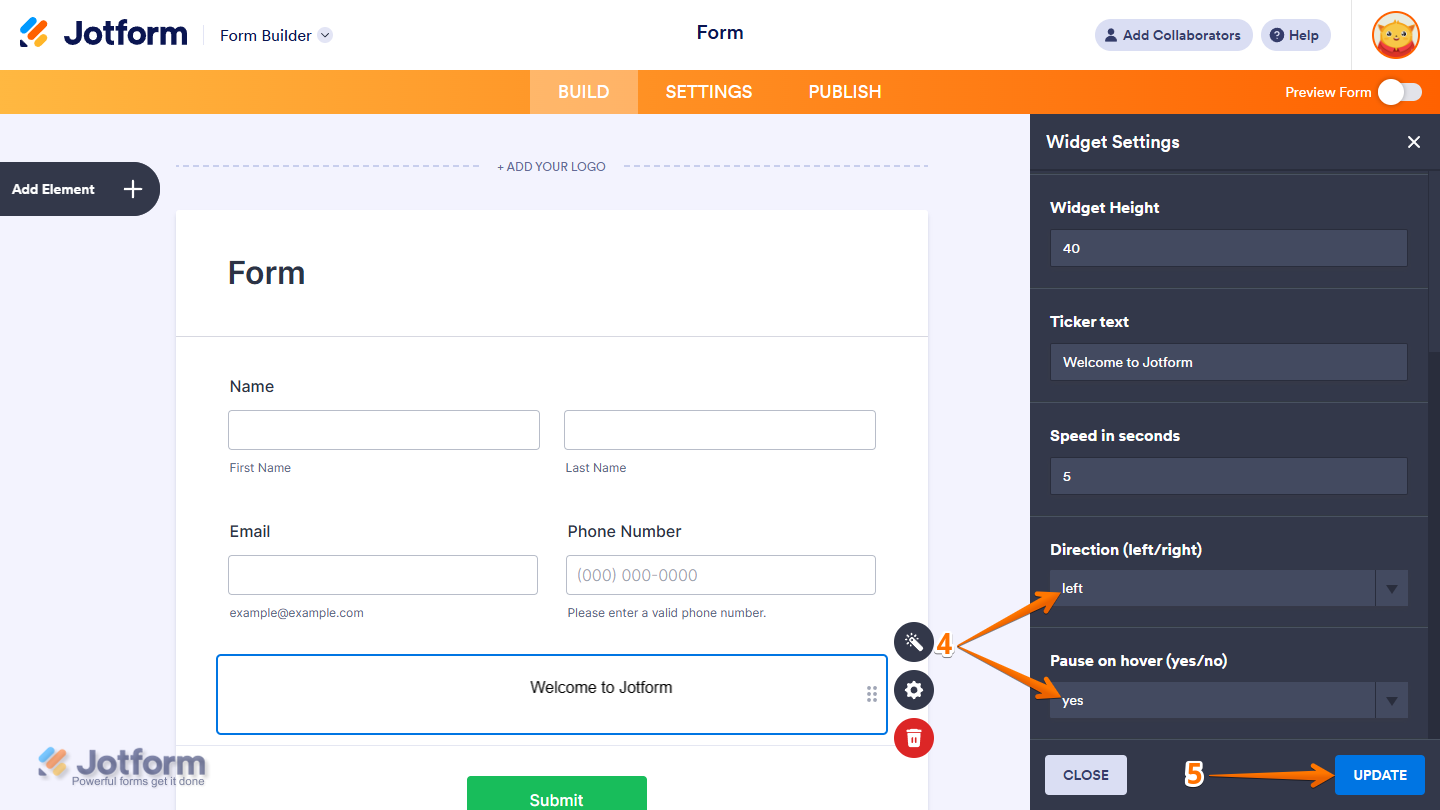
- Then, scroll down to the bottom and continue to set up these options:
- Direction (Left/Right) — Choose the scrolling direction for the ticker text.
- Pause on Hover (Yes/No) — Select Yes to pause the ticker when a user hovers over it, or No to keep it moving.
- Now, click on Update, and you’re done.
That’s it! You’ve successfully added and set up the Ticker Widget on your form. Wondering how it looks in action? Check out this Demo Form.
Note
- To style the fields and labels, you can inject custom CSS into the Custom CSS tab in the Widget Settings. To learn how it’s done, see our guide on How to Inject CSS Codes to Widgets.
- You can also configure the widget properties, like alignment, labels, size, visibility, and more, to control how it looks and behaves in your form. Check out our guide on How to Access and Configure the Question Properties of a Widget to learn more.

Send Comment: