Jotform’s Time Picker widget is perfect for forms that require users to select a specific time—ideal for scheduling appointments, booking services, or managing time-based reservations. With its intuitive interface, users can easily choose a time from a dropdown or clock-style input, ensuring accurate submissions and avoiding manual entry errors. It’s especially useful for businesses in healthcare, hospitality, or event planning where precise time slots are essential. The widget uses the 24-hour format to accommodate regional or business-specific preferences.
Here are a few ways to use it:
- Let users enter the exact time of an incident or report.
- Record arrival or departure times in attendance forms.
- Collect the time a service request occurred.
- Allow users to specify their preferred contact time.
- Capture the start or end time of an activity or event.
Whether you’re creating a new form or updating an existing one, adding and setting up the User Contributed Dropdown widget only takes a second—here’s how:
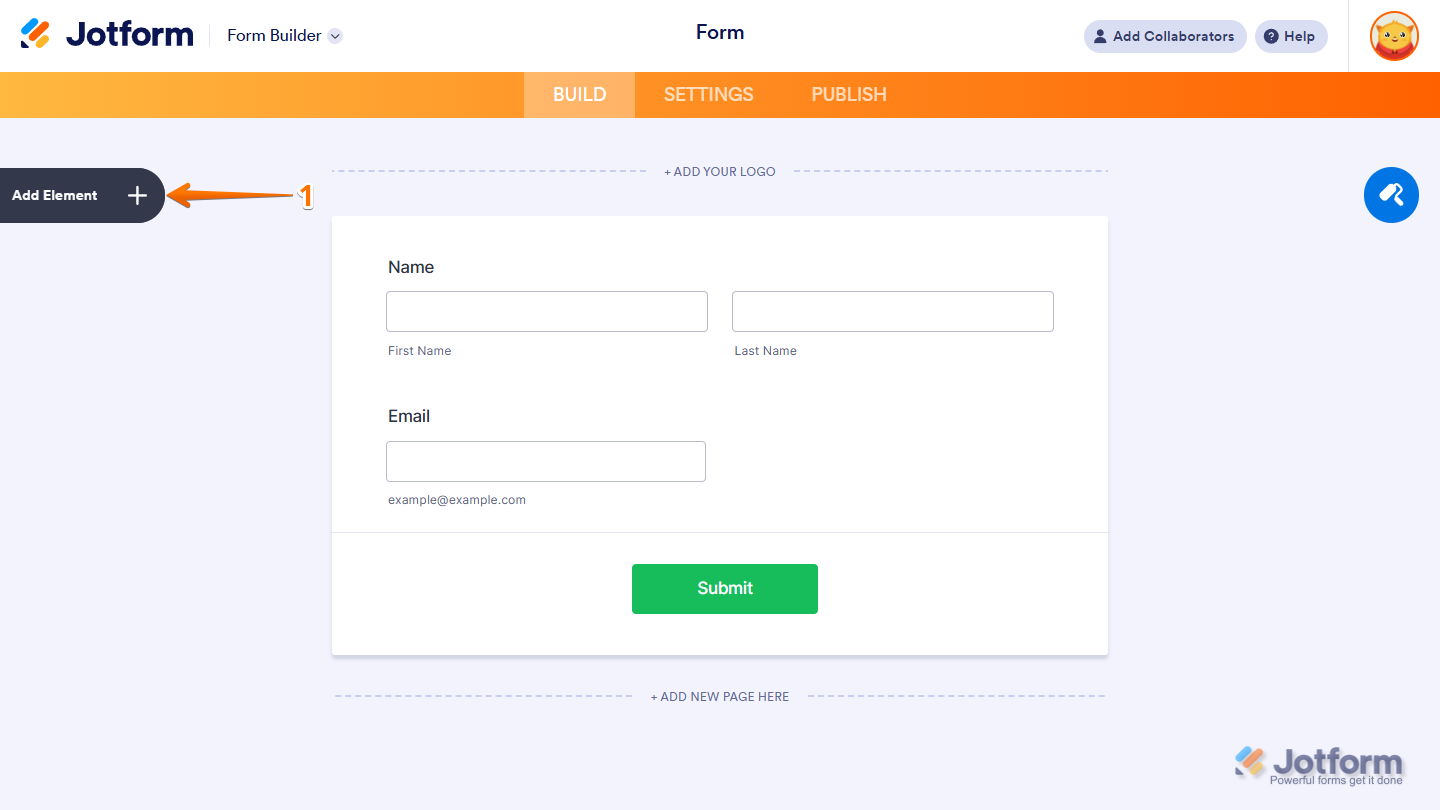
- In Form Builder, click on Add Element on the left side of the page.
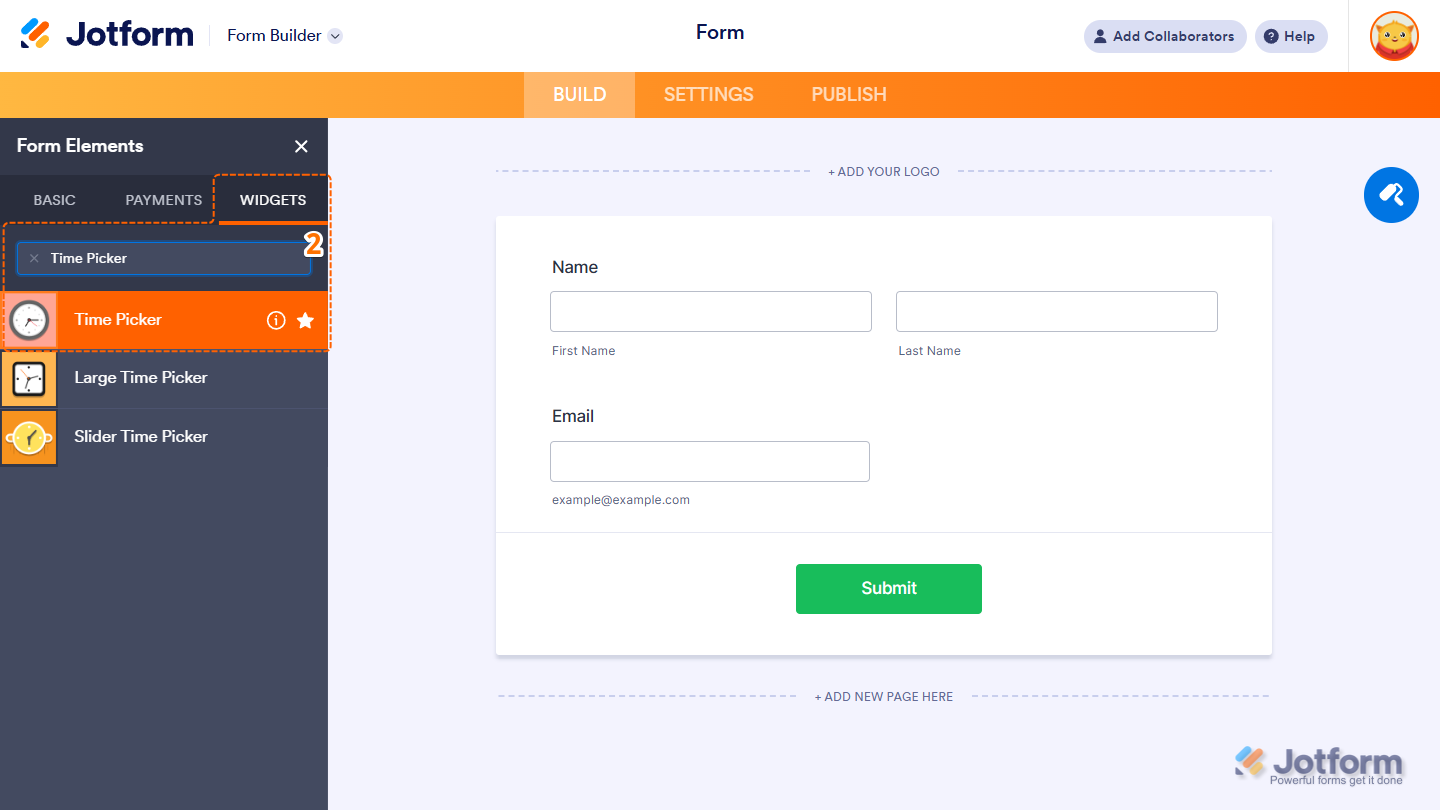
- Now, in the Form Elements menu, under the Widgets tab, search for Time Picker and click on it. Or just drag and drop it to where you want it on your form.
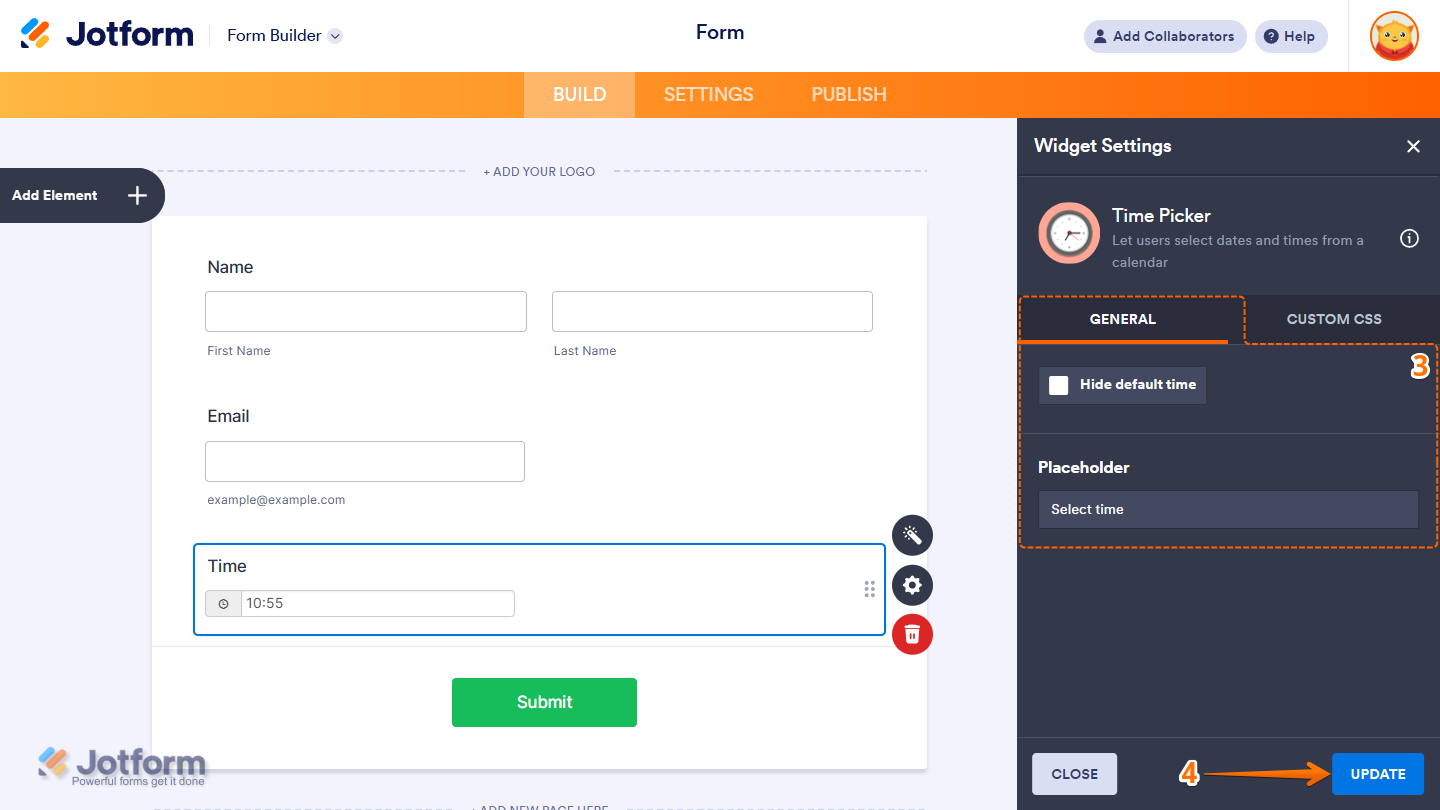
- Next, in the Time Picker Widget Settings menu that opens on the right side of the page, under the General tab, set up the following options:
- Hide Default Time — Check this option to hide the default time displayed in the widget.
- Placeholder — Enter a placeholder for the time’s input box. The text is only displayed when the default time is hidden.
- Once you’re done, click on Update.
That’s it. You’ve successfully added and set up the Time Picker widget on your form. Want to see how it works? Check out this live demo form.
Pro Tip
- For advanced styling of the widget, you can add your own custom CSS code under the Custom CSS tab in the Widget Settings. Our guide on How to Inject CSS Codes to Widgets walks you through everything.
- You can also configure widget properties, such as alignment, labels, size, visibility, and more, to control how it looks and behaves on your form. Check out our guide on How to Access and Configure the Question Properties of a Widget to learn more.

Send Comment: