Jotform’s Timer widget is ideal for forms that require time tracking, such as quizzes, exams, productivity assessments, or performance-based tasks. It automatically starts counting when the form is loaded and can either display the elapsed time to the user or keep it hidden for behind-the-scenes tracking. This is especially useful for measuring how long a respondent spends filling out your form. Whether you need a countdown for timed activities or want to log time spent for analytics, the Timer widget adds a layer of time-based control and insight to your form.
Here are a few ways to use it:
- Track how long users take to complete a form.
- Measure the duration of surveys, quizzes, or assessments.
- Record the time spent filling out feedback or evaluation forms.
- Monitor completion time for training or onboarding forms.
- Collect timing data for research or usability studies.
Whether you’re creating a new form or updating an existing one, adding and setting up the Timer widget only takes a second—here’s what to do:
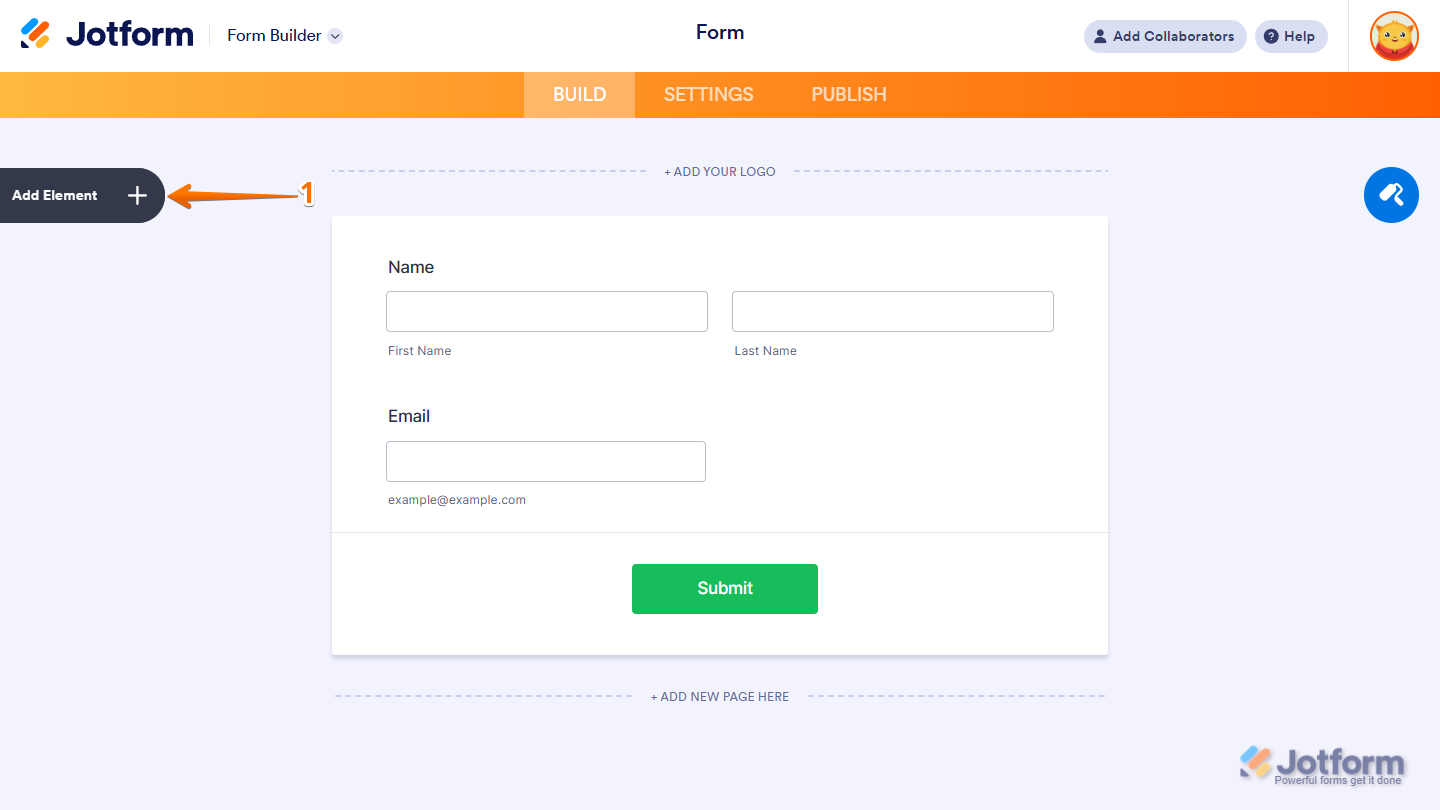
- In Form Builder, click on Add Element on the left side of the page.
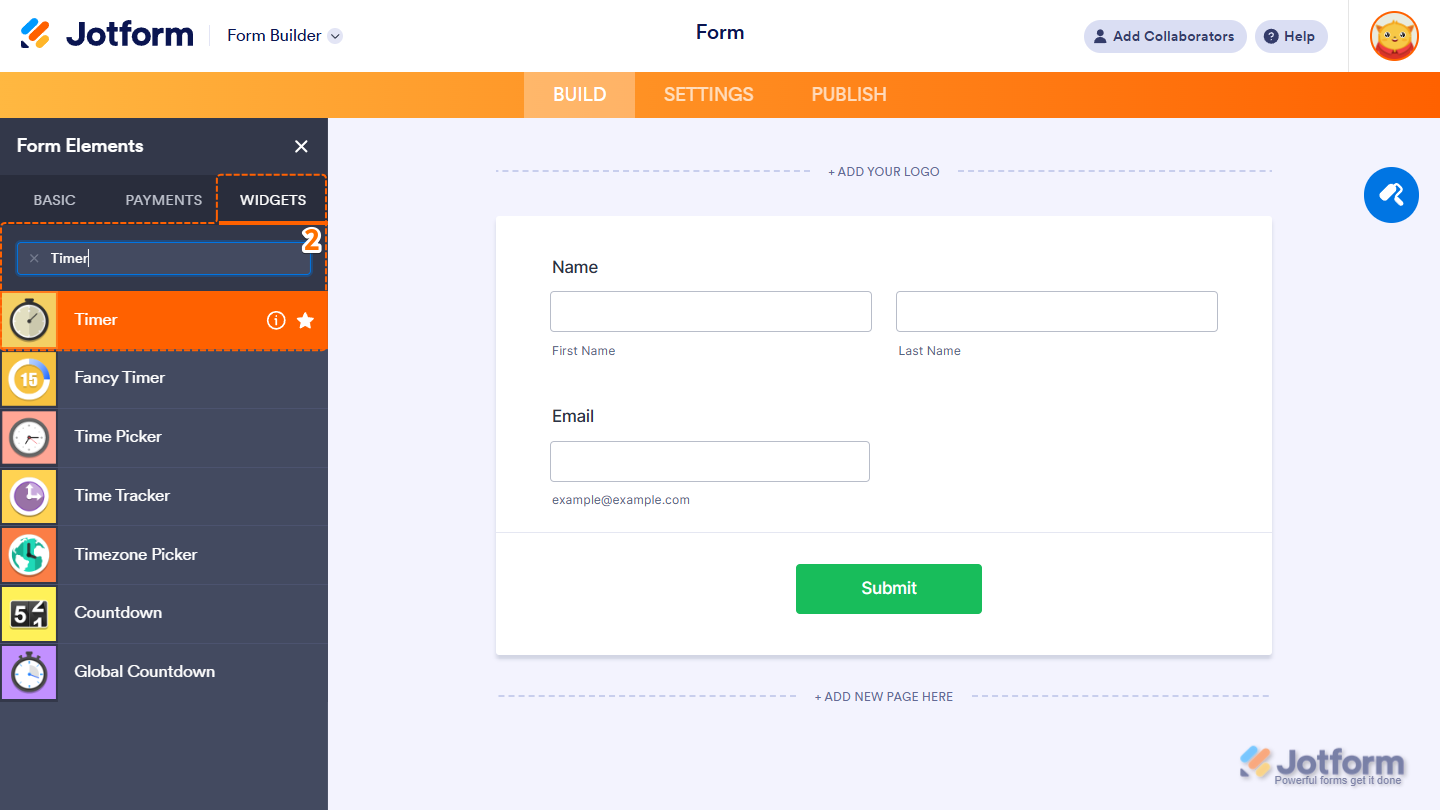
- Now, in the Form Elements menu, under the Widgets tab, search for Timer and click on it. Or drag and drop it to where you want it on your form.
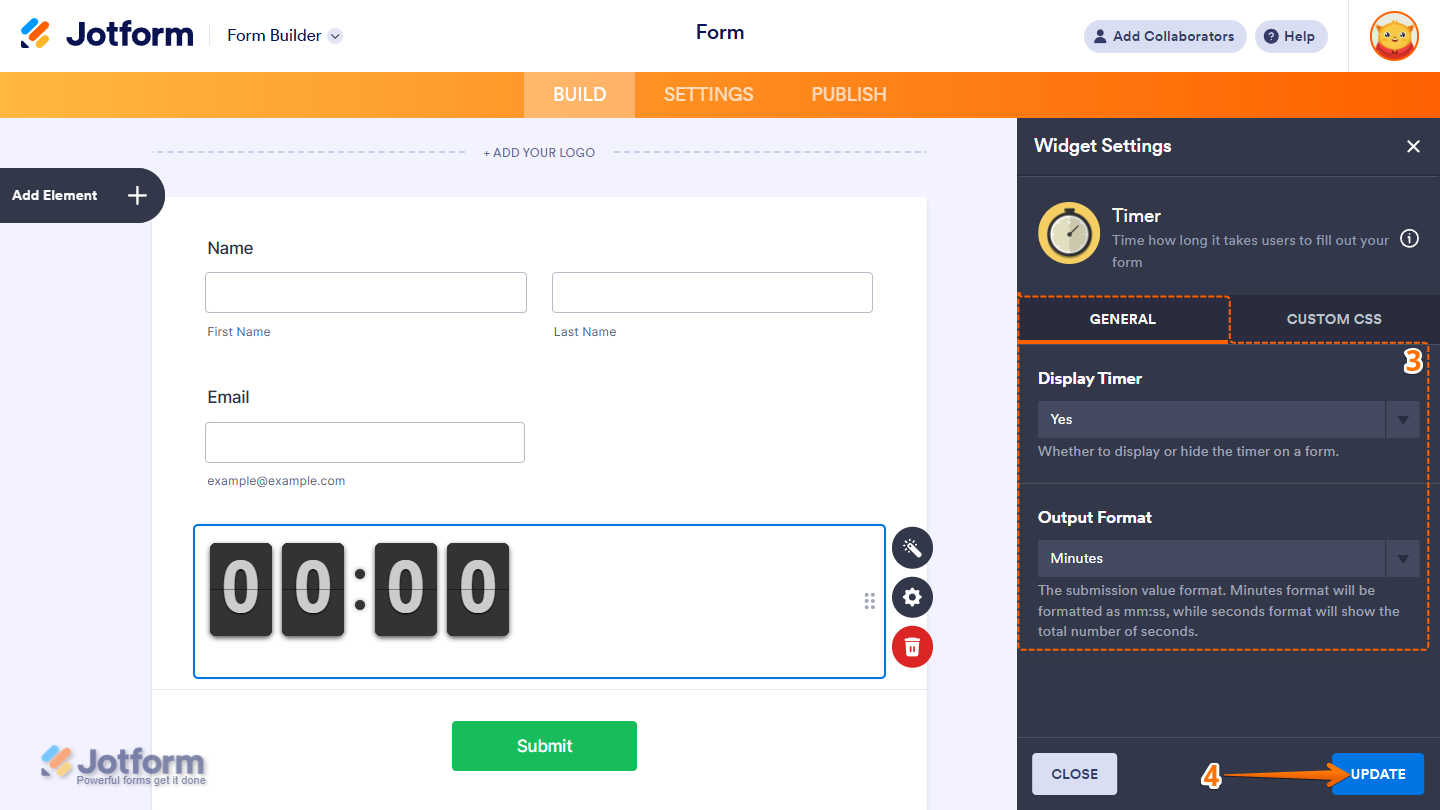
- Next, in the Timer Widget Settings menu that opens on the right side of the page, under the General tab, set up these things:
- Display Timer — Choose whether to show or hide the timer on your form.
- Output Format — Sets how the timer value is recorded when the form is submitted. You can display it in the minutes:seconds (mm:ss) format or as the total number of seconds.
- Once you’re done, click on Update.
That’s it. You’ve successfully added and set up the Timer widget on your form. Want to see how it works? Check out this live demo form.
Pro Tip
- For advanced styling of the widget, you can add your own custom CSS code under the Custom CSS tab in the Widget Settings. Our guide on How to Inject CSS Codes to Widgets walks you through everything.
- You can also configure widget properties, such as alignment, labels, size, visibility, and more, to control how it looks and behaves on your form. Check out our guide on How to Access and Configure the Question Properties of a Widget to learn more.

Send Comment: